Equipped with a large screen and connected to an external keyboard, the tablet is a booster for efficiency. However, when you need to transfer large files from your phone to your tablet, you have to use third-party applications, which is time-consuming and laborious.
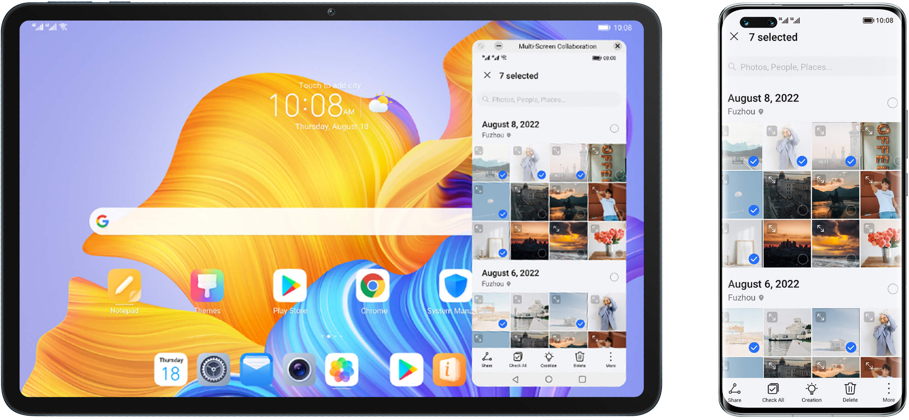
With HONOR Multi-Screen Collaboration, you can not only achieve a dual screen connection, control an HONOR mobile phone on your HONOR tablet, but also drag and drop files between two devices. This means you can be much more efficient when working across devices.
* Please go to the Official Website of HONOR Support or contact customer service to check models supporting Multi-Screen Collaboration.

How to Enable Multi-Screen
Collaboration
Collaboration
After the mobile phone is connected to the network, the following two methods can be used to enable Multi-Screen Collaboration.
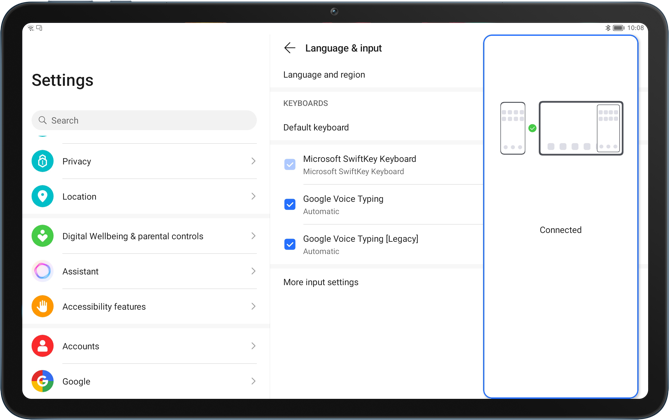
Connect over Bluetooth
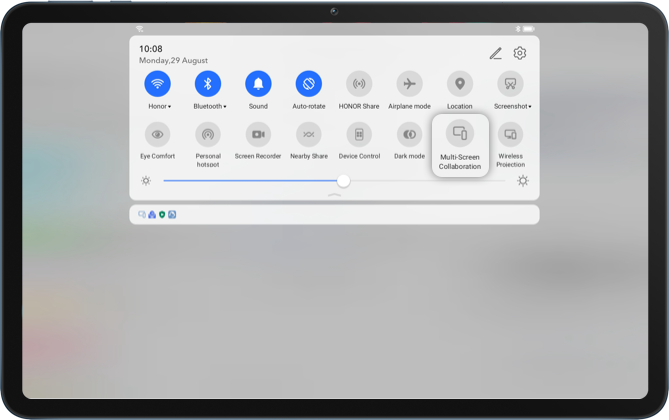
Swipe the status bar down and enable Multi-Screen Collaboration, enable Bluetooth on your phone, hold your phone near to your tablet and follow the onscreen instructions to connect on both ends.
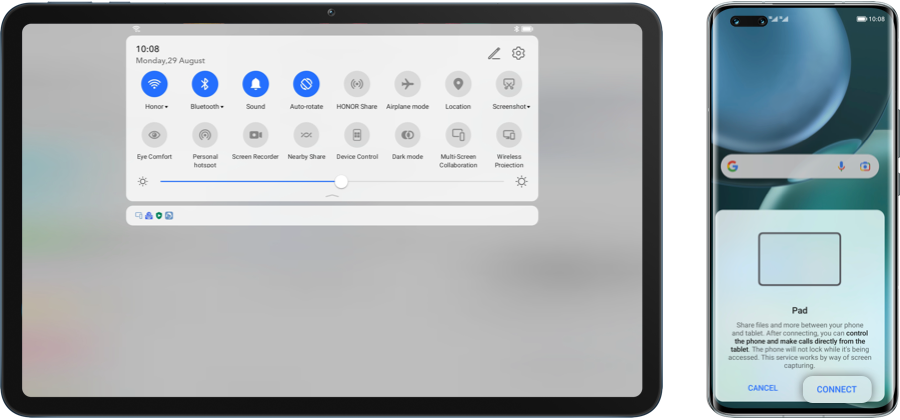
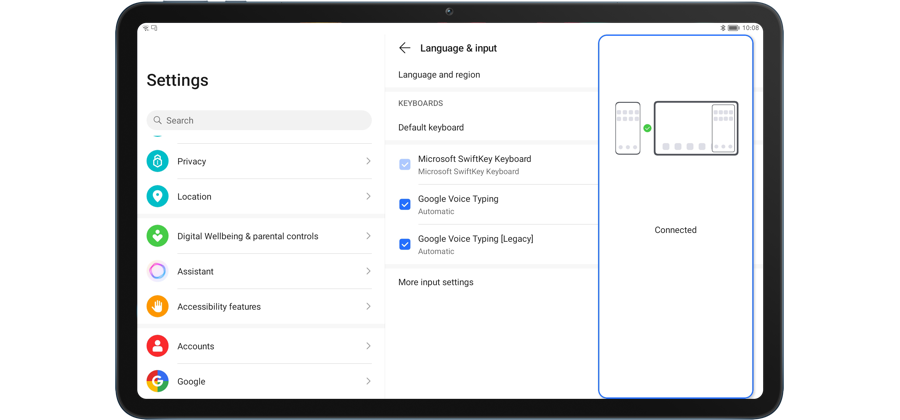
Click the arrow to check the next step
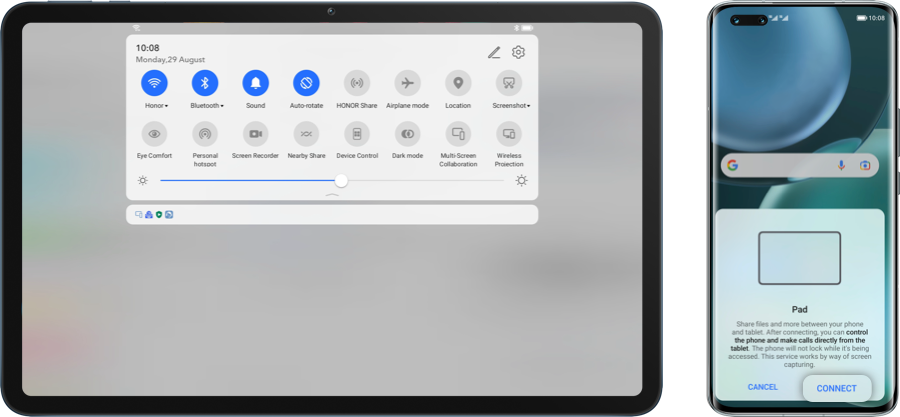

Connect by Scanning a QR Code
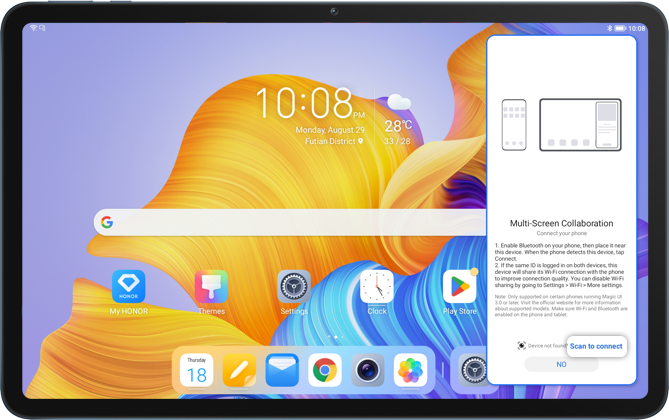
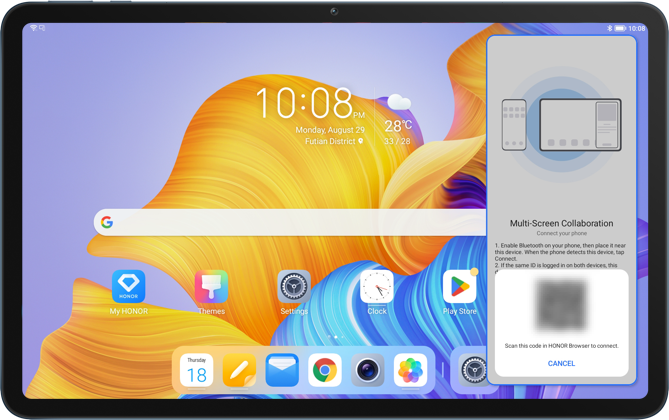
Enable Multi-Screen Collaboration on your tablet, touch Scan to connect, follow the onscreen instructions and scan the QR code on the tablet with your mobile phone to connect on both ends.
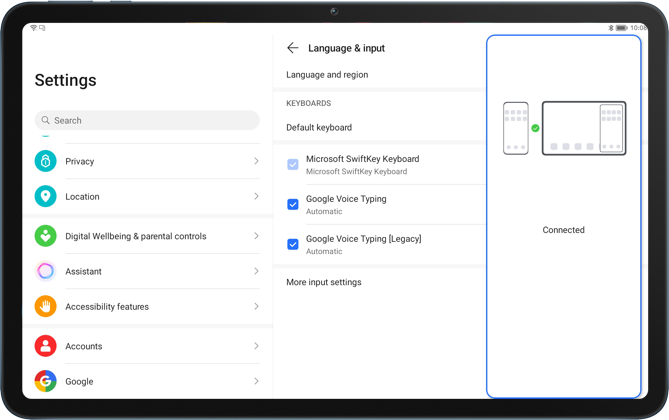
Click the arrow to check the next step
How to Use Multi-Screen
Collaboration to Achieve
Shortcut Actions
Collaboration to Achieve
Shortcut Actions
Once the Multi-Screen Collaboration is enabled between the mobile phone and the tablet, the mobile phone screen will be mirrored on the tablet, which allows you to control your mobile phone applications on the tablet like answering calls, sending messages, etc.
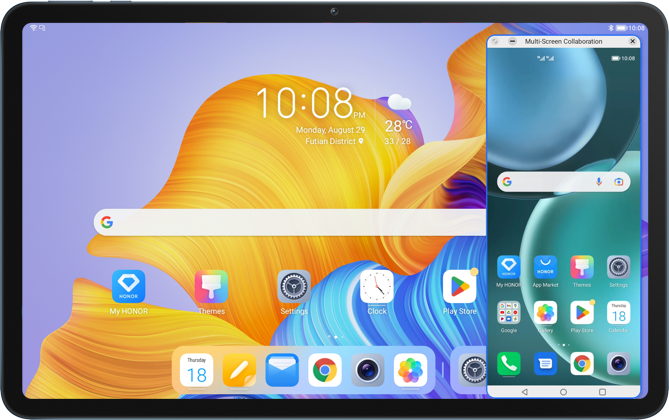
You can also transfer files between two devices by long pressing and dragging the files and pictures. It’s more convenient when working or having fun.
If there are problems such as file transfer failure and connection failure, don't worry, try to solve them by the following methods.
Multi-Screen Collaboration
Connection Failure
Connection Failure
The collaborative connection between the mobile phone and the tablet may fail because the device name of the phone/tablet contains special characters or emoticons, or the device name of the tablet has reached the maximum length that can be entered. It is recommended to modify the device name with letters, numbers, spaces, or underscores, and make sure that the character length is less than 30 characters.
Modify the Mobile Phone Name
Go to Settings > About Phone > Device
Name, modify it and click Confirm.
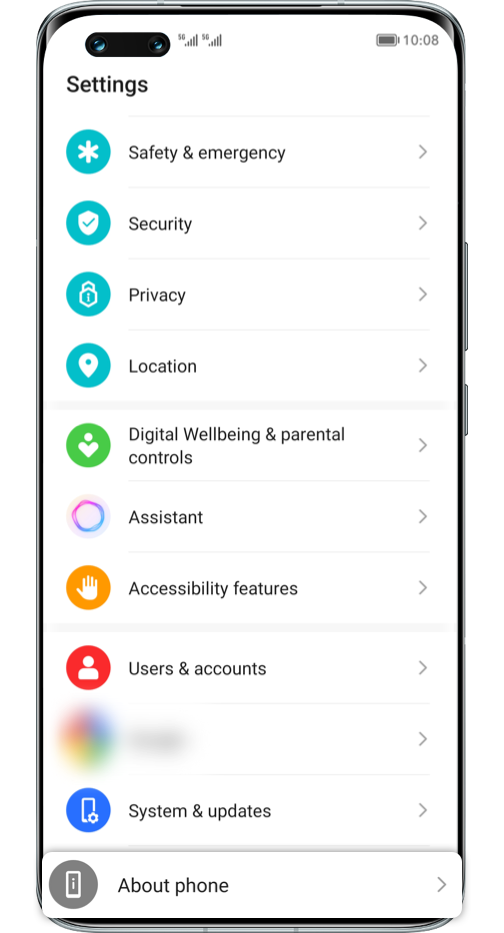
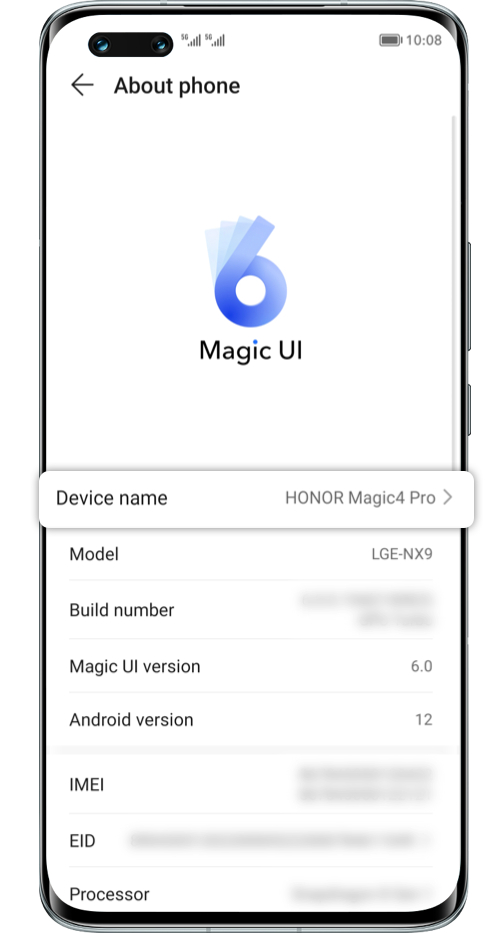
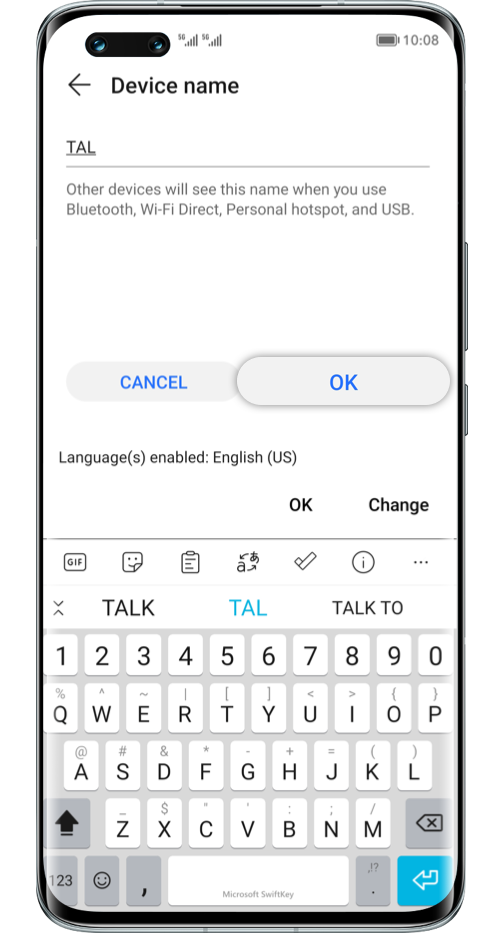
Click the arrow to check the next step
Modify the tablet name
Go to Settings > About Tablet > Device
Name, modify it and click Confirm.
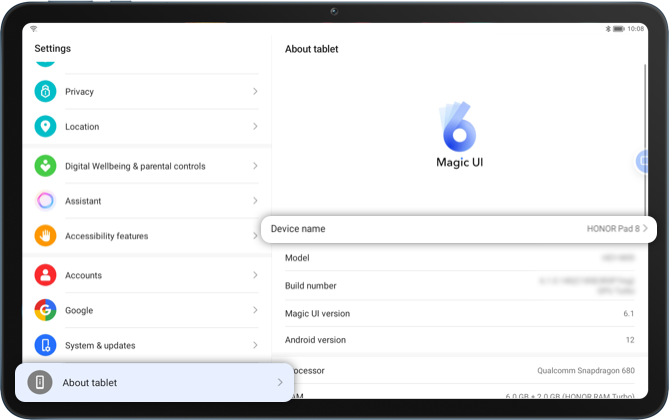
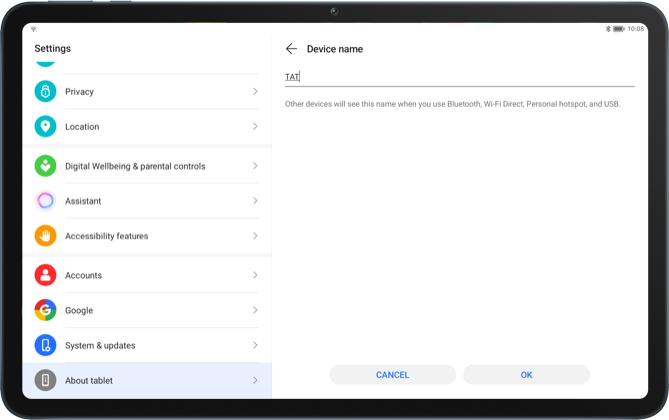
Click the arrow to check the next step
Latency on the Tablet
Window once Enabling
Multi-Screen Collaboration
Window once Enabling
Multi-Screen Collaboration
The slow response of the screen projection window on the tablet may be caused by factors like poor network quality and poor anti-interference performance. You can troubleshoot it by the following methods.
- • If the current WLAN network signal is weak, it is recommended to restart the router, or try to move to an area with strong signal coverage to see if the tablet response returns to normal.
- • If the mobile phone and tablet are connected to different WLANs, you can reconnect the devices to the same network and enable Multi-Screen Collaboration again.
- • Metal and magnetic materials can easily interfere with the signal. If the mobile phone or tablet is equipped with a metal protective case, a magnetic protective case, a magnetic stent, or a magnetic chuck, it is recommended to temporarily remove it to see if the latency is improved.
- • If none of the above methods work, you can find settings on the tablet, search and go to reset network settings, and follow the on-screen instructions to reset it. This operation will delete Wi-Fi and Bluetooth related history and will need to reconnect to the network.
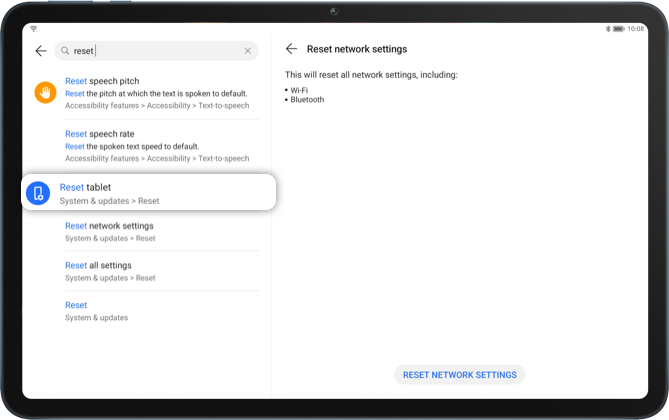
Failure to drop and drag
files from mobile Phone to
tablet
files from mobile Phone to
tablet
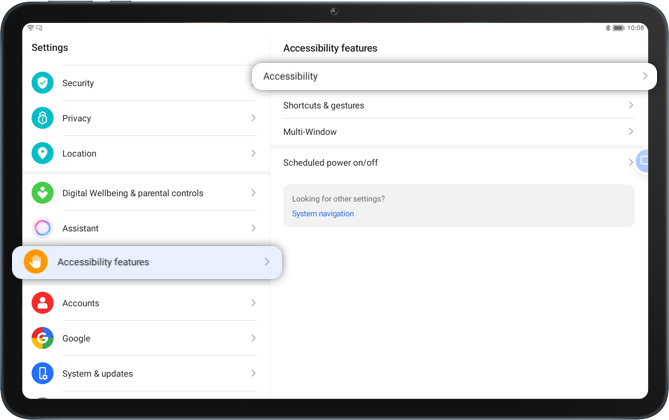
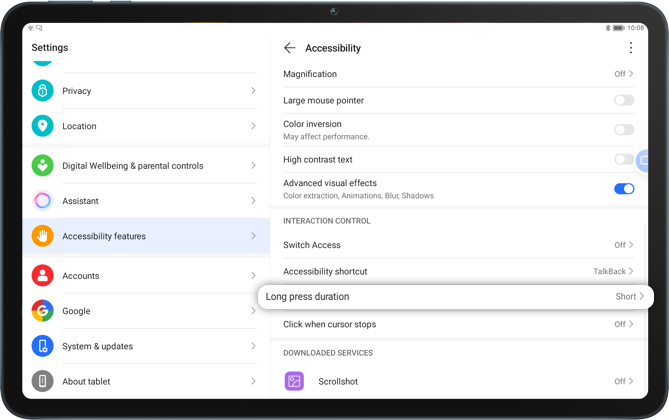
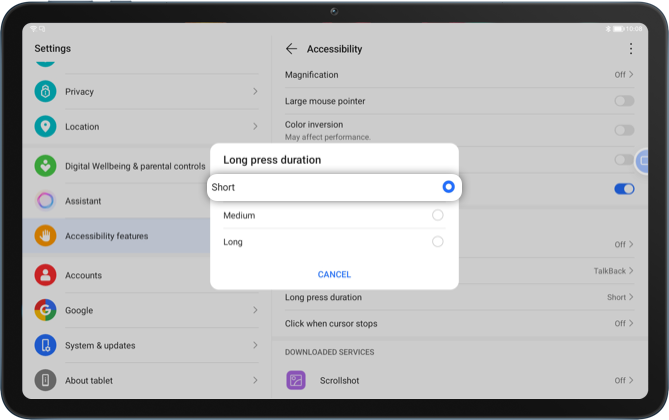
If the mobile phone file cannot be dragged and dropped to the tablet after the collaboration is enabled, and the dragging animation is not displayed after long pressing the file, you can go to Settings > Accessibility Features > Accessibility > Interactive Control > Long Press Duration, and set the delay time as Short.
Click the arrow to check the next step
Intelligent cross-device connection, Multi-Screen Collaboration brings a brand-new experience to daily work and entertainment.