Recording a video with your HONOR phone offers an
easy way to capture stunning life moments.


Start a Video
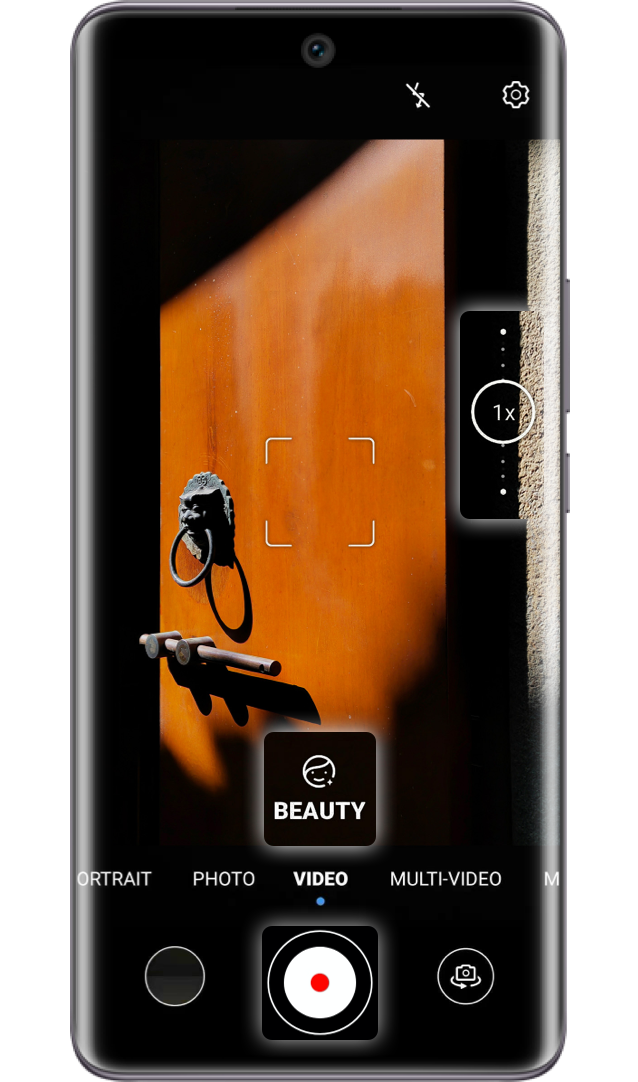
Go to Camera>VIDEO and tap to start video
recording. Drag the zoom slider to zoom in or out.
Before you start, you may tap
to start video
recording. Drag the zoom slider to zoom in or out.
Before you start, you may tap  to enable BEAUTY
function.
to enable BEAUTY
function.
to start video
recording. Drag the zoom slider to zoom in or out.
Before you start, you may tap to enable BEAUTY
function.
Select MULTI-VIDEO, which supports recording
videos with both front and rear cameras together, to
create multi-screen artworks, making your vlog more
interesting and special.
* HONOR 50, HONOR 50 Lite support the
MULTI-VIDEO function.

Make an Impressive
MULTI-VIDEO
MULTI-VIDEO
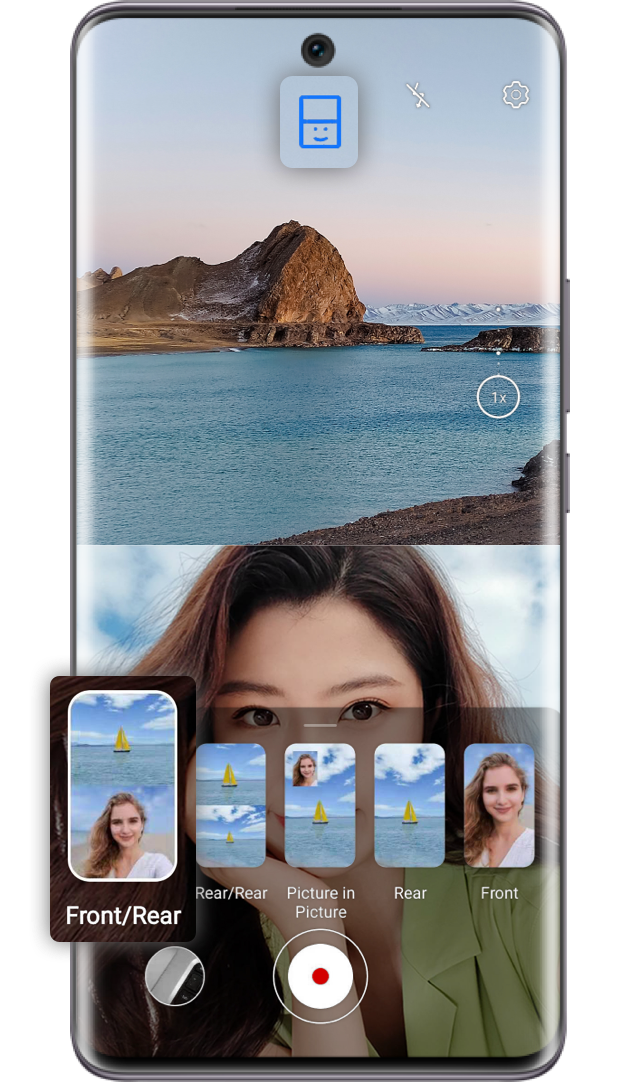
Go to Camera > MULTI-VIDEO and tap  to start
video recording. In this interface, tap
to start
video recording. In this interface, tap  to select
Front/Rear, Rear/Rear, or Picture in Picture to switch
camera modes. Tap
to select
Front/Rear, Rear/Rear, or Picture in Picture to switch
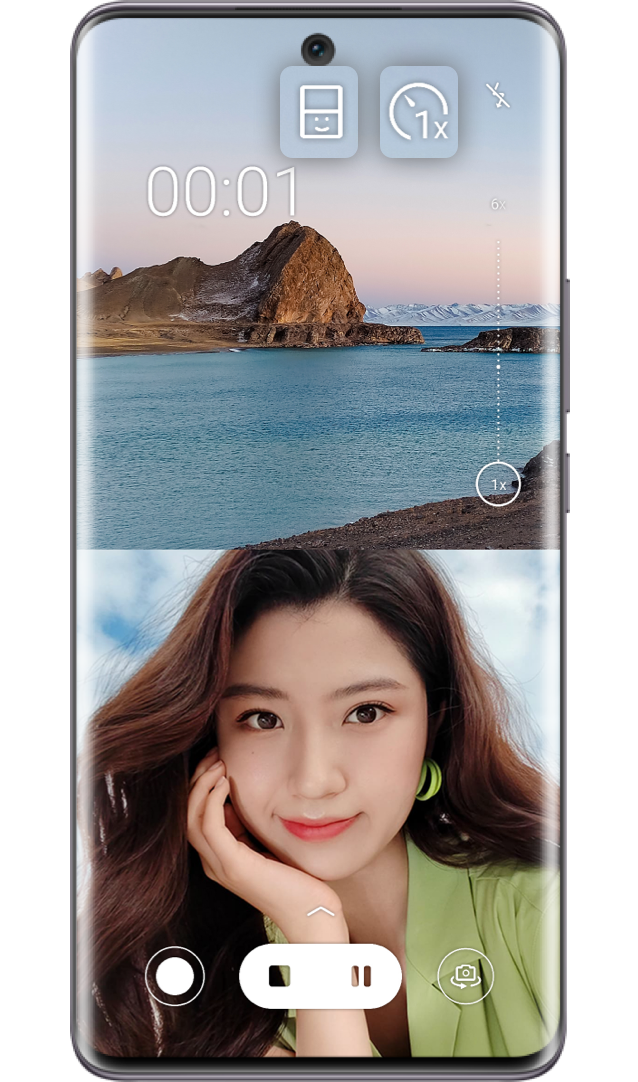
camera modes. Tap  to select video speed.
to start
video recording. In this interface, tap to select
Front/Rear, Rear/Rear, or Picture in Picture to switch
camera modes. Tap to select video speed.
*When speed function is enabled, the camera does not support zooming, camera switching, or multi-camera mode switching anymore. If speed shifting does not work, you can alter it to 1X and then change it to another.
Click the arrow to check the next step
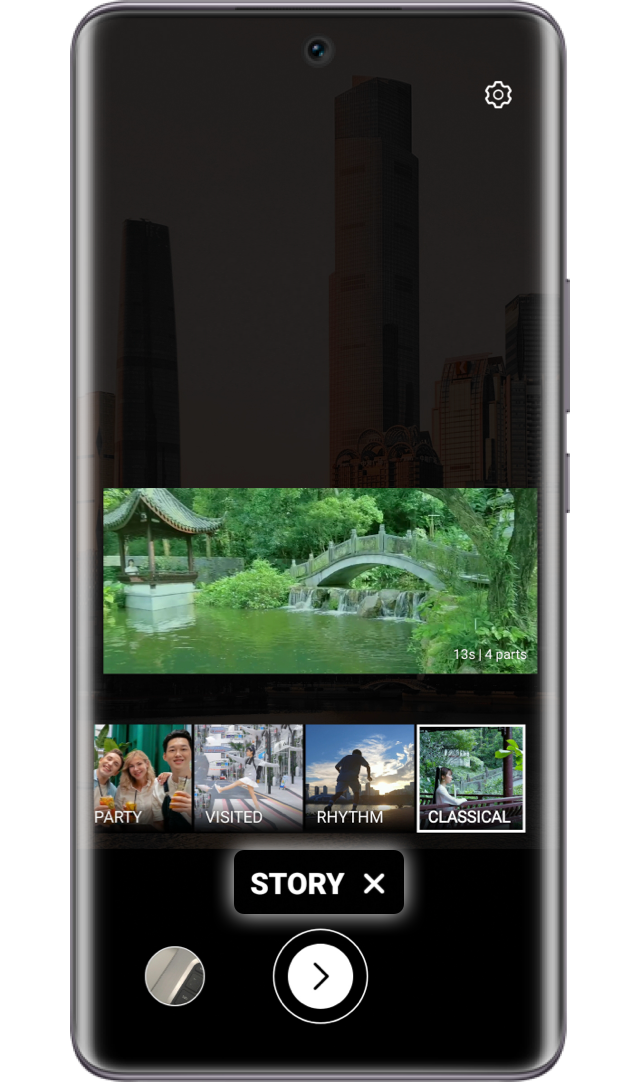
What's more captivating, STORY mode brings
you fancy ideas for video editing. Select one
template of your interest, and record according to
the guideline. The phone will combine those parts
and choose the background music automatically to
create your Vlog, tap
mode brings
you fancy ideas for video editing. Select one
template of your interest, and record according to
the guideline. The phone will combine those parts
and choose the background music automatically to
create your Vlog, tap  to save.
mode brings
you fancy ideas for video editing. Select one
template of your interest, and record according to
the guideline. The phone will combine those parts
and choose the background music automatically to
create your Vlog, tap to save.
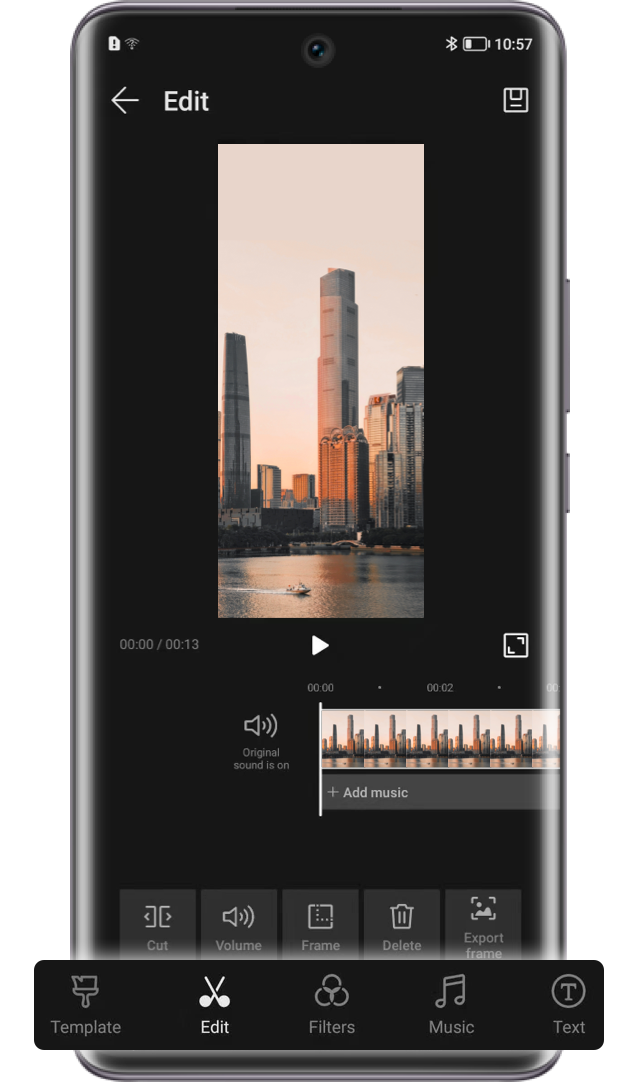
Also,you can use HONOR Phone Gallery to edit and optimize your vlog.

Edit Your Video
in Gallery
in Gallery
Go to  Gallery > Albums > Videos, select a video
and tap
Gallery > Albums > Videos, select a video
and tap  to start.
You may edit the video with the following functions:
Tap to adjust video length;
Tap to select a video template;
Tap to select a filter;
Tap to choose background music;
Tap to select an intro or outro, etc.
Gallery > Albums > Videos, select a video
and tap to start. You may edit the video with the following functions:
Tap
to adjust video length; Tap
to select a video template; Tap
to select a filter; Tap
to choose background music; Tap
to select an intro or outro, etc.
*Video editing function in Gallery may vary from model or version. Please refer to the actual situation.
Record your beautiful life with HONOR Phone and create a great Vlog from now on.