Unveiling the Mystery of Power Consumption and Heating in MagicOS 9.0 System Upgrade and Optimization Solutions

The first personal all-scenario AI operating system with an intelligent agent MagicOS 9.0 has been newly upgraded!
We have observed that during the upgrade process, some users reported fast battery drain and slight heating within a few days after upgrading to the new version. This is normal, so please don't worry. This article will deeply uncover the mystery of power consumption during the upgrade process.
Reasons for overheating and fast battery drain after system upgrade

During the upgrade process, the system needs to perform a large amount of data processing and optimization work, as shown in the following diagram:
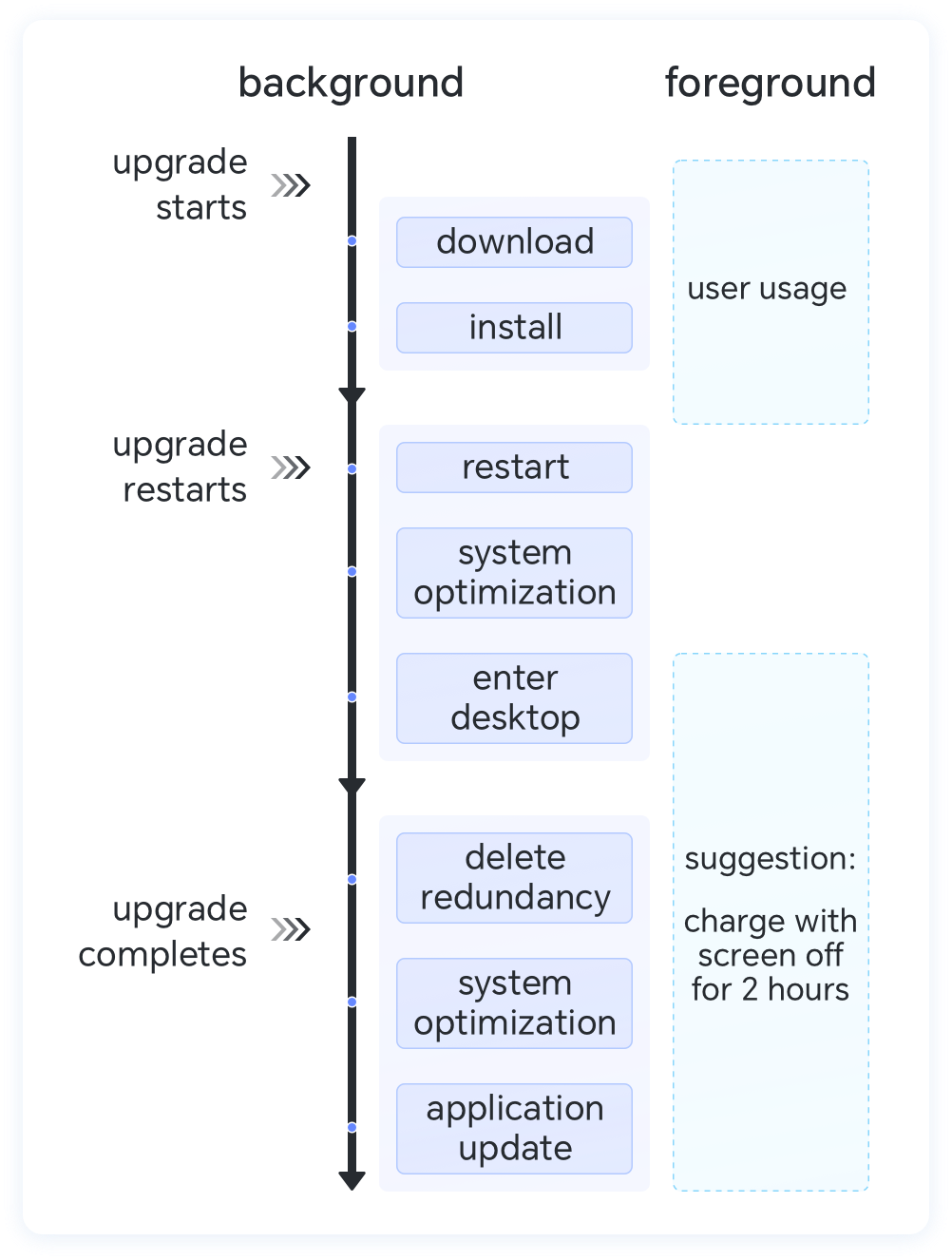
1. Download/Installation Phase
Certain strategy optimizations have been made for this phase to ensure that users do not experience lag, overheating, or rapid battery drain during download/installation.
2. Restart Phase (Before Entering the Desktop)
In addition to optimizing system applications, it intelligently identifies each person's top frequently used applications and completes their optimization. The optimization of the remaining applications is completed within 1-2 days after the upgrade, which is also the reason for fast battery drain and slight heating in the days following the upgrade.
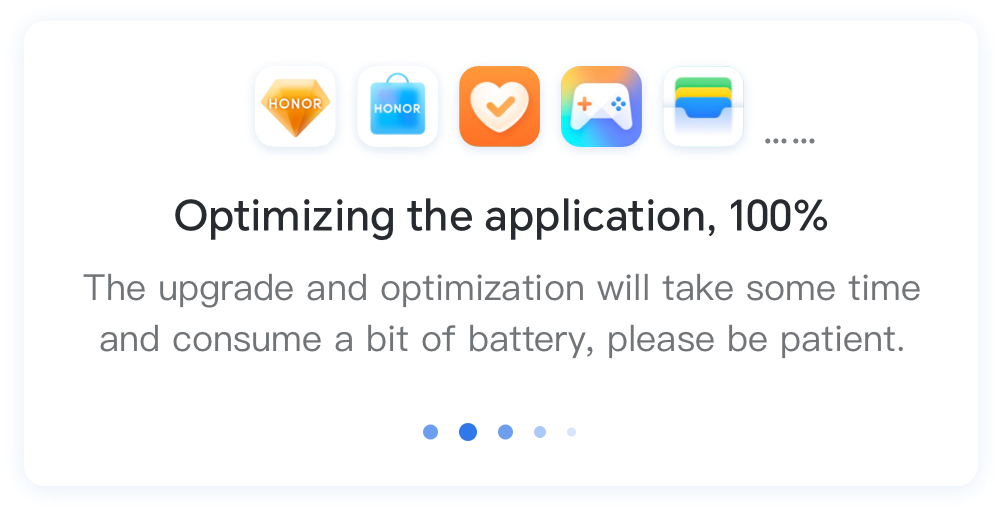

Some of you might wonder why we don't complete all the optimizations at this stage.
Our consideration is that if we finish all the optimizations before entering the desktop,
it would make the phone's boot time very long (some users may have dozens to hundreds of third-party applications,
which could increase the time by more than ten minutes, affecting the user experience).
3. After restarting and entering the desktop
After the upgrade, the system begins initialization tasks, such as automatic application updates and Game Center update checks,
among other background operations. With the enhancement of AI capabilities,
features like "Memories" and "Creation" in the gallery require AI learning to process a large number of photos,
providing a more intelligent image management and search experience.
This causes them to temporarily consume power and generate slight heat in the background.
Although the upgrade process may consume some power and cause slight heating, it can significantly improve the smoothness and responsiveness after the system starts.

For further optimization,
we suggest users plug in the charger and turn off the screen for about 2 hours when idle after upgrading.
This helps the system quickly complete the compilation optimization and AI learning process,
ensuring a smooth experience at your fingertips.
To further enhance the endurance experience, we have designed two new features:
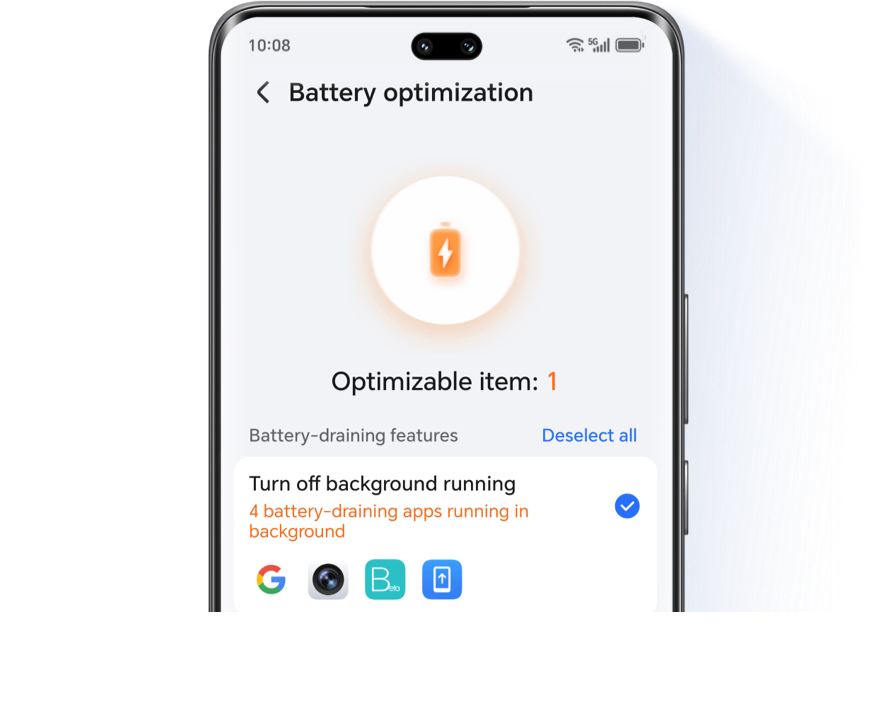
1. Optimization Suggestions:
The system will provide multi-dimensional power-saving optimization suggestions based on your usage habits, allowing you to optimize power consumption with one click;
Operation Steps:
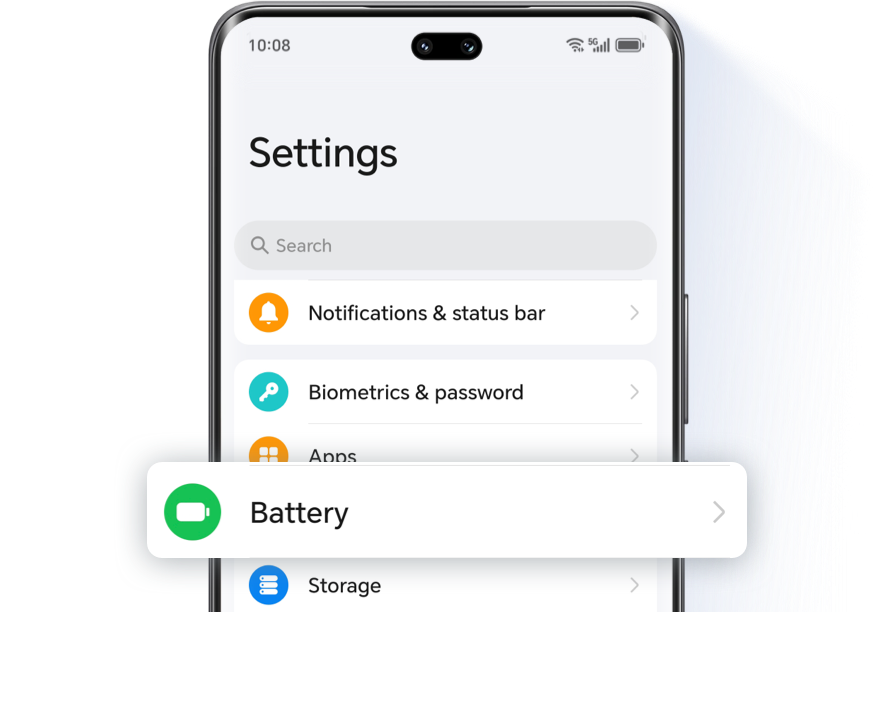
Settings > Battery > Battery optimization OR System Manager > Battery > Battery optimization
Settings > Battery > Battery optimization OR System Manager > Battery > Battery optimization
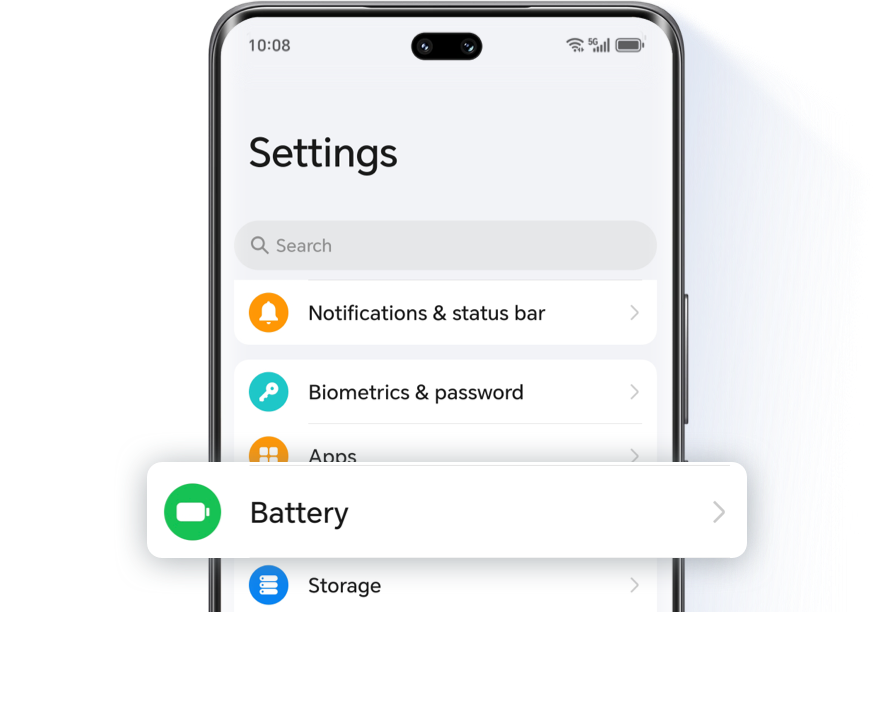

2. Deep Optimization:
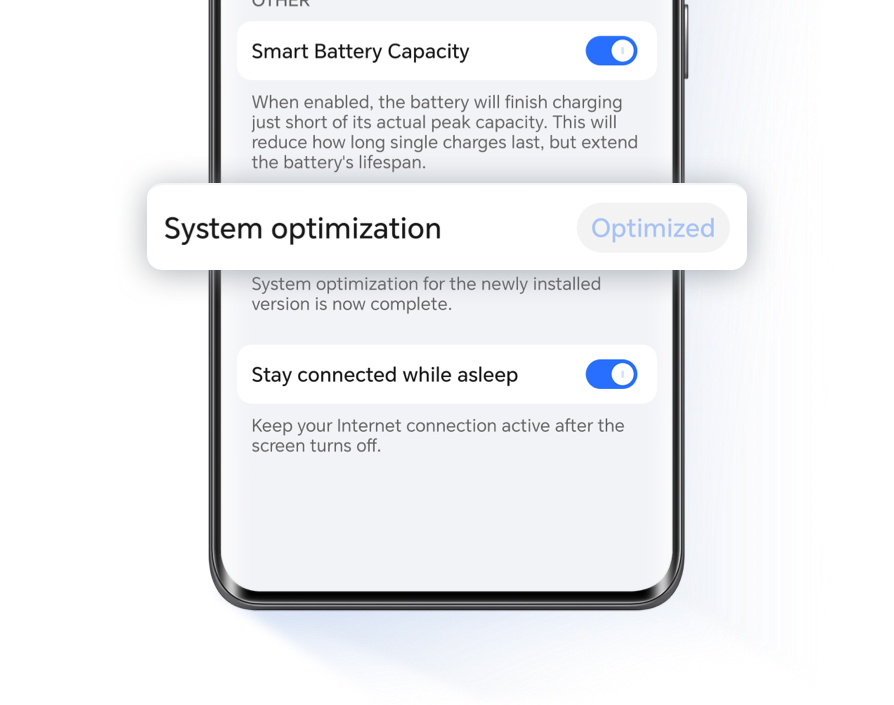
After the new version is installed, deep optimization can be performed, further enhancing system smoothness and battery life.
You can also set it up using the following methods:
Settings > Battery > More battery settings > System optimization OR System Manager > Battery > More battery settings > System Deep Optimization;
Settings > Battery > More battery settings > System optimization OR System Manager > Battery > More battery settings > System Deep Optimization;

We will continue to optimize.
Through continuous technological improvements and innovations, we aim to make the backend optimization and learning process more transparent; we are committed to ensuring that phones maintain high performance while reducing power consumption and extending battery life.
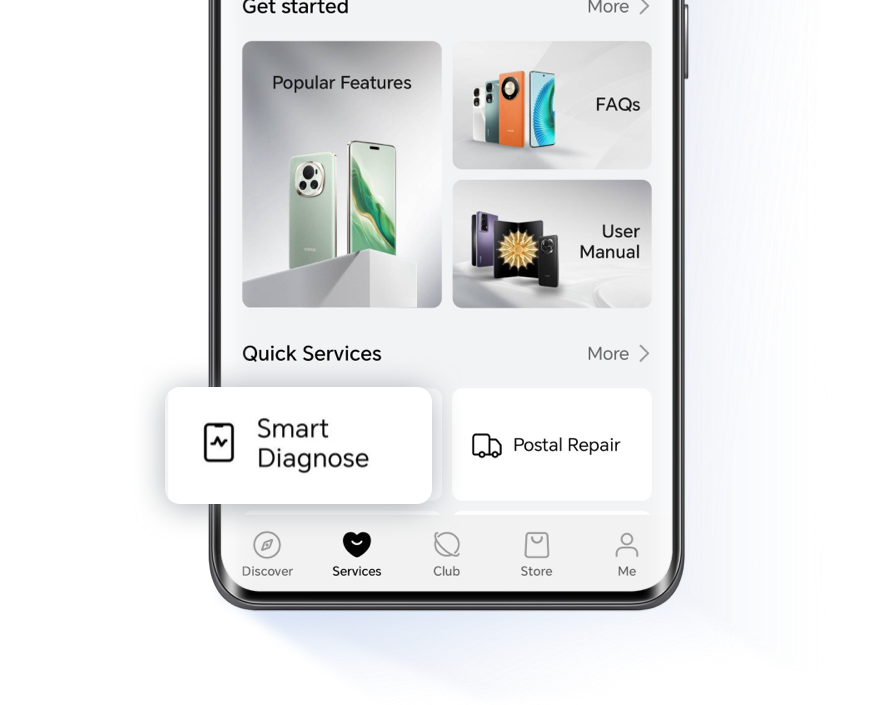
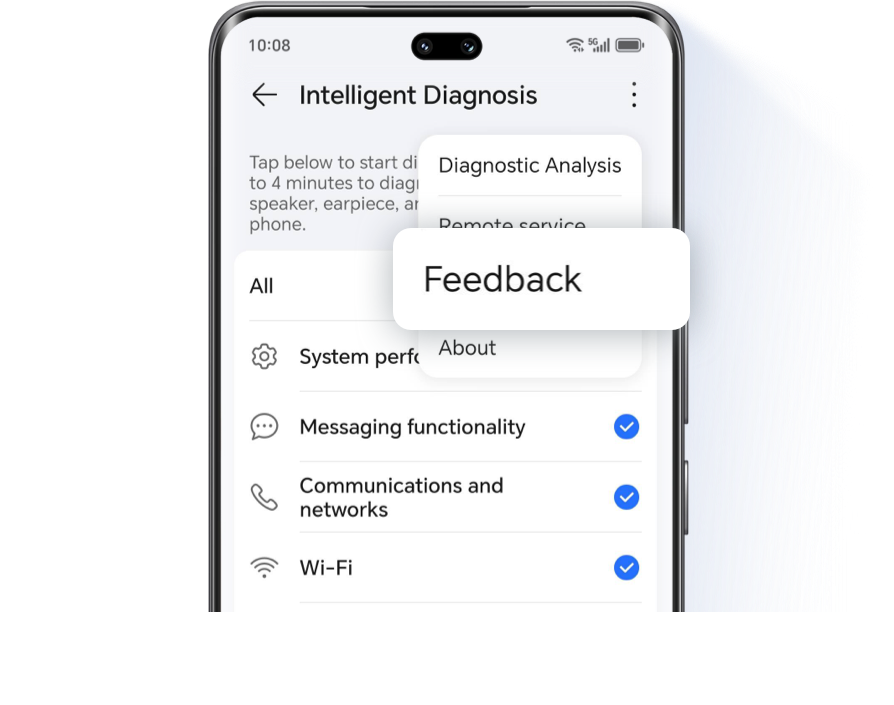
If you encounter any power consumption-related issues while using MagicOS 9.0, you can provide feedback through the following path:
My HONOR App - Services - Smart Diagnose - Top Right Corner - Feedback (Enable logs, select category)
My HONOR App - Services - Smart Diagnose - Top Right Corner - Feedback (Enable logs, select category)
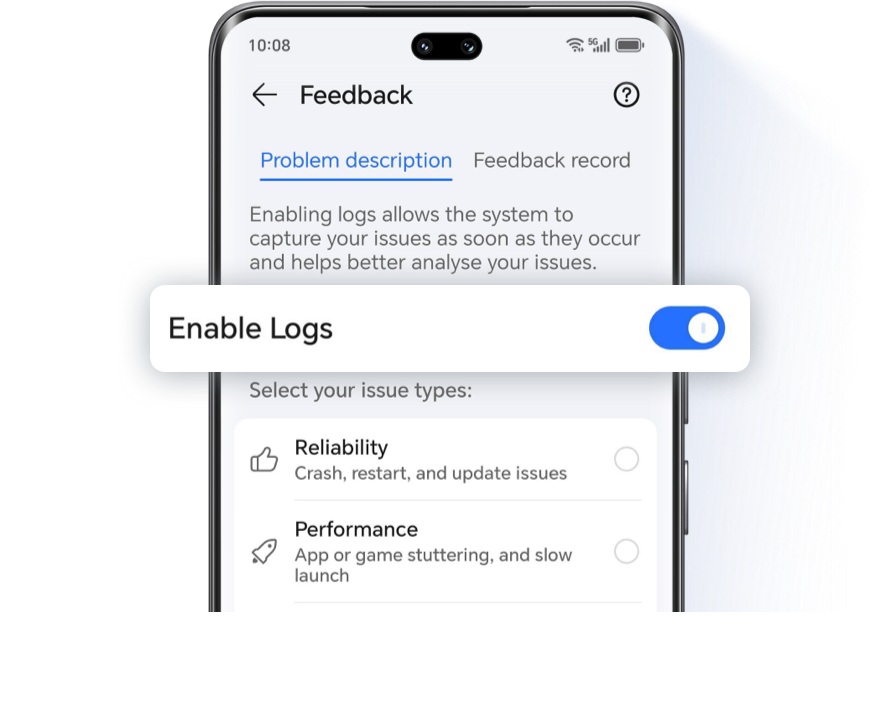
Rest assured, the problem logs will not collect any personal sensitive information or privacy data.
We will continue to optimize the issue of phone overheating and power consumption to enhance user experience and device efficiency.
Unveiling the Mystery of Power Consumption and Heating in MagicOS 9.0 System Upgrade and Optimization Solutions
The first personal all-scenario AI operating system with an intelligent agent MagicOS 9.0 has been newly upgraded!
We have observed that during the upgrade process, some users reported fast battery drain and slight heating within a few days after upgrading to the new version. This is normal, so please don't worry. This article will deeply uncover the mystery of power consumption during the upgrade process.
Reasons for overheating and fast battery drain after system upgrade
During the upgrade process, the system needs to perform a large amount of data processing and optimization work, as shown in the following diagram:
1. Download/Installation Phase
Certain strategy optimizations have been made for this phase to ensure that users do not experience lag, overheating, or rapid battery drain during download/installation.
2. Restart Phase (Before Entering the Desktop)
In addition to optimizing system applications, it intelligently identifies each person's top frequently used applications and completes their optimization. The optimization of the remaining applications is completed within 1-2 days after the upgrade, which is also the reason for fast battery drain and slight heating in the days following the upgrade.
Some of you might wonder why we don't complete all the optimizations at this stage.
Our consideration is that if we finish all the optimizations before entering the desktop,
it would make the phone's boot time very long (some users may have dozens to hundreds of third-party applications,
which could increase the time by more than ten minutes, affecting the user experience).
3. After restarting and entering the desktop
After the upgrade, the system begins initialization tasks, such as automatic application updates and Game Center update checks,
among other background operations. With the enhancement of AI capabilities,
features like "Memories" and "Creation" in the gallery require AI learning to process a large number of photos,
providing a more intelligent image management and search experience.
This causes them to temporarily consume power and generate slight heat in the background.
Although the upgrade process may consume some power and cause slight heating, it can significantly improve the smoothness and responsiveness after the system starts.
For further optimization,
we suggest users plug in the charger and turn off the screen for about 2 hours when idle after upgrading.
This helps the system quickly complete the compilation optimization and AI learning process,
ensuring a smooth experience at your fingertips.
To further enhance the endurance experience, we have designed two new features:
1. Optimization Suggestions:
The system will provide multi-dimensional power-saving optimization suggestions based on your usage habits, allowing you to optimize power consumption with one click;
Operation Steps:
Settings > Battery > Battery optimization OR System Manager > Battery > Battery optimization
Settings > Battery > Battery optimization OR System Manager > Battery > Battery optimization

2. Deep Optimization:
After the new version is installed, deep optimization can be performed, further enhancing system smoothness and battery life.
You can also set it up using the following methods:
Settings > Battery > More battery settings > System optimization OR System Manager > Battery > More battery settings > System Deep Optimization;
Settings > Battery > More battery settings > System optimization OR System Manager > Battery > More battery settings > System Deep Optimization;
We will continue to optimize.
Through continuous technological improvements and innovations, we aim to make the backend optimization and learning process more transparent; we are committed to ensuring that phones maintain high performance while reducing power consumption and extending battery life.
If you encounter any power consumption-related issues while using MagicOS 9.0, you can provide feedback through the following path:
My HONOR App - Services - Smart Diagnose - Top Right Corner - Feedback (Enable logs, select category)
My HONOR App - Services - Smart Diagnose - Top Right Corner - Feedback (Enable logs, select category)
Rest assured, the problem logs will not collect any personal sensitive information or privacy data.
We will continue to optimize the issue of phone overheating and power consumption to enhance user experience and device efficiency.