Why is it that sometimes you
cannot accurately locate your destination
when taking a taxi or following navigation directions?
cannot accurately locate your destination
when taking a taxi or following navigation directions?
When your positioning is inaccurate or when you are unable to navigate

First, check whether you are using a metal phone case. Metal materials can interfere or shield signals. When you use a metal phone case, you essentially wrap a shield around your phone's antenna, which will naturally affect the phone's reception of satellite signals, resulting in inaccurate positioning.
If you are not using a metal phone case, please check the following four items:
1. Network:
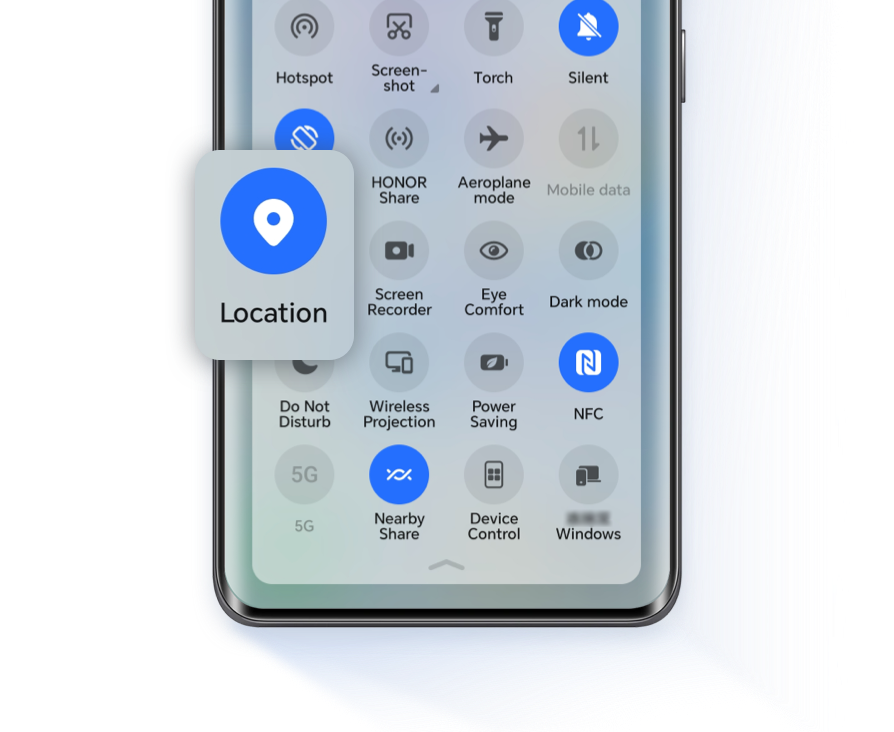
Please make sure that your phone is connected to the Internet and that your location services are enabled in the pull-down notification bar.

2. Service Settings:
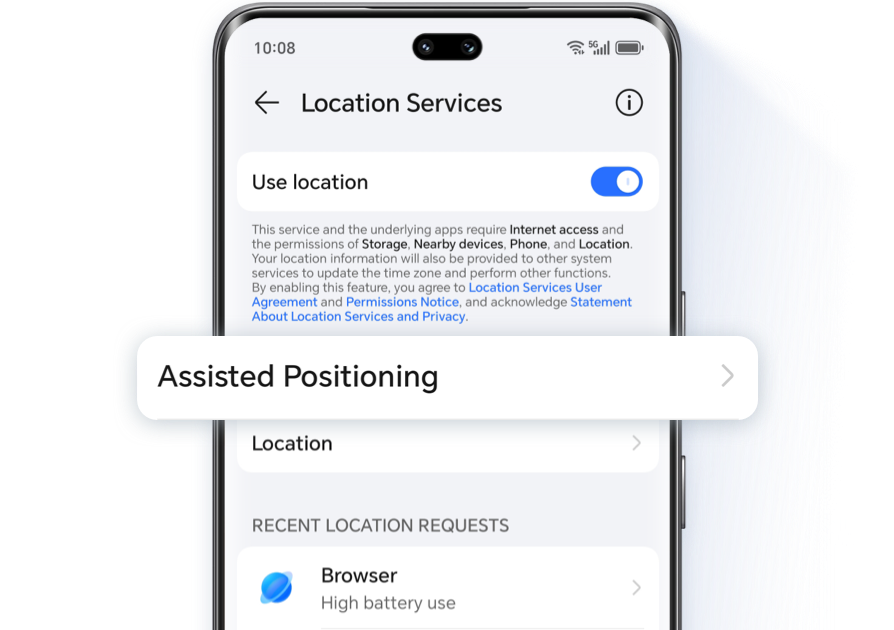
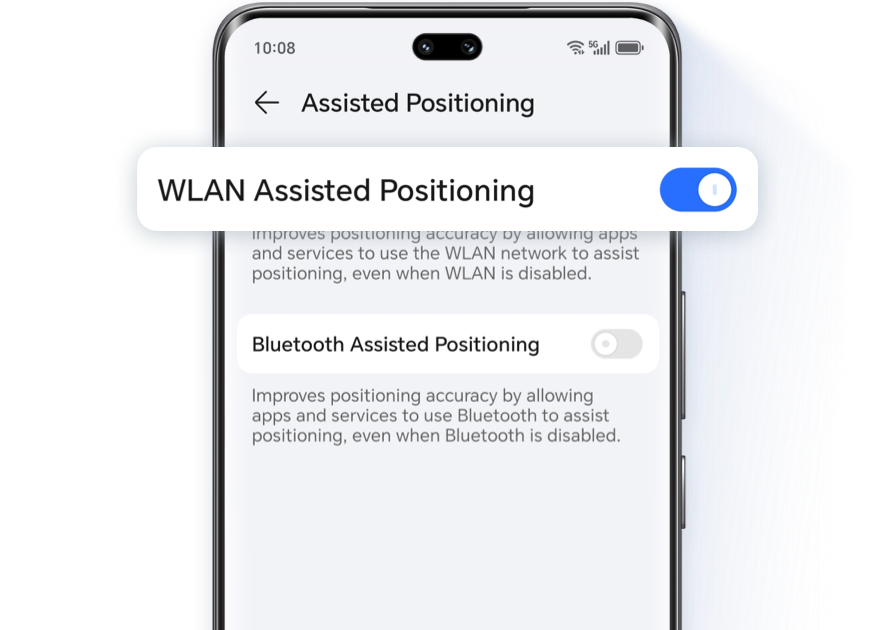
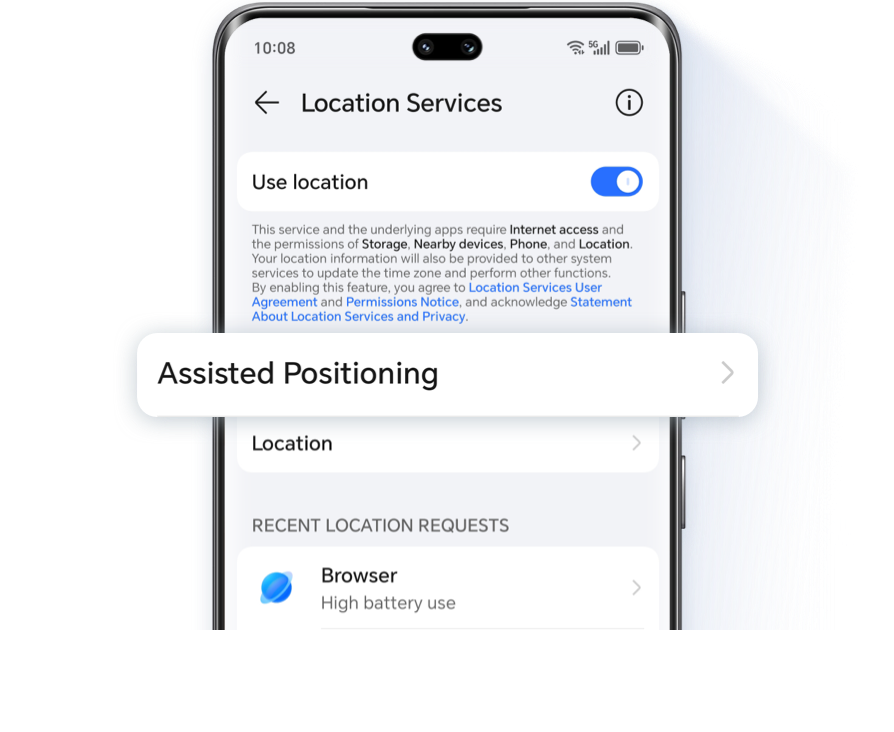
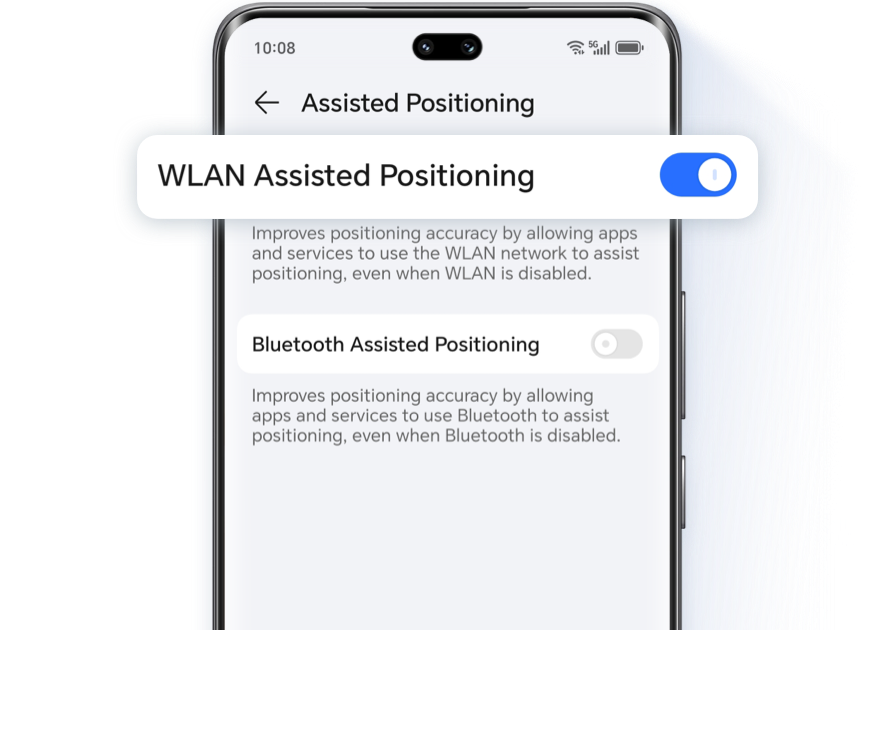
Pull down the notification bar, tap and hold on to the Location Services icon to enter the location services screen, tap on Assisted Positioning, and enable WLAN Assisted Positioning to improve location accuracy; or tap on Improve Accuracy and enable WLAN Scanning to improve positioning accuracy.
3. Software Location Permissions:
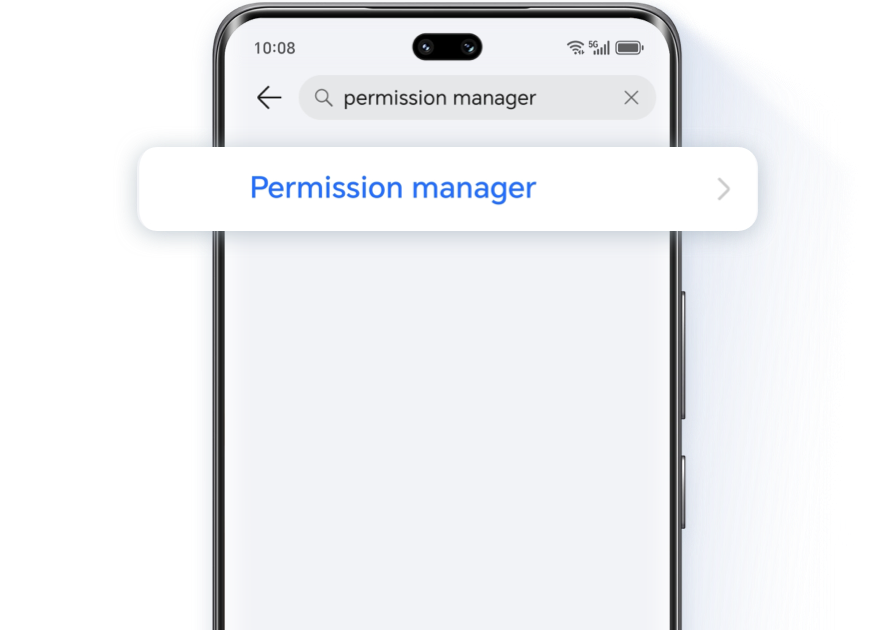
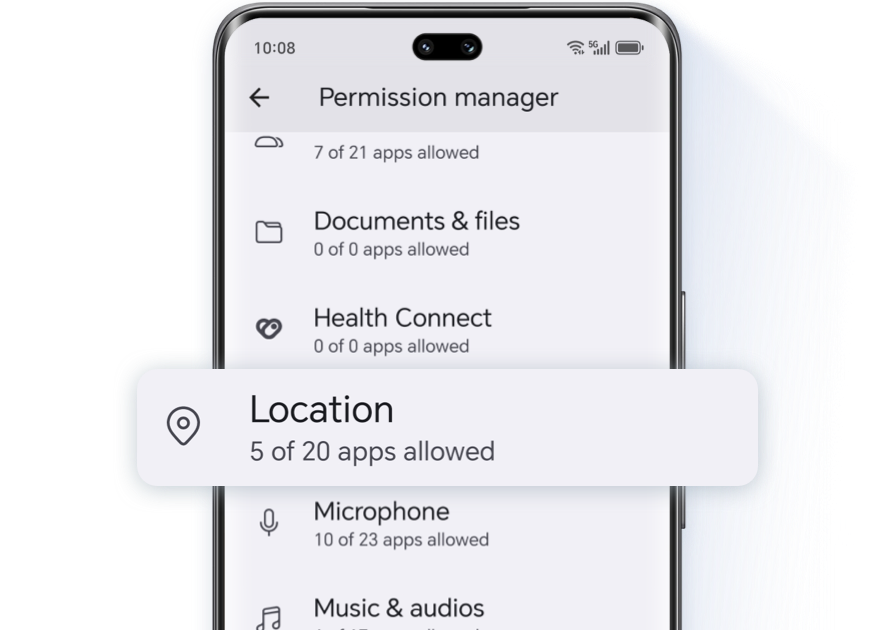
Open Settings, enter Permission manager in the search bar to enter the Permission manager interface, click Location, and enable permissions for apps that cannot be located or navigated.
4. Location Simulation Apps:
If you have such apps on your phone, please check whether the location simulation has ended and close the application. Otherwise, it will affect other apps' use of location services, resulting in positioning failure.
*In the absence of GPS satellite signals, the location information of third-party applications is provided by third-party servers. Under normal circumstances, there may be an error of up to about 100 meters in such cases.
When the GPS
is not working properly
is not working properly
If your phone's GPS switch can be enabled normally, but it keeps prompting that your GPS cannot be used normally and the prompt keeps popping up again after you tap on "Ok", this is also related to positioning accuracy.
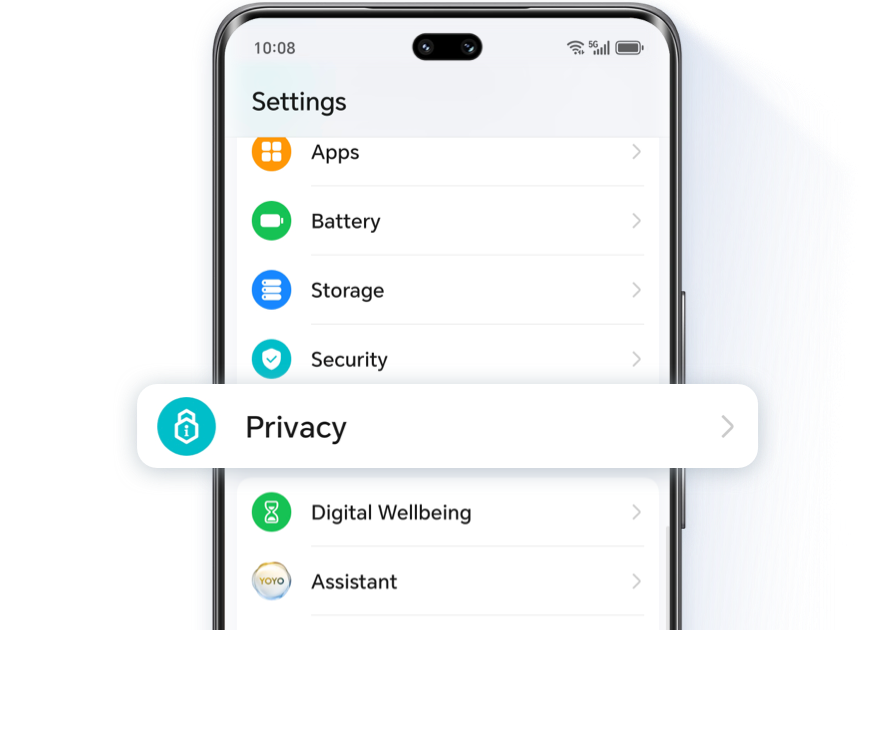
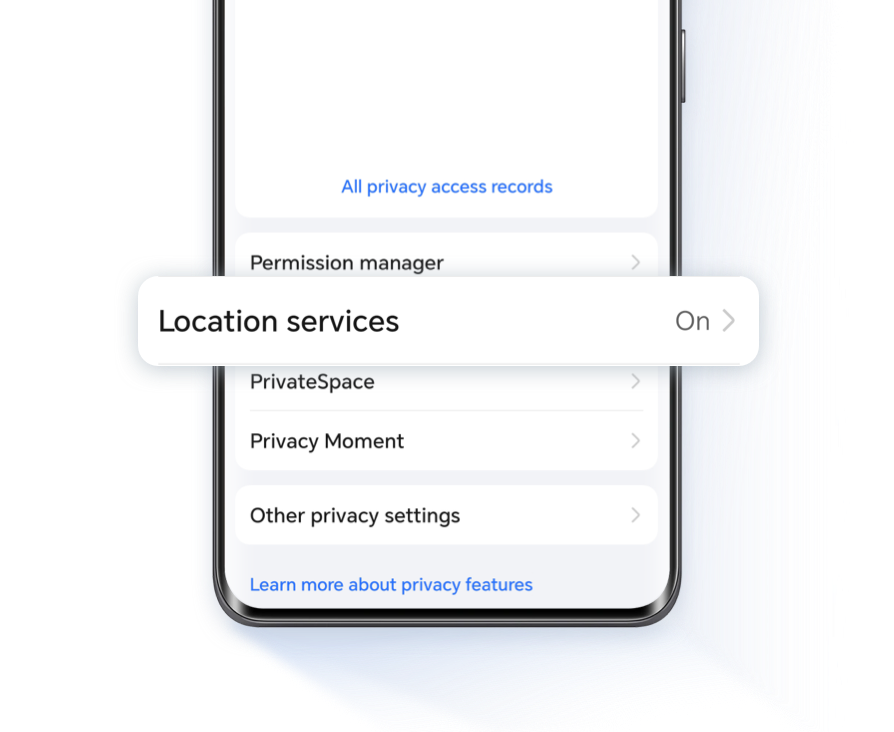
Launch Settings > Privacy > Location Services > Assisted Positioning > Enable WLAN Assisted Positioning to improve positioning accuracy, eliminate system reminders, and resume normal usage.
Boost your positioning accuracy for a peace of mind.
Why is it that sometimes you
cannot accurately locate your destination
when taking a taxi or following navigation directions?
cannot accurately locate your destination
when taking a taxi or following navigation directions?
When your positioning is inaccurate or when you are unable to navigate
First, check whether you are using a metal phone case. Metal materials can interfere or shield signals. When you use a metal phone case, you essentially wrap a shield around your phone's antenna, which will naturally affect the phone's reception of satellite signals, resulting in inaccurate positioning.
If you are not using a metal phone case, please check the following four items:
1. Network:
Please make sure that your phone is connected to the Internet and that your location services are enabled in the pull-down notification bar.
2. Service Settings:
Pull down the notification bar, tap and hold on to the Location Services icon to enter the location services screen, tap on Assisted Positioning, and enable WLAN Assisted Positioning to improve location accuracy; or tap on Improve Accuracy and enable WLAN Scanning to improve positioning accuracy.

3. Software Location Permissions:
Open Settings, enter Permission manager in the search bar to enter the Permission manager interface, click Location, and enable permissions for apps that cannot be located or navigated.
4. Location Simulation Apps:
If you have such apps on your phone, please check whether the location simulation has ended and close the application. Otherwise, it will affect other apps' use of location services, resulting in positioning failure.
*In the absence of GPS satellite signals, the location information of third-party applications is provided by third-party servers. Under normal circumstances, there may be an error of up to about 100 meters in such cases.
When the GPS
is not working properly
is not working properly
If your phone's GPS switch can be enabled normally, but it keeps prompting that your GPS cannot be used normally and the prompt keeps popping up again after you tap on "Ok", this is also related to positioning accuracy.
Launch Settings > Privacy > Location Services > Assisted Positioning > Enable WLAN Assisted Positioning to improve positioning accuracy, eliminate system reminders, and resume normal usage.
Boost your positioning accuracy for a peace of mind.