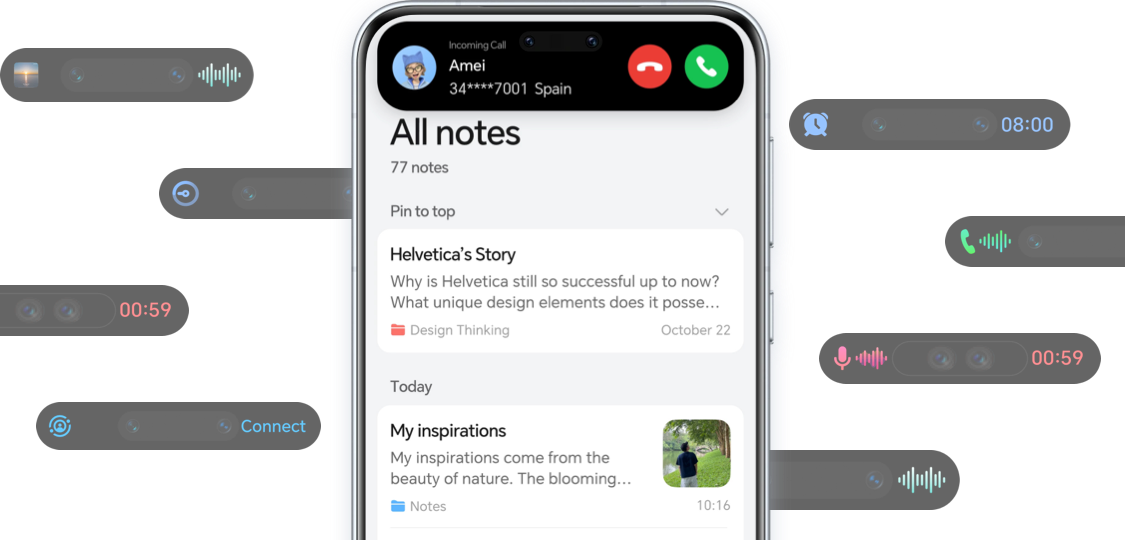
HONOR Magic Capsule is a fascinating feature that sits right at the top of your phone screen like a little capsule, showing you what tasks are in progress. It's super convenient for keeping an eye on things in real time, doing quick operations, or jumping straight into an app.
* The display timing, duration, and interaction methods of Magic Capsule may vary depending on specific tasks.

Turn on Magic Capsule

You have the option to personalize the Magic Capsule services according to your preferences:
Go to Settings > Notifications & status bar > Magic Capsule, and enable the system services you wish to display on the capsule, such as Recording, Media playback, and Clock.
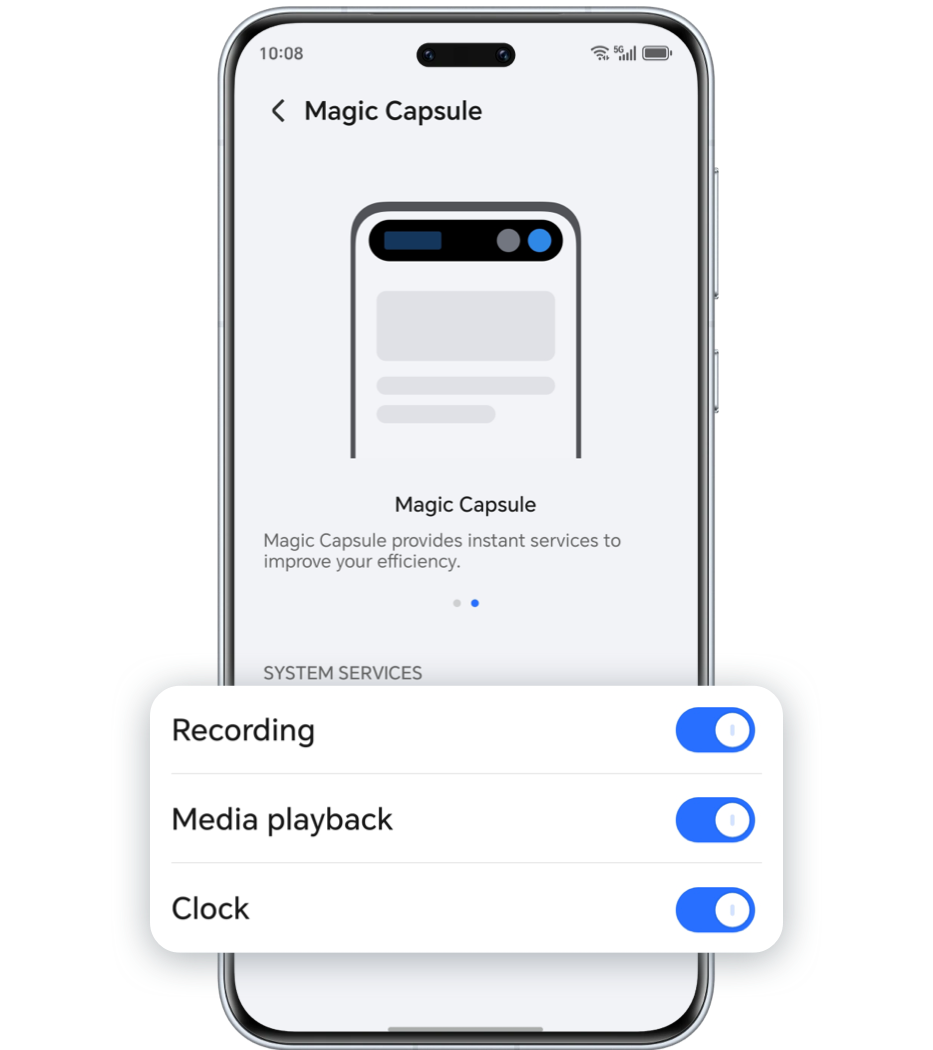
*Only some preset functions support the Magic Capsule display, please refer to the actual situation.

Activate Magic Capsule
To activate Magic Capsule, you can perform actions such as initiating real-time tasks and completing specific actions.
For example:
· Use the Recorder to start recording and return to your desktop.
· Use the Alarm to start the timer and return to the desktop.
· ……

View Status and Perform Quick Operations via Magic Capsule
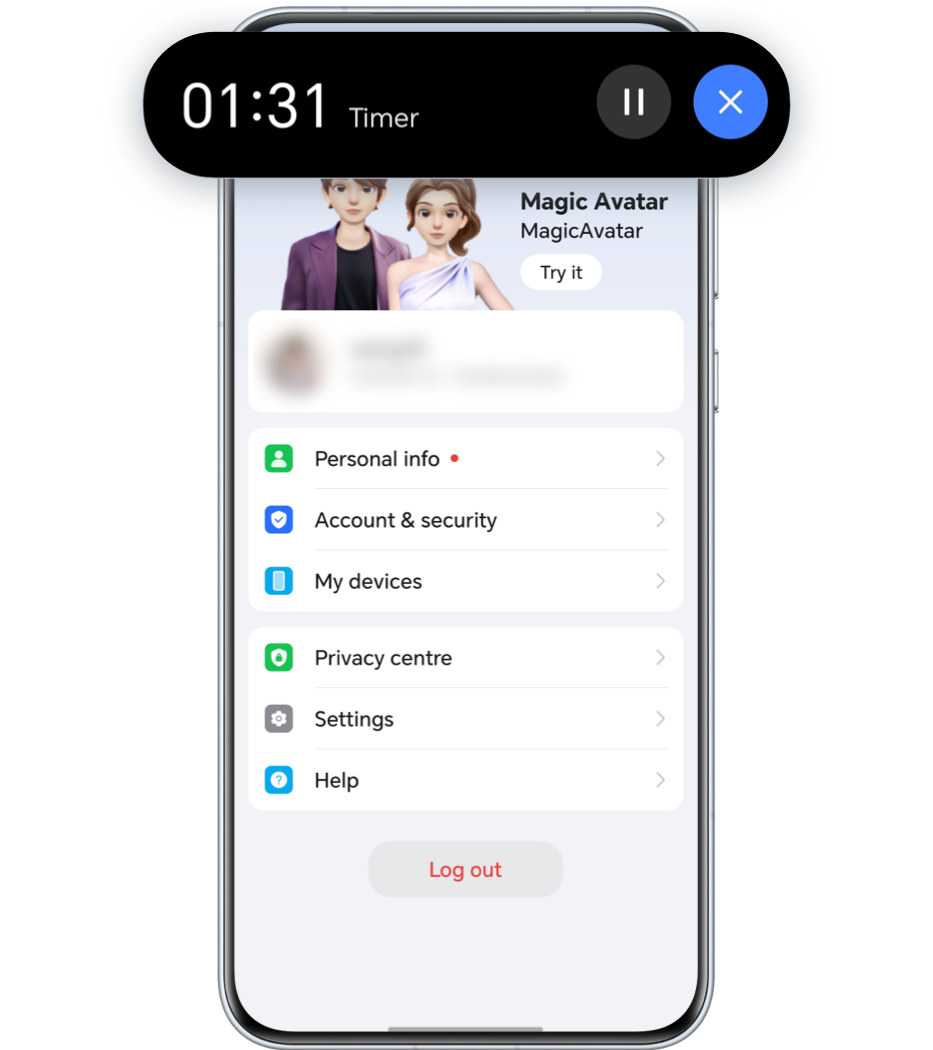
The Capsule shrinks into a "little ball" after being displayed for a while, and expands back into a capsule after a certain period of time until the task is complete. You can track the current task status using Magic Capsule.
Just tap on Magic Capsule or the "little ball" to expand it and check the detailed status (such as elapsed time after you start a timer) or perform quick operations (such as ending the timer).

Quickly Access Apps via Magic Capsule
You can quickly access the app from Magic Capsule in any of the following ways:
·
Tap method:
Simply tap anywhere on the expanded area when Magic Capsule is expanded.
Simply tap anywhere on the expanded area when Magic Capsule is expanded.
·
Eye tracking:
For phones that support eye tracking, you can keep your eyes on the auto-expanding Magic Capsule until the cursor progress is complete.
For phones that support eye tracking, you can keep your eyes on the auto-expanding Magic Capsule until the cursor progress is complete.
* Before using the eye tracking method, go to Settings > HONOR AI > Eye Tracking, and follow the on-screen prompts to enable the eye tracking function.
* Eye tracking is only supported when the Magic Capsule is automatically expanded.
* This feature does not apply to apps where Magic Capsule does not work in the background.
* Eye tracking is only supported when the Magic Capsule is automatically expanded.
* This feature does not apply to apps where Magic Capsule does not work in the background.

Turn off Magic Capsule
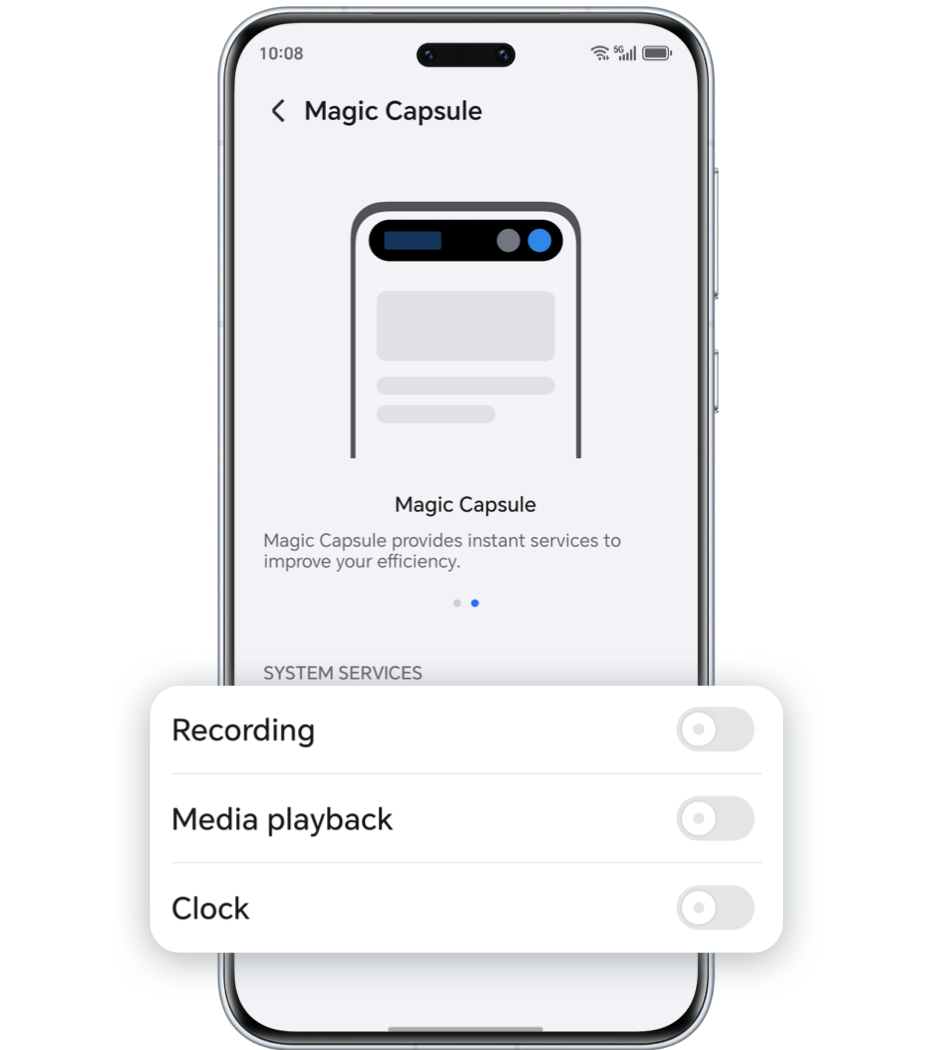
To disable the display of certain services on Magic Capsule, go to Settings > Notifications & status bar > Magic Capsule, and click on the service you want to cancel (for example, Clock).
*This guide uses the HONOR Magic7 Pro as an example. Steps may vary depending on your phone model and system version. For the best experience, make sure your system is updated to the latest version. Some features may not be available on all models—please stay tuned for future updates!
HONOR Magic Capsule is a fascinating feature that sits right at the top of your phone screen like a little capsule, showing you what tasks are in progress. It's super convenient for keeping an eye on things in real time, doing quick operations, or jumping straight into an app.
* The display timing, duration, and interaction methods of Magic Capsule may vary depending on specific tasks.
Turn on Magic Capsule
You have the option to personalize the Magic Capsule services according to your preferences:
Go to Settings > Notifications & status bar > Magic Capsule, and enable the system services you wish to display on the capsule, such as Recording, Media playback, and Clock.
*Only some preset functions support the Magic Capsule display, please refer to the actual situation.
Activate Magic Capsule
To activate Magic Capsule, you can perform actions such as initiating real-time tasks and completing specific actions.
For example:
· Use the Recorder to start recording and return to your desktop.
· Use the Alarm to start the timer and return to the desktop.
· ……
View Status and Perform Quick Operations via Magic Capsule
The Capsule shrinks into a "little ball" after being displayed for a while, and expands back into a capsule after a certain period of time until the task is complete. You can track the current task status using Magic Capsule.
Just tap on Magic Capsule or the "little ball" to expand it and check the detailed status (such as elapsed time after you start a timer) or perform quick operations (such as ending the timer).
Quickly Access Apps via Magic Capsule
You can quickly access the app from Magic Capsule in any of the following ways:
·
Tap method:
Simply tap anywhere on the expanded area when Magic Capsule is expanded.
Simply tap anywhere on the expanded area when Magic Capsule is expanded.
·
Eye tracking:
For phones that support eye tracking, you can keep your eyes on the auto-expanding Magic Capsule until the cursor progress is complete.
For phones that support eye tracking, you can keep your eyes on the auto-expanding Magic Capsule until the cursor progress is complete.
* Before using the eye tracking method, go to Settings > HONOR AI > Eye Tracking, and follow the on-screen prompts to enable the eye tracking function.
* Eye tracking is only supported when the Magic Capsule is automatically expanded.
* This feature does not apply to apps where Magic Capsule does not work in the background.
* Eye tracking is only supported when the Magic Capsule is automatically expanded.
* This feature does not apply to apps where Magic Capsule does not work in the background.
Turn off Magic Capsule
To disable the display of certain services on Magic Capsule, go to Settings > Notifications & status bar > Magic Capsule, and click on the service you want to cancel (for example, Clock).
*This guide uses the HONOR Magic7 Pro as an example. Steps may vary depending on your phone model and system version. For the best experience, make sure your system is updated to the latest version. Some features may not be available on all models—please stay tuned for future updates!