 背景.webp)





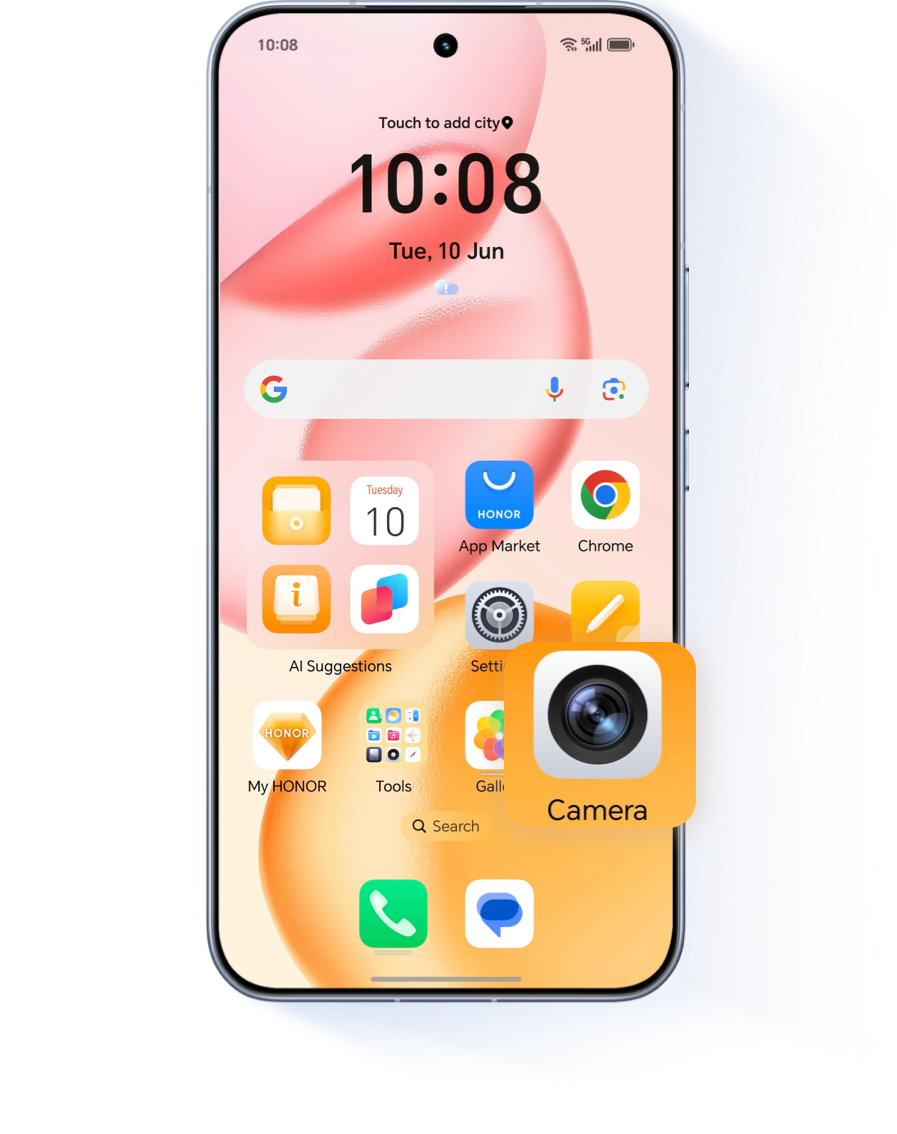
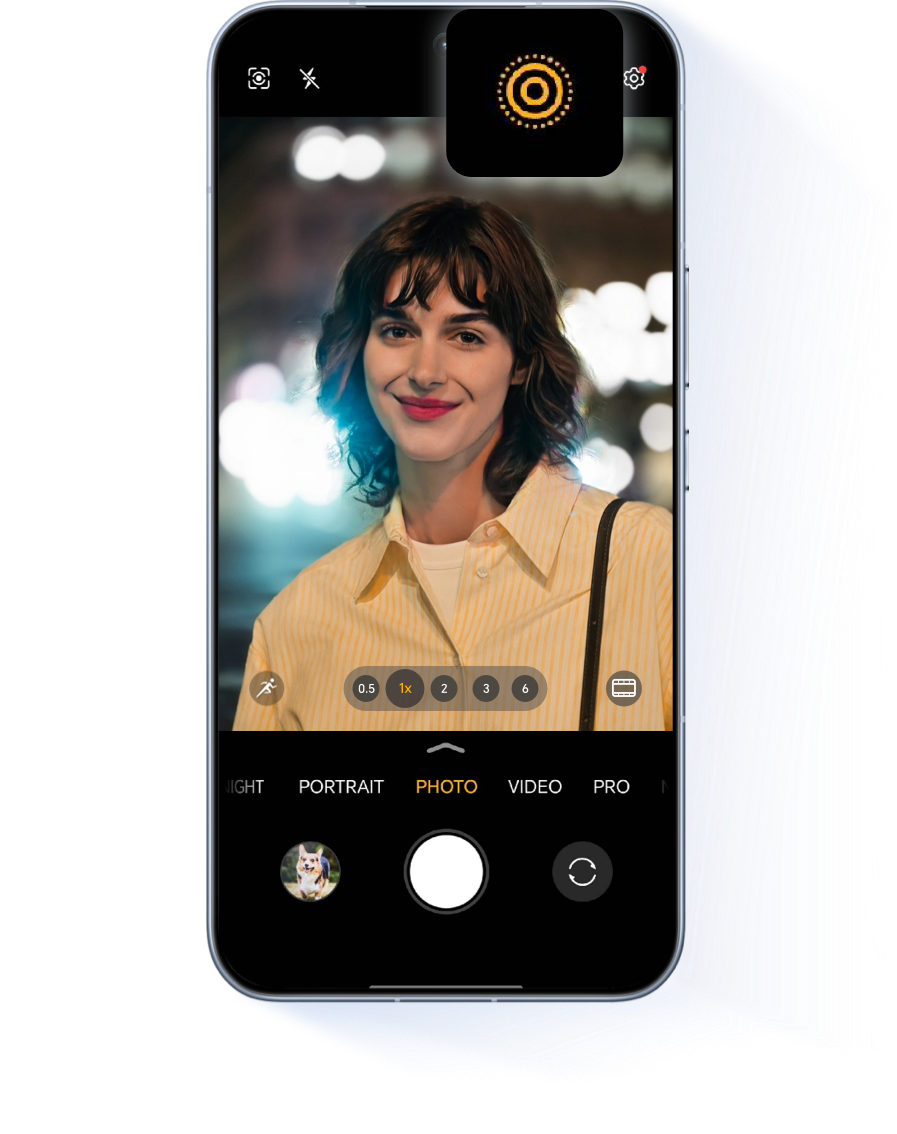
In suitable lighting and scenes, open the Camera > Photo, and tap  , When the icon changes to
  ,
the Moving Photo feature is enabled.
,
the Moving Photo feature is enabled.


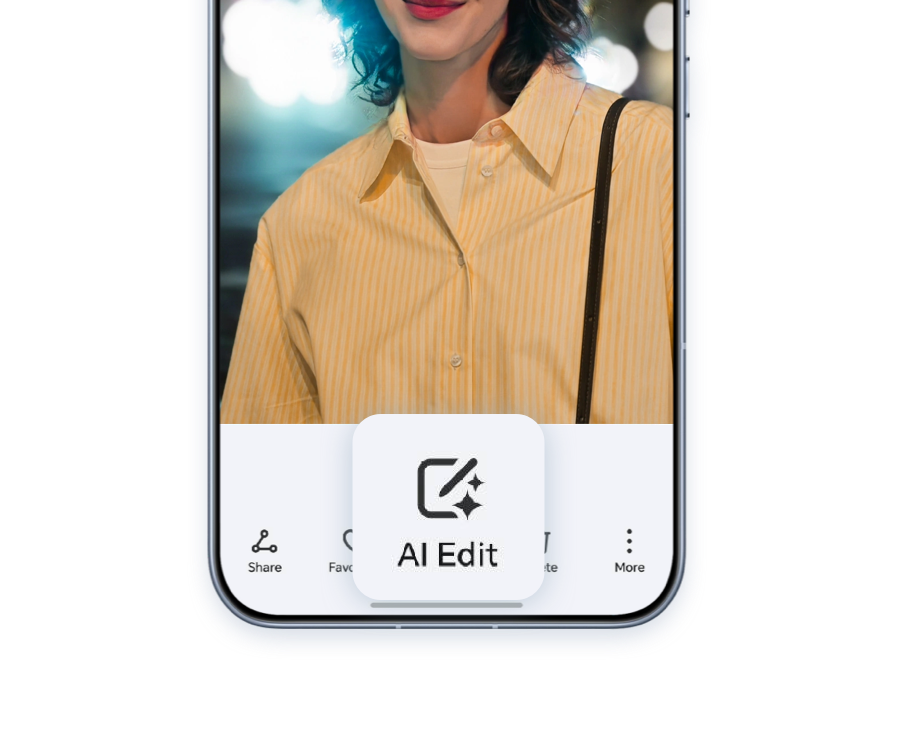
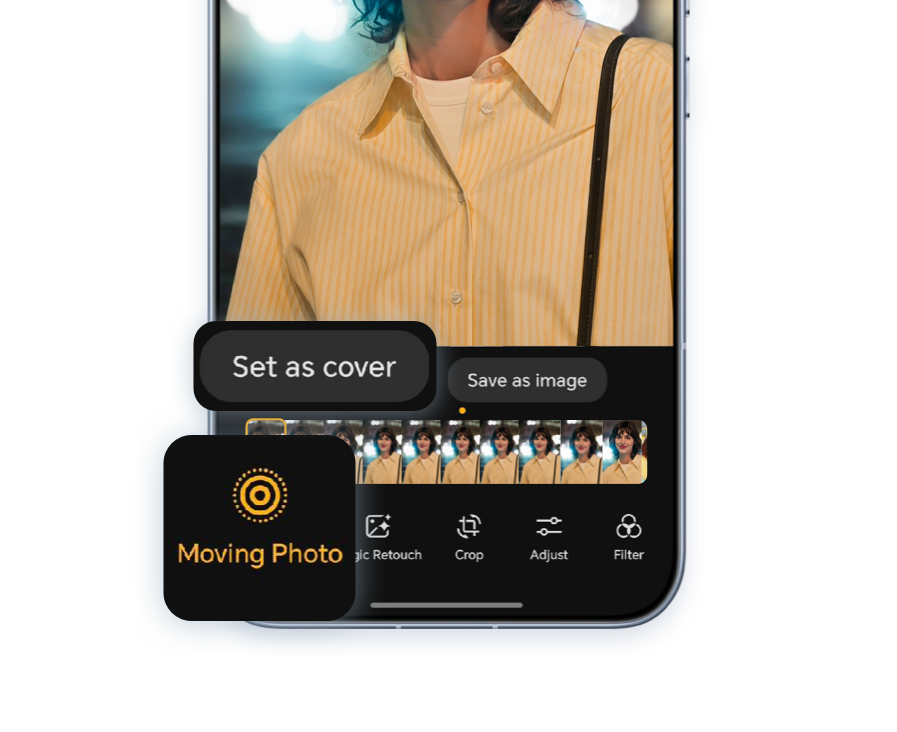
Open the captured HD Moving Photo, tap AI Edit > Moving Photo, then slide the frame selector to choose your ideal key frame. Finally, tap Set as cover to highlight the best moment.
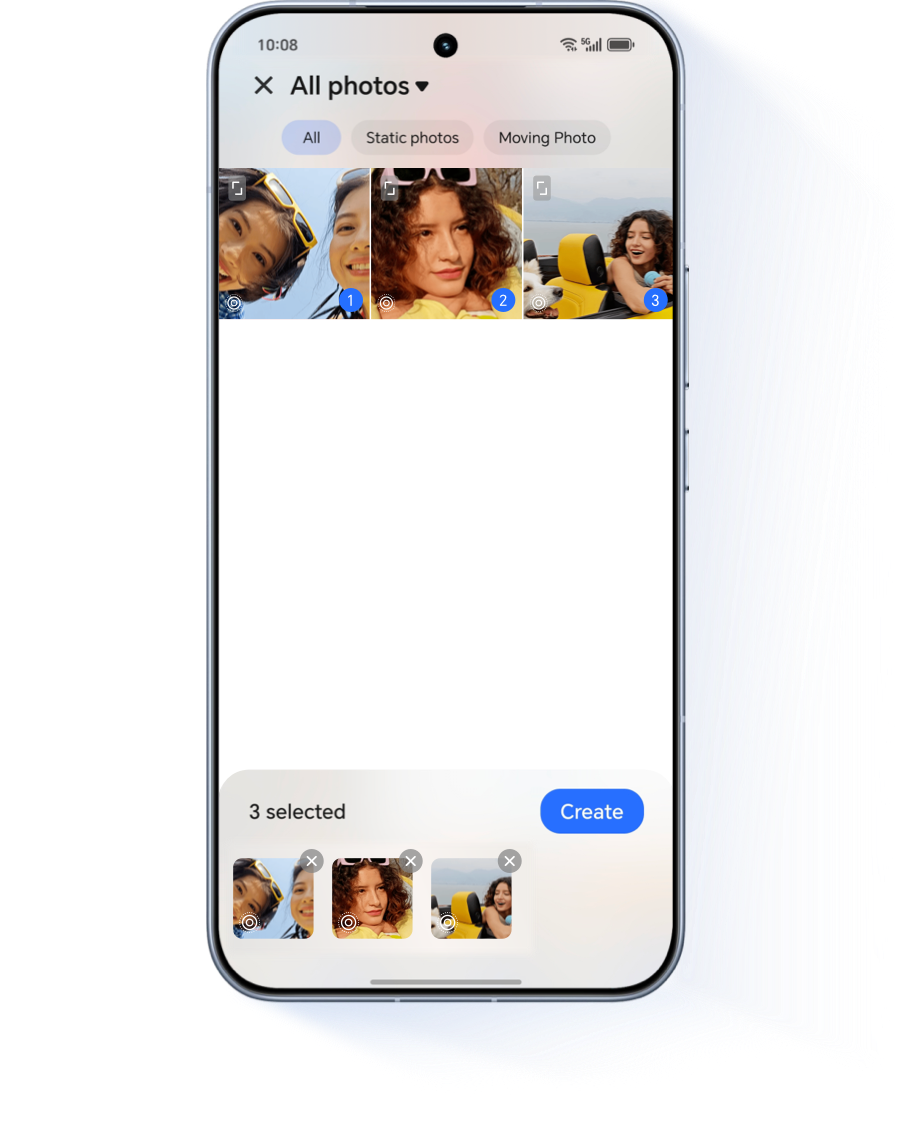
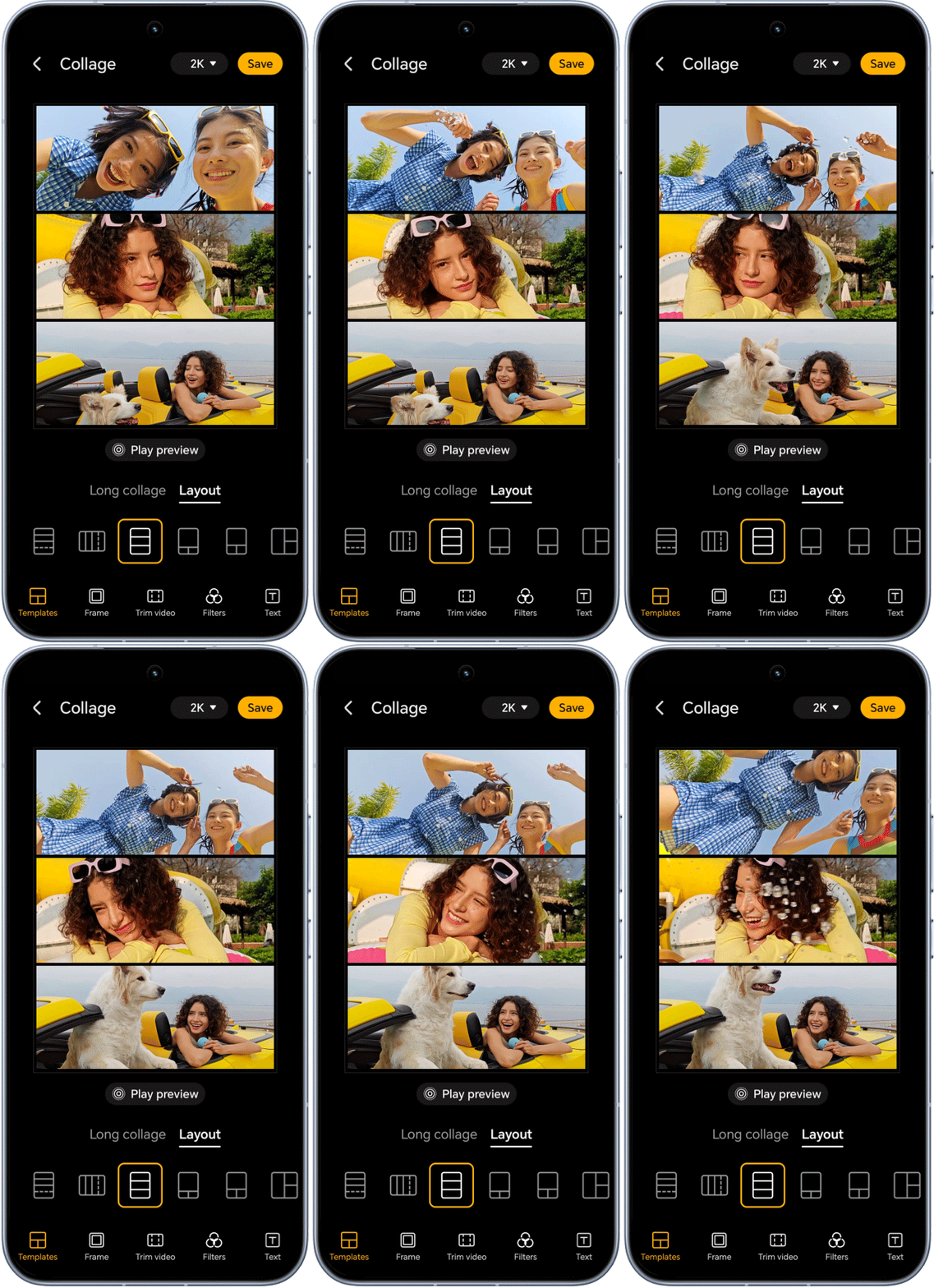
Open Gallery > Create > Collage, select Moving Photos or Still Photos, tap Create to start the collage, choose your faourite Layout, and tap Save to complete the Moving Photo Collage.

Instant select, edit, and share to social media. Enjoy seamless sharing across devices.

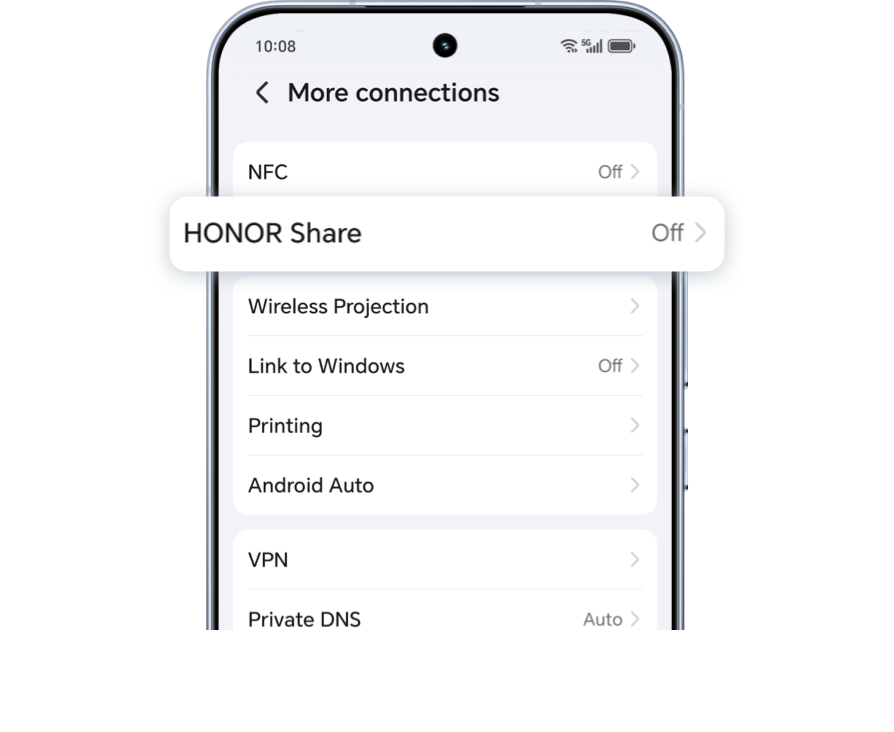
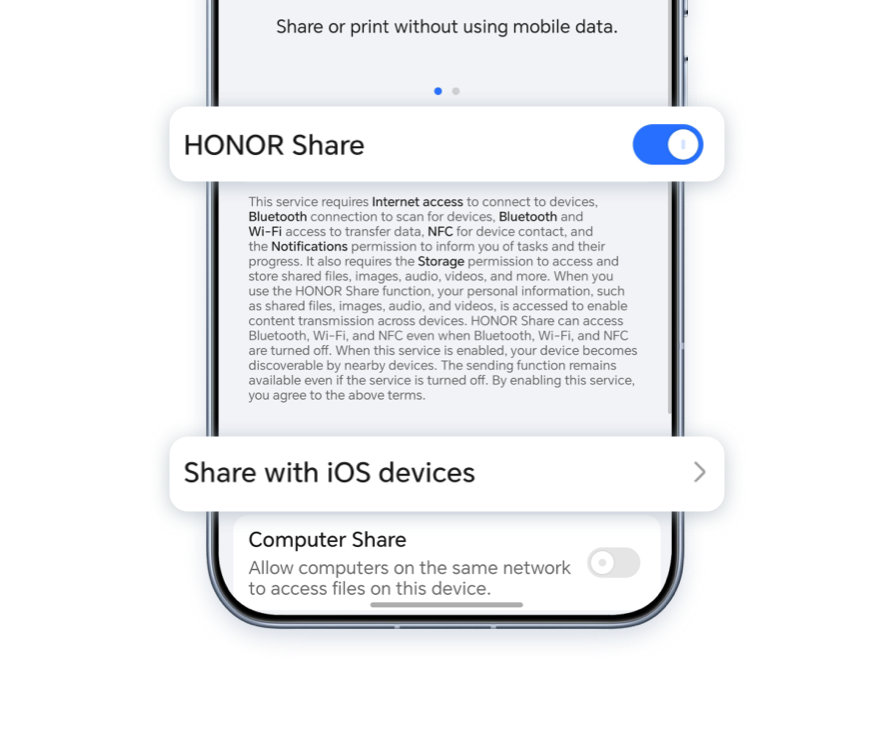
Go to Settings > More connections > HONOR Share, turn it on, and enable Share with iOS devices.
On the iOS device, open the HONOR Connect app, access the QR code scanning page at the top of the homepage, and scan the QR code displayed on HONOR phone. Once connected, you can share files with the iOS device.

*If the QR code scanning fails, tap Refresh network and try again.
Select you favorite Moving Photo and sent it directly to your social media stories via Magic Portal (e.g. Instagram, TikTok). Follow the on-screen instructions to complete the process and showcase your vibrant moments.

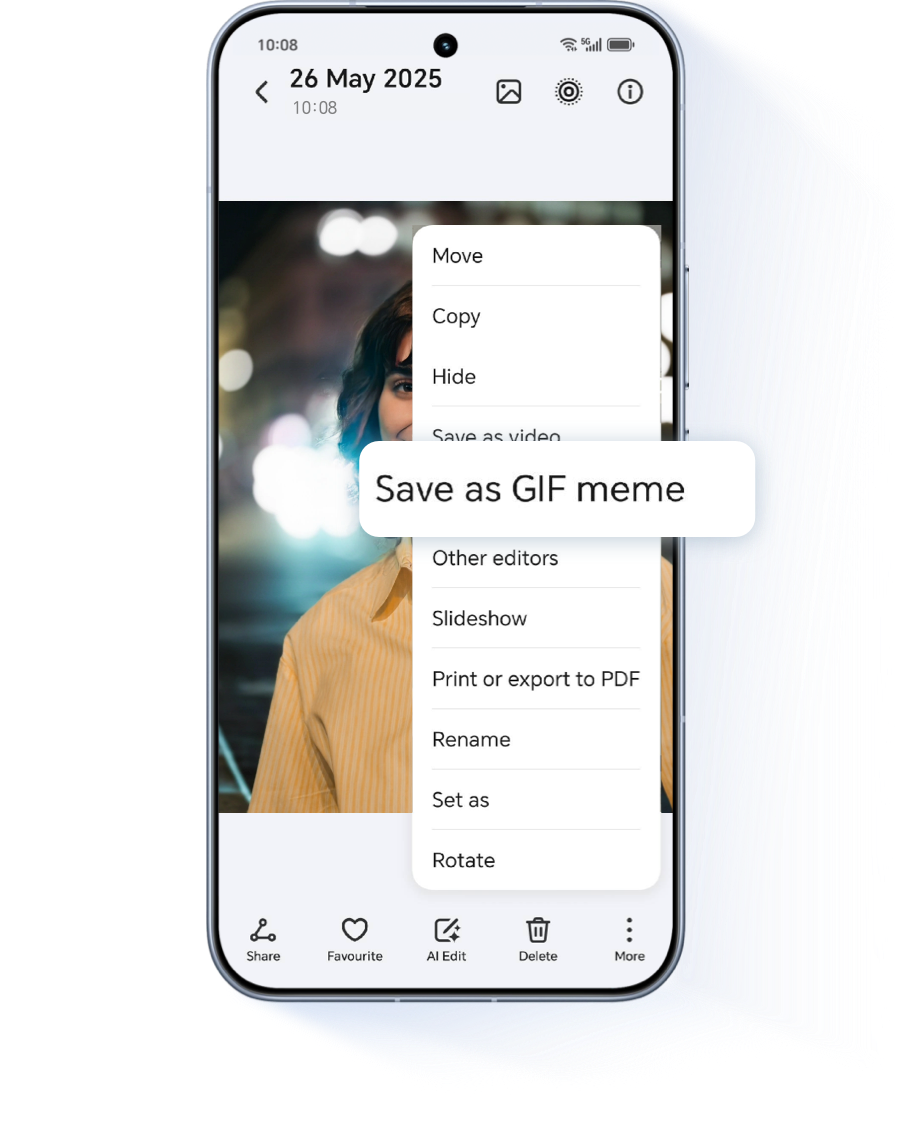
In the album, tap the HD Moving Photo you want to edit, then tap
 , and choose Save as GIF meme. Customize your GIF with emoji stickers, cropping, text, and more. Tap Export to save it to your gallery, then tap
  to quickly share it with friends.

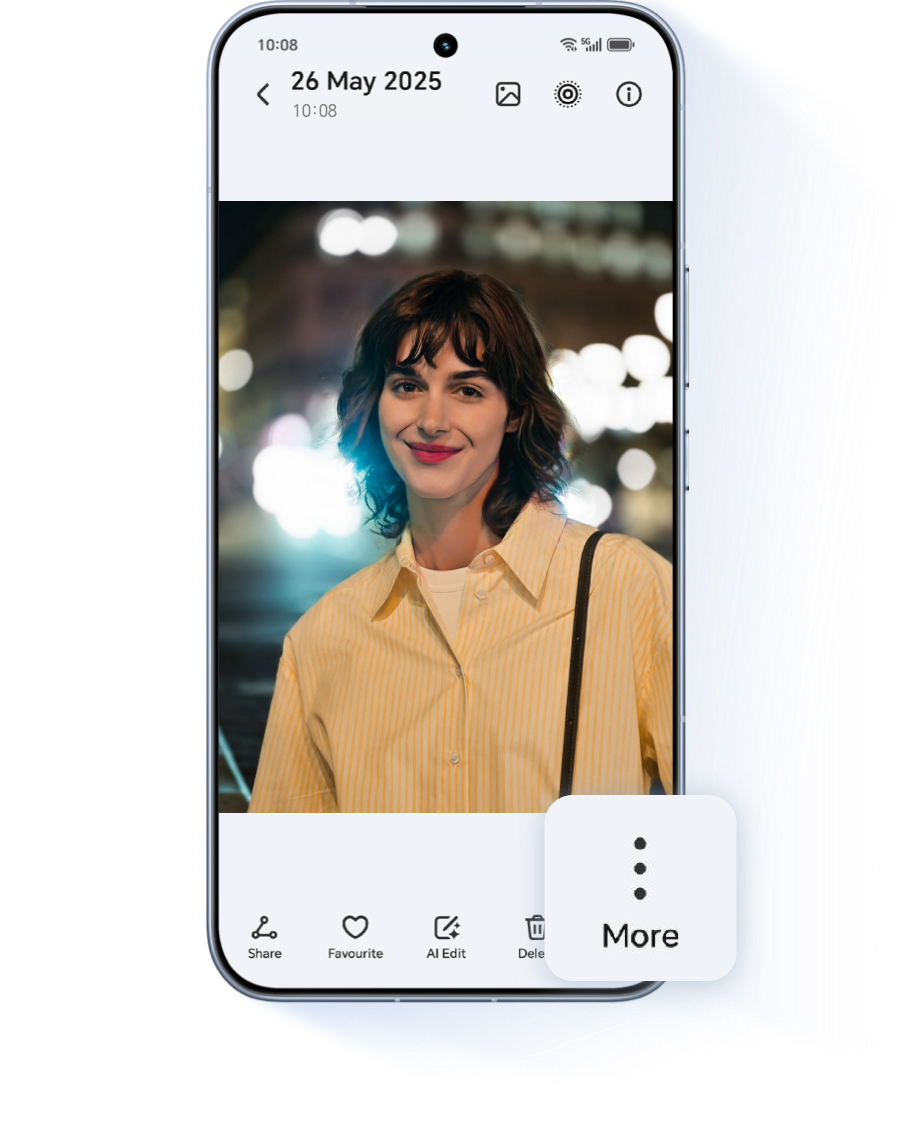
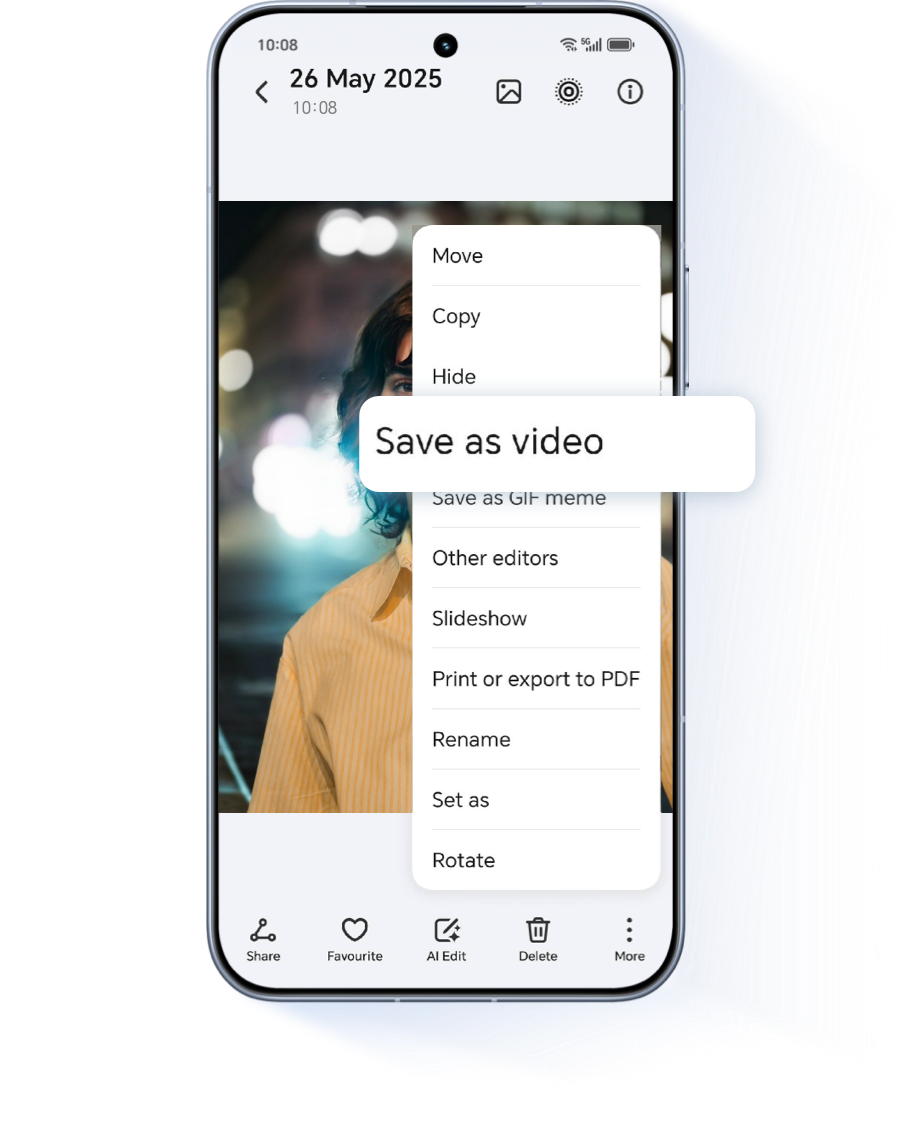
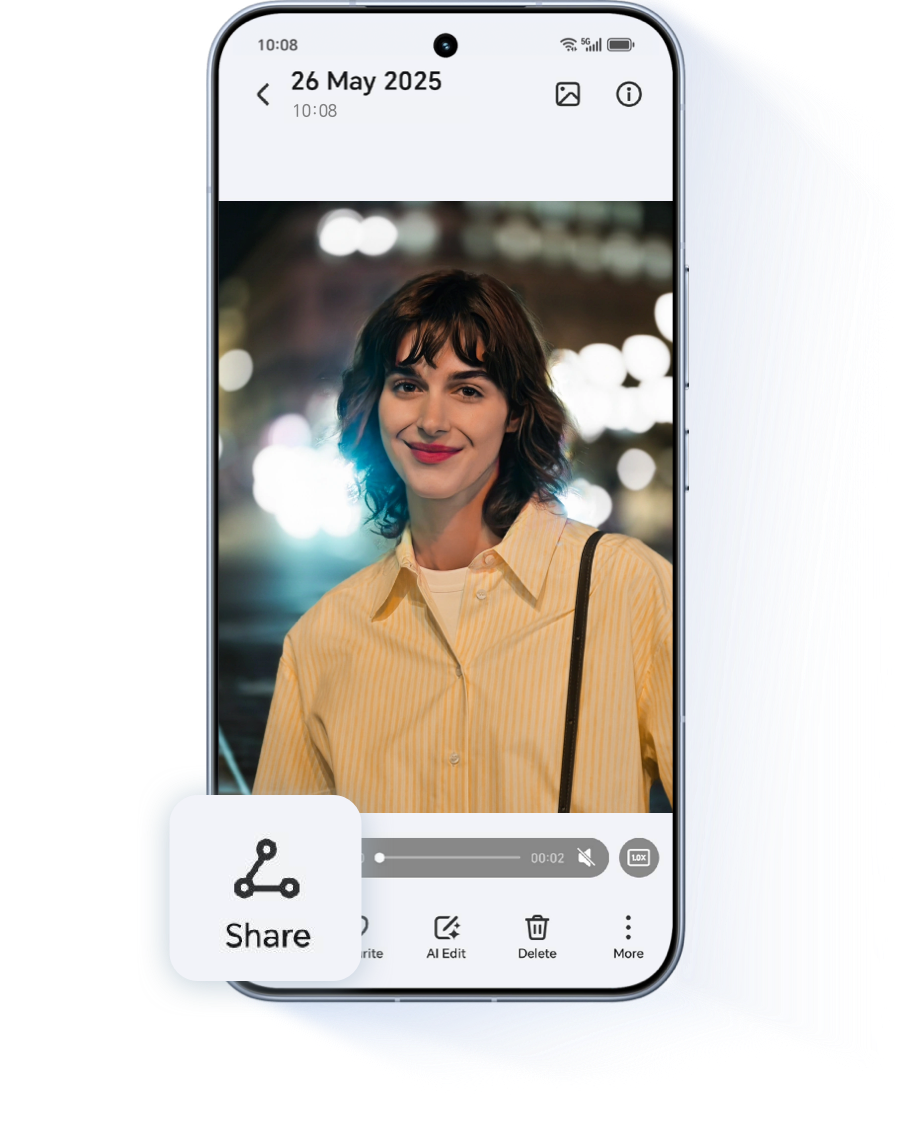
In the album, tap the HD Moving Photo you want to edit, then tap and choose Save as video. The video will be automatically generated and saved. Open the video and tap to share it across your favorite social media.
Live Your World,
Feel the Vitality in Every Photo!
In suitable lighting and scenes, open the Camera > Photo, and tap , When the icon changes to ,
the Moving Photo feature is enabled.

Open the captured HD Moving Photo, tap AI Edit > Moving Photo, then slide the frame selector to choose your ideal key frame. Finally, tap Set as cover to highlight the best moment.
Open Gallery > Create > Collage, select Moving Photos or Still Photos, tap Create to start the collage, choose your faourite Layout, and tap Save to complete the Moving Photo Collage.
Instant select, edit, and share to social media. Enjoy seamless sharing across devices.
Go to Settings > More connections > HONOR Share, turn it on, and enable Share with iOS devices.
On the iOS device, open the HONOR Connect app, access the QR code scanning page at the top of the homepage, and scan the QR code displayed on HONOR phone. Once connected, you can share files with the iOS device.
*If the QR code scanning fails, tap Refresh network and try again.
Select you favorite Moving Photo and sent it directly to your social media stories via Magic Portal (e.g. Instagram, TikTok). Follow the on-screen instructions to complete the process and showcase your vibrant moments.
In the album, tap the HD Moving Photo you want to edit, then tap
, and choose Save as GIF meme. Customize your GIF with emoji stickers, cropping, text, and more. Tap Export to save it to your gallery, then tap to quickly share it with friends.
In the album, tap the HD Moving Photo you want to edit, then tap and choose Save as video. The video will be automatically generated and saved. Open the video and tap to share it across your favorite social media.
Live Your World,
Feel the Vitality in Every Photo!