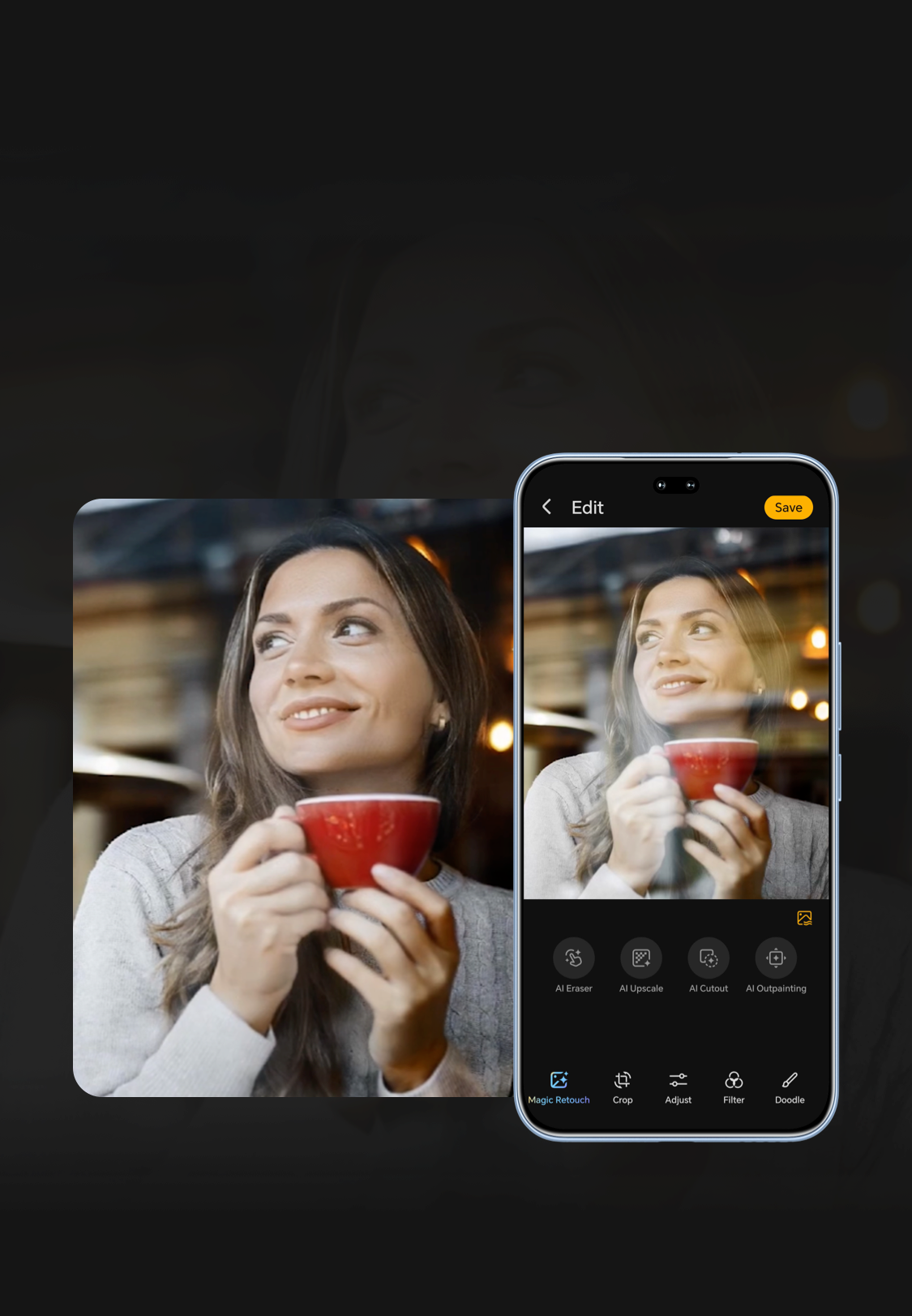
Tired of random strangers
photobombing your perfect shot?

Shoot freely without any worries!


AI Eraser
Clean Your Frame
in One Click
AI Erase Passers-by
Precisely Remove Unwanted People

Simply open Gallery > Album, select the photo, then tap AI Edit > Magic Retouch > AI Eraser > Eraser passers-by. The AI will intelligently identify and remove all passers-by in the photo. Tap ✔ and Save to keep your edits.
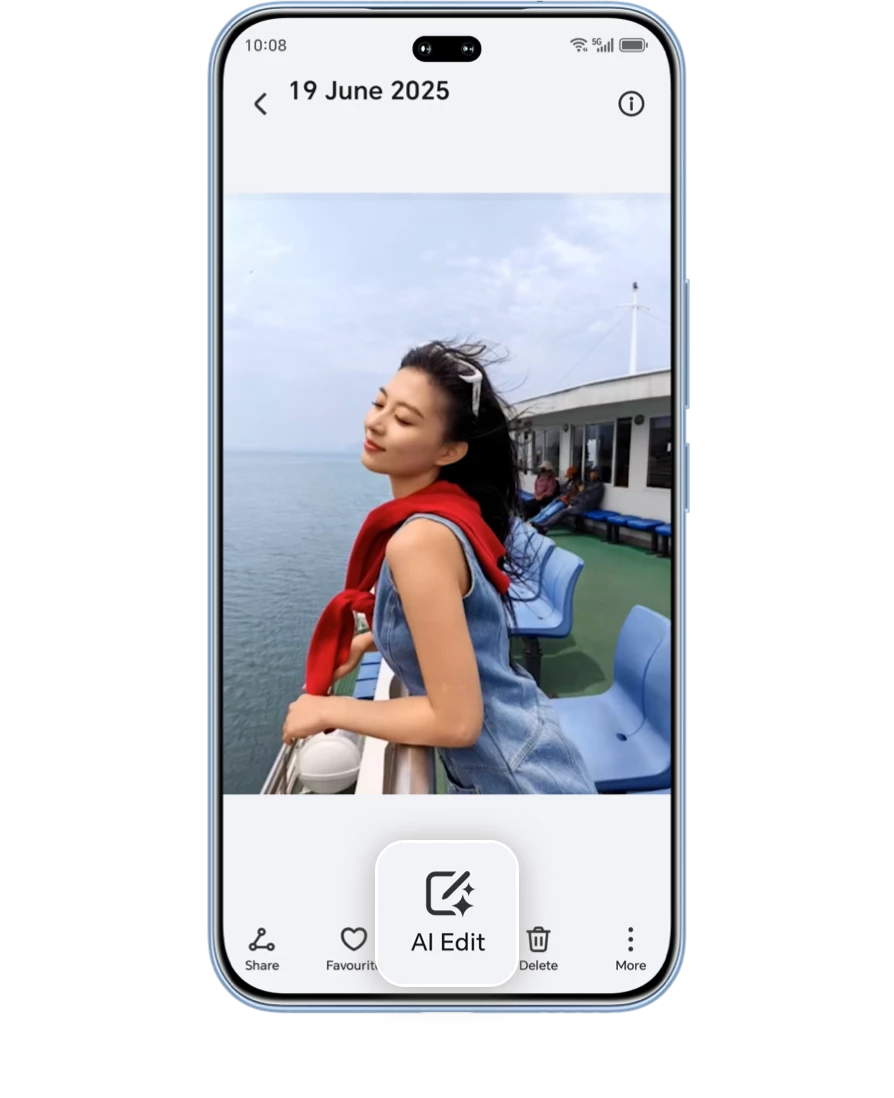

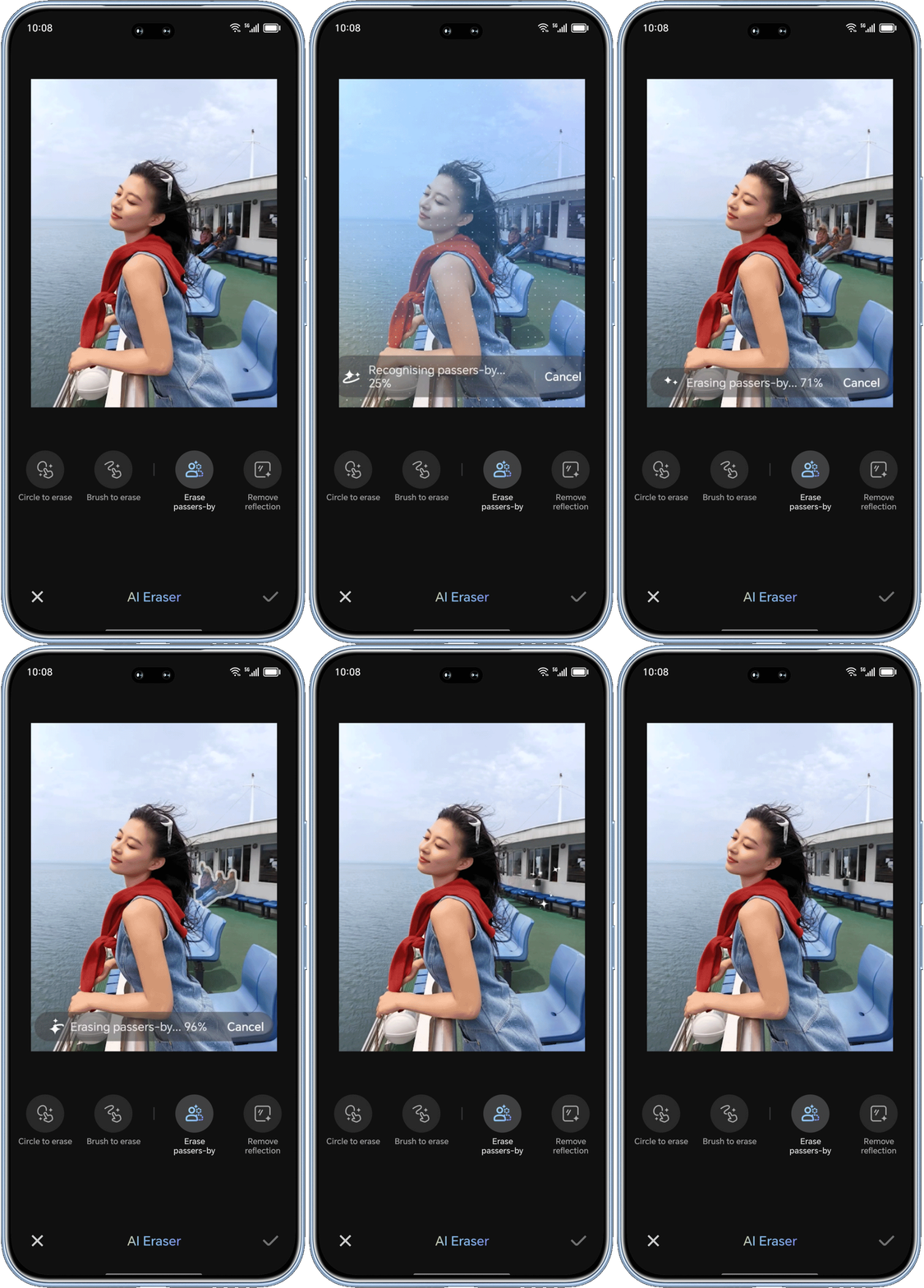
Beyond people, you can also remove other small unwanted objects such as cars or clutter. Choose Brush to erase, select the right brush size, and manually erase them for more precise editing.
AI Remove Reflection
Restore True Visuals by Eliminating Glare
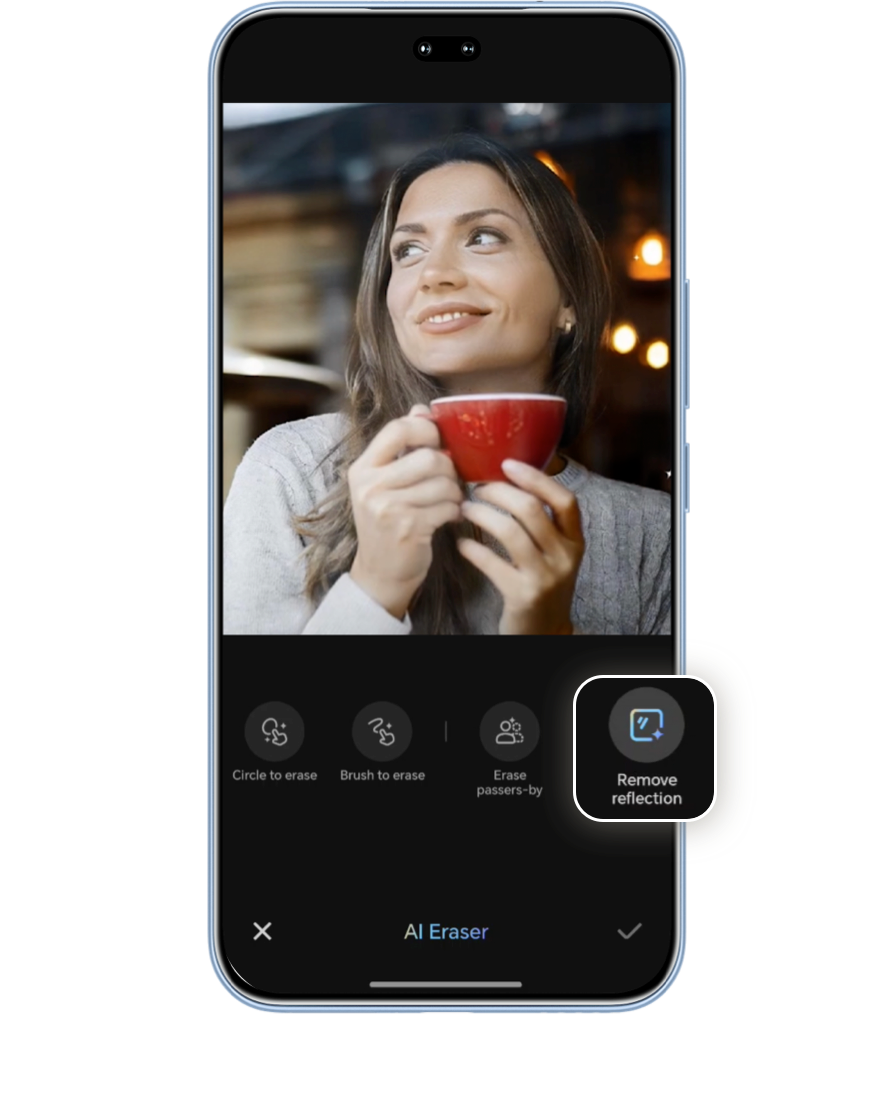
To use this feature, open Gallery > Album, select your photo, then tap AI Edit > Magic Retouch > AI Eraser>Remove Reflection. The AI will intelligently eliminate reflections. Just tap ✔ and Save to keep your works when finished.

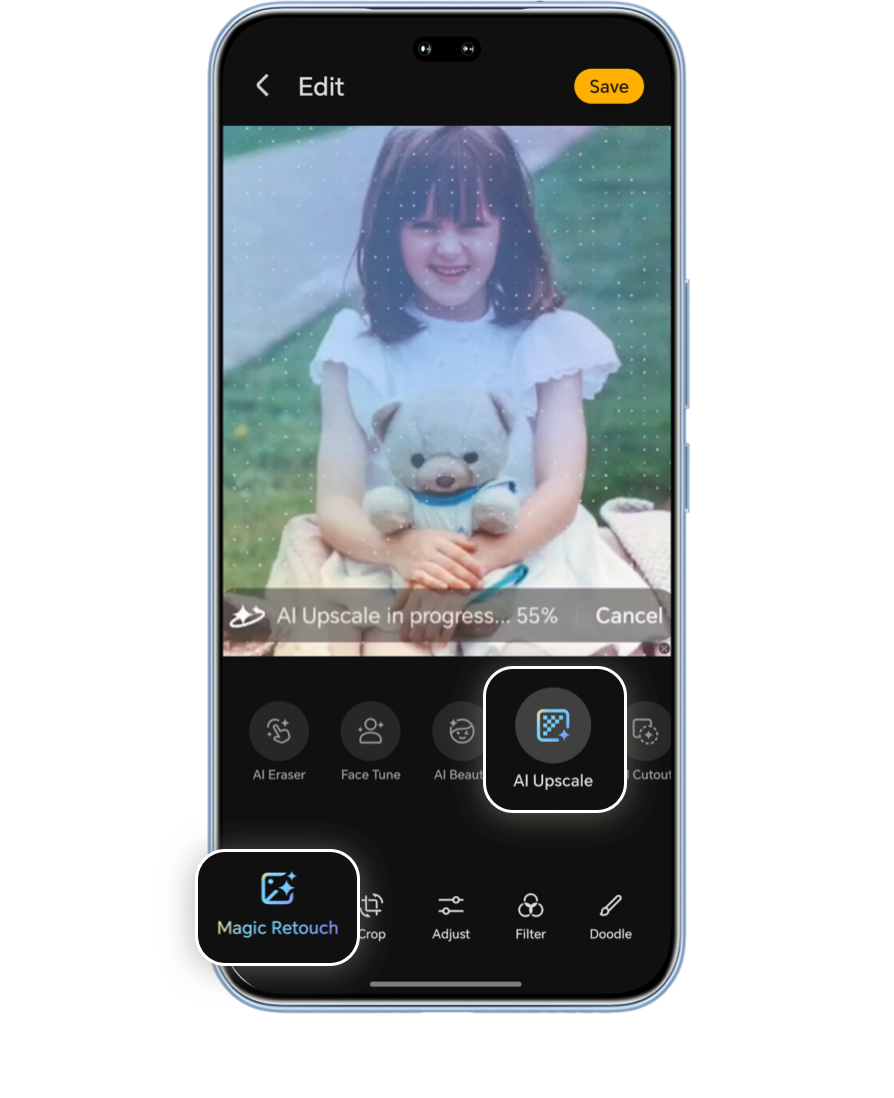
AI Upscale
Revive Blurry Photos with
HD Restoration
Can't see the details in old, blurry photos?
HONOR's AI can intelligently identify unclear areas in photos and restore clarity in three simple steps, bringing your memories back to life with remarkable sharpness.
Go to Gallery > Album and select the photo you want to enhance, then tap AI Edit > Magic Retouch > AI Upscale. Preview the enhanced image and tap Save to keep your edits once satisfied.

AI Eyes Open
Rescue Your Group Photos
with Opening Closed Eyes
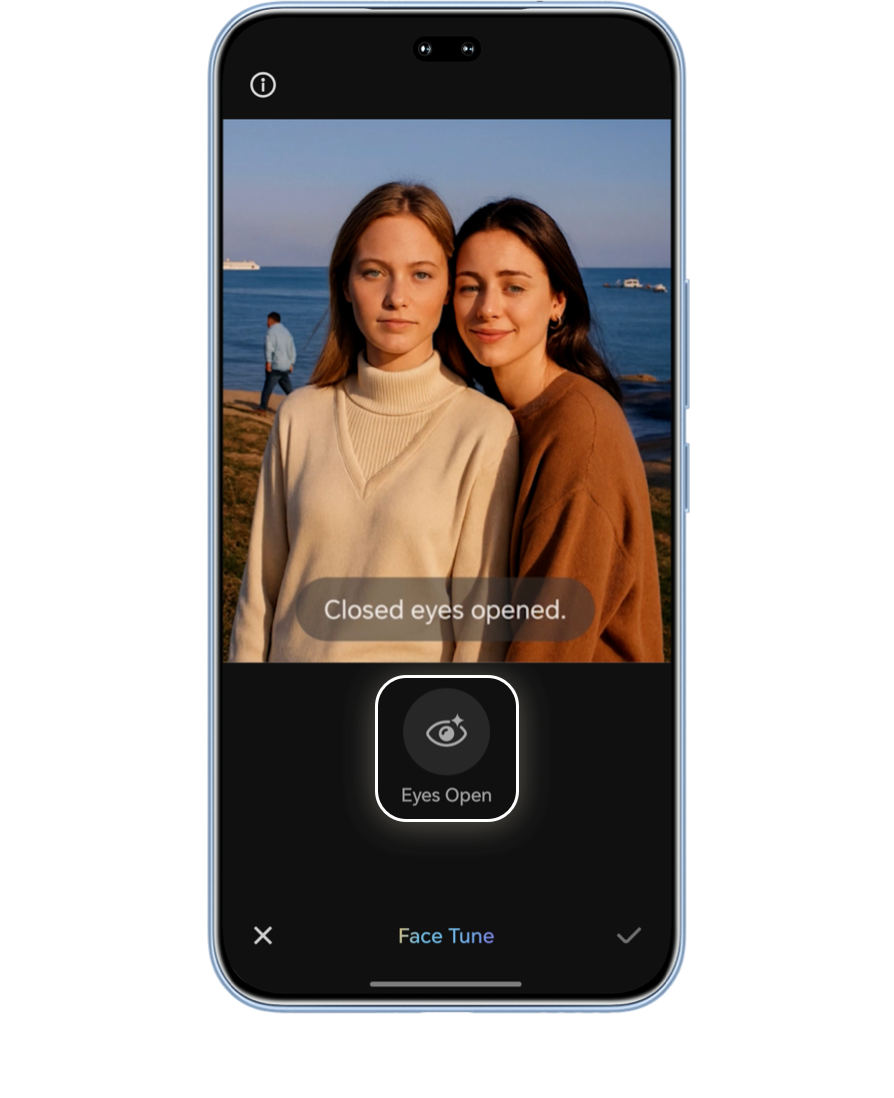
Group photos are precious, but what if someone blinked?
AI Face Tune intelligently identifies and analyzes multiple similar face photos from the same scene and fixes closed eyes, creating the perfect group shot.
To fix closed eyes, open Gallery > Album, select the photo, then tap AI Edit > Magic Retouch > Face Tune > Eyes Open.

*Photos taken locally, imported, or downloaded in the same scene are supported for multi-image fusion calculations.
AI Cutout
Play with Photo
Composition
One-click Background Change
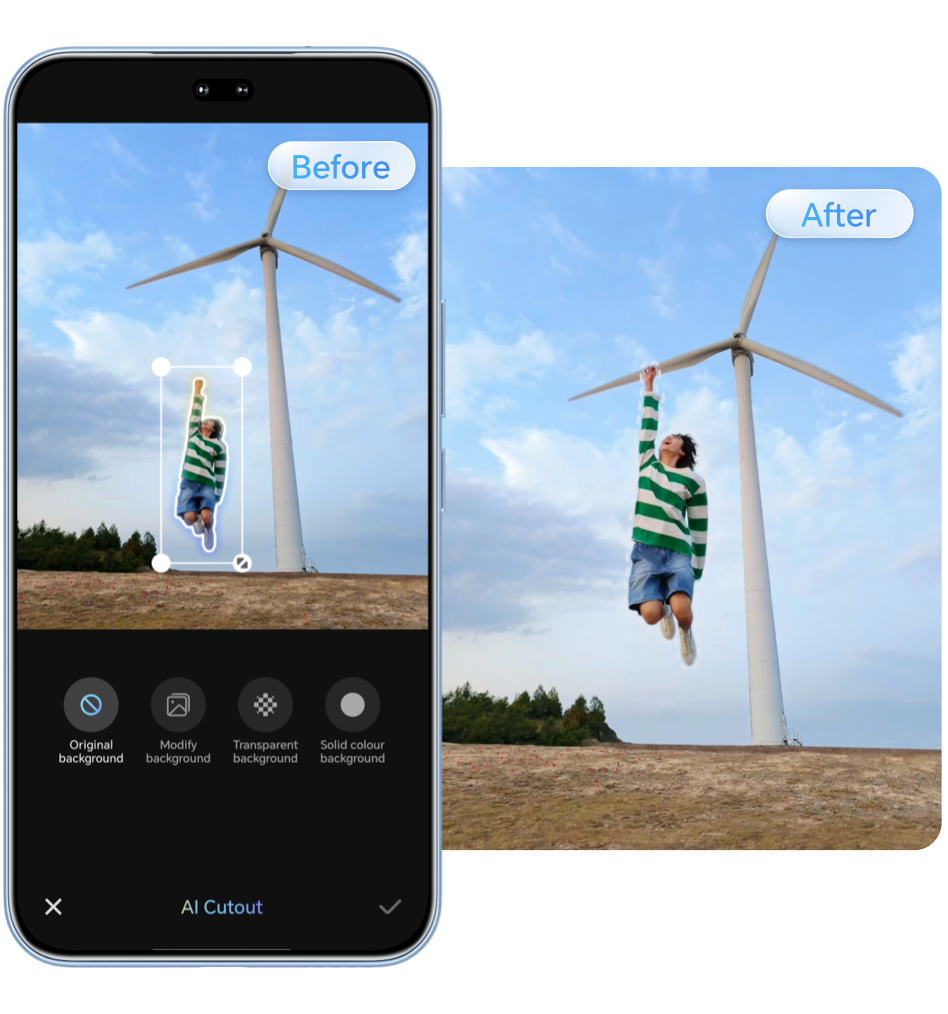
Extract the subject from the original photo and freely place them onto any background you choose.
Select your photo, then tap AI Edit > Magic Retouch > AI Cutout > Modify background. The AI will intelligently extract the subject and replace the background with any photo of your choice. Tap ✔ and Save to keep new creation.


Cutout and Reposition
You can also move the cutout subject within the same photo, and the AI will intelligently fill in the background for a seamless look.
Let your creativity run wild!
HONOR's All-in-one AI Magic Retouch redefine
the possibilities of image creation!
Putting a mini photo studio right in your pocket.
*The content is for reference only. Operations may vary on different models; please refer to the actual experience.
*Please ensure the device system is updated to the latest version. If not, please stay tuned for future updates. More models are being added; specific features will depend on the actual model.
More articles about AI Magic Retouch.

Tired of random strangers
photobombing your perfect shot?
Shoot freely without any worries!
AI Eraser
Clean Your Frame
in One Click
AI Erase Passers-by
Precisely Remove Unwanted People
Simply open Gallery > Album, select the photo, then tap AI Edit > Magic Retouch > AI Eraser > Eraser passers-by. The AI will intelligently identify and remove all passers-by in the photo. Tap ✔ and Save to keep your edits.

Beyond people, you can also remove other small unwanted objects such as cars or clutter. Choose Brush to erase, select the right brush size, and manually erase them for more precise editing.
AI Remove Reflection
Restore True Visuals by Eliminating Glare
To use this feature, open Gallery > Album, select your photo, then tap AI Edit > Magic Retouch > AI Eraser>Remove Reflection. The AI will intelligently eliminate reflections. Just tap ✔ and Save to keep your works when finished.
AI Upscale
Revive Blurry Photos with
HD Restoration
Can't see the details in old, blurry photos?
HONOR's AI can intelligently identify unclear areas in photos and restore clarity in three simple steps, bringing your memories back to life with remarkable sharpness.
Go to Gallery > Album and select the photo you want to enhance, then tap AI Edit > Magic Retouch > AI Upscale. Preview the enhanced image and tap Save to keep your edits once satisfied.
AI Eyes Open
Rescue Your Group Photos
with Opening Closed Eyes
Group photos are precious, but what if someone blinked?
AI Face Tune intelligently identifies and analyzes multiple similar face photos from the same scene and fixes closed eyes, creating the perfect group shot.
To fix closed eyes, open Gallery > Album, select the photo, then tap AI Edit > Magic Retouch > Face Tune > Eyes Open.
*Photos taken locally, imported, or downloaded in the same scene are supported for multi-image fusion calculations.
AI Cutout
Play with Photo
Composition
One-click Background Change
Extract the subject from the original photo and freely place them onto any background you choose.
Select your photo, then tap AI Edit > Magic Retouch > AI Cutout > Modify background. The AI will intelligently extract the subject and replace the background with any photo of your choice. Tap ✔ and Save to keep new creation.
Cutout and Reposition
You can also move the cutout subject within the same photo, and the AI will intelligently fill in the background for a seamless look.
Let your creativity run wild!
HONOR's All-in-one AI Magic Retouch redefine
the possibilities of image creation!
Putting a mini photo studio right in your pocket.
*The content is for reference only. Operations may vary on different models; please refer to the actual experience.
*Please ensure the device system is updated to the latest version. If not, please stay tuned for future updates. More models are being added; specific features will depend on the actual model.
More articles about AI Magic Retouch.