.png)
As deepfake technology becomes increasingly sophisticated, it poses significant risks,
including identity theft and fraud. HONOR pioneers AI Deepfake Detection identifying
suspicious content within three seconds to enhance communication safety.
Enable AI Deepfake Detection

to Protect Property Safety
“Family and friends” in the video call are asking for help.
It may be a face-swap scam!HONOR AI Deepfake Detection, analyzes video calls instantly, detecting signs of manipulation through facial expressions and lighting conditions.
It may be a face-swap scam!HONOR AI Deepfake Detection, analyzes video calls instantly, detecting signs of manipulation through facial expressions and lighting conditions.
How to enable AI Deepfake Detection:

Go to Settings > Security & privacy > Device & data protection > AI Deepfake
Detection, enable this function.


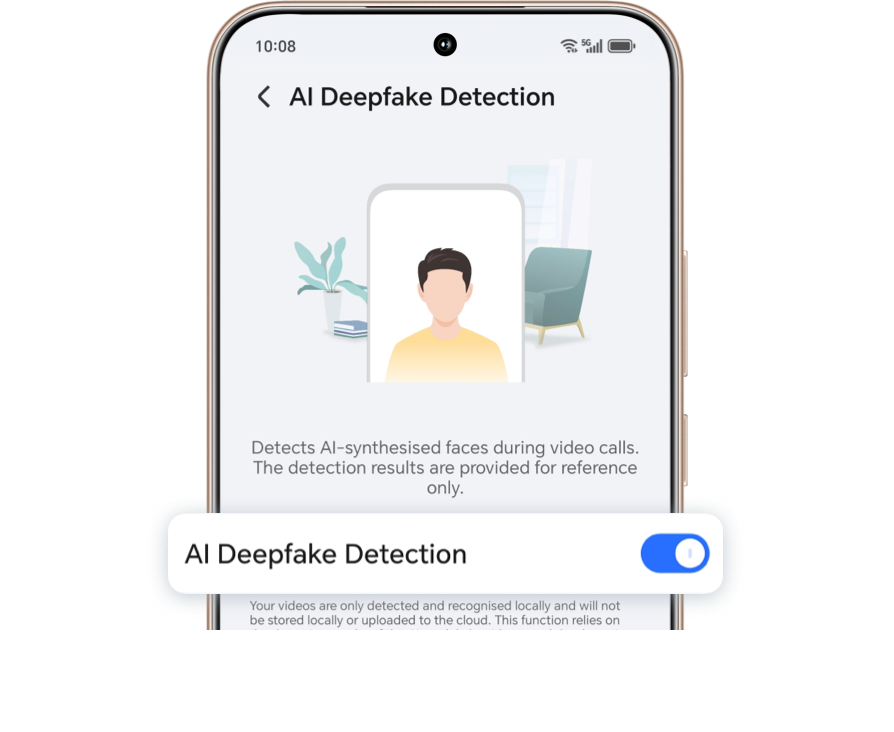
*Please make sure the internet connection: Either mobile data or Wi-Fi is fine.
A Pop-Up Notification Alerts the Suspected AI Deepfake
Please Verify the Identity As Soon As Possible to Prevent Fraud
If the pop-up indicates a risk, it is recommended that you verify the other end's true
identity through other means as soon as possible.
If the person is indeed who they claim to be: go to Settings > Security &
privacy > Device & data protection > AI Deepfake Detection, and check if
there is a pop-up window prompting to "Update AI Deepfake Detection Model".If such a
pop-up exists, please update to the latest model and try again.


If such a pop-up exists, please update to the latest model and try again. If no pop-up
appears, indicating that you are already using the latest model, or if you still receive
a notification suggesting that the other party might be using AI Face Swap, please
provide the user’s SN number, specific user phenomena, and images of detected risks to
the development team for further analysis.

If the person is not who they claim to be and is suspected of using AI Face Swap,
please verify the real identity through alternative means and be mindful of your
financial security.
Can't Trigger Video Call AI Deepfake Detection
Please check whether the device supports video call AI deepfake detection.
Models not on the list: Thank you for your inquiry. We are in the process of adapting and haven't received any updates yet, please stay tuned for future releases.
Models not on the list: Thank you for your inquiry. We are in the process of adapting and haven't received any updates yet, please stay tuned for future releases.
Please make sure the video call AI deepfake detection switch is on.

In video calls, AI Deepfake Detection is exclusively available for primary account.
It is not accessible for secondary account of Parallel Space, Private Space or App
Twin.
Apps that support this feature:Wechat、Messenger、Whatsapp、Botim
*Apps are not in the table: Thank you for your inquiry. The app is currently not listed
in the table. We are continuously adapting this feature.
Confirm whether there is a detection access.
In video calls, Magic Capsule of HONOR Security will pop up, or you can access AI
Deepfake Detection notification by swiping down the notification panel, then tap
Start detection. Upon completion, the detection result will be displayed.
*If the user still cannot trigger AI Deepfake Detection during video calls after the
above confirmation, the SN number and detailed information will be collected for further
processing.
If AI Deepfake Detection Prompt Indicates That It Hasn't Been Completed
Please Adjust and Try Again
Ensure that the other person's face is fully visible and in full-screen mode during
detection to ensure normal detection.

-
Ensure AI Deepfake Detection is enabled: On AI Deepfake Detection screen, wait for the "Install/Update AI Deepfake Detection Model" prompt to appear, then tap Install & enable/Update now.
(If the user does not install/update after the "Install/Update AI Deepfake Detection Model" prompt appears, it will pop up again after 24 hours.)
*This article uses the HONOR Magic7 Pro (MagicOS 9.0 system) as an example. The
operation paths may vary among different models, so please refer to the actual usage.
Some models currently don't support video call AI Deepfake Detection feature, so please
stay tuned for future version updates.
HONOR AI Deepfake Detection sets a new standard in mobile security.
As deepfake technology becomes increasingly sophisticated, it poses significant risks,
including identity theft and fraud. HONOR pioneers AI Deepfake Detection identifying
suspicious content within three seconds to enhance communication safety.
Enable AI Deepfake Detection
to Protect Property Safety
“Family and friends” in the video call are asking for help.
It may be a face-swap scam!HONOR AI Deepfake Detection, analyzes video calls instantly, detecting signs of manipulation through facial expressions and lighting conditions.
It may be a face-swap scam!HONOR AI Deepfake Detection, analyzes video calls instantly, detecting signs of manipulation through facial expressions and lighting conditions.
How to enable AI Deepfake Detection:
Go to Settings > Security & privacy > Device & data protection > AI Deepfake
Detection, enable this function.

*Please make sure the internet connection: Either mobile data or Wi-Fi is fine.
A Pop-Up Notification Alerts the Suspected AI Deepfake
Please Verify the Identity As Soon As Possible to Prevent Fraud
If the pop-up indicates a risk, it is recommended that you verify the other end's true
identity through other means as soon as possible.
If the person is indeed who they claim to be: go to Settings > Security &
privacy > Device & data protection > AI Deepfake Detection, and check if
there is a pop-up window prompting to "Update AI Deepfake Detection Model".If such a
pop-up exists, please update to the latest model and try again.
If such a pop-up exists, please update to the latest model and try again. If no pop-up
appears, indicating that you are already using the latest model, or if you still receive
a notification suggesting that the other party might be using AI Face Swap, please
provide the user’s SN number, specific user phenomena, and images of detected risks to
the development team for further analysis.
If the person is not who they claim to be and is suspected of using AI Face Swap,
please verify the real identity through alternative means and be mindful of your
financial security.
Can't Trigger Video Call AI Deepfake Detection
Please check whether the device supports video call AI deepfake detection.
Models not on the list: Thank you for your inquiry. We are in the process of adapting and haven't received any updates yet, please stay tuned for future releases.
Models not on the list: Thank you for your inquiry. We are in the process of adapting and haven't received any updates yet, please stay tuned for future releases.
Please make sure the video call AI deepfake detection switch is on.
In video calls, AI Deepfake Detection is exclusively available for primary account.
It is not accessible for secondary account of Parallel Space, Private Space or App
Twin.
Apps that support this feature:Wechat、Messenger、Whatsapp、Botim
*Apps are not in the table: Thank you for your inquiry. The app is currently not listed
in the table. We are continuously adapting this feature.
Confirm whether there is a detection access.
In video calls, Magic Capsule of HONOR Security will pop up, or you can access AI
Deepfake Detection notification by swiping down the notification panel, then tap
Start detection. Upon completion, the detection result will be displayed.
*If the user still cannot trigger AI Deepfake Detection during video calls after the
above confirmation, the SN number and detailed information will be collected for further
processing.
If AI Deepfake Detection Prompt Indicates That It Hasn't Been Completed
Please Adjust and Try Again
Ensure that the other person's face is fully visible and in full-screen mode during
detection to ensure normal detection.
-
Ensure AI Deepfake Detection is enabled: On AI Deepfake Detection screen, wait for the "Install/Update AI Deepfake Detection Model" prompt to appear, then tap Install & enable/Update now.
(If the user does not install/update after the "Install/Update AI Deepfake Detection Model" prompt appears, it will pop up again after 24 hours.)
*This article uses the HONOR Magic7 Pro (MagicOS 9.0 system) as an example. The
operation paths may vary among different models, so please refer to the actual usage.
Some models currently don't support video call AI Deepfake Detection feature, so please
stay tuned for future version updates.
HONOR AI Deepfake Detection sets a new standard in mobile security.