
You can make phone calls in the AI Privacy Call mode without worrying about the call being
heard by those around you, especially when taking the elevator or in the office.
AI Privacy Call
Suitable for a Range
of Scenarios
Suitable for a Range
of Scenarios

The HONOR AI Privacy Call can significantly focus the phone's audio volume around
the user's ear. When making calls in quiet environments such as elevators or meeting
rooms, the sound is concentrated and directed into the ear, reducing sound leakage.
In noisy places like train stations or parties, it can also reduce background noise
and minimize external sound interference, ensuring smooth communication.

*When using AI Privacy Call, please follow the screen prompts to place your ear as
close as possible to the optimal listening area for better audio quality and to
ensure the security of your call privacy.
Enable AI Privacy Call
Enhance Your
Calling Experience
Enhance Your
Calling Experience
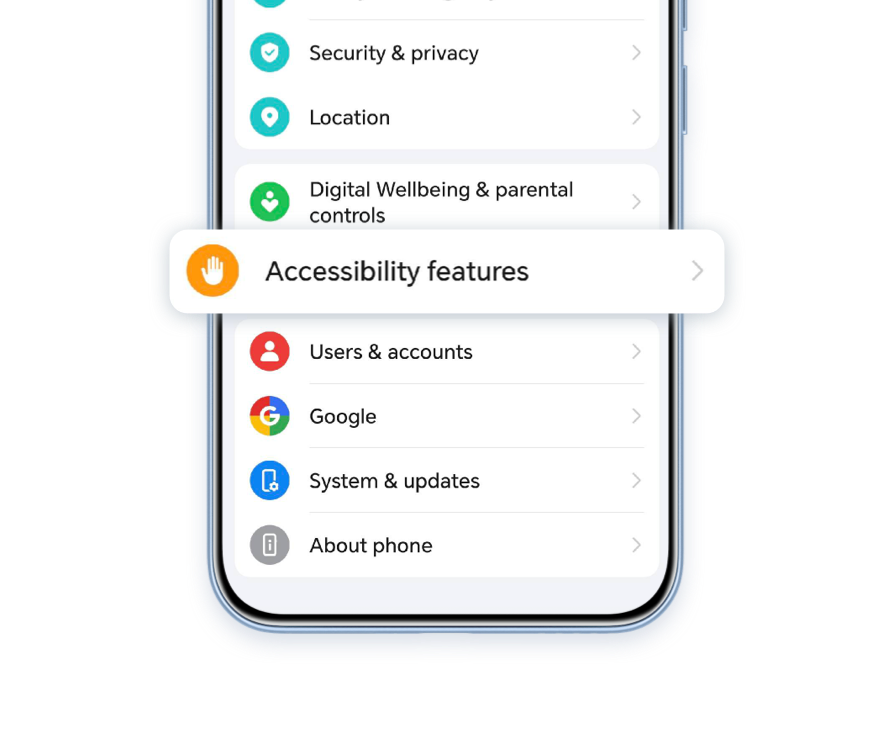
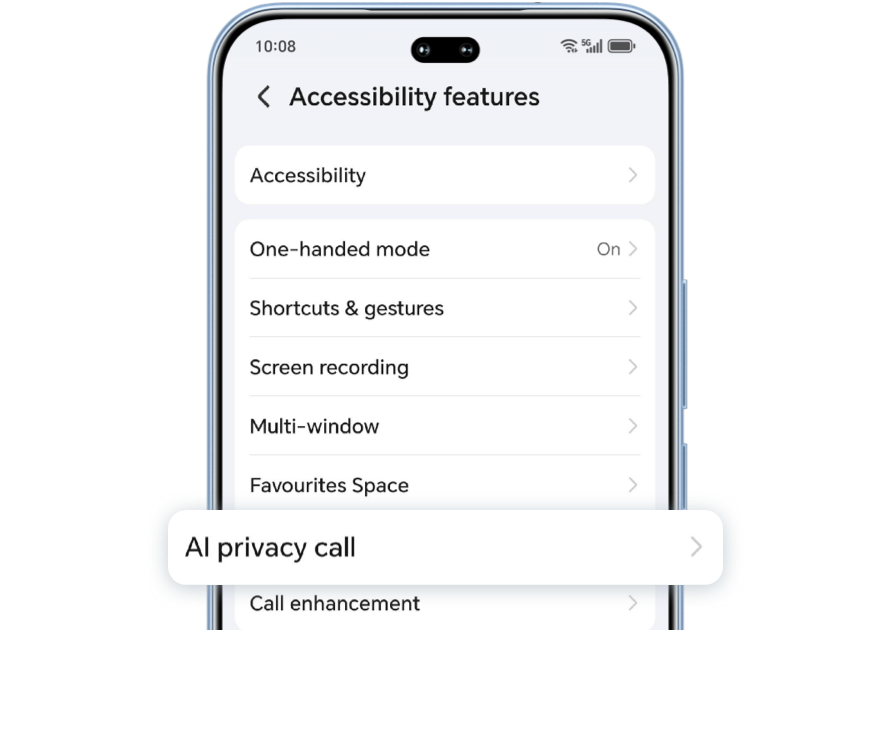
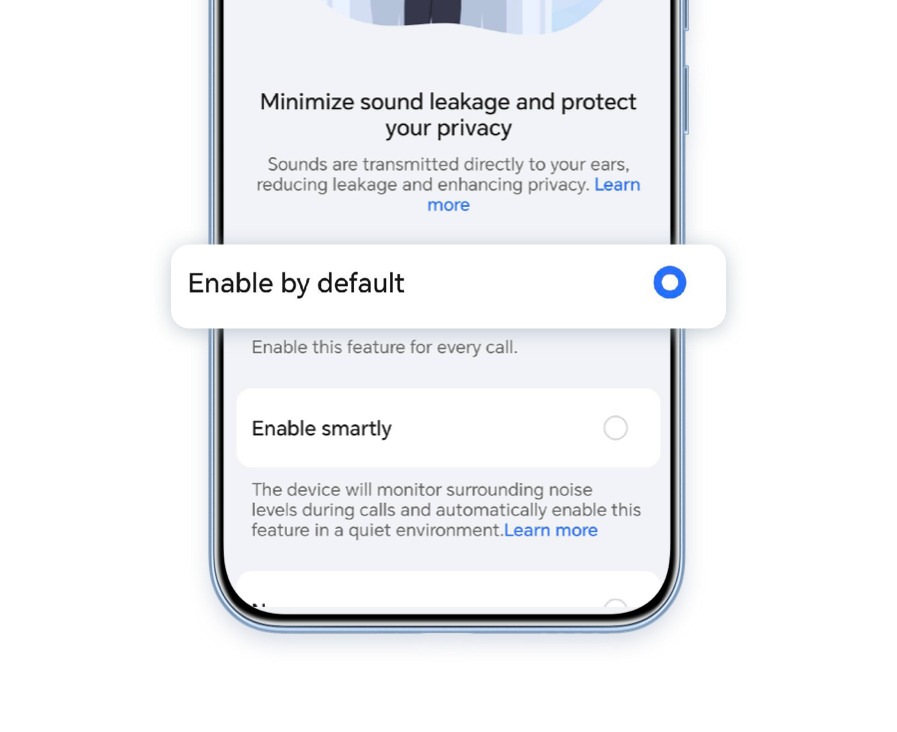
Go to Settings > Accessibility features> AI privacy call, and select either Enable by default or Enable smartly.
You can determine whether the system is in AI Privacy Call mode based on the text
prompts on the phone screen, the appearance and color of the call volume bar.
Manually lowering the volume will quickly activate AI Privacy Call mode, while
increasing the volume will exit it.

*The call volume bar will turn green when AI Privacy Call mode is enabled.

Default Activation: Every call will enter AI Privacy Call mode
automatically.
Smart Activation: During a call, the system intelligently detects the surrounding ambient noise levels. It determines whether the environment is quiet or noisy and automatically turns on or off AI Privacy Call mode while adjusting the call volume accordingly.
Smart Activation: During a call, the system intelligently detects the surrounding ambient noise levels. It determines whether the environment is quiet or noisy and automatically turns on or off AI Privacy Call mode while adjusting the call volume accordingly.
*The system will only automatically turn on or off AI Privacy Call mode once per
call based on the ambient noise levels.
*After enabling Smart Activation, if you manually adjust the volume during a call, it will switch to manual mode and no longer switch automatically.
*After enabling Smart Activation, if you manually adjust the volume during a call, it will switch to manual mode and no longer switch automatically.
Disable AI Privacy Call
Restore Normal Call Quality
Restore Normal Call Quality
Go to Settings > Accessibility features> AI privacy call, and select Never to turn off AI Privacy Call mode.

*During a call, the AI Privacy Call mode will automatically exit if you turn on the
speakerphone or use headphones.
Effectively reduce call leakage and enhance clarity with active noise cancellation.
AI Privacy Call takes your call experience to the next level.
AI Privacy Call takes your call experience to the next level.
You can make phone calls in the AI Privacy Call mode without worrying about the call being
heard by those around you, especially when taking the elevator or in the office.
AI Privacy Call
Suitable for a Range
of Scenarios
Suitable for a Range
of Scenarios
The HONOR AI Privacy Call can significantly focus the phone's audio volume around
the user's ear. When making calls in quiet environments such as elevators or meeting
rooms, the sound is concentrated and directed into the ear, reducing sound leakage.
In noisy places like train stations or parties, it can also reduce background noise
and minimize external sound interference, ensuring smooth communication.
*When using AI Privacy Call, please follow the screen prompts to place your ear as
close as possible to the optimal listening area for better audio quality and to
ensure the security of your call privacy.
Enable AI Privacy Call
Enhance Your
Calling Experience
Enhance Your
Calling Experience
Go to Settings > Accessibility features> AI privacy call, and select either Enable by default or Enable smartly.
You can determine whether the system is in AI Privacy Call mode based on the text
prompts on the phone screen, the appearance and color of the call volume bar.
Manually lowering the volume will quickly activate AI Privacy Call mode, while
increasing the volume will exit it.

*The call volume bar will turn green when AI Privacy Call mode is enabled.
Default Activation: Every call will enter AI Privacy Call mode
automatically.
Smart Activation: During a call, the system intelligently detects the surrounding ambient noise levels. It determines whether the environment is quiet or noisy and automatically turns on or off AI Privacy Call mode while adjusting the call volume accordingly.
Smart Activation: During a call, the system intelligently detects the surrounding ambient noise levels. It determines whether the environment is quiet or noisy and automatically turns on or off AI Privacy Call mode while adjusting the call volume accordingly.
*The system will only automatically turn on or off AI Privacy Call mode once per
call based on the ambient noise levels.
*After enabling Smart Activation, if you manually adjust the volume during a call, it will switch to manual mode and no longer switch automatically.
*After enabling Smart Activation, if you manually adjust the volume during a call, it will switch to manual mode and no longer switch automatically.
Disable AI Privacy Call
Restore Normal Call Quality
Restore Normal Call Quality
Go to Settings > Accessibility features> AI privacy call, and select Never to turn off AI Privacy Call mode.
*During a call, the AI Privacy Call mode will automatically exit if you turn on the
speakerphone or use headphones.
Effectively reduce call leakage and enhance clarity with active noise cancellation.
AI Privacy Call takes your call experience to the next level.
AI Privacy Call takes your call experience to the next level.