Want to give your HONOR phone a fresh new look? Start by changing the wallpaper! With a range of stylish options, including animated wallpapers and icon themes—it’s easy to find one that's perfect for you. In just a few taps, your home screen can look more appealing and uniquely you.
.png)
Change the wallpaper

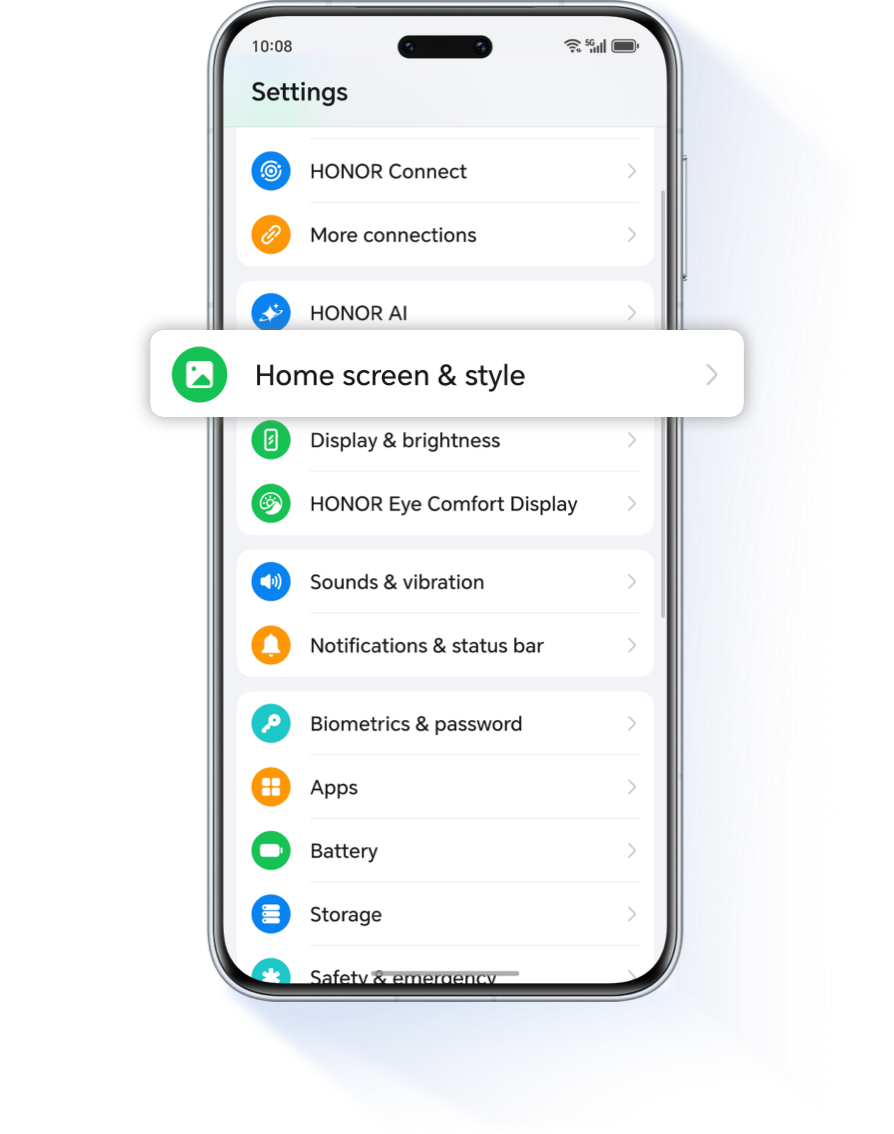
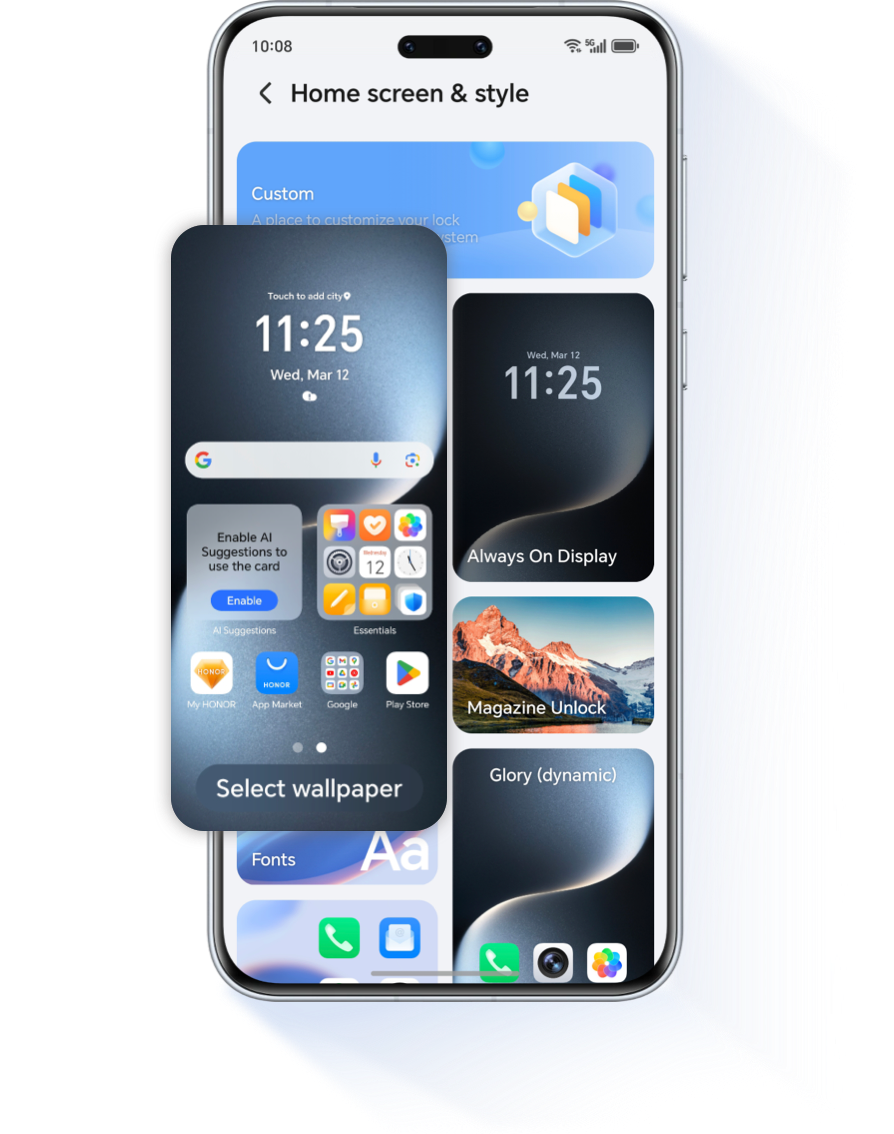
Go to Settings > Home screen & style, tap Select
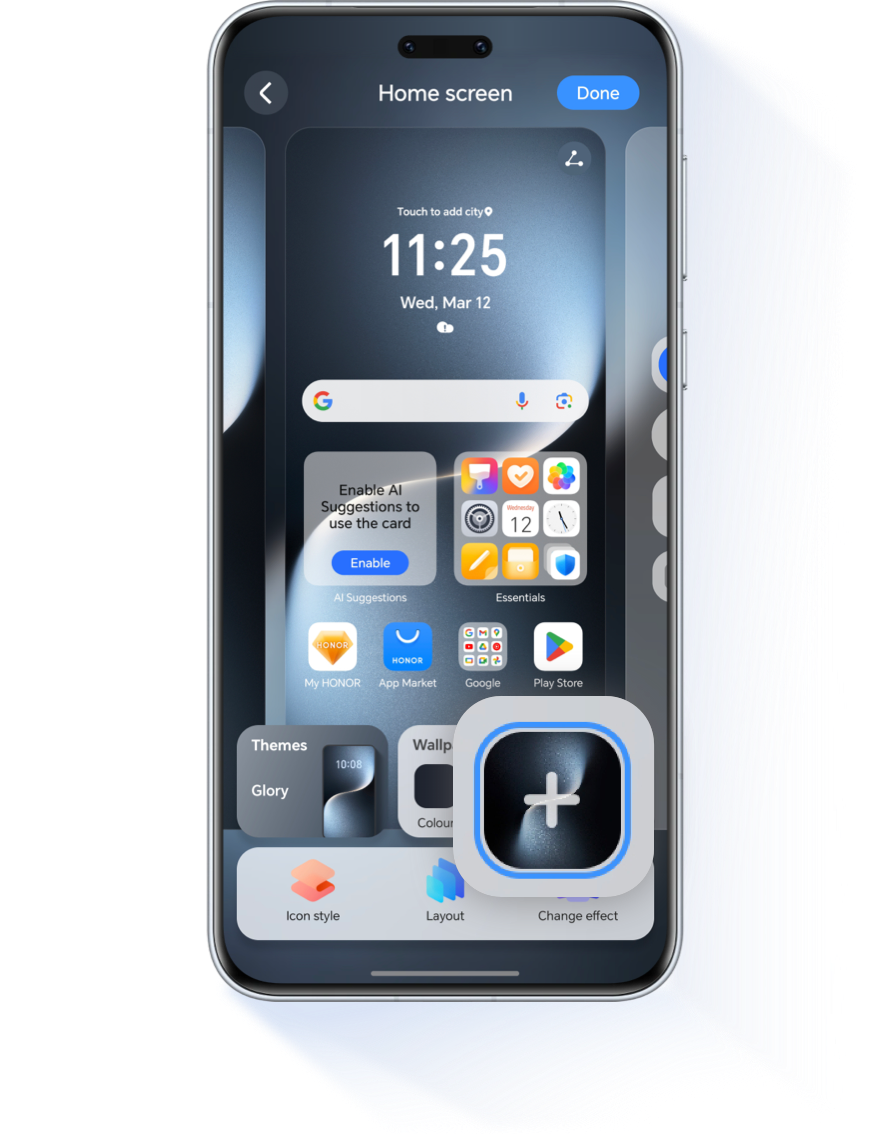
wallpaper >
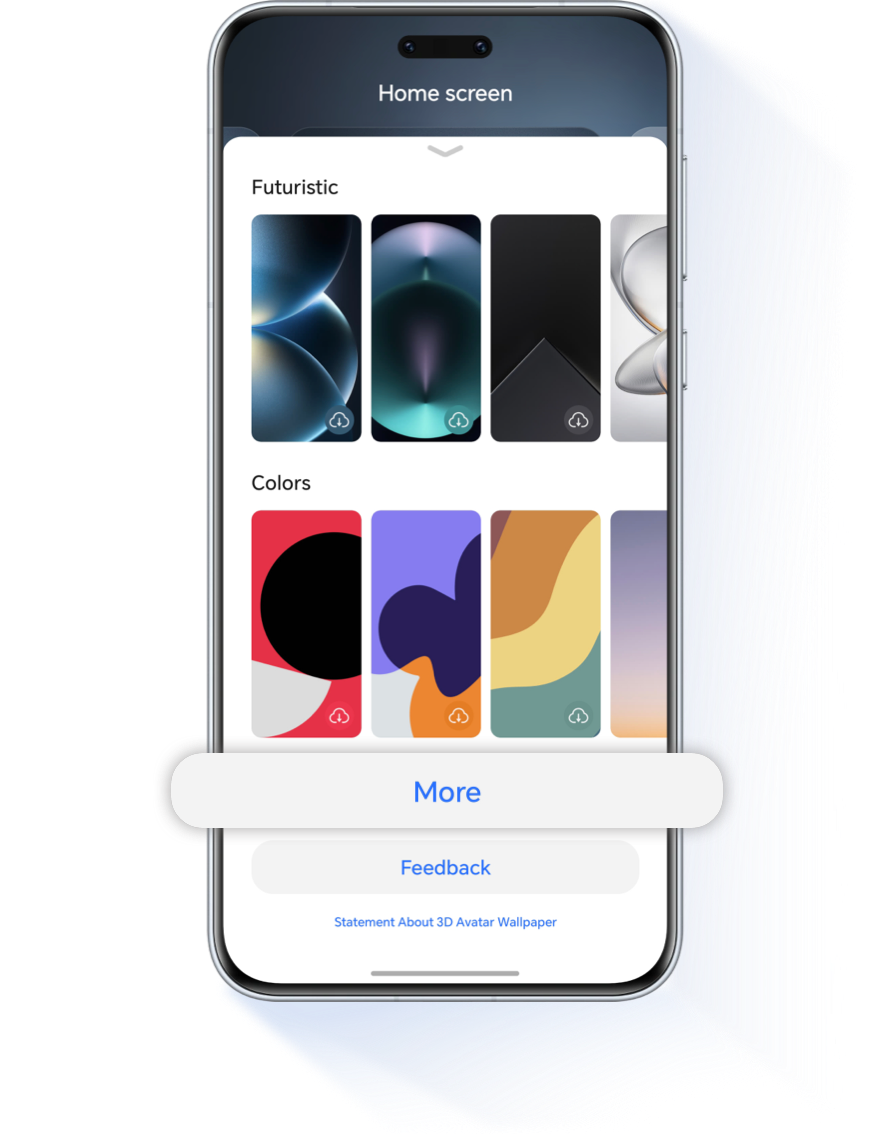
Photo, then choose a new wallpaper. To explore more options,
scroll
to the bottom and tap More to browse additional
wallpapers.
HONOR offers a wide variety of free wallpapers, whether you prefer
minimalist
designs, vibrant artwork, or scenic photography, you’re sure to find
something
that matches your style!
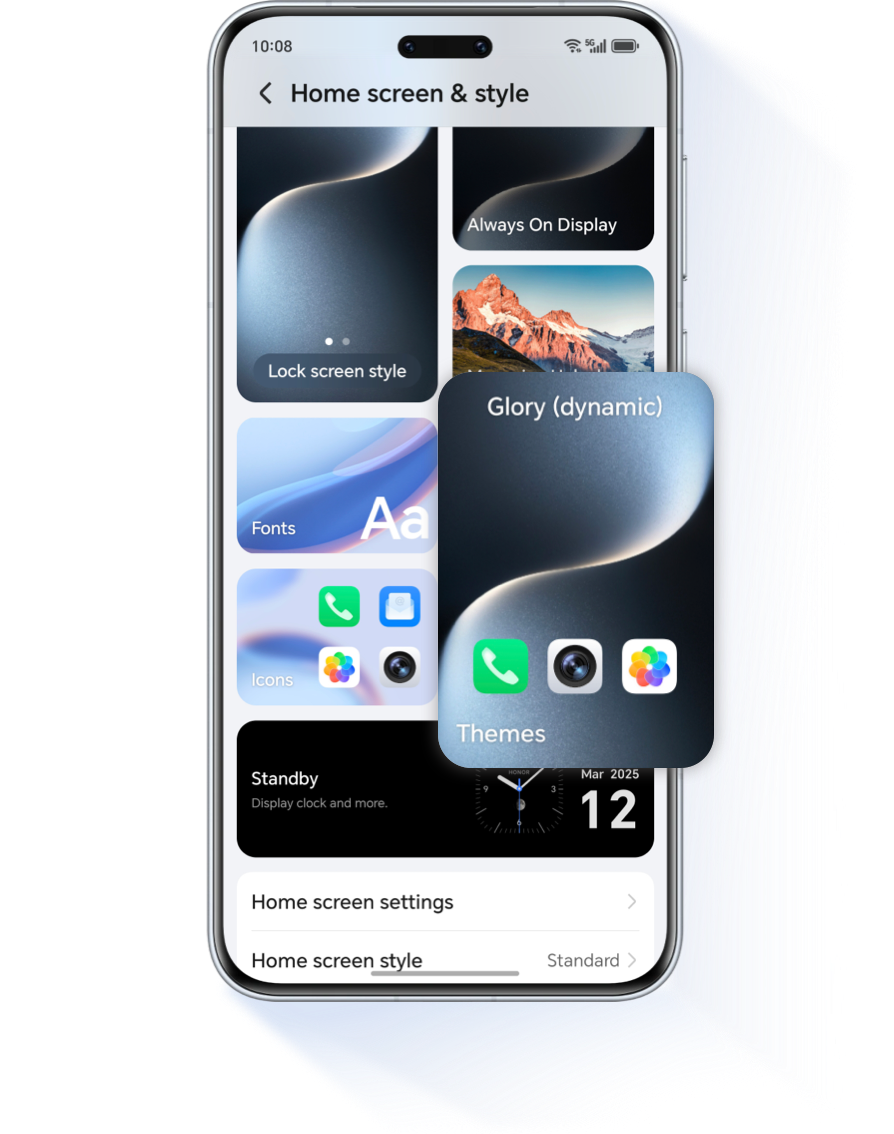
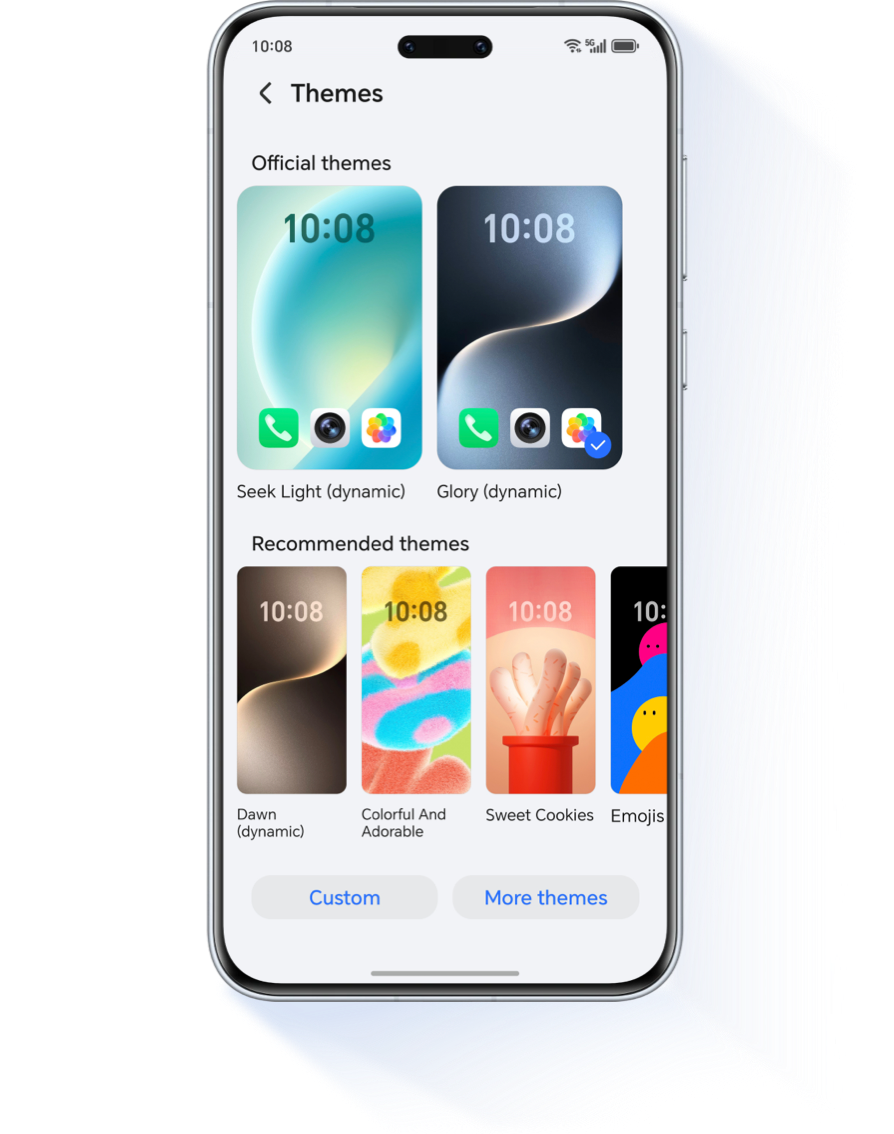
If you are looking for an exciting visual experience with smooth animations, you can download and apply a theme that supports Live Wallpapers. Go to Settings > Home screen & style > Themes and download the theme of your choice.
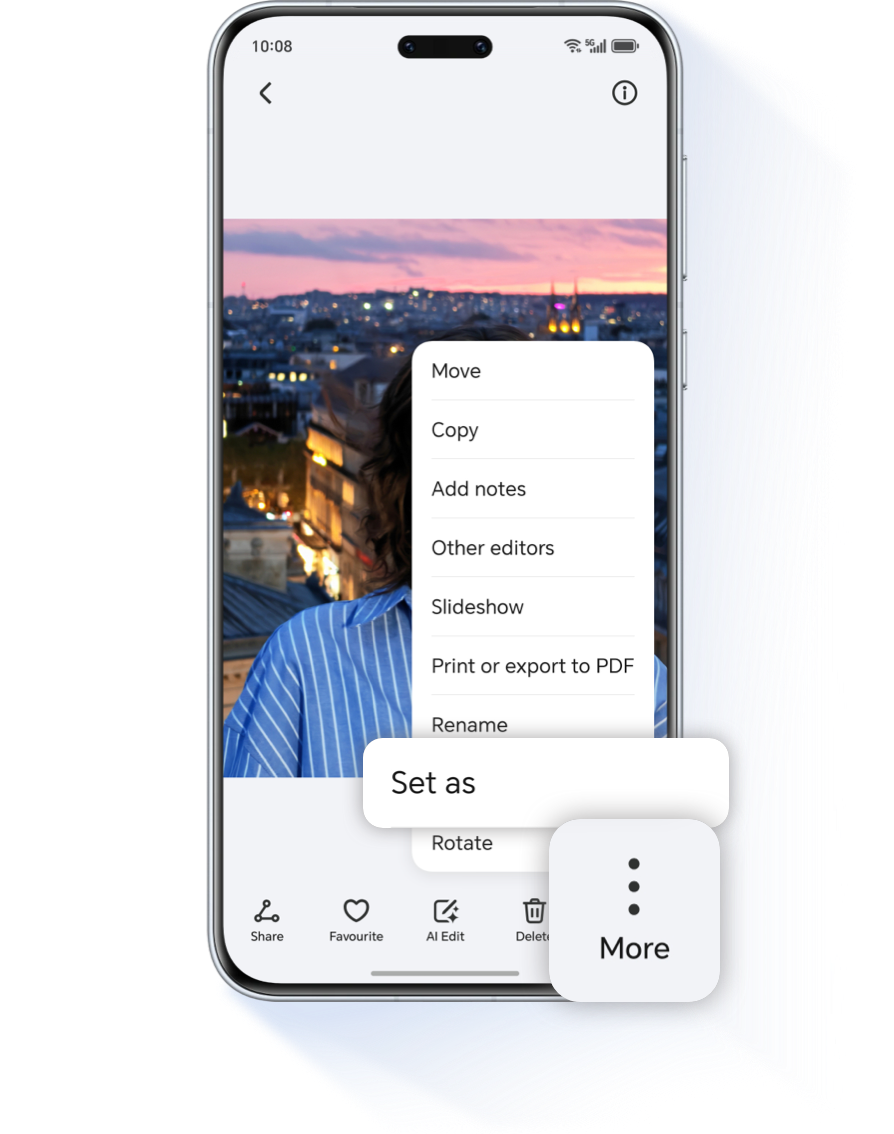
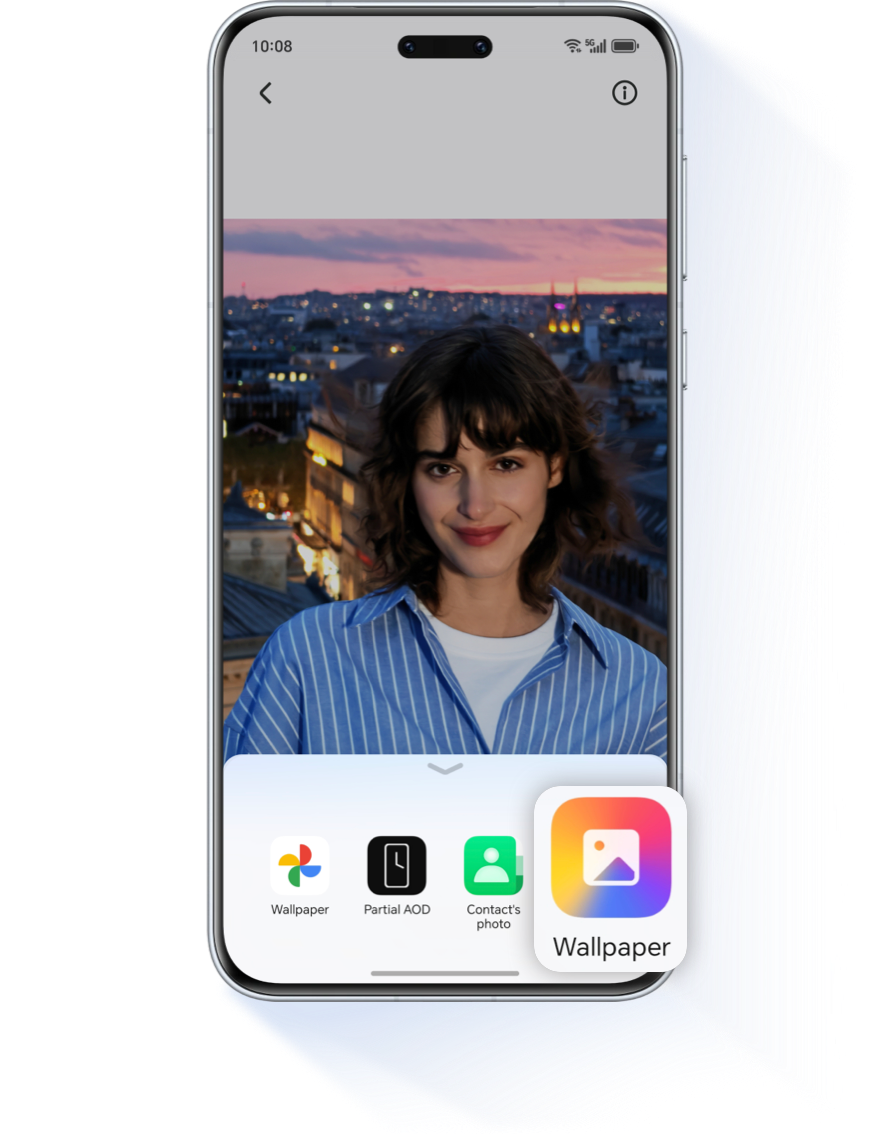
You can also set any favorite photo as your wallpaper. Simply find the
picture
you like in the Gallery, tap More .png) > Set
as, and select Wallpaper. Then, follow the on-screen
prompts to apply it.
> Set
as, and select Wallpaper. Then, follow the on-screen
prompts to apply it.
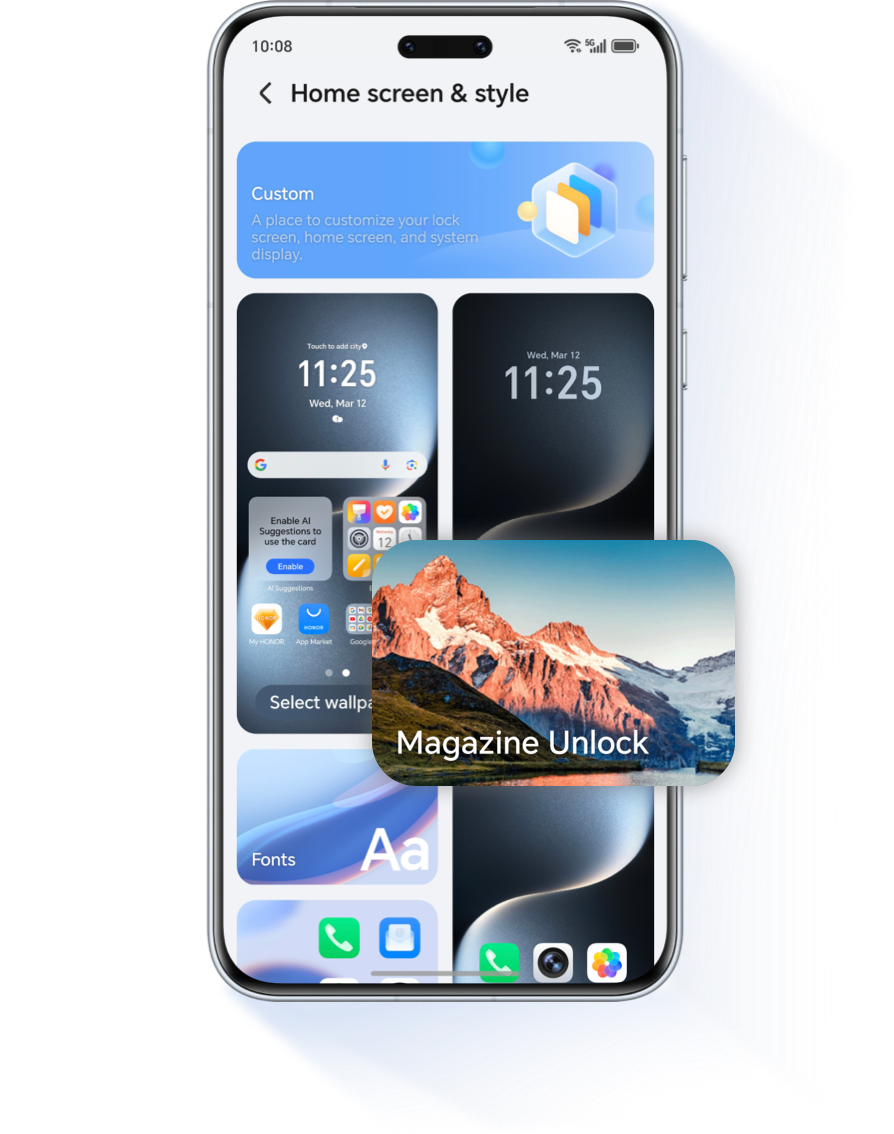
Another great way to customize your phone is to enable Magazine Unlock, giving you something fresh to look at every time you wake your phone.
Enable Magazine Unlock
Go to Settings >Home screen & style, tap Magazine Unlock, and turn it on.
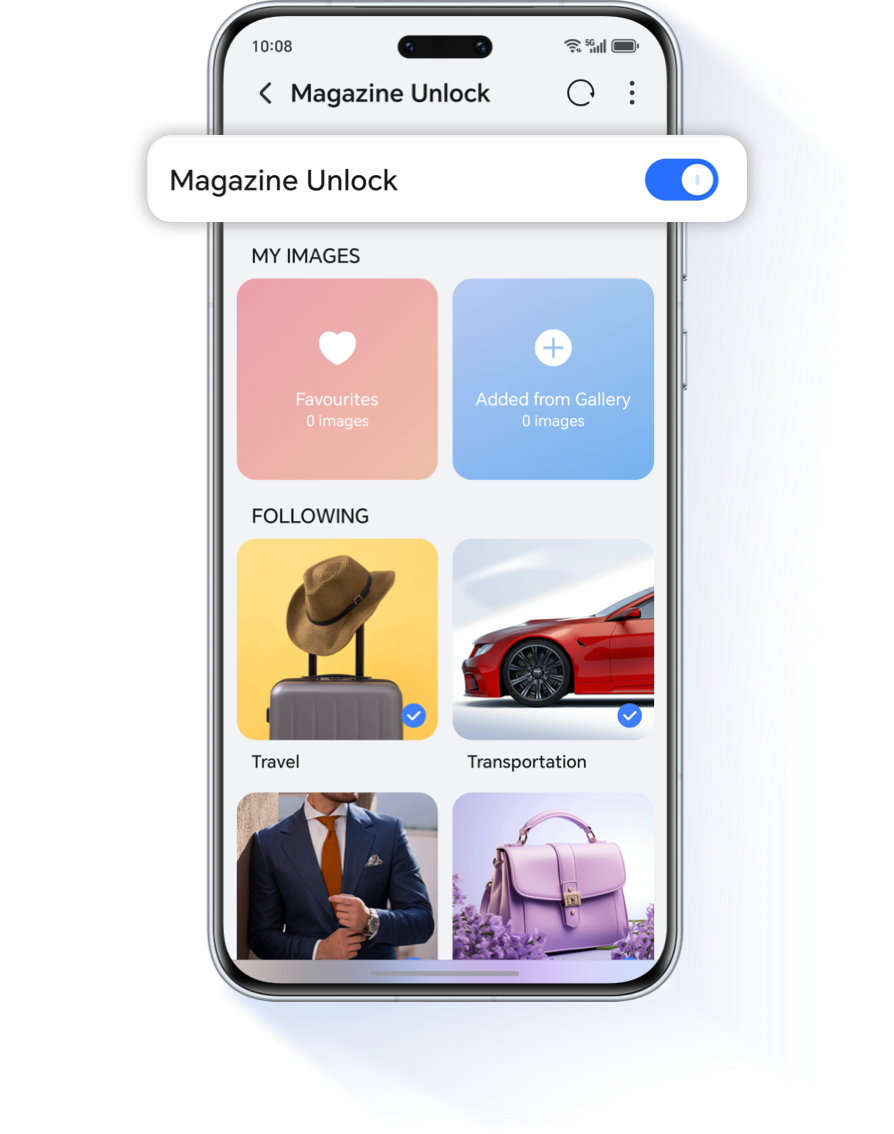
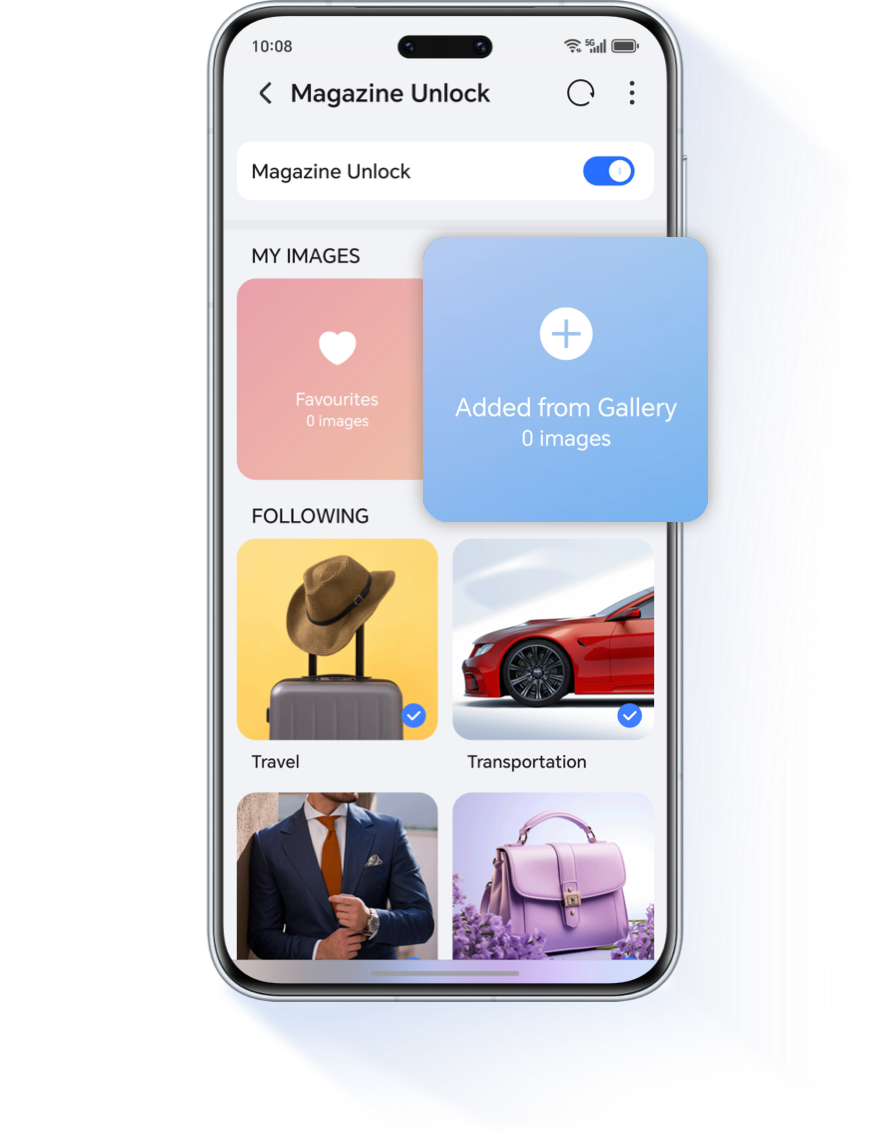
On the Magazine Unlock screen, click ➕ to add your preferred pictures and create a customized lock screen experience.
Enable Always On Display
Go to Settings > Home screen & style > Always On Display and enable Always On Display. On the Display mode screen, you can set specific start and end times that suit your schedule.
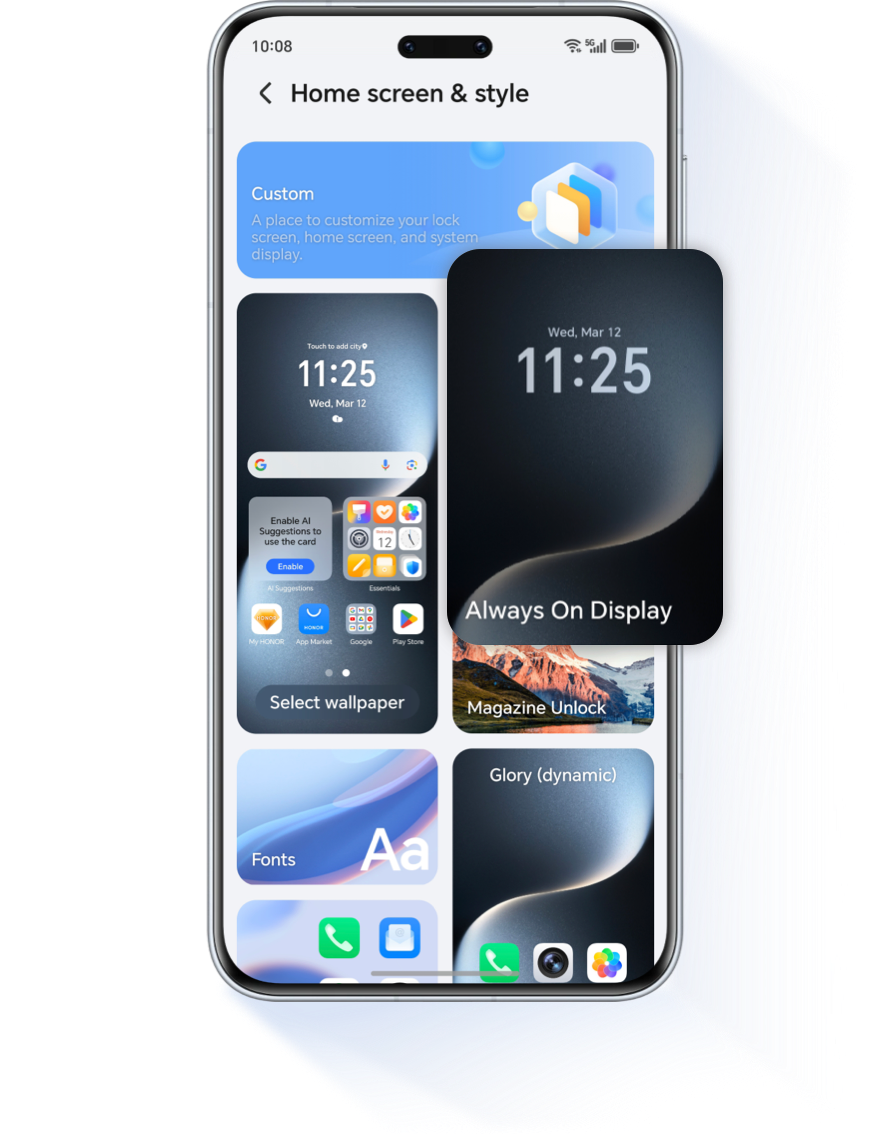
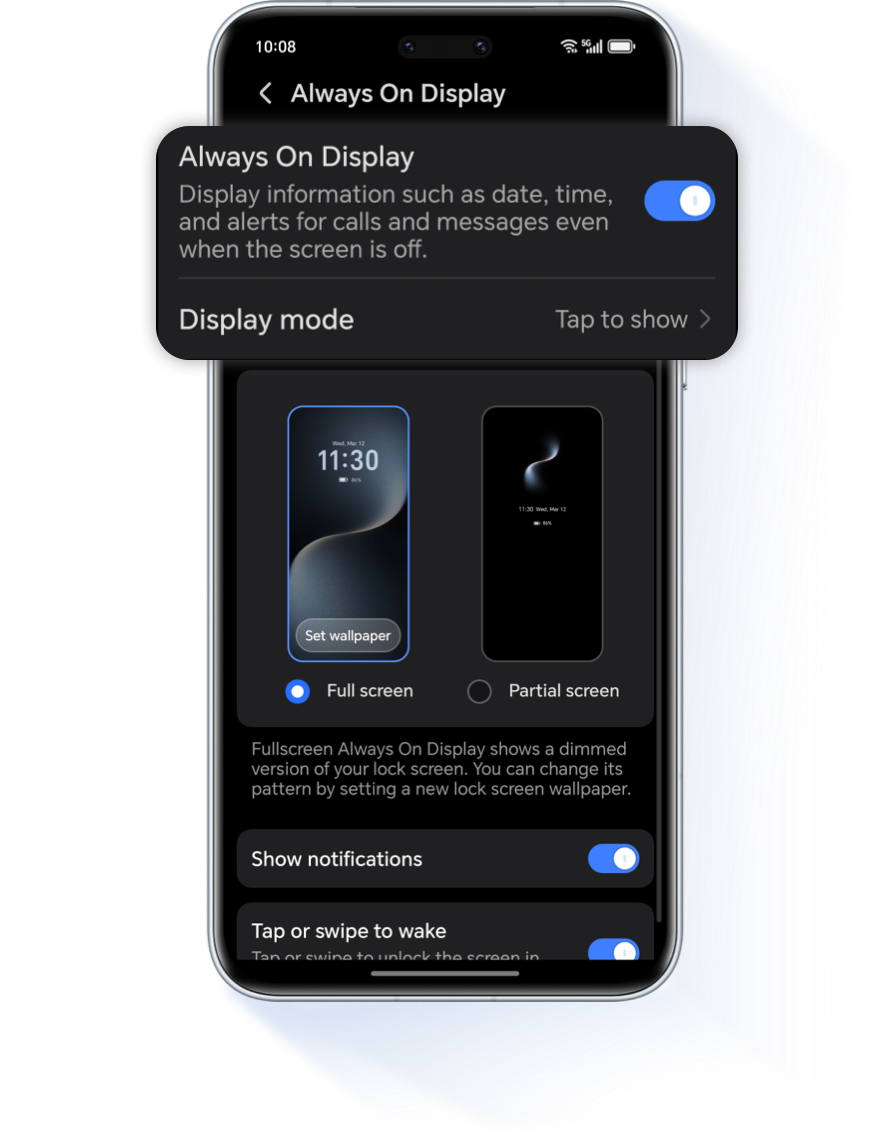
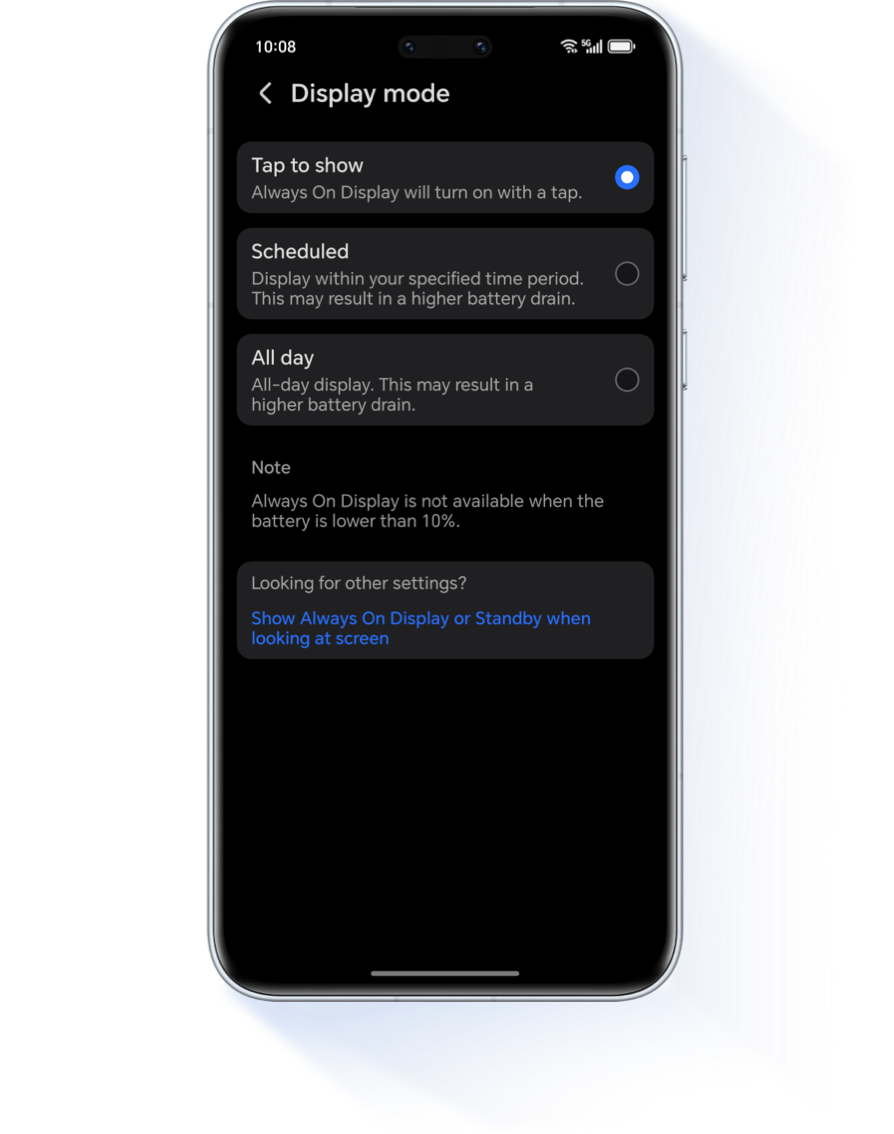
* If you can't find this options in Settings, it means your device model does not support the Always On Display feature.
A cluttered home screen can make it difficult to find the apps you need. Organizing your layout to match your usage habits makes your phone easier and more efficient to use.
Manage Screen Layout
Pinch two fingers together on the home screen, or go to Settings > Home screen & style, tap Home screen settings > Layout, then choose your preferred layout pattern. You can also enable Lock layout to prevent accidental changes and turn on Auto-align to keep everything tidy.
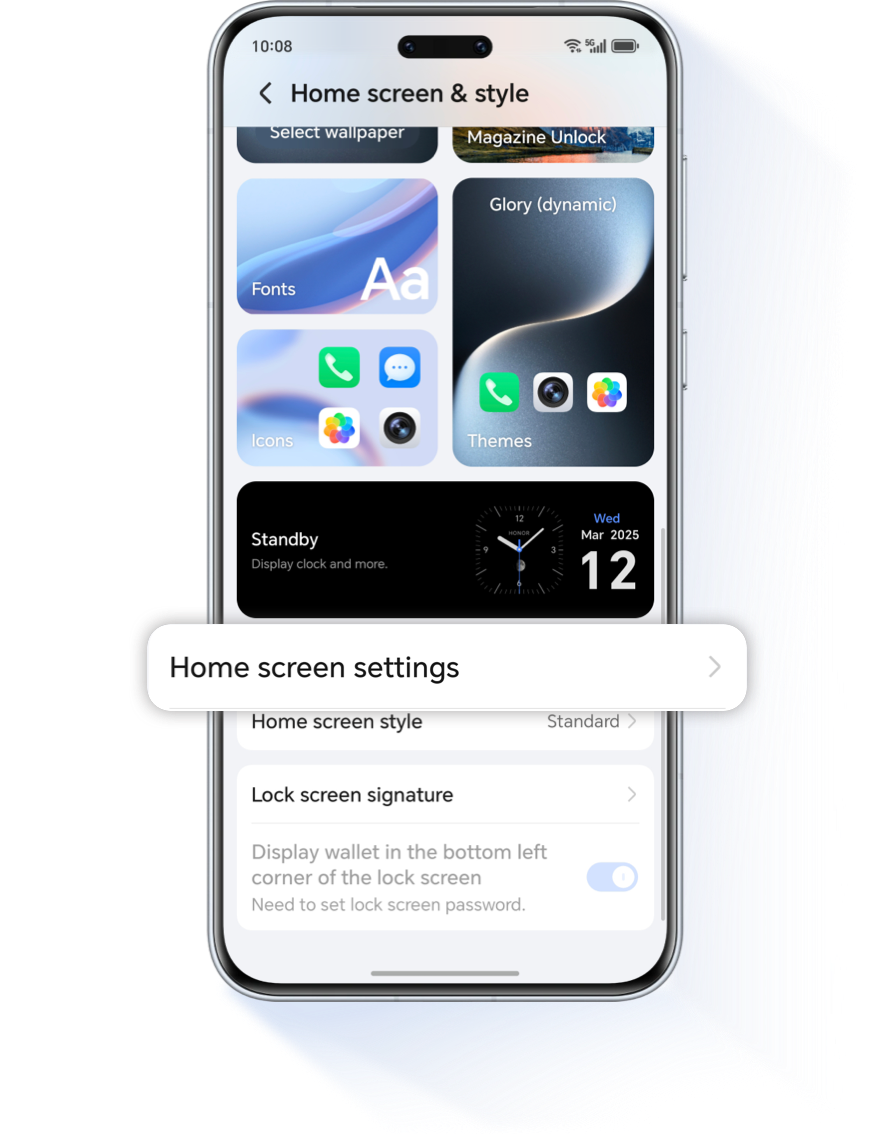
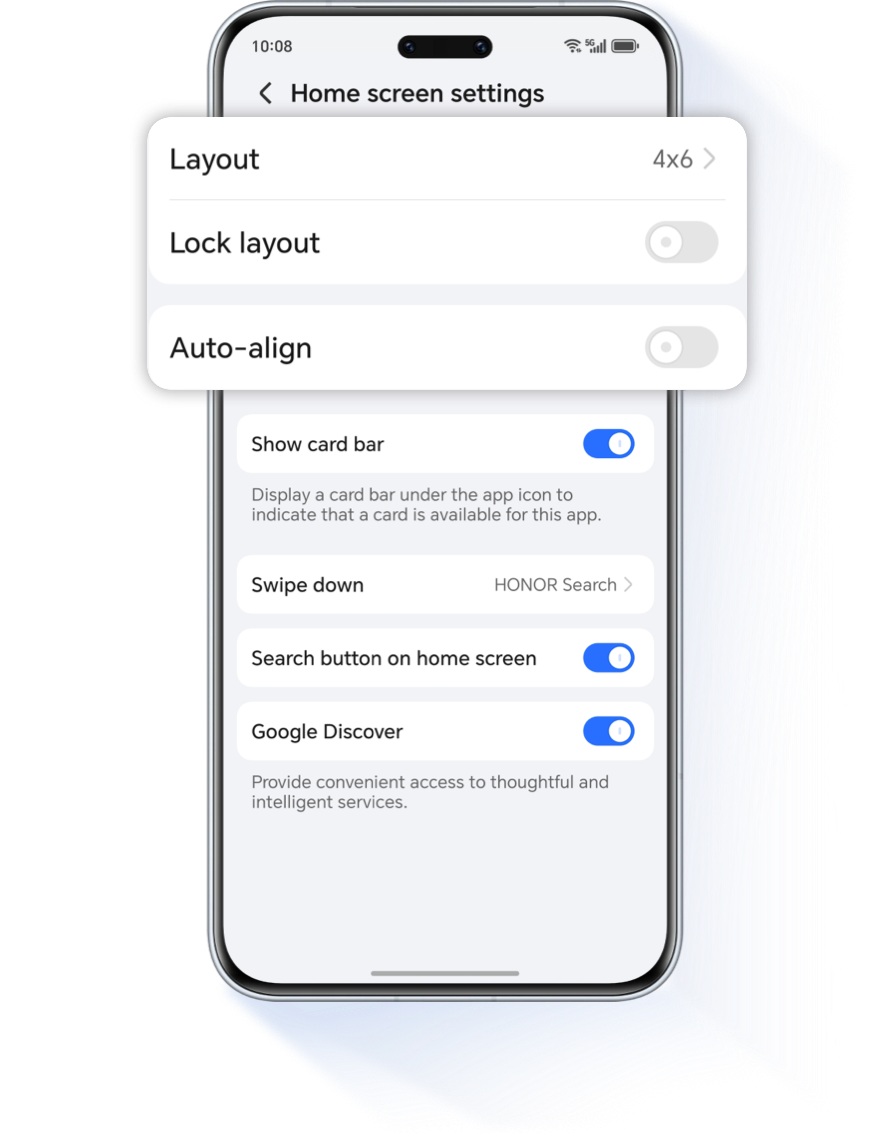
To better manage your apps, create folders by dragging and dropping apps together. Group similar apps for quicker access!
Lastly, customizing your ringtone add another personal touch to your HONOR phone. You can choose your favorite music or video to play as your ringtone for incoming calls.
Set a Custom Ringtone
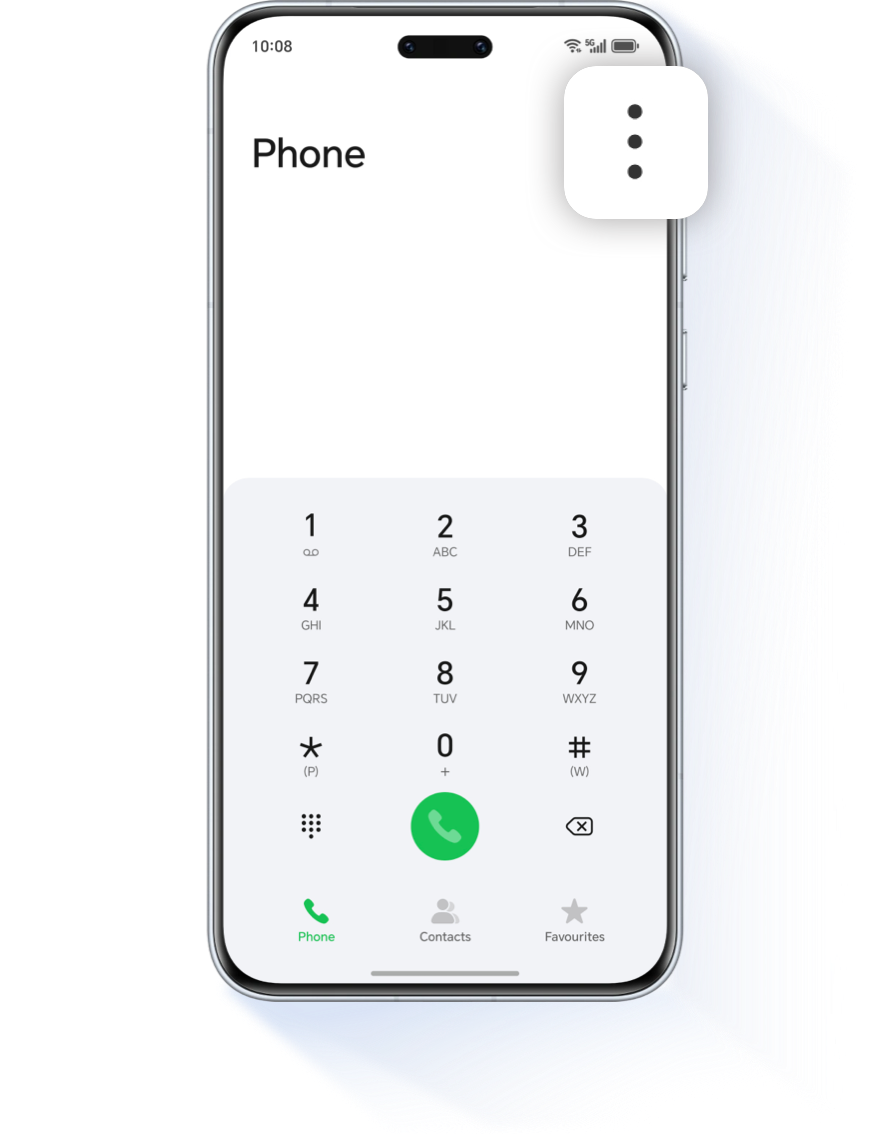
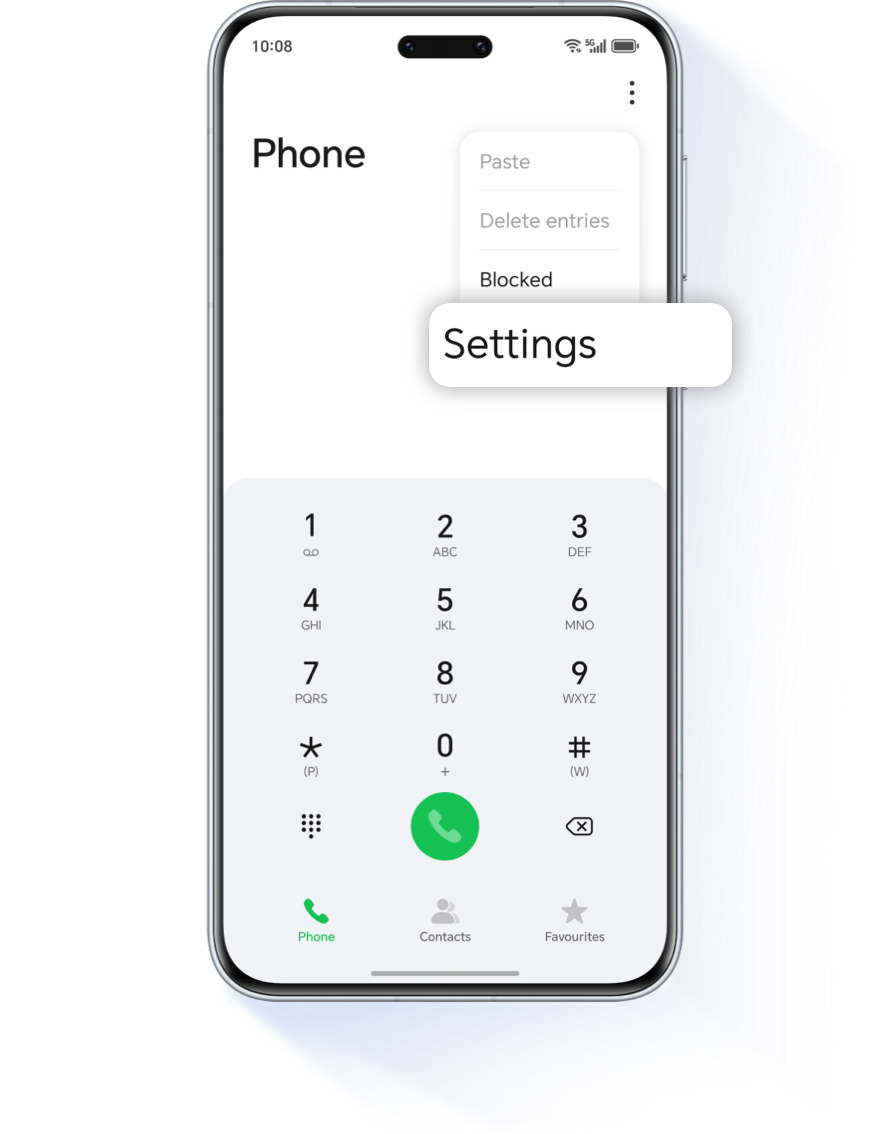
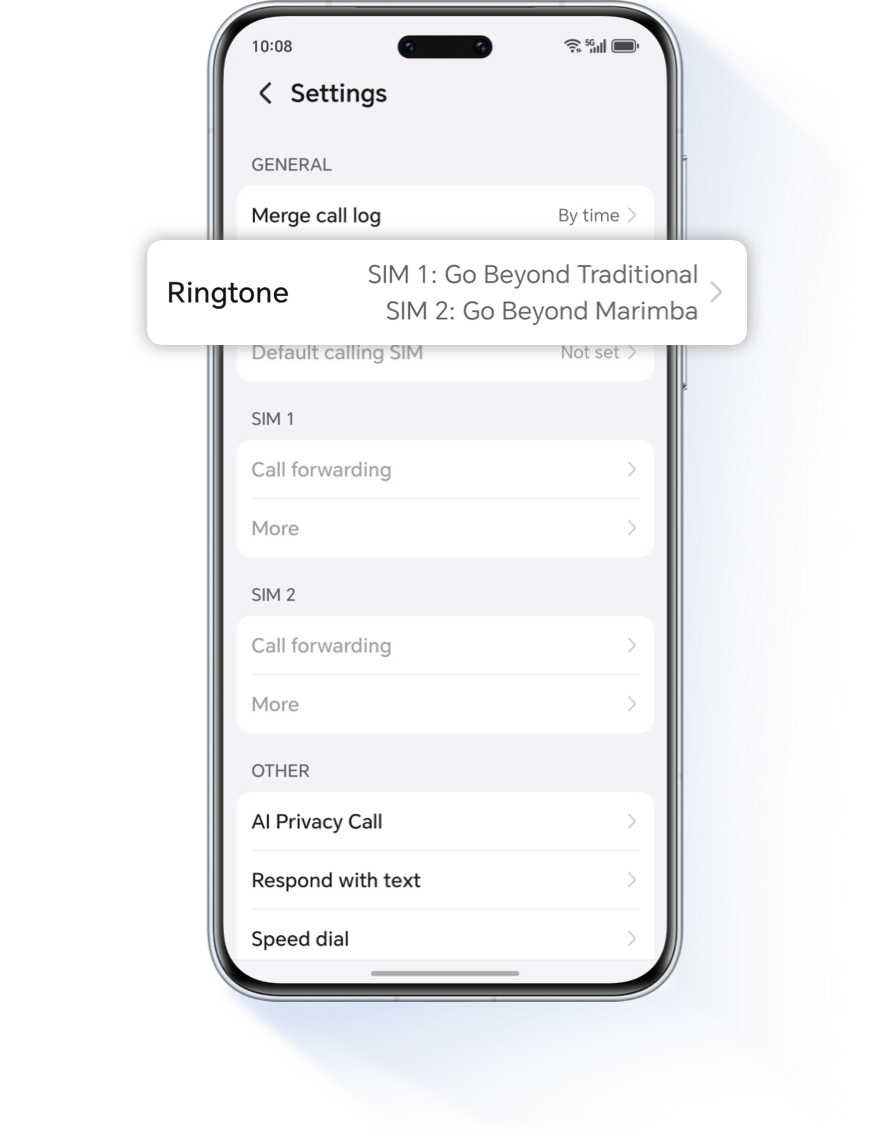
Go to Phone > .png) > Settings > Ringtone, and select a
local
song to set as your ringtone.
> Settings > Ringtone, and select a
local
song to set as your ringtone.
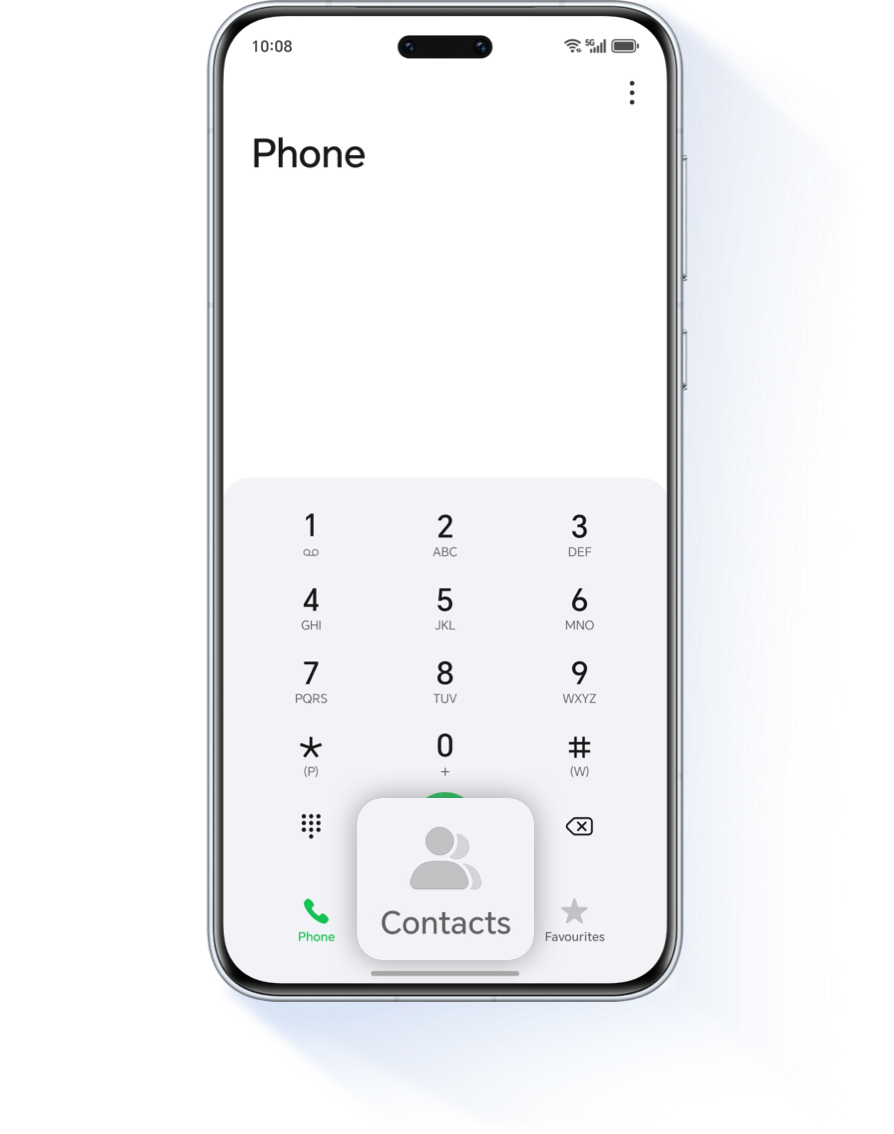
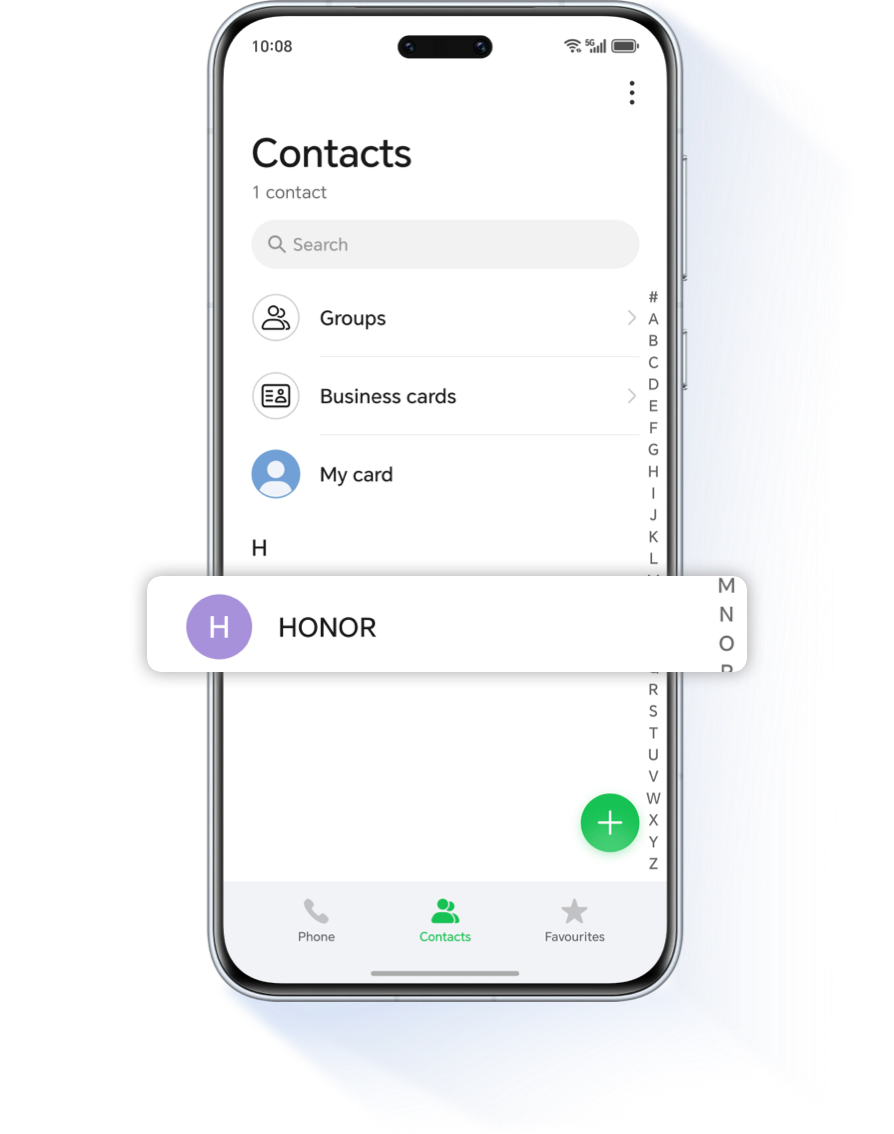
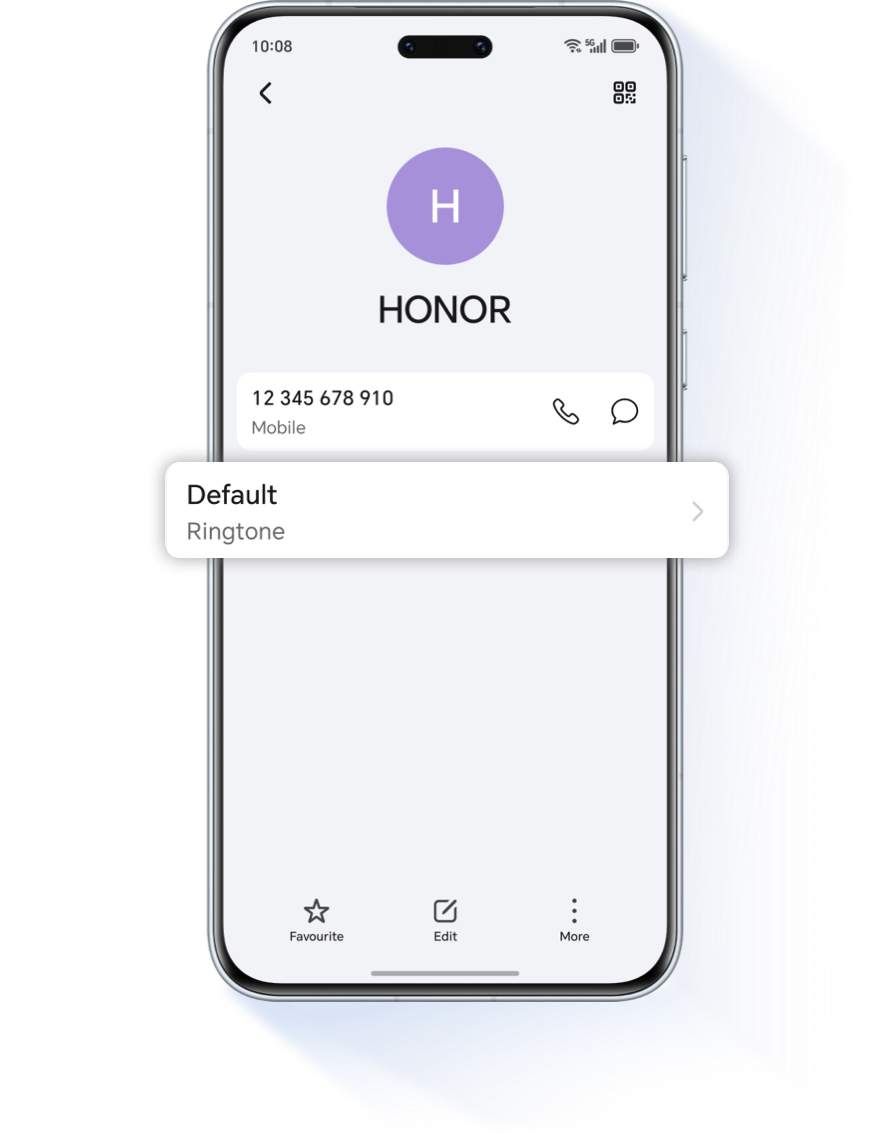
You can also personalize ringtones for specific contacts. Go to Phone, tap the Contacts tab at the bottom, then select the contact you want to set a ringtone for. On the contact details screen, tap Ringtone and pick a unique ringtone for them.
By following these tips, you can give your HONOR phone a completely new and personalized look, making it truly your own.
*This guide uses the HONOR Magic7 Pro as an example. Steps may vary depending on your phone model and system version. For the best experience, make sure your system is updated to the latest version. Some features may not be available on all models—please stay tuned for future updates!
Want to give your HONOR phone a fresh new look? Start by changing the wallpaper! With a range of stylish options, including animated wallpapers and icon themes—it’s easy to find one that's perfect for you. In just a few taps, your home screen can look more appealing and uniquely you.
Change the wallpaper
Go to Settings > Home screen & style, tap Select
wallpaper >
Photo, then choose a new wallpaper. To explore more options,
scroll
to the bottom and tap More to browse additional
wallpapers.
HONOR offers a wide variety of free wallpapers, whether you prefer
minimalist
designs, vibrant artwork, or scenic photography, you’re sure to find
something
that matches your style!

If you are looking for an exciting visual experience with smooth animations, you can download and apply a theme that supports Live Wallpapers. Go to Settings > Home screen & style > Themes and download the theme of your choice.
You can also set any favorite photo as your wallpaper. Simply find the
picture
you like in the Gallery, tap More > Set
as, and select Wallpaper. Then, follow the on-screen
prompts to apply it.
Another great way to customize your phone is to enable Magazine Unlock, giving you something fresh to look at every time you wake your phone.
Enable Magazine Unlock
Go to Settings >Home screen & style, tap Magazine Unlock, and turn it on.
On the Magazine Unlock screen, click ➕ to add your preferred pictures and create a customized lock screen experience.
Enable Always On Display
Go to Settings > Home screen & style > Always On Display and enable Always On Display. On the Display mode screen, you can set specific start and end times that suit your schedule.
* If you can't find this options in Settings, it means your device model does not support the Always On Display feature.
A cluttered home screen can make it difficult to find the apps you need. Organizing your layout to match your usage habits makes your phone easier and more efficient to use.
Manage Screen Layout
Pinch two fingers together on the home screen, or go to Settings > Home screen & style, tap Home screen settings > Layout, then choose your preferred layout pattern. You can also enable Lock layout to prevent accidental changes and turn on Auto-align to keep everything tidy.
To better manage your apps, create folders by dragging and dropping apps together. Group similar apps for quicker access!
Lastly, customizing your ringtone add another personal touch to your HONOR phone. You can choose your favorite music or video to play as your ringtone for incoming calls.
Set a Custom Ringtone
Go to Phone > > Settings > Ringtone, and select a
local
song to set as your ringtone.
You can also personalize ringtones for specific contacts. Go to Phone, tap the Contacts tab at the bottom, then select the contact you want to set a ringtone for. On the contact details screen, tap Ringtone and pick a unique ringtone for them.
By following these tips, you can give your HONOR phone a completely new and personalized look, making it truly your own.
*This guide uses the HONOR Magic7 Pro as an example. Steps may vary depending on your phone model and system version. For the best experience, make sure your system is updated to the latest version. Some features may not be available on all models—please stay tuned for future updates!