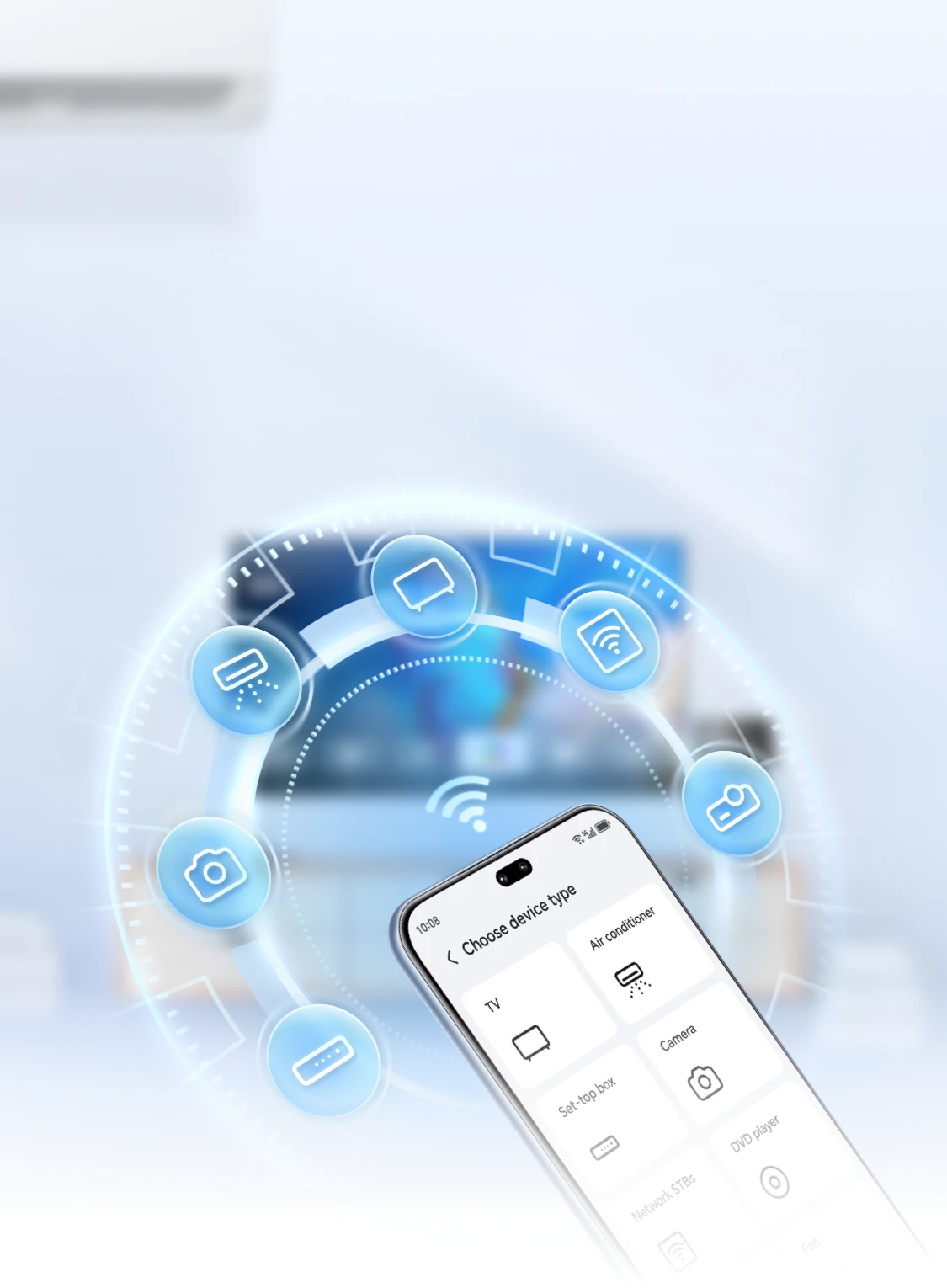
Can't find the remote when you want to turn on the air conditioner or TV? Try the smart remote control on your phone and manage all your home appliances with one click!
Use your phone as a remote control
Conveniently control home appliances
Conveniently control home appliances

When binge-watching shows or adjusting the room temperature, there's no need to get up and look for the remote control. With the smart remote control app, your phone can transform into a remote, allowing you to directly control various home appliances, enabling quick on/off functions.
(including TV, air conditioner, set-top box, DVD, camera, projector, network box, etc.)

*The mobile remote control cannot set a timer for the air conditioner. To use this function, please use the product's remote control.
Simple Three Steps
Add and Use Mobile Remote Control
Add and Use Mobile Remote Control

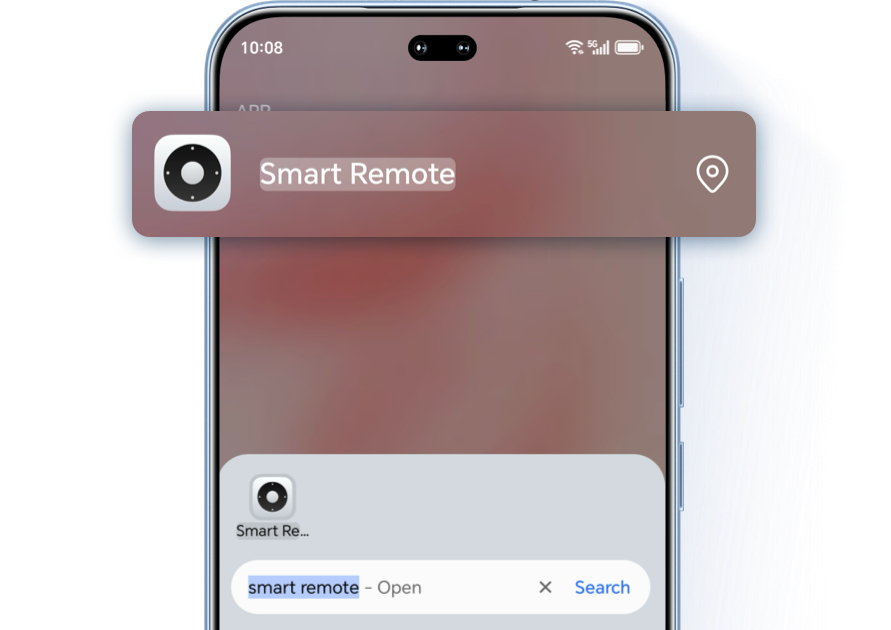
Swipe down from the middle of the main screen on your phone to open the search box, search for Smart Remote, or go to Utilities > Smart Remote >  , and select the type and brand of the remote control.
, and select the type and brand of the remote control.

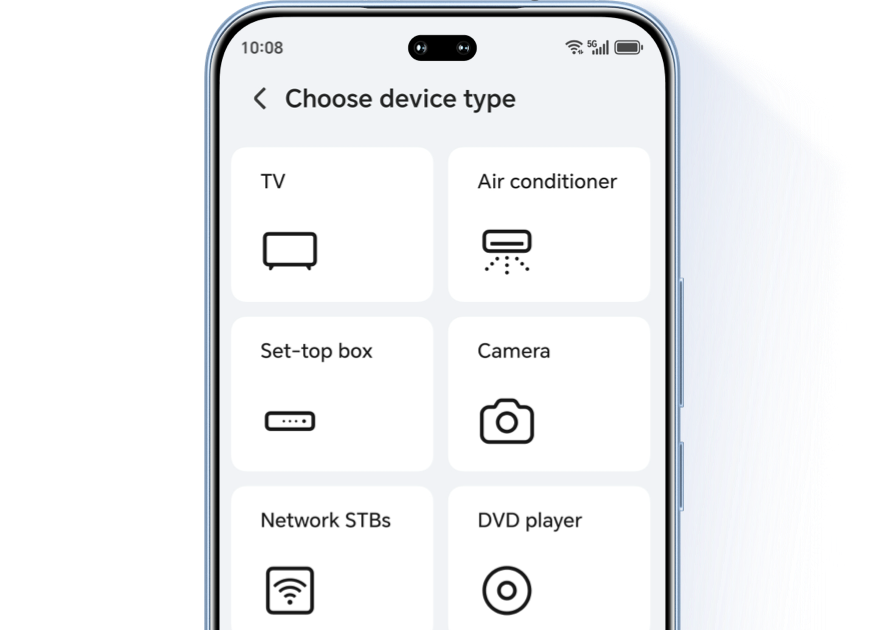


Align the infrared emission hole at the top of the phone with the home appliance, follow the prompts to add the appliance you want to control, and save it. Once added successfully, click  to use it.
to use it.


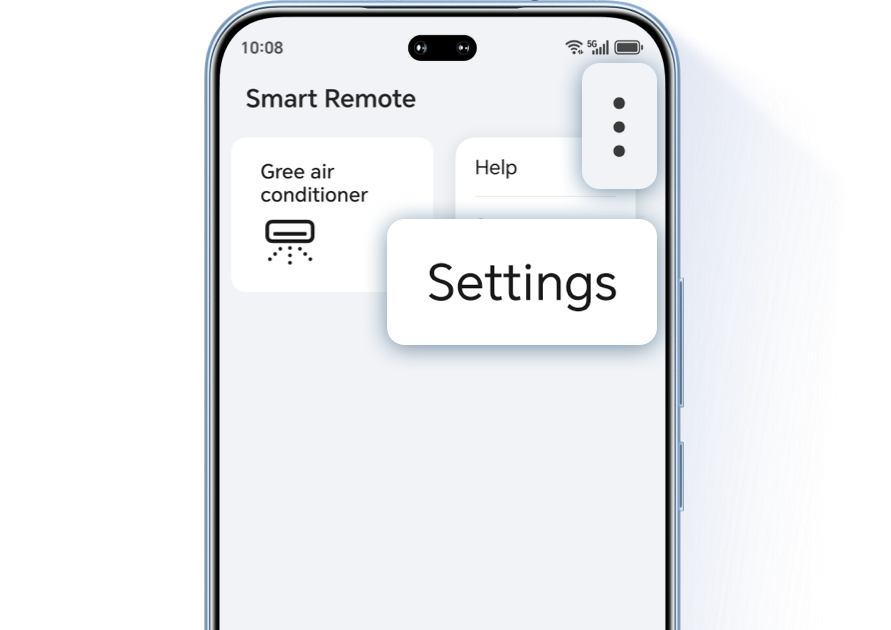
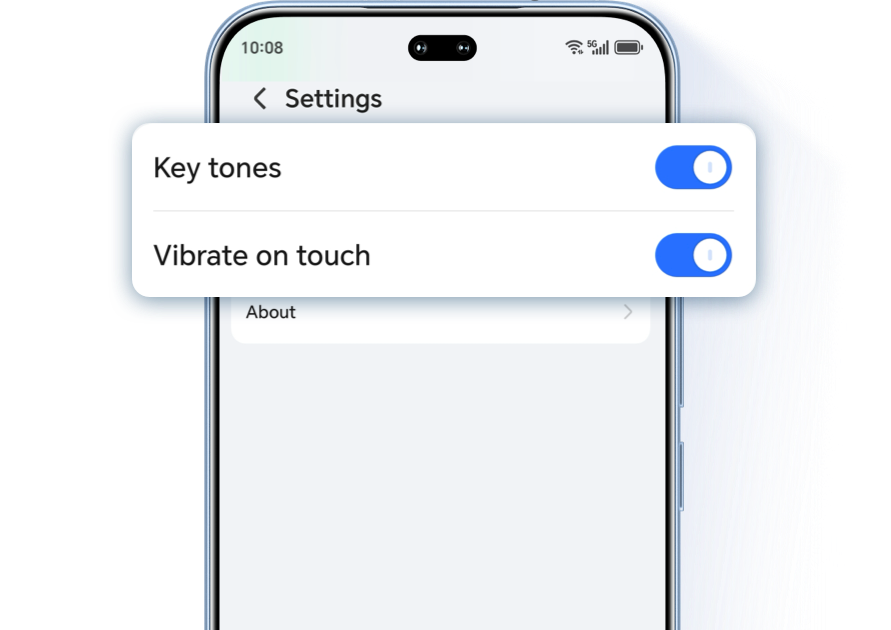
Click the top right corner  > Settings to enable or disable keypress sounds and vibration alerts.
> Settings to enable or disable keypress sounds and vibration alerts.
What should I do if the phone remote control fails?
· Check if the mobile remote control matches the type and brand of the home appliance.
Different brands, or different models of the same brand of home appliances, may have remote controls that are not fully compatible. Not selecting the corresponding brand may result in remote control failure. Please re-add or switch brands. Some brands do not support infrared remote control; please refer to the product manual or contact customer service.
· Ensure that the phone is kept at a reasonable distance from household appliances.
Mobile phones use infrared technology for remote control. To reduce power consumption, the transmission power is relatively low, so the remote control distance is also shorter than that of general remote controls.
It is recommended to keep a distance of within 7 meters from the appliances when using a mobile smart remote control app to reduce the probability of failure.
It is recommended to keep a distance of within 7 meters from the appliances when using a mobile smart remote control app to reduce the probability of failure.
· Adjust the angle of the phone remote control and ensure there are no obstacles between it and the home appliance.
The infrared sensor of the phone is built-in, and the infrared emission hole is relatively small, resulting in a smaller remote control angle compared to general remote controls. When using it, please aim the infrared emission hole at the top of the phone directly at the appliance, with an angle deviation within the range of 0 to 45 degrees. During operation, please ensure there are no obstacles between the phone remote control and the appliance.
*This feature requires a device that supports infrared sensors. You can check the product specifications on the official website or contact official customer service.
With just one phone, freely control your home appliances. This is where smart living begins.
Scan the QR code below to contact us immediately.

Can't find the remote when you want to turn on the air conditioner or TV? Try the smart remote control on your phone and manage all your home appliances with one click!
Use your phone as a remote control
Conveniently control home appliances
Conveniently control home appliances
When binge-watching shows or adjusting the room temperature, there's no need to get up and look for the remote control. With the smart remote control app, your phone can transform into a remote, allowing you to directly control various home appliances, enabling quick on/off functions.
(including TV, air conditioner, set-top box, DVD, camera, projector, network box, etc.)
*The mobile remote control cannot set a timer for the air conditioner. To use this function, please use the product's remote control.
Simple Three Steps
Add and Use Mobile Remote Control
Add and Use Mobile Remote Control
Swipe down from the middle of the main screen on your phone to open the search box, search for Smart Remote, or go to Utilities > Smart Remote > , and select the type and brand of the remote control.
, and select the type and brand of the remote control.

Align the infrared emission hole at the top of the phone with the home appliance, follow the prompts to add the appliance you want to control, and save it. Once added successfully, click to use it.
to use it.
Click the top right corner > Settings to enable or disable keypress sounds and vibration alerts.
> Settings to enable or disable keypress sounds and vibration alerts.
What should I do if the phone remote control fails?
· Check if the mobile remote control matches the type and brand of the home appliance.
Different brands, or different models of the same brand of home appliances, may have remote controls that are not fully compatible. Not selecting the corresponding brand may result in remote control failure. Please re-add or switch brands. Some brands do not support infrared remote control; please refer to the product manual or contact customer service.
· Ensure that the phone is kept at a reasonable distance from household appliances.
Mobile phones use infrared technology for remote control. To reduce power consumption, the transmission power is relatively low, so the remote control distance is also shorter than that of general remote controls.
It is recommended to keep a distance of within 7 meters from the appliances when using a mobile smart remote control app to reduce the probability of failure.
It is recommended to keep a distance of within 7 meters from the appliances when using a mobile smart remote control app to reduce the probability of failure.
· Adjust the angle of the phone remote control and ensure there are no obstacles between it and the home appliance.
The infrared sensor of the phone is built-in, and the infrared emission hole is relatively small, resulting in a smaller remote control angle compared to general remote controls. When using it, please aim the infrared emission hole at the top of the phone directly at the appliance, with an angle deviation within the range of 0 to 45 degrees. During operation, please ensure there are no obstacles between the phone remote control and the appliance.
*This feature requires a device that supports infrared sensors. You can check the product specifications on the official website or contact official customer service.
With just one phone, freely control your home appliances. This is where smart living begins.
Scan the QR code below to contact us immediately.