Sync and connect
with iOS & Mac instantly.
with iOS & Mac instantly.

Break down the barriers between Android, iOS, and MacOS systems—HONOR devices and
devices from other brands can transfer files at high speed without using mobile data.
Unleash your productivity, and enjoy convenient, efficient file sharing with iPhones
with just one tap.

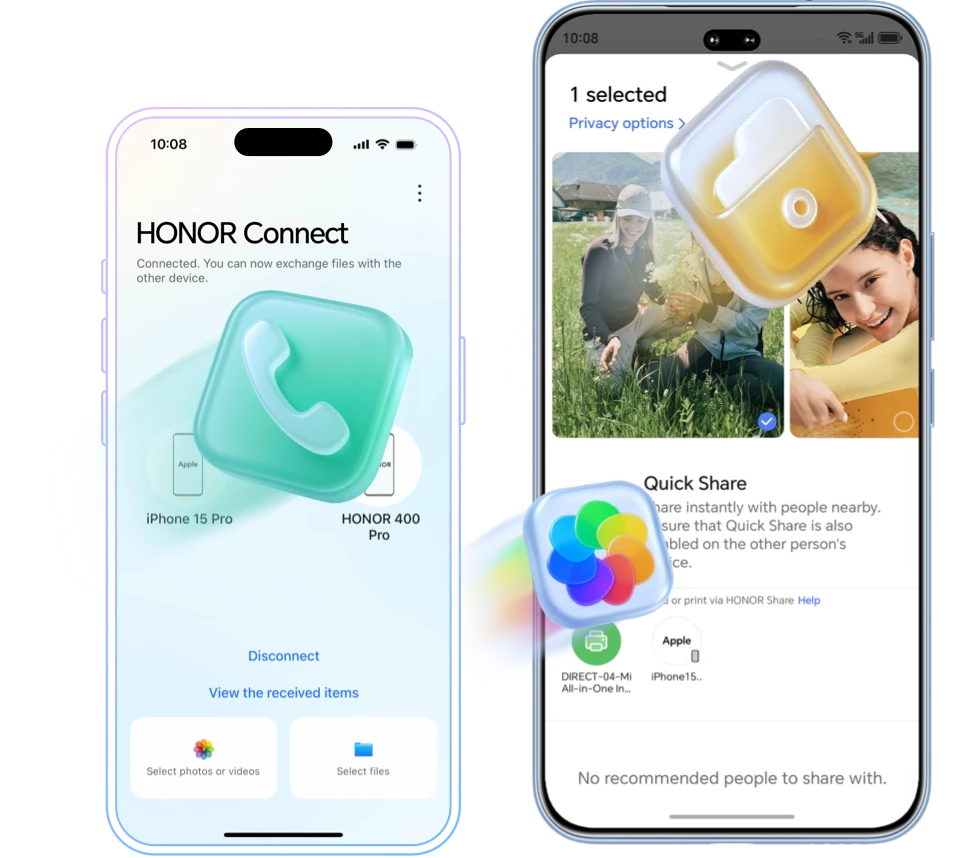
Transfer files between HONOR phone and iOS devices (iPhone or iPad).
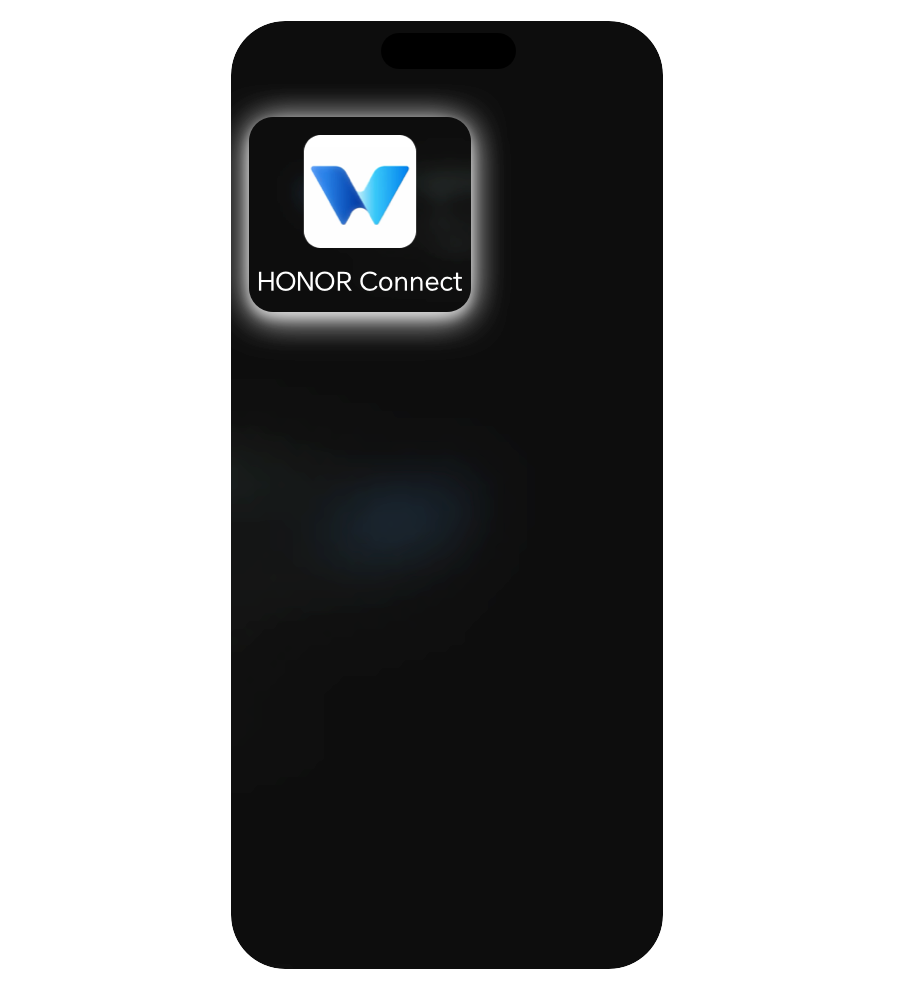
Before you start: iOS devices (iPhone or iPad) need to install the HONOR Connect
app.

Send files from
your HONOR phone
to an iOS device
your HONOR phone
to an iOS device
Transfer files from an
iOS device to an
HONOR phone
iOS device to an
HONOR phone
Send files from
your HONOR phone
to an iOS device
your HONOR phone
to an iOS device
Transfer files from an
iOS device to an
HONOR phone
iOS device to an
HONOR phone
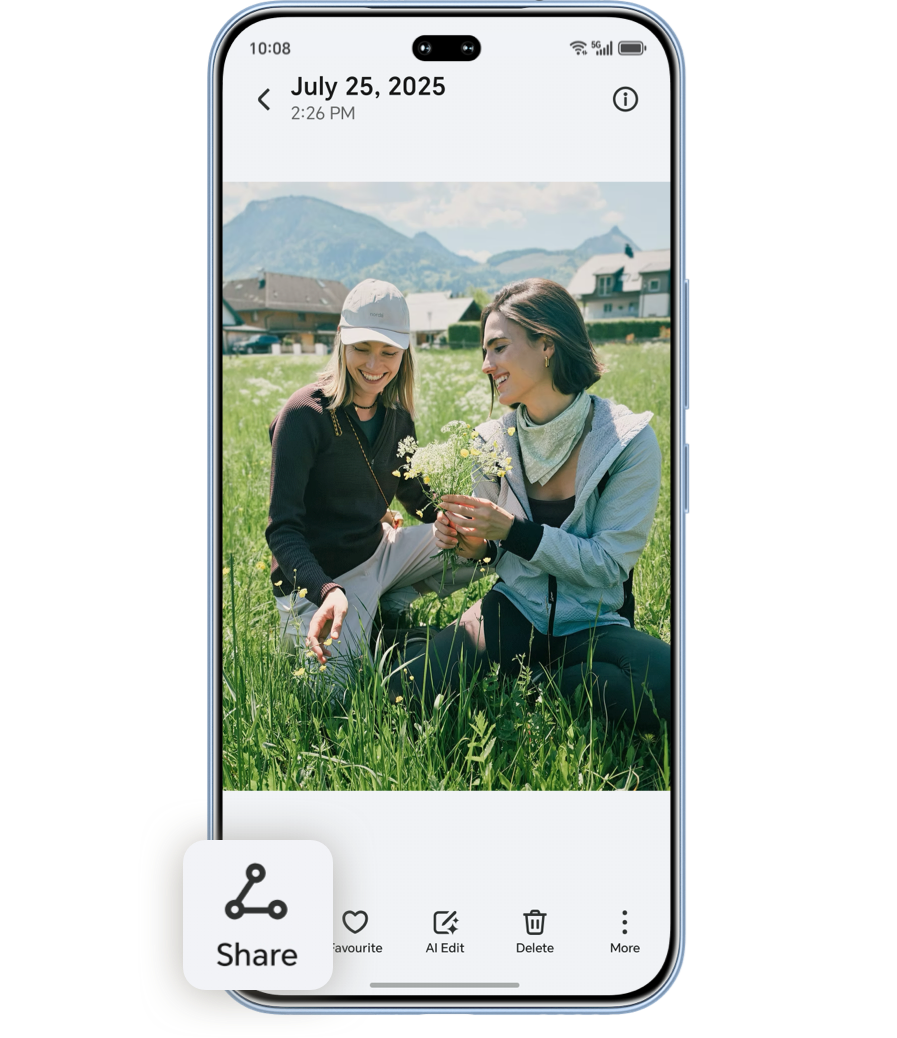
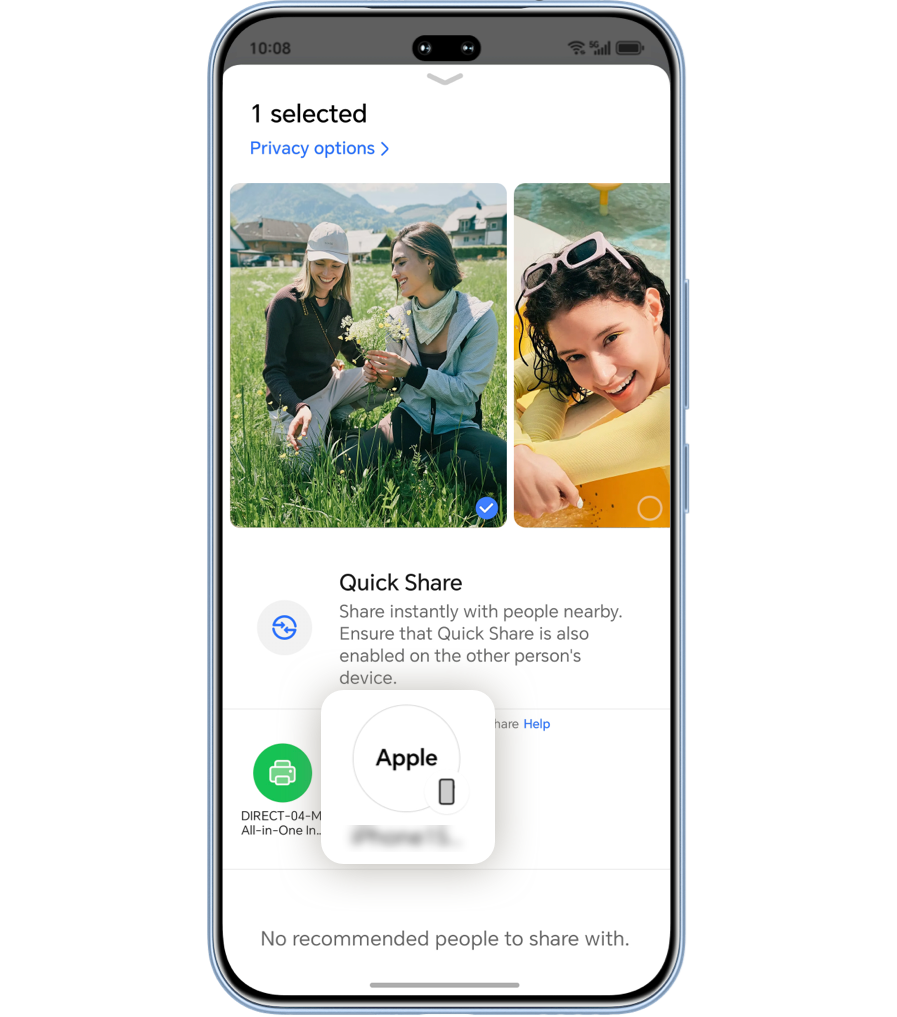
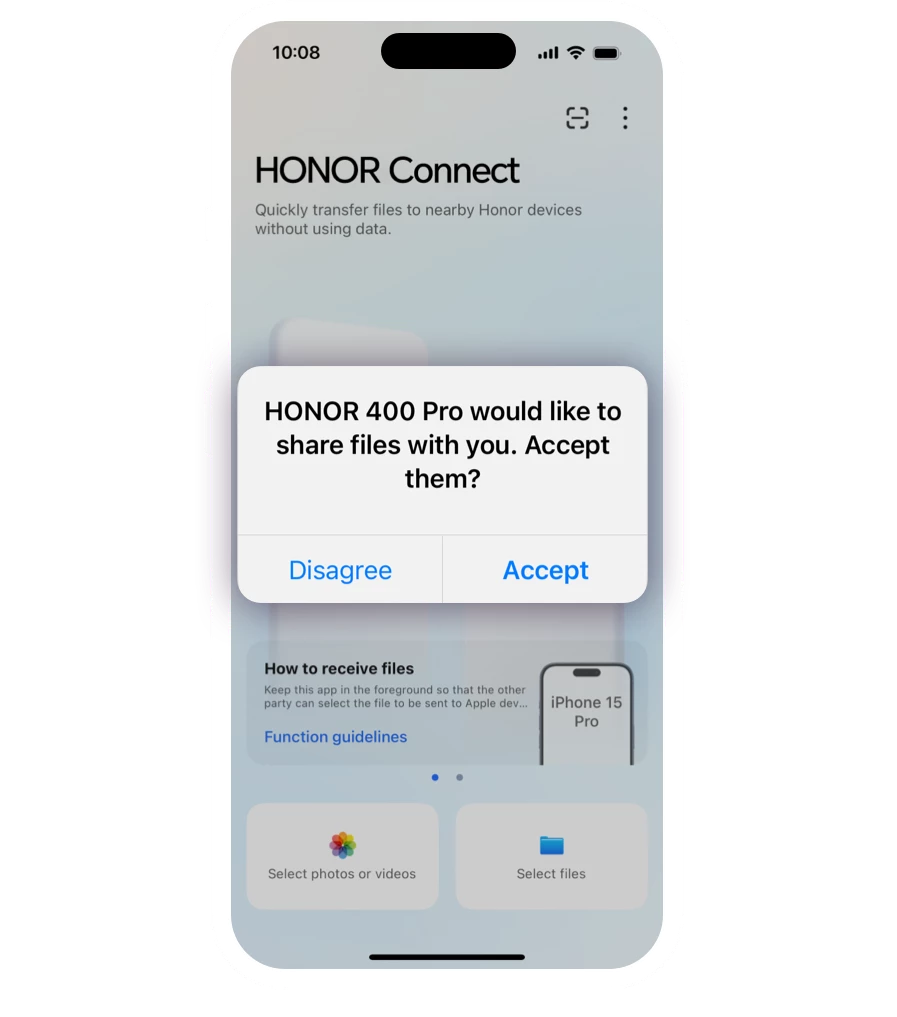
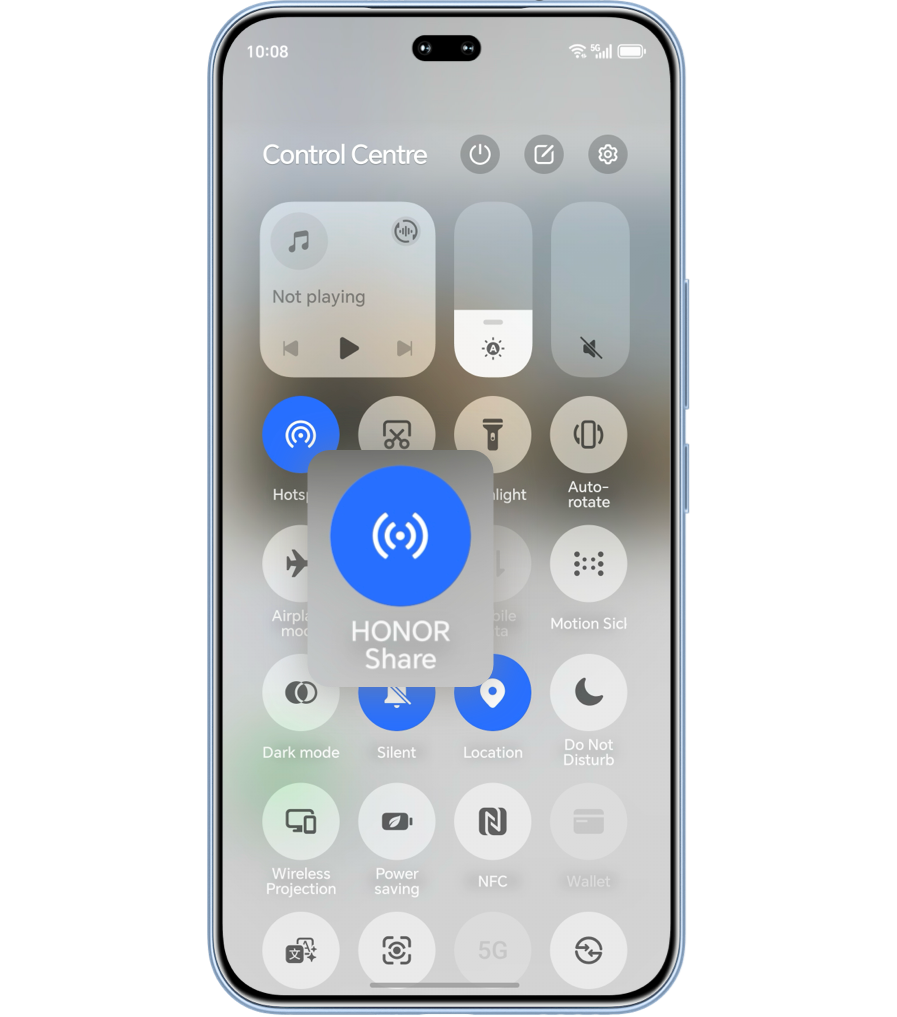
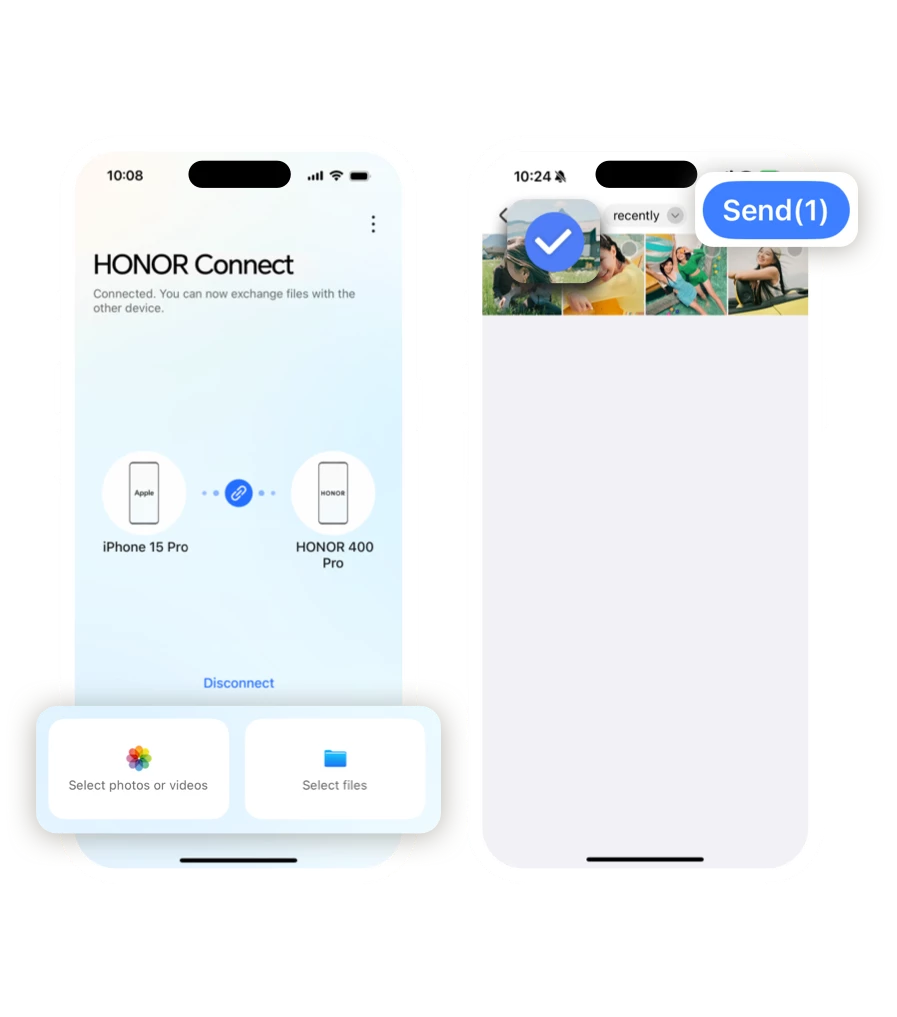
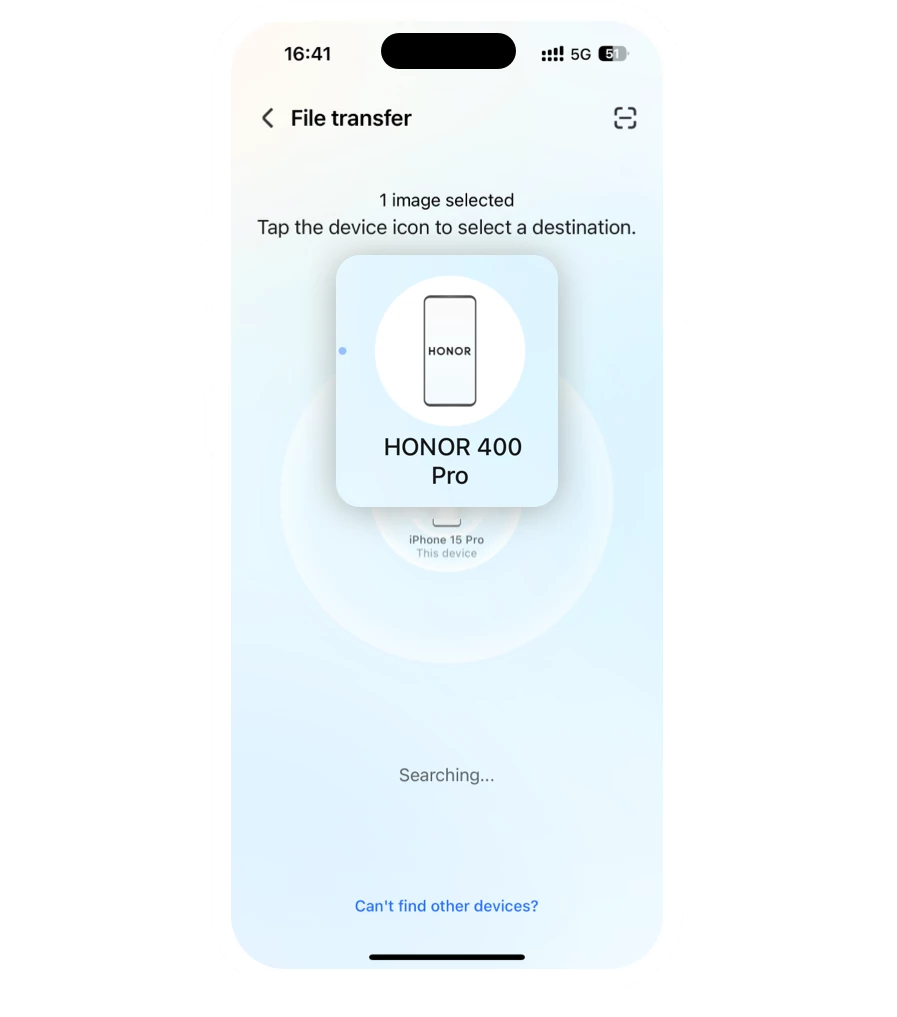

Tip: HONOR phone and iOS devices can transfer Live Photos as well
Transfer Files between HONOR phone and Apple MacOS Computers.
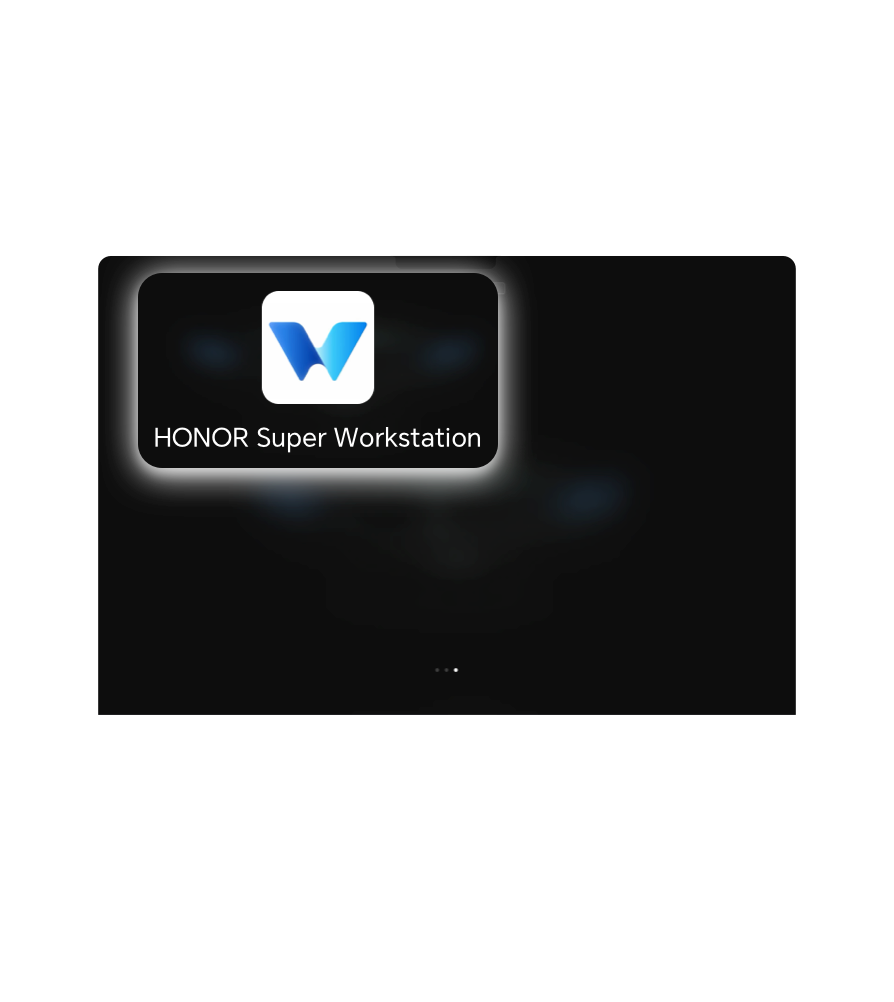
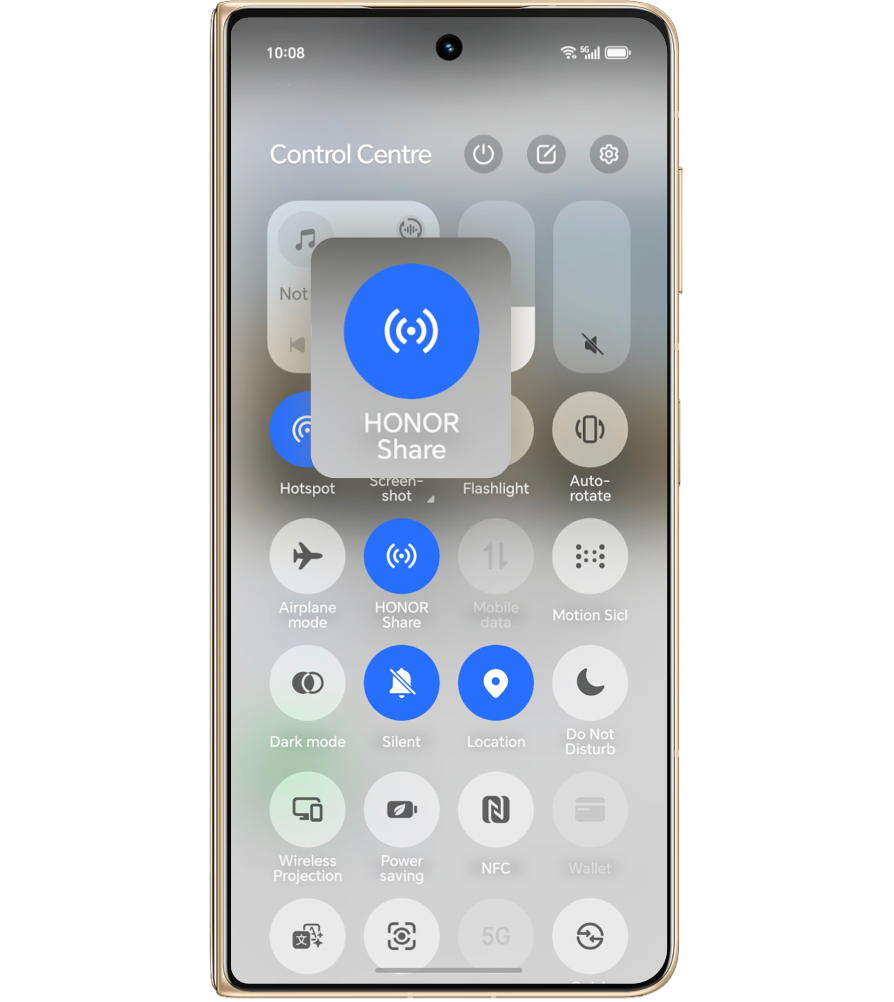
Before you start: Install the HONOR Super Workstation app on your Mac,
and ensure that both the Mac and the HONOR phone are connected to the same local
network.
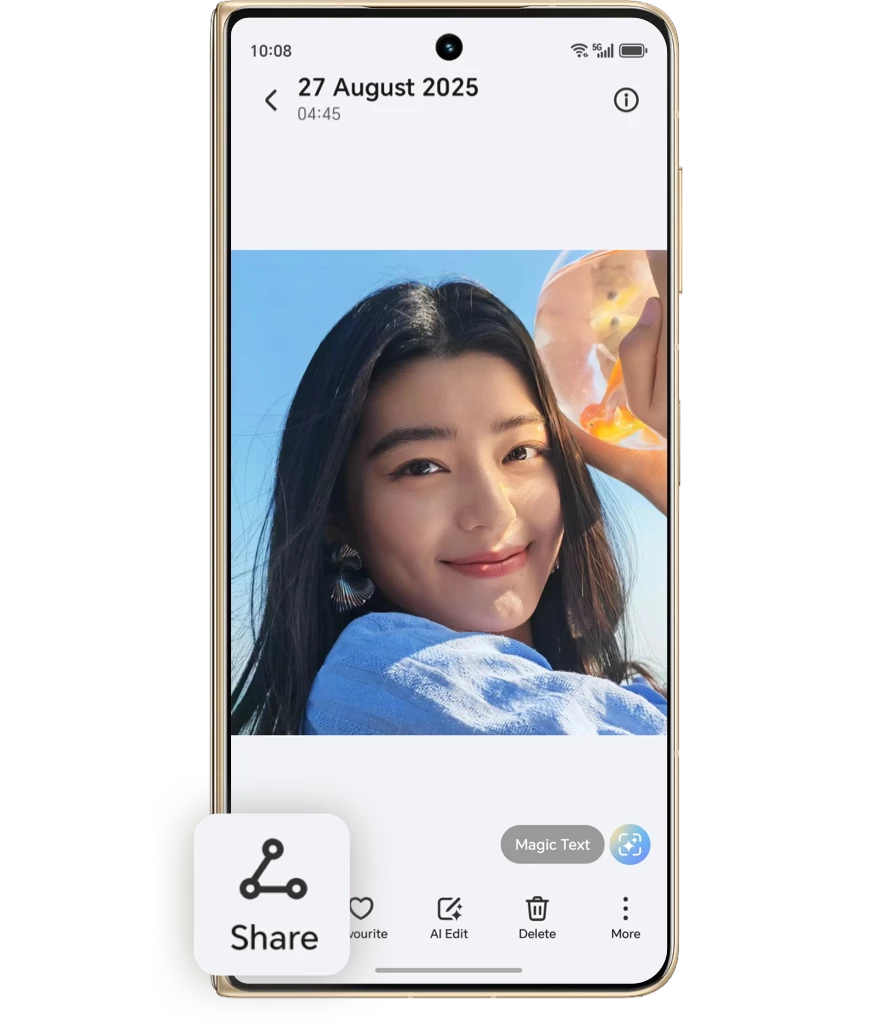
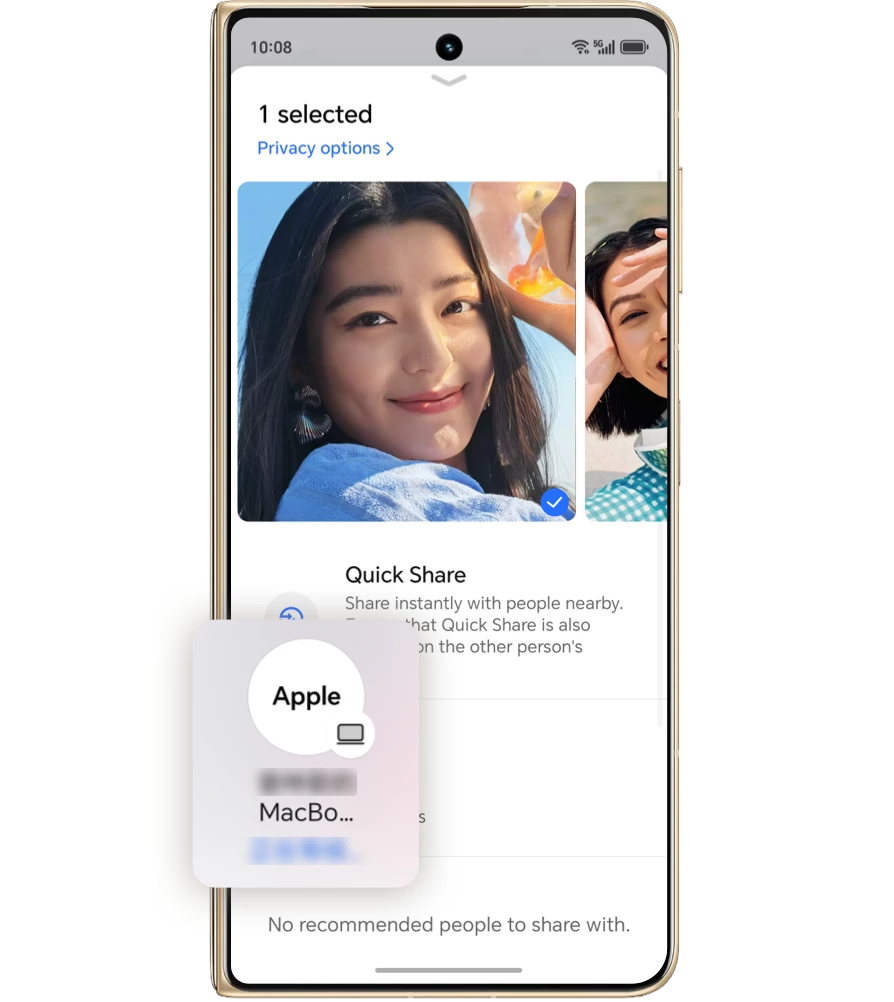
Transfer files from
an HONOR phone
to Mac
an HONOR phone
to Mac
Transfer Files from
an Mac to
HONOR phone
an Mac to
HONOR phone
Transfer files from
an HONOR phone
to Mac
an HONOR phone
to Mac
Transfer Files from
an Mac to
HONOR phone
an Mac to
HONOR phone
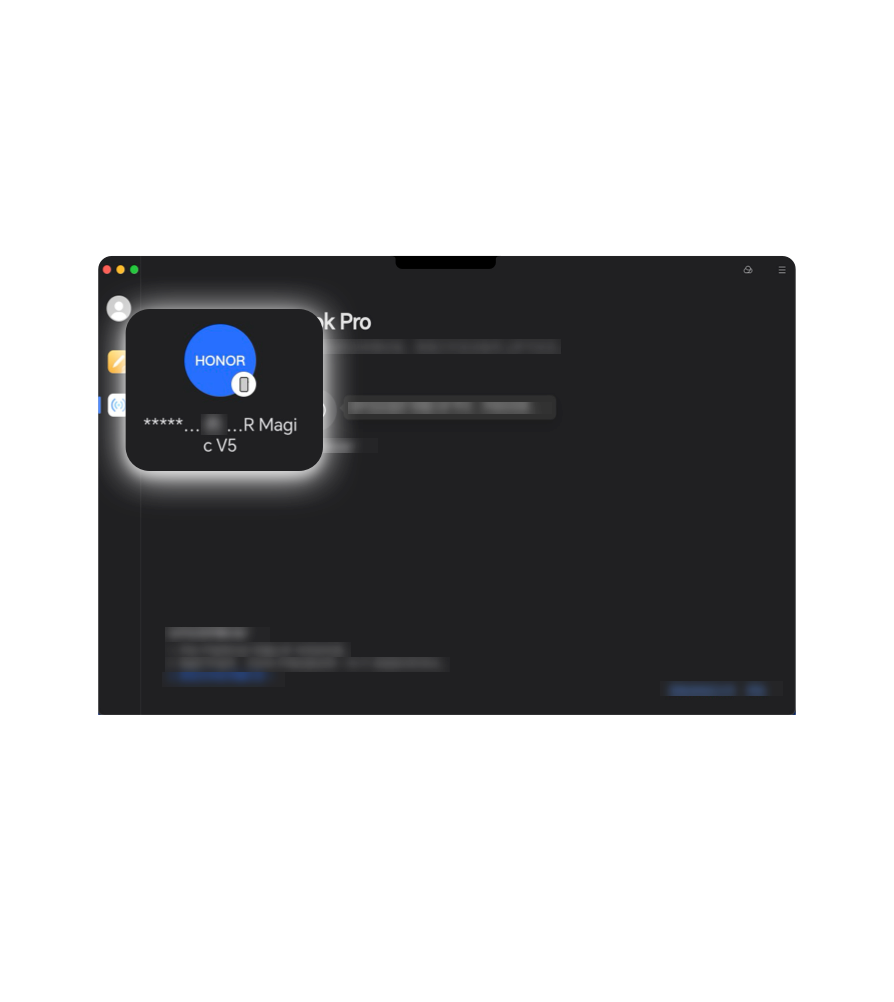
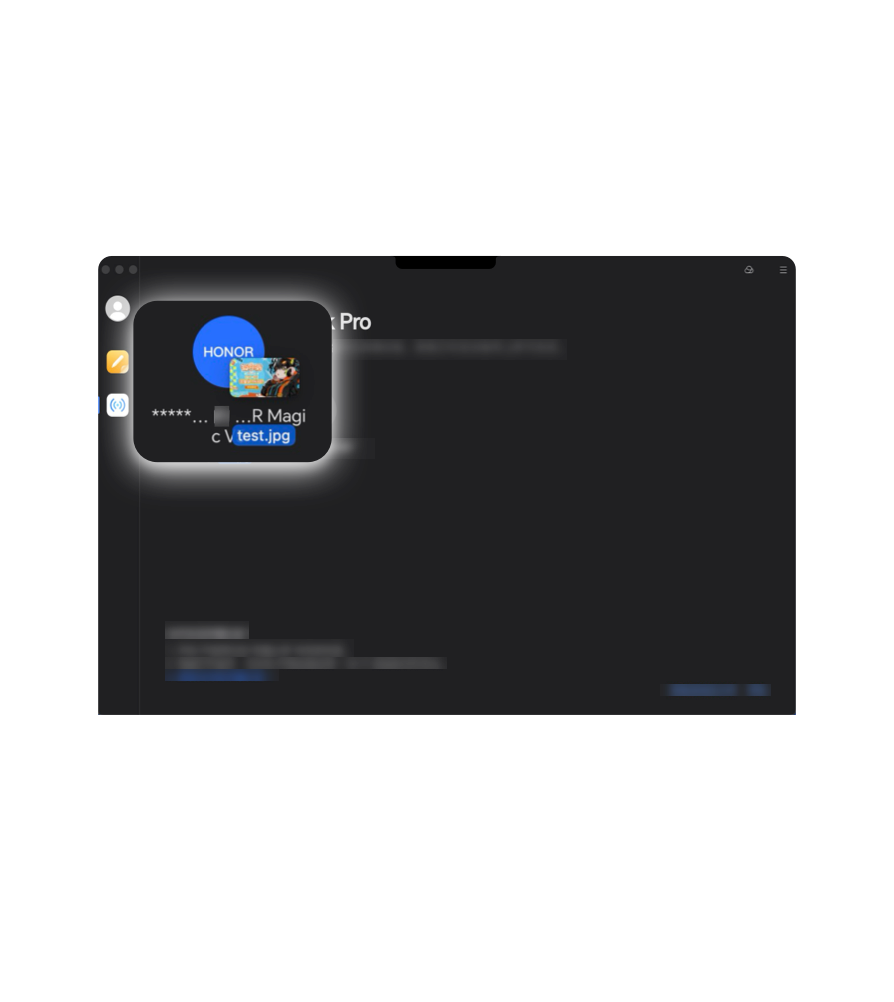
*Currently, file transfers are only supported between HONOR Magic V5 phones and Mac.
Support for other HONOR products will be rolled out in subsequent updates. Actual
experience may vary; stay tuned for updates.
*Over-the-air (OTA) upgrades are supported. The upgrade plan is subject to the
official announcement. Support may vary by model and version. Please refer to your
actual experience for details.
*iOS devices running iOS 15.6 or later are supported. Photos, videos, text, and documents can be shared. You can download the HONOR Connect app from the App Store to try it out.
*For Mac running MacOS 12.0 or later, download and install the HONOR Super Workstation app from the Mac App Store, upgrade Super Workstation to version 5.2.1.67 or above, open it, and grant all requested permissions when prompted.
*iOS devices running iOS 15.6 or later are supported. Photos, videos, text, and documents can be shared. You can download the HONOR Connect app from the App Store to try it out.
*For Mac running MacOS 12.0 or later, download and install the HONOR Super Workstation app from the Mac App Store, upgrade Super Workstation to version 5.2.1.67 or above, open it, and grant all requested permissions when prompted.
More than 80 HONOR models now support cross-brand file sharing, completely freeing
users from the limitations of traditional transfer methods and fully unleashing the
potential for cross-device collaboration.
Sync and connect
with iOS & Mac instantly.
with iOS & Mac instantly.
Break down the barriers between Android, iOS, and MacOS systems—HONOR devices and
devices from other brands can transfer files at high speed without using mobile data.
Unleash your productivity, and enjoy convenient, efficient file sharing with iPhones
with just one tap.
Transfer files between HONOR phone and iOS devices (iPhone or iPad).
Before you start: iOS devices (iPhone or iPad) need to install the HONOR Connect
app.
Send files from
your HONOR phone
to an iOS device
your HONOR phone
to an iOS device
Transfer files from an
iOS device to an
HONOR phone
iOS device to an
HONOR phone
Send files from
your HONOR phone
to an iOS device
your HONOR phone
to an iOS device
Transfer files from an
iOS device to an
HONOR phone
iOS device to an
HONOR phone

Tip: HONOR phone and iOS devices can transfer Live Photos as well
Transfer Files between HONOR phone and Apple MacOS Computers.
Before you start: Install the HONOR Super Workstation app on your Mac,
and ensure that both the Mac and the HONOR phone are connected to the same local
network.
Transfer files from
an HONOR phone
to Mac
an HONOR phone
to Mac
Transfer Files from
an Mac to
HONOR phone
an Mac to
HONOR phone
Transfer files from
an HONOR phone
to Mac
an HONOR phone
to Mac
Transfer Files from
an Mac to
HONOR phone
an Mac to
HONOR phone
*Currently, file transfers are only supported between HONOR Magic V5 phones and Mac.
Support for other HONOR products will be rolled out in subsequent updates. Actual
experience may vary; stay tuned for updates.
*Over-the-air (OTA) upgrades are supported. The upgrade plan is subject to the
official announcement. Support may vary by model and version. Please refer to your
actual experience for details.
*iOS devices running iOS 15.6 or later are supported. Photos, videos, text, and documents can be shared. You can download the HONOR Connect app from the App Store to try it out.
*For Mac running MacOS 12.0 or later, download and install the HONOR Super Workstation app from the Mac App Store, upgrade Super Workstation to version 5.2.1.67 or above, open it, and grant all requested permissions when prompted.
*iOS devices running iOS 15.6 or later are supported. Photos, videos, text, and documents can be shared. You can download the HONOR Connect app from the App Store to try it out.
*For Mac running MacOS 12.0 or later, download and install the HONOR Super Workstation app from the Mac App Store, upgrade Super Workstation to version 5.2.1.67 or above, open it, and grant all requested permissions when prompted.
More than 80 HONOR models now support cross-brand file sharing, completely freeing
users from the limitations of traditional transfer methods and fully unleashing the
potential for cross-device collaboration.