.webp)
It's inconvenient to view messages when your hands are occupied. Here is the
solution.
The newly upgraded MagicOS 8.0 system comes with an Eye Tracking
function, which allows you to open a message with just a glance.
Enable Eye Tracking in
Three Simple Steps

Go to Settings>HONOR AI, click on Eye Tracking.
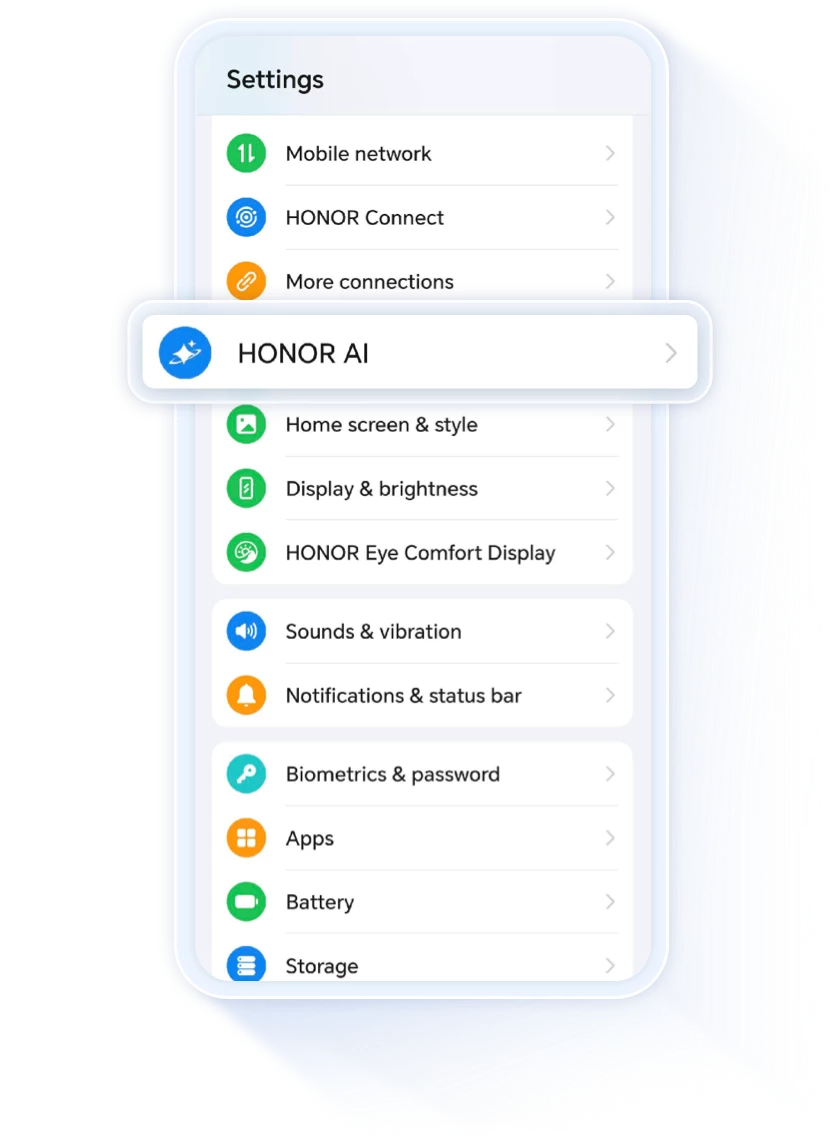
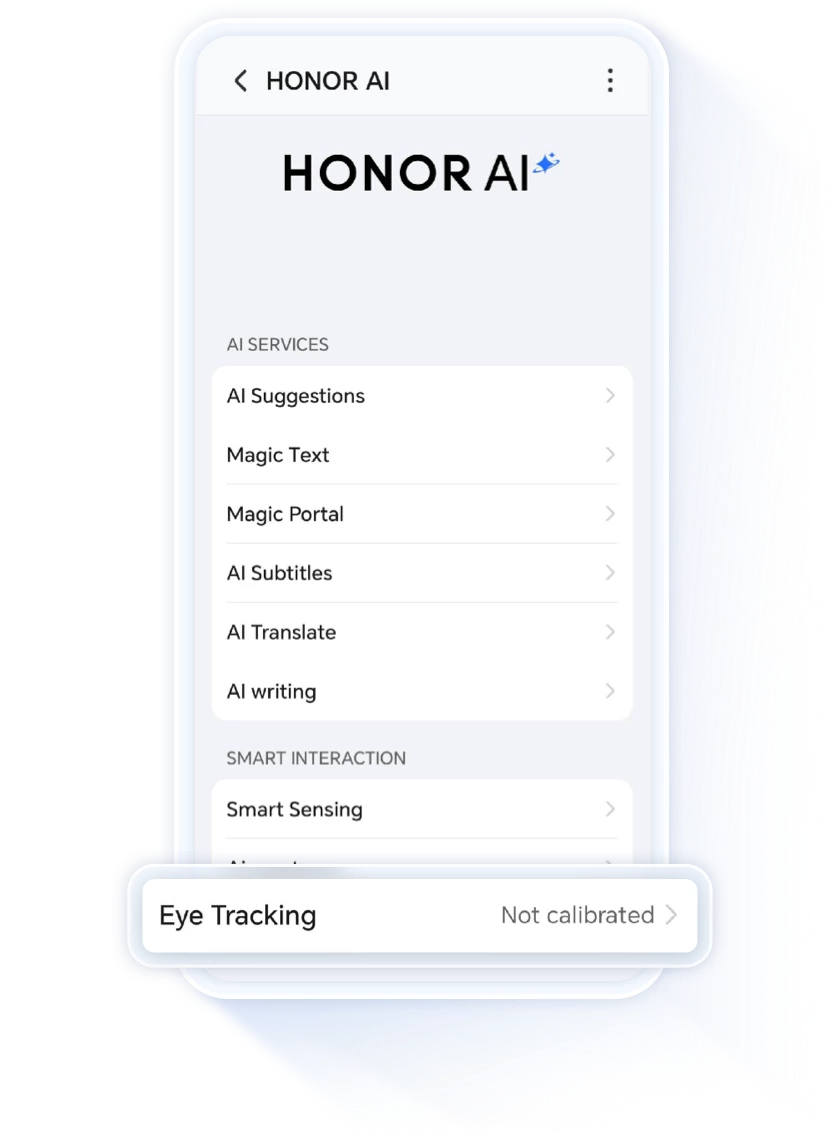

The first time you turn on Eye Tracking, you will need to calibrate eye data: Click on Calibrate, and then focus on the numbers appearing on the screen until calibration completes. Click Done and enter the Eye Tracking settings interface.
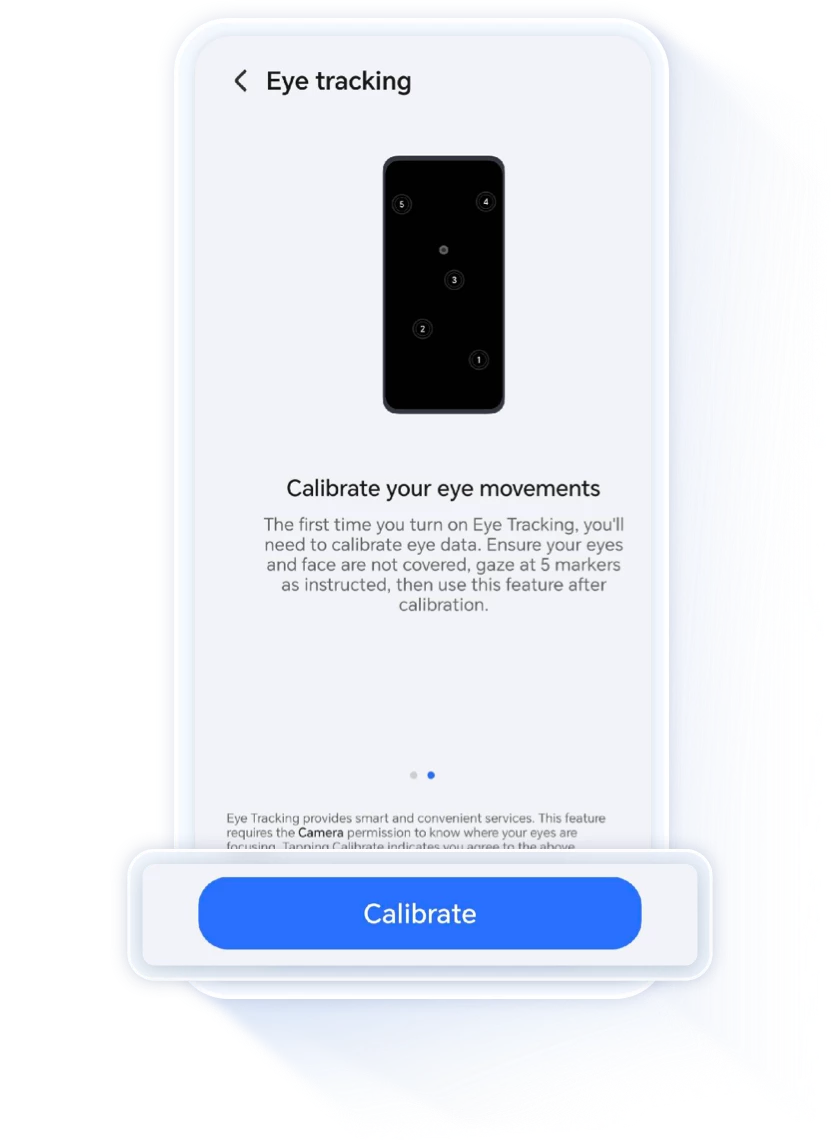
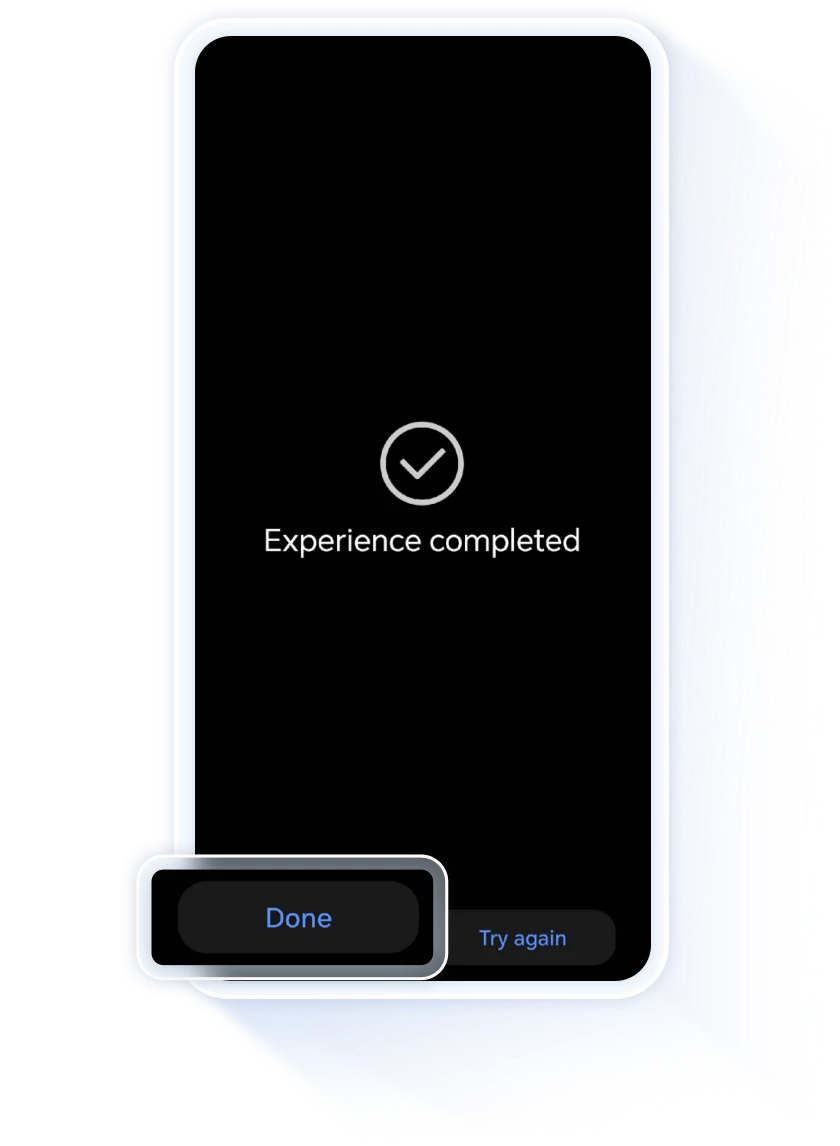
*You can also click on Experience the feature to try out the eye-tracking interactions.
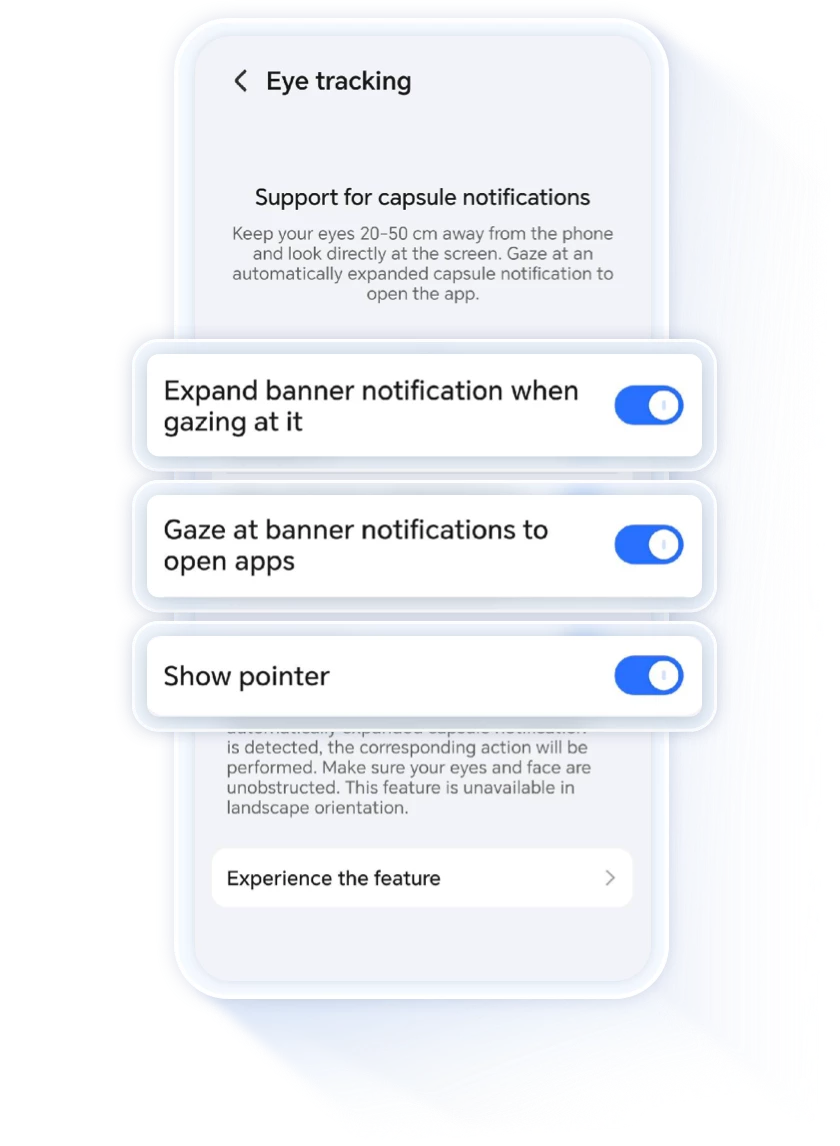
Make sure that Expand banner notification when gazing at it and
Open app when gazing at banner notification switches are turned on.
Turn on Show Pointer, and when you are watching banner
notifications, the screen can also display the pointer that follows your sight.
Open a Notification by Gazing
When you receive a text message or app notification, please face the screen directly, ensuring that your eyes are unobstructed and approximately 20-50 cm away from the screen. Gaze at the notification to proceed.
- If the text message banner content is only one line, you can directly enter the application interface by gazing.
- If the text message banner notification exceeds one line, you can gaze at the banner notification to expand it, and gaze longer to open the details page.

*The device must be in portrait mode when using Eye Tracking. This
feature is not supported in landscape orientation.
*If you interact with the screen using your hands or keyboard while Eye
Tracking is enabled, this function will be disabled and will restart
when the next notification appears.
How to Turn Off Eye Tracking?
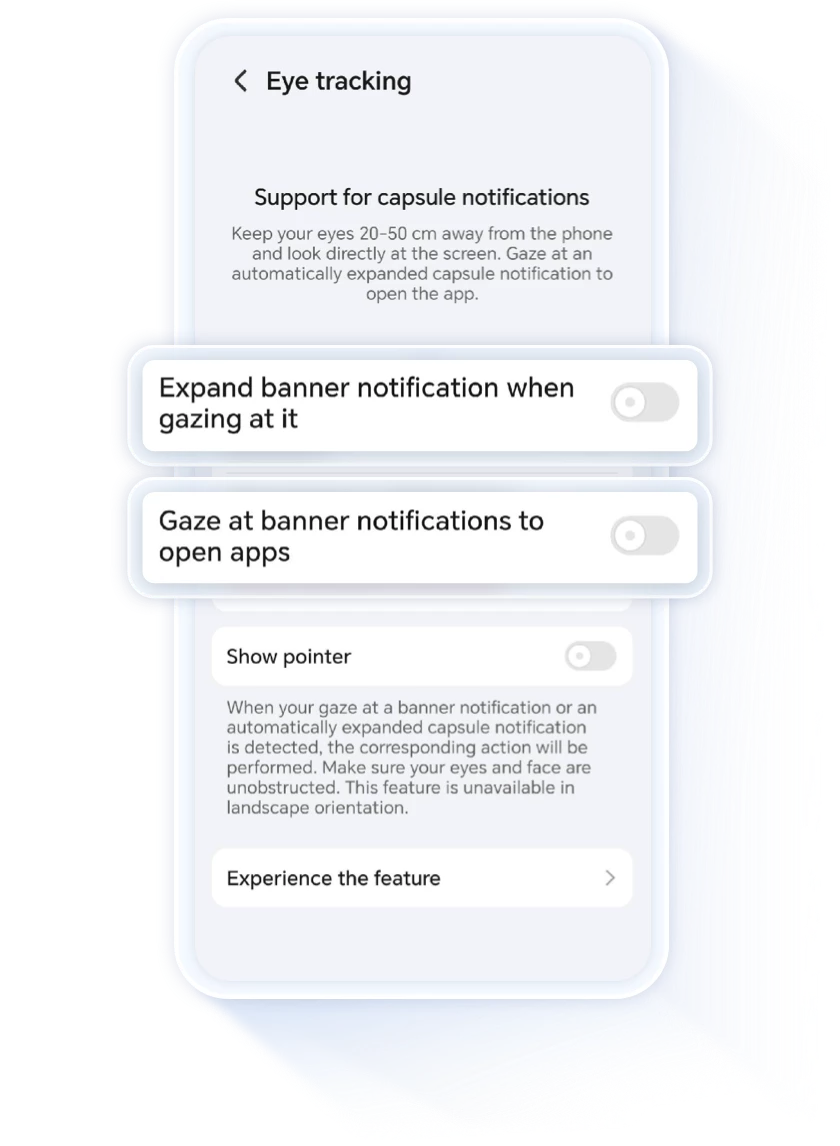
Go to Settings> HONOR AI, click on Eye Tracking, turn off Expand banner notification when gazing at it and Open app when gazing at banner notification to disable Eye Tracking.
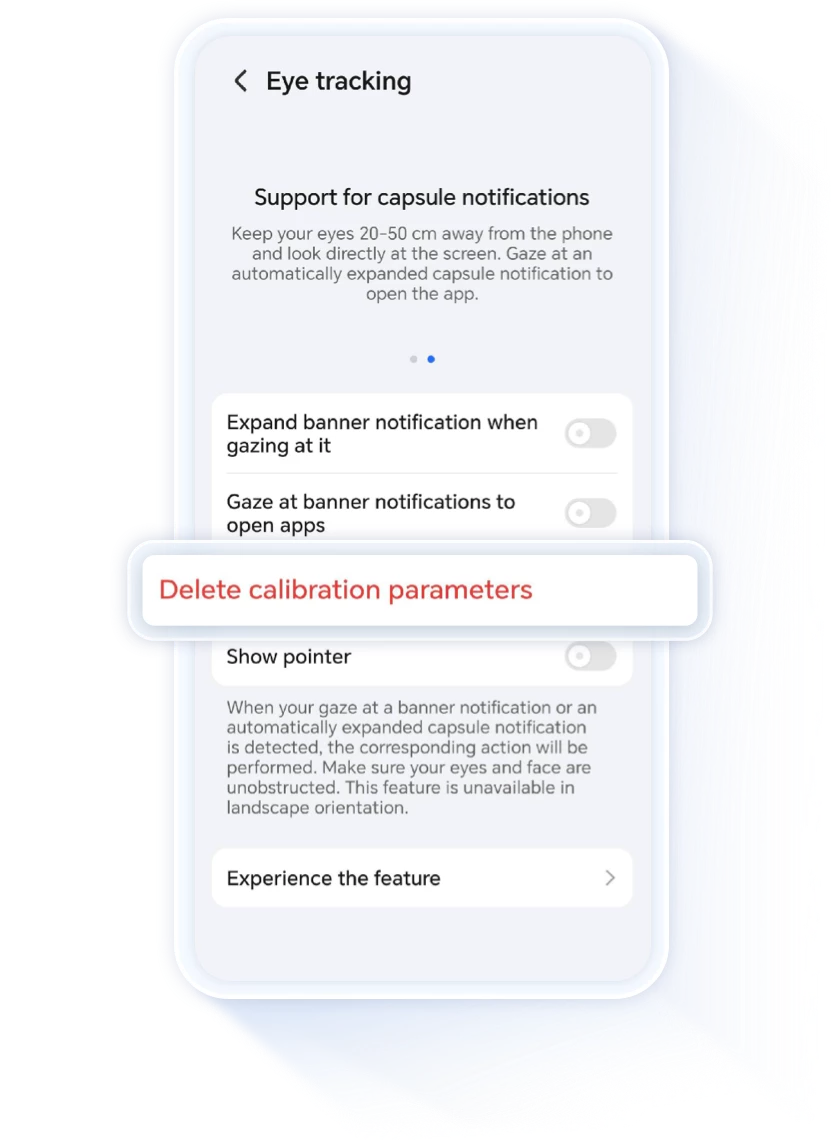
You can also click Delete calibration parameters which will also disable Eye Tracking functions. The parameters will need to be re-calibrated the next time you use this function.
*This article uses the HONOR Magic5 Pro as an example; the operations of different models may vary. Please upgrade your device to the latest system; if the current system does not support Eye Tracking, please pay attention to subsequent version upgrades, and the specific functions of your actual model shall prevail.
Enable Eye Tracking to view messages more conveniently.
It's inconvenient to view messages when your hands are occupied. Here is the
solution.
The newly upgraded MagicOS 8.0 system comes with an Eye Tracking
function, which allows you to open a message with just a glance.
Enable Eye Tracking in
Three Simple Steps
Go to Settings>HONOR AI, click on Eye Tracking.

The first time you turn on Eye Tracking, you will need to calibrate eye data: Click on Calibrate, and then focus on the numbers appearing on the screen until calibration completes. Click Done and enter the Eye Tracking settings interface.
*You can also click on Experience the feature to try out the eye-tracking interactions.
Make sure that Expand banner notification when gazing at it and
Open app when gazing at banner notification switches are turned on.
Turn on Show Pointer, and when you are watching banner
notifications, the screen can also display the pointer that follows your sight.
Open a Notification by Gazing
When you receive a text message or app notification, please face the screen directly, ensuring that your eyes are unobstructed and approximately 20-50 cm away from the screen. Gaze at the notification to proceed.
- If the text message banner content is only one line, you can directly enter the application interface by gazing.
- If the text message banner notification exceeds one line, you can gaze at the banner notification to expand it, and gaze longer to open the details page.
*The device must be in portrait mode when using Eye Tracking. This
feature is not supported in landscape orientation.
*If you interact with the screen using your hands or keyboard while Eye
Tracking is enabled, this function will be disabled and will restart
when the next notification appears.
How to Turn Off Eye Tracking?
Go to Settings> HONOR AI, click on Eye Tracking, turn off Expand banner notification when gazing at it and Open app when gazing at banner notification to disable Eye Tracking.
You can also click Delete calibration parameters which will also disable Eye Tracking functions. The parameters will need to be re-calibrated the next time you use this function.
*This article uses the HONOR Magic5 Pro as an example; the operations of different models may vary. Please upgrade your device to the latest system; if the current system does not support Eye Tracking, please pay attention to subsequent version upgrades, and the specific functions of your actual model shall prevail.
Enable Eye Tracking to view messages more conveniently.