
When your hands are full and it's inconvenient to reach for your phone, HONOR Smart Sensing can help you handle various situations with just a glance.
Keep the Screen on with a Gaze, and Enjoy Uninterrupted Focus while Reading

When reading articles or browsing web pages, screen dimming can interrupt the immersive experience.
Enable the "Always on Display" feature for a smoother experience.
Enable the "Always on Display" feature for a smoother experience.
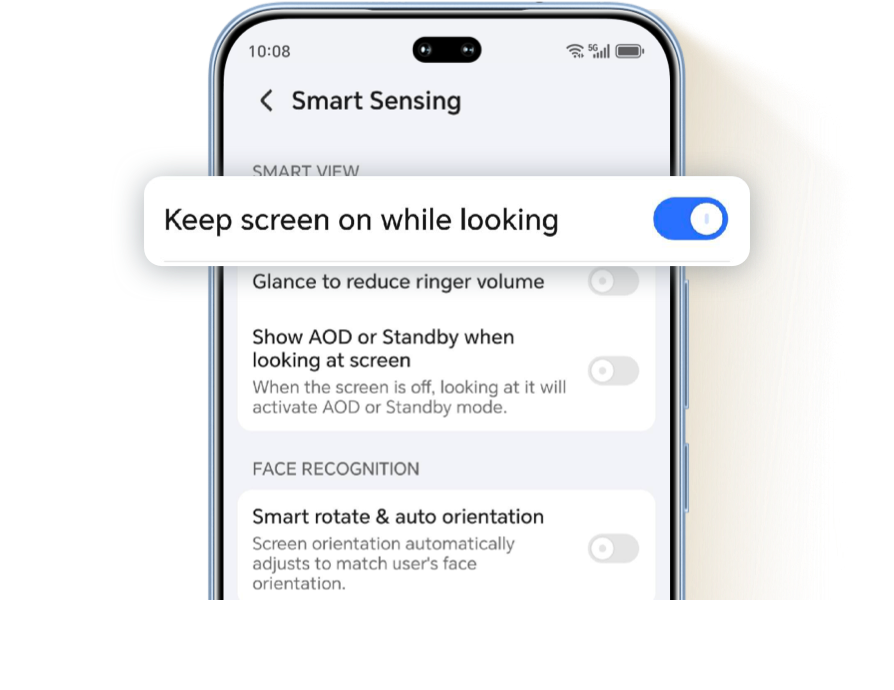
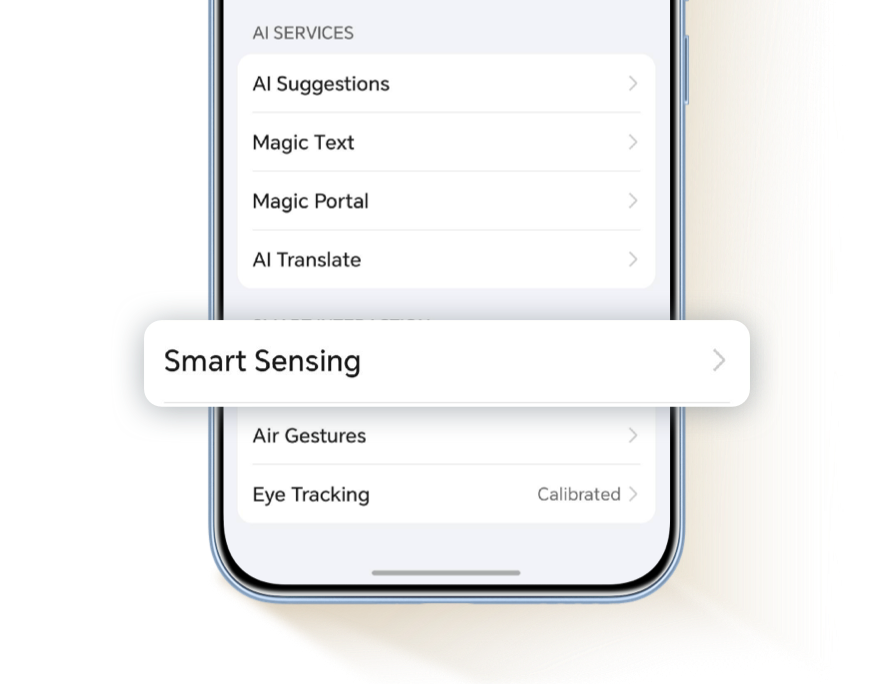
Enter Device Settings > HONOR AI, click to enter the Smart Sensing interface, enable Keep screen on while looking. Instead of frequently lighting up the screen manually, a simple glance can keep it on.


When You Receive a Call on Your Phone, Simply Gaze at the Screen to Reduce the Volume and Activate Do Not Disturb Mode
In the quiet library or during a meeting, when your phone suddenly rings, a glance at the screen can gradually lower the volume, avoiding awkwardness.
Go to Settings > HONOR AI, click to enter the Smart Sensing Interface, and turn on Glance to reduce ringer volume. When a call comes in, just glance at the screen to progressively lower the speaker volume.


A Glance Wakes the Screen,and the Time will be Displayed
Both hands are occupied with cooking.
Just look at your screen, the time will appear.
Just look at your screen, the time will appear.
Go to Settings > Home screen & style, turn on the Always On Display switch.


Then click Settings > HONOR AI > Smart Sensing, turn on the Show AOD or Standby when looking at screen switch. After the screen is turned off or locked, a glance at the screen will automatically display the AOD or activate the Standby mode.

*After the screen is turned off or locked, fold the device into a tent or calendar stand position and place it on a flat surface to activate the Standby mode.
Screen Content Follows Your Face via Smart Orientation Sensing
When lying on your side to browse news, the screen content rotates with your face to avoid random flipping;
When shooting food in landscape mode, the photo automatically adjusts to the face orientation, eliminating the need for manual rotation.
When shooting food in landscape mode, the photo automatically adjusts to the face orientation, eliminating the need for manual rotation.
Go to Settings > HONOR AI, tap to enter the Smart Sensing interface, and turn on the Smart rotate & auto oriretation. The phone will automatically recognize the orientation of your face, eliminating the need for manual adjustments.


*Before turning on the Smart rotate & auto oriretation switch, please ensure that auto-rotate function is already enabled.
Scan the QR code below to contact us immediately.

When your hands are full and it's inconvenient to reach for your phone, HONOR Smart Sensing can help you handle various situations with just a glance.
Keep the Screen on with a Gaze, and Enjoy Uninterrupted Focus while Reading
When reading articles or browsing web pages, screen dimming can interrupt the immersive experience.
Enable the "Always on Display" feature for a smoother experience.
Enable the "Always on Display" feature for a smoother experience.
Enter Device Settings > HONOR AI, click to enter the Smart Sensing interface, enable Keep screen on while looking. Instead of frequently lighting up the screen manually, a simple glance can keep it on.

When You Receive a Call on Your Phone, Simply Gaze at the Screen to Reduce the Volume and Activate Do Not Disturb Mode
In the quiet library or during a meeting, when your phone suddenly rings, a glance at the screen can gradually lower the volume, avoiding awkwardness.
Go to Settings > HONOR AI, click to enter the Smart Sensing Interface, and turn on Glance to reduce ringer volume. When a call comes in, just glance at the screen to progressively lower the speaker volume.
A Glance Wakes the Screen,and the Time will be Displayed
Both hands are occupied with cooking.
Just look at your screen, the time will appear.
Just look at your screen, the time will appear.
Go to Settings > Home screen & style, turn on the Always On Display switch.
Then click Settings > HONOR AI > Smart Sensing, turn on the Show AOD or Standby when looking at screen switch. After the screen is turned off or locked, a glance at the screen will automatically display the AOD or activate the Standby mode.
*After the screen is turned off or locked, fold the device into a tent or calendar stand position and place it on a flat surface to activate the Standby mode.
Screen Content Follows Your Face via Smart Orientation Sensing
When lying on your side to browse news, the screen content rotates with your face to avoid random flipping;
When shooting food in landscape mode, the photo automatically adjusts to the face orientation, eliminating the need for manual rotation.
When shooting food in landscape mode, the photo automatically adjusts to the face orientation, eliminating the need for manual rotation.
Go to Settings > HONOR AI, tap to enter the Smart Sensing interface, and turn on the Smart rotate & auto oriretation. The phone will automatically recognize the orientation of your face, eliminating the need for manual adjustments.
*Before turning on the Smart rotate & auto oriretation switch, please ensure that auto-rotate function is already enabled.
Scan the QR code below to contact us immediately.