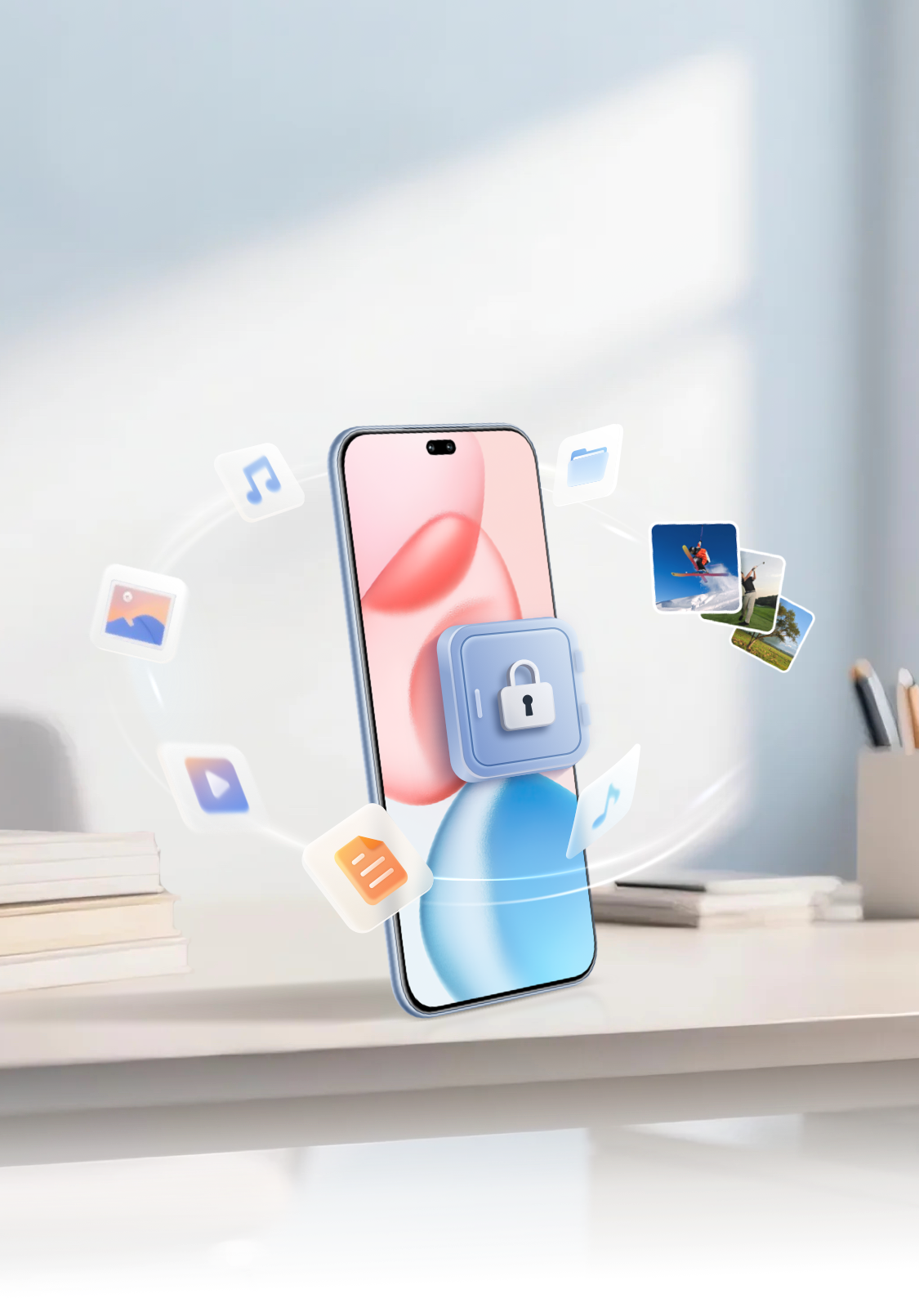
HONOR Safe provides a secure and convenient storage space to ensure that confidential files and private data are more effectively protected.
File Safe:
worry-free privacy

To safeguard annotated work documents and critical client data, try HONOR File Safe. It lets you encrypt images, audio, videos, and documents at any time, eliminating the risk of leaks and keeping your privacy secure.
Create a New Secure Vault
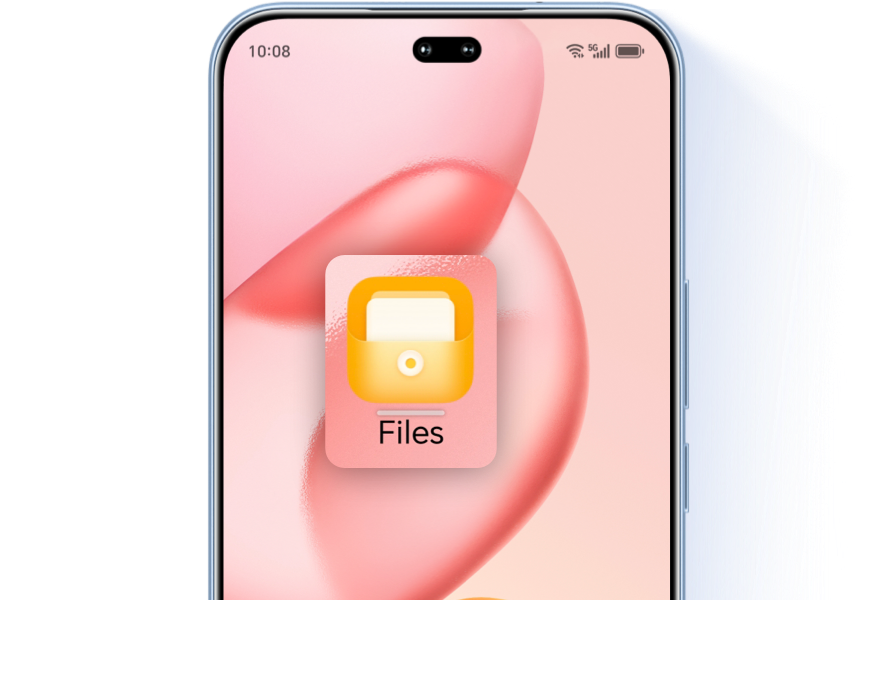
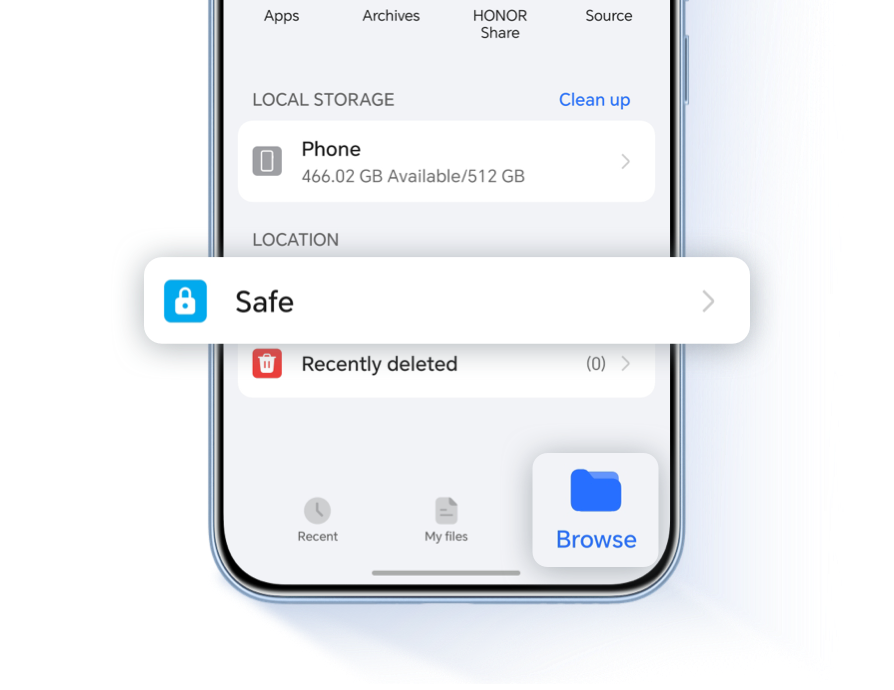
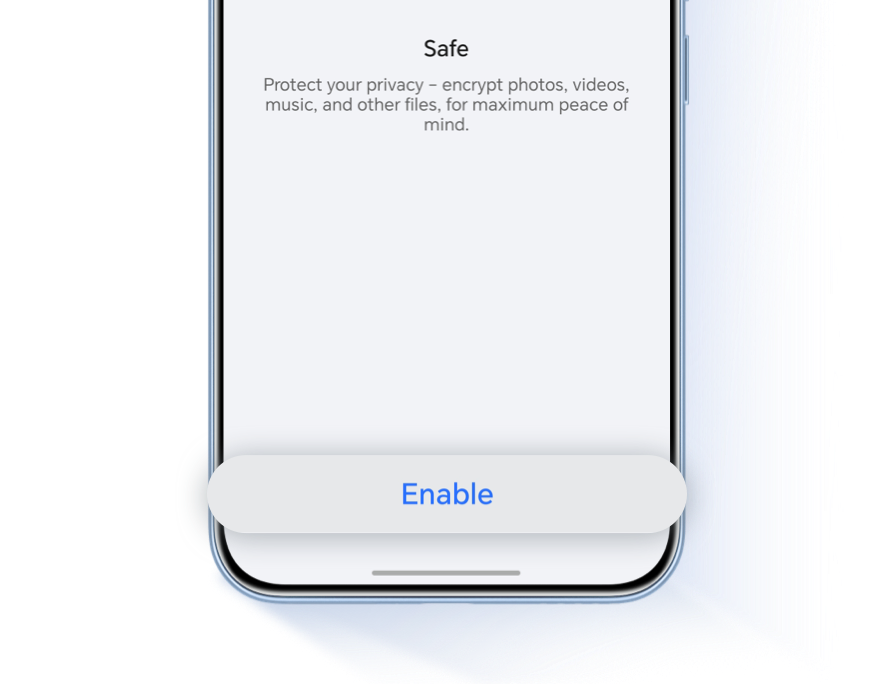
Go to File Manager on your phone/tablet> Browse > Secure Cabinet, tap Enable now, select My Phone / My Tablet or the memory card as the storage location for confidential data, then follow the on-screen instructions to set a Secure Cabinet password and security questions.
*There is no limit to the number of new Privacy Safes you can create. The Privacy
Safe password must be 6–16 characters long and contain both letters and digits, with
at least one letter. The Privacy Safe password can only be reset via security
questions. If you forget the answers to your security questions, you will not be
able to recover files stored in the Privacy Safe.
*Only certain phones and tablets support memory cards. For details, refer to your
device’s actual capabilities.
Switch File Safe
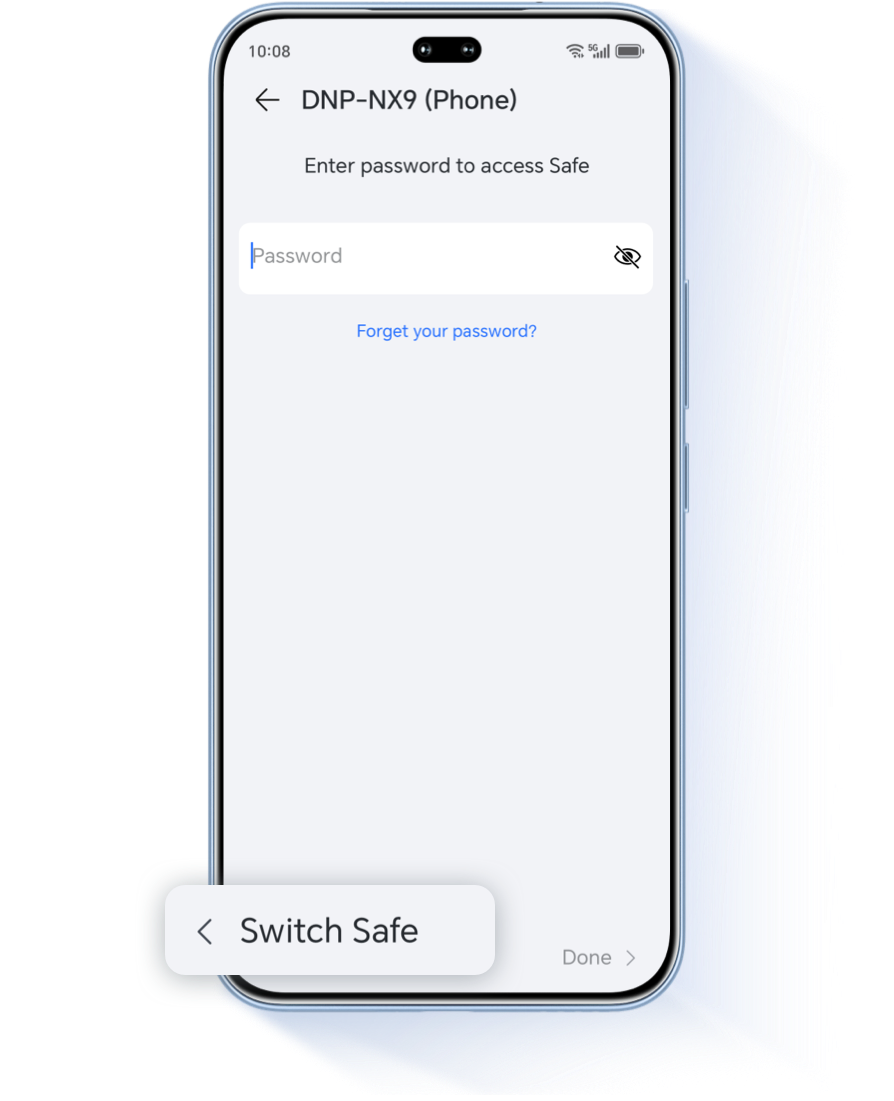
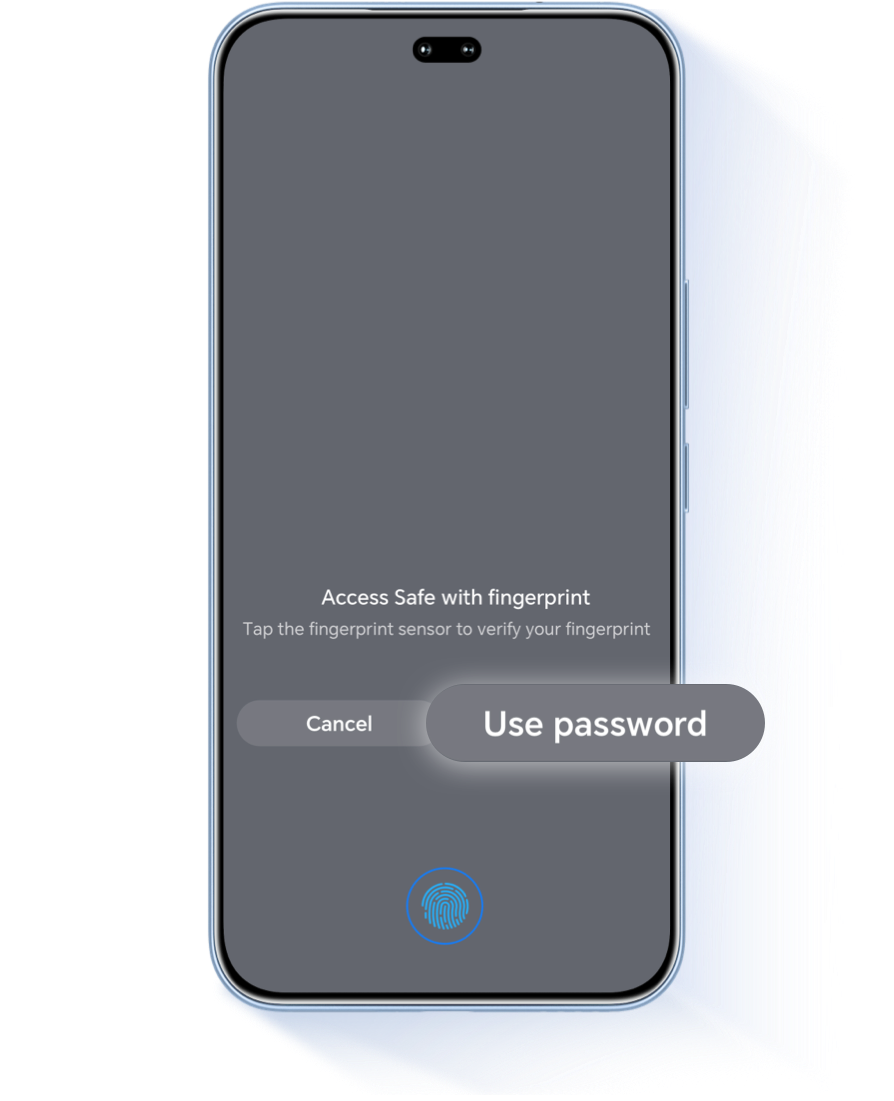
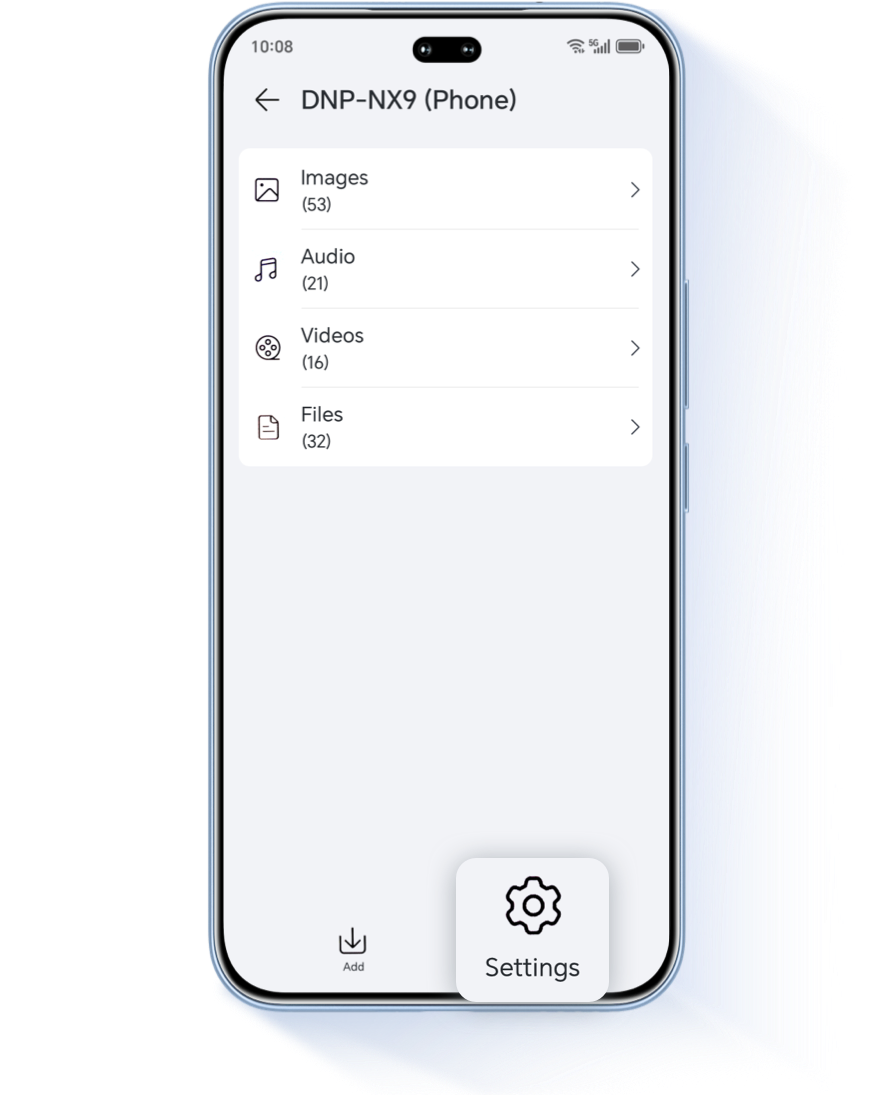

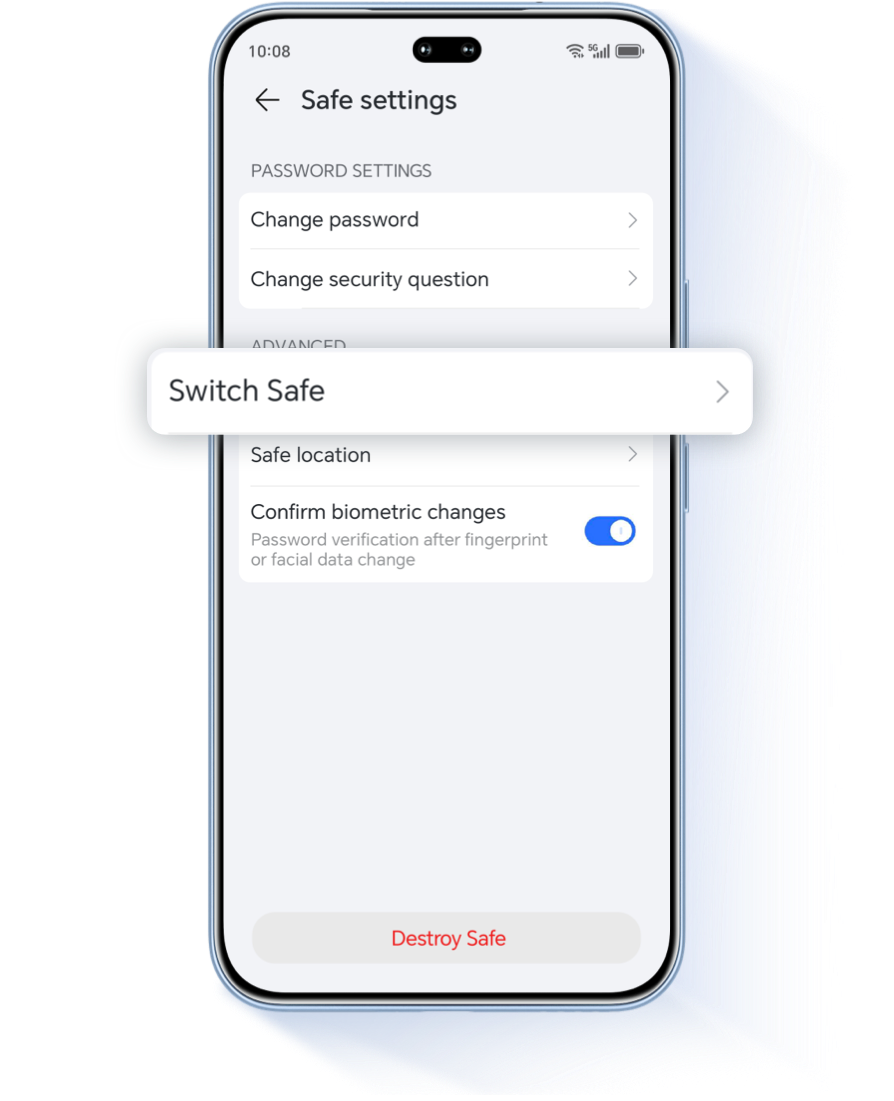
*If fingerprint authentication fails or you are unable to use fingerprint authentication so that you cannot access the Private Safe, you can unlock Private Safe with its password. If you forget the Private Safe password, you can reset it by answering your security questions.
Add Encrypted Data
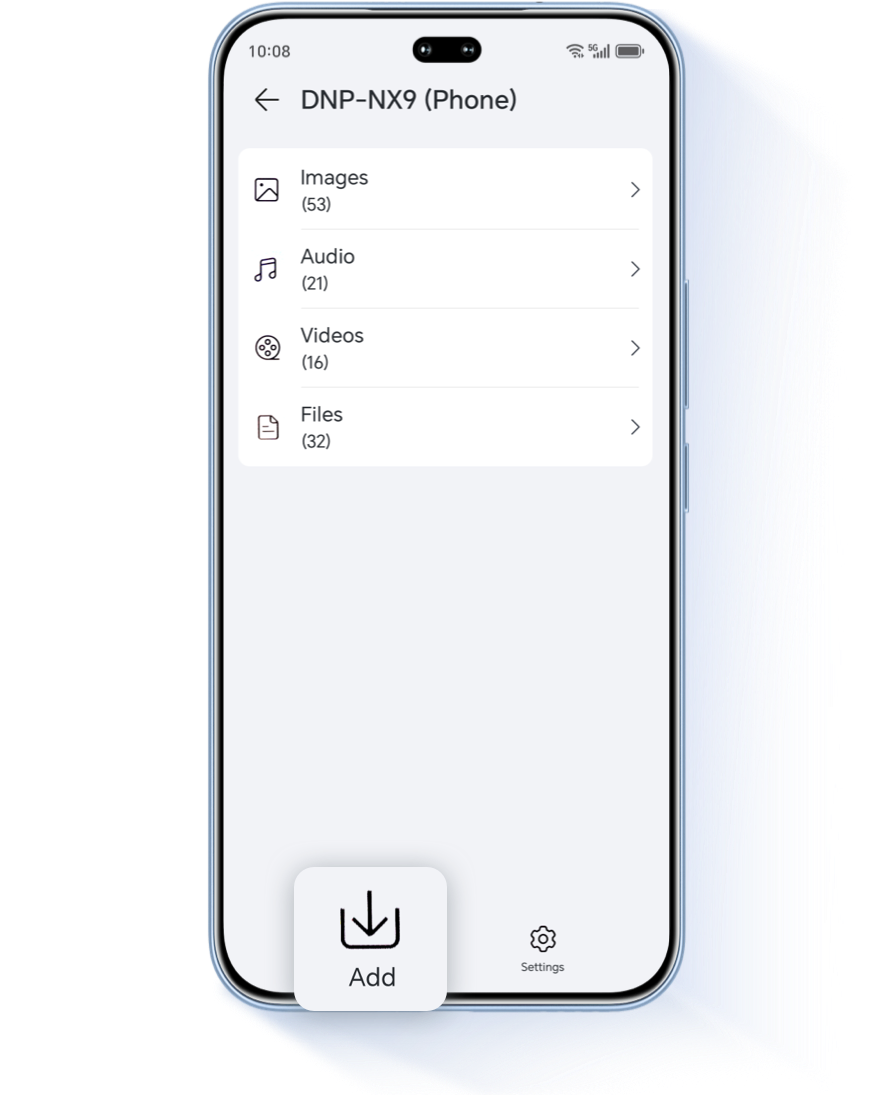
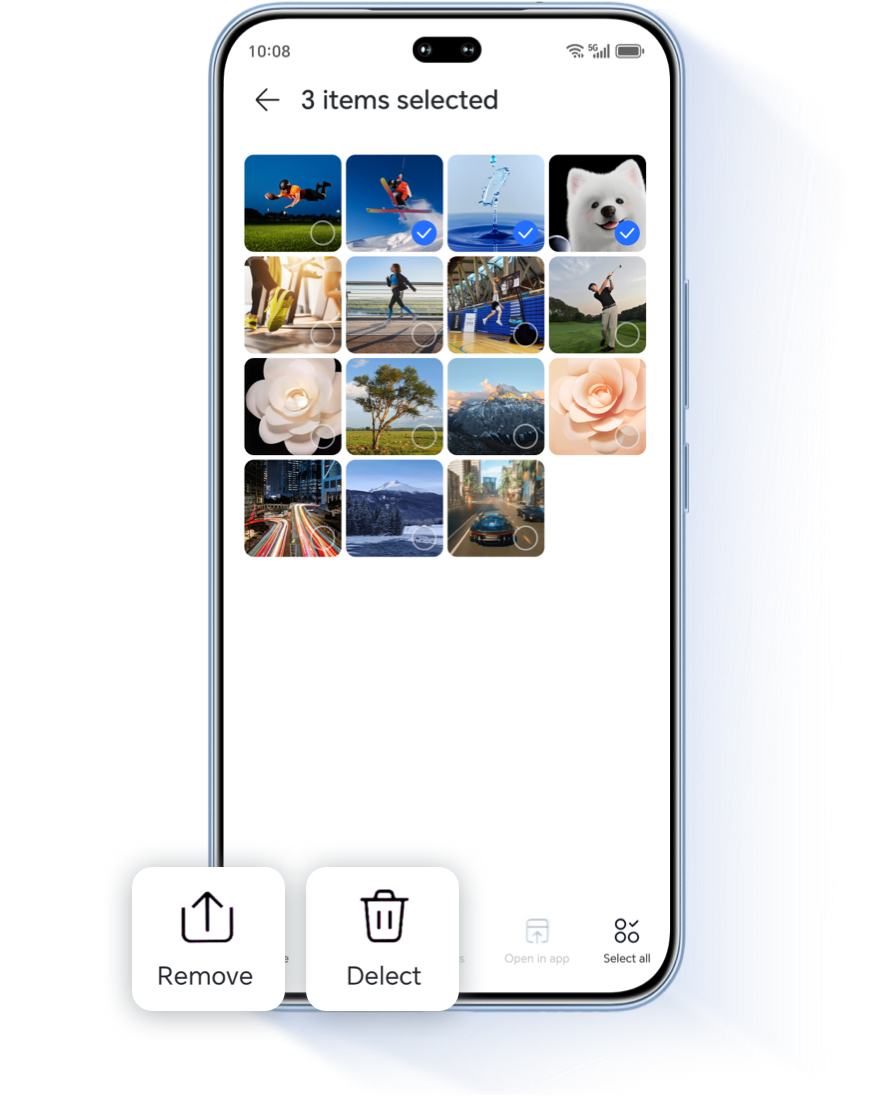
*The default save location for files moved out is My Phone/File_Restore (on tablets, My
Tablet/File_Restore).
*The Secure Cabinet does not support the Recycle Bin function; deleted data cannot be
recovered.
Delete Private Safe
In Safe, go to Settings > Destroy Safe. First, enter your password or verify using your fingerprint. Then, follow the on-screen instructions: if you select Move Out Files, tap OK to move your private data out to the device; if you do not select this option, all private data within Safe will be deleted when Safe is destroyed.
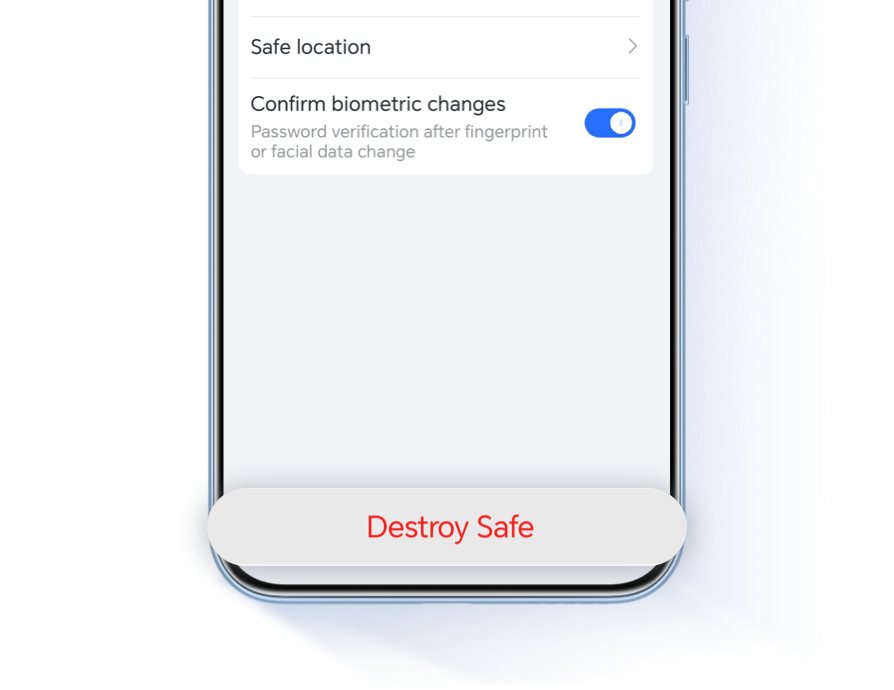
*The above File Safe operations are for illustrative purposes only and may differ from actual usage. For specific instructions, please follow the prompts on the actual device.
HONOR Safe encrypted data provides efficient and secure privacy protection solutions.
HONOR Safe provides a secure and convenient storage space to ensure that confidential files and private data are more effectively protected.
File Safe:
worry-free privacy
To safeguard annotated work documents and critical client data, try HONOR File Safe. It lets you encrypt images, audio, videos, and documents at any time, eliminating the risk of leaks and keeping your privacy secure.
Create a New Secure Vault
Go to File Manager on your phone/tablet> Browse > Secure Cabinet, tap Enable now, select My Phone / My Tablet or the memory card as the storage location for confidential data, then follow the on-screen instructions to set a Secure Cabinet password and security questions.
*There is no limit to the number of new Privacy Safes you can create. The Privacy
Safe password must be 6–16 characters long and contain both letters and digits, with
at least one letter. The Privacy Safe password can only be reset via security
questions. If you forget the answers to your security questions, you will not be
able to recover files stored in the Privacy Safe.
*Only certain phones and tablets support memory cards. For details, refer to your
device’s actual capabilities.
Switch File Safe
*If fingerprint authentication fails or you are unable to use fingerprint authentication so that you cannot access the Private Safe, you can unlock Private Safe with its password. If you forget the Private Safe password, you can reset it by answering your security questions.
Add Encrypted Data
*The default save location for files moved out is My Phone/File_Restore (on tablets, My
Tablet/File_Restore).
*The Secure Cabinet does not support the Recycle Bin function; deleted data cannot be
recovered.
Delete Private Safe
In Safe, go to Settings > Destroy Safe. First, enter your password or verify using your fingerprint. Then, follow the on-screen instructions: if you select Move Out Files, tap OK to move your private data out to the device; if you do not select this option, all private data within Safe will be deleted when Safe is destroyed.
*The above File Safe operations are for illustrative purposes only and may differ from actual usage. For specific instructions, please follow the prompts on the actual device.
HONOR Safe encrypted data provides efficient and secure privacy protection solutions.