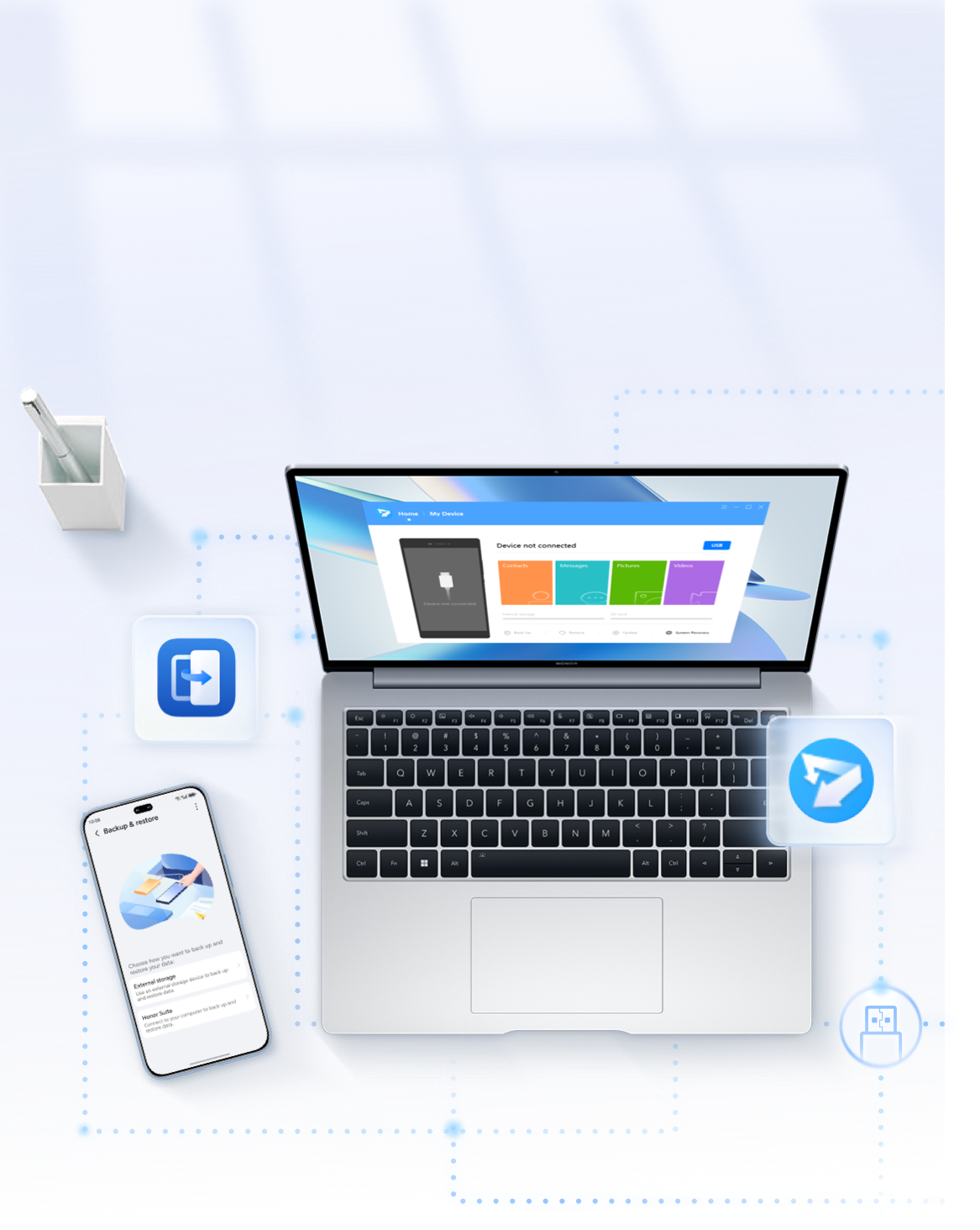
To better protect your important data, here are some backup solutions for you.
Backup to your laptop


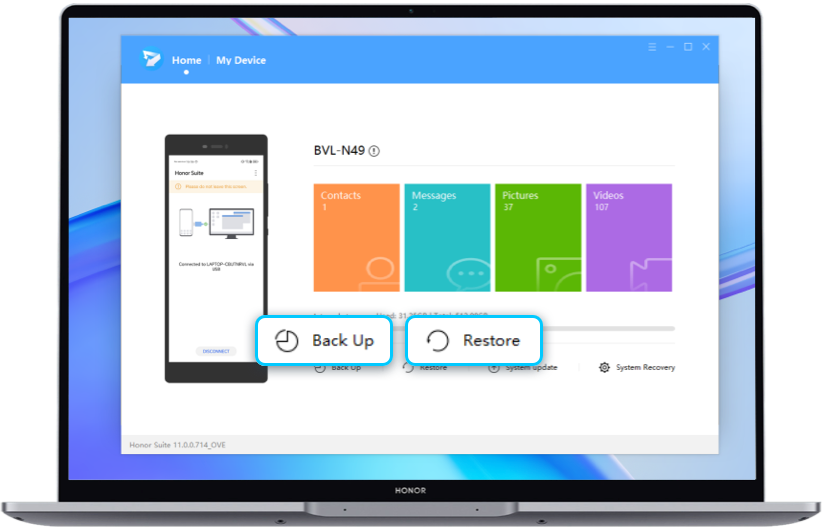
Connect your computer first, click on the notification bar USB connection method, and select the mode of transferring files.


After connecting your phone, open 'This PC' in File Explorer, double-click the HonorSuite CD drive, and follow the on-screen instructions to download and install HonorSuite.


Once the installation has completed successfully, click OK when prompted on the screen, and then install HonorSuite on your phone.
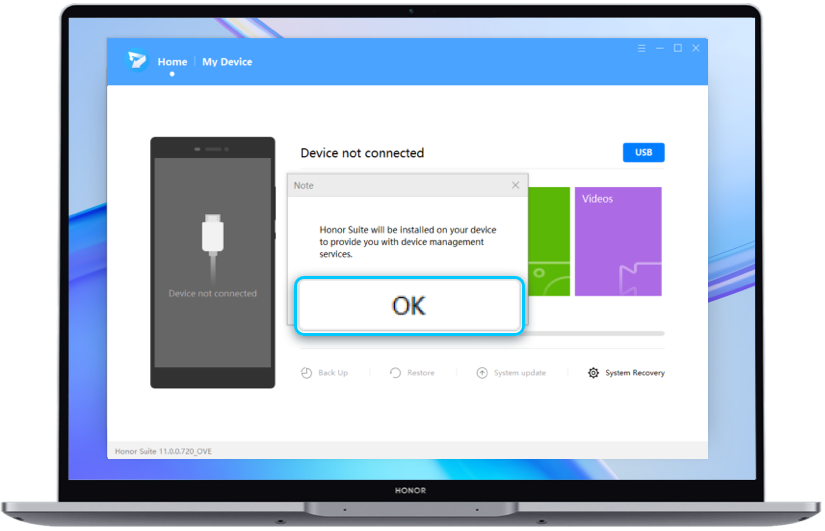

Follow the instructions and enter the verification code from your phone on your computer to successfully connect your phone and computer.

*If the phone does not display the verification code, you can click HonorSuite > USB on the computer to check the “Authorize your computer to manage your device” step.


Clone data to another device
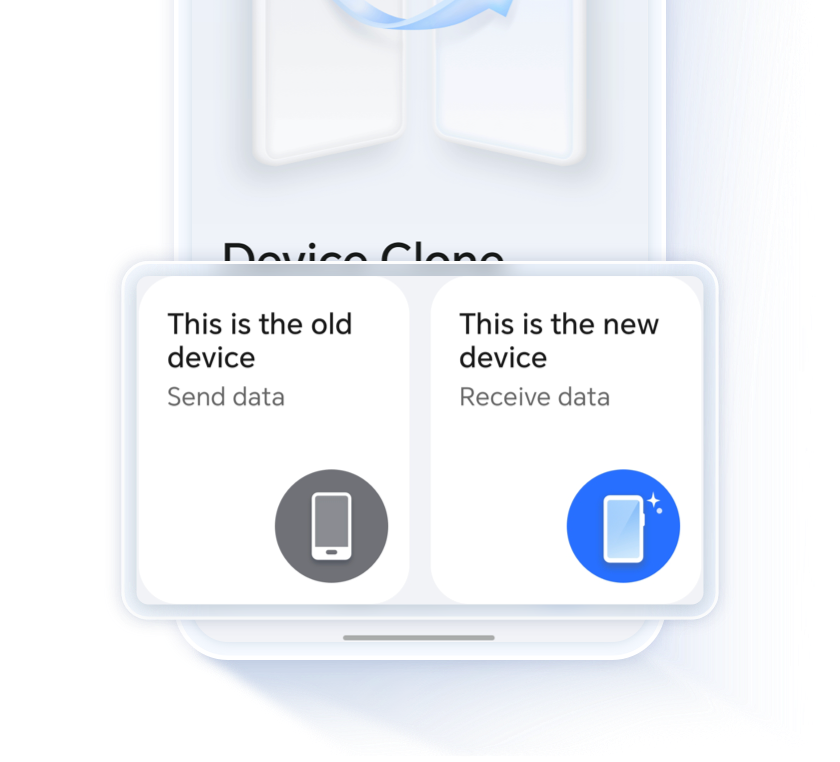
First, enter the device clone app, click this is a new device or this is an old device, select the type of two devices and transfer data, you can refer to device clone tutorial for the specific operation steps.

External Storage
Connect your device to the external storage device with a USB OTG cable.
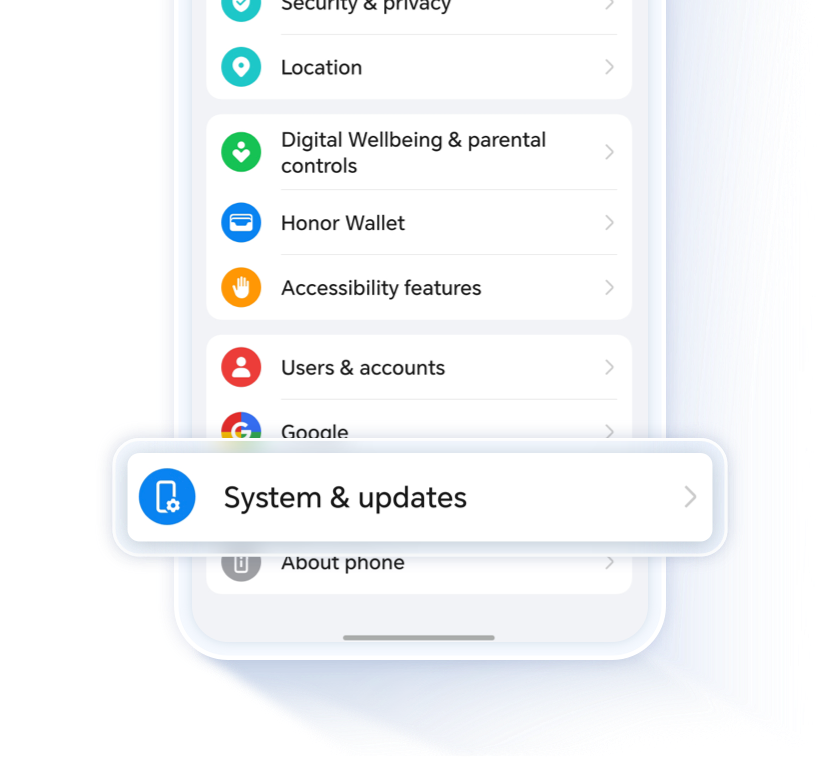
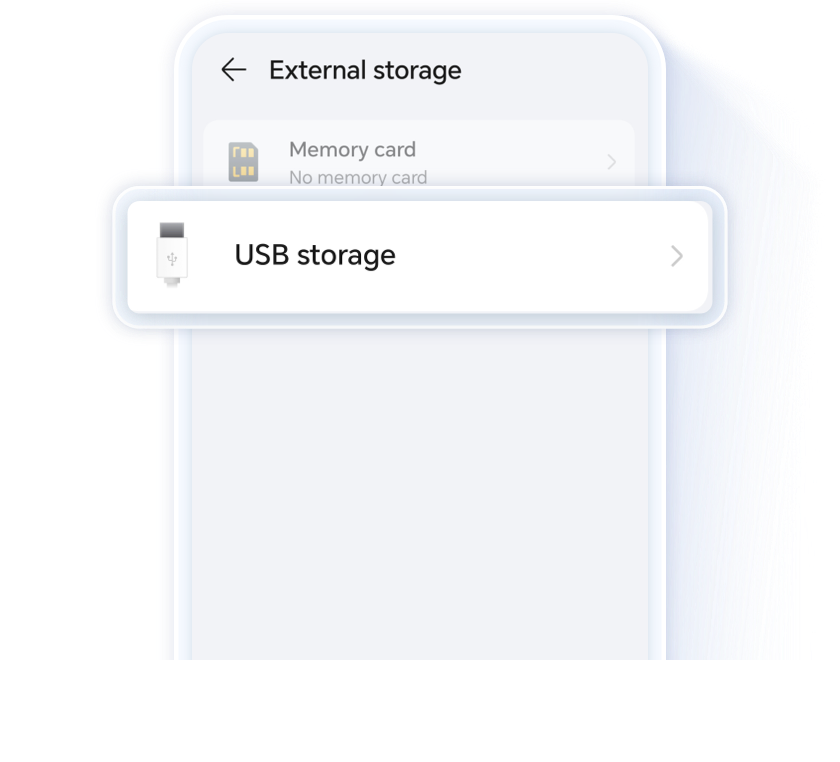
Go to your device to set up > system and update > Backup & restore > Data backup > External storage > USB storage > Backup, then select the data what you want to backup.


Cloud backup
Don't want to back up your data manually, you can turn on the Google backup and Auto-restore function in setting, then all your important data is automatically backed up to the cloud on a regular basis.

Third-party apps Back up
Some third-party apps such as WhatsApp, the data may will be cleaned up when repair. To prevent the loss of important data after accidentally deleting the software, you can back up chats data first. Go to settings > Chats > Chat backup > Back up.


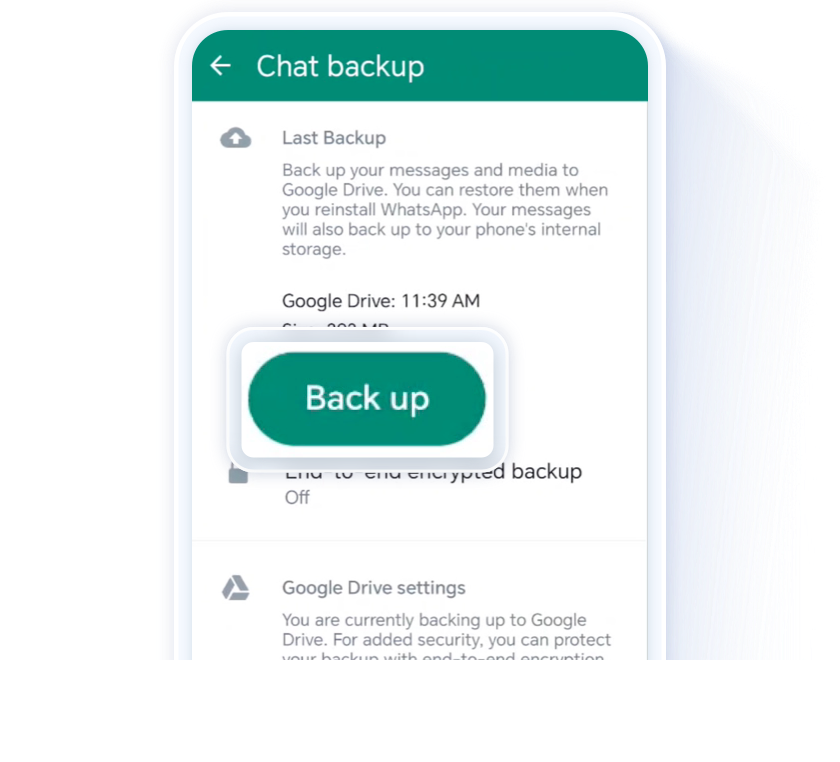
If your chats data were loss unfortunately, you can sign in your WhatsApp with the same google account, choose Restore backup to restore your messages and media from Google Drive.
Scan QR code below to reach HONOR Support team

To better protect your important data, here are some backup solutions for you.
Backup to your laptop
Connect your computer first, click on the notification bar USB connection method, and select the mode of transferring files.
After connecting your phone, open 'This PC' in File Explorer, double-click the HonorSuite CD drive, and follow the on-screen instructions to download and install HonorSuite.
Once the installation has completed successfully, click OK when prompted on the screen, and then install HonorSuite on your phone.
Follow the instructions and enter the verification code from your phone on your computer to successfully connect your phone and computer.
*If the phone does not display the verification code, you can click HonorSuite > USB on the computer to check the “Authorize your computer to manage your device” step.

Clone data to another device
First, enter the device clone app, click this is a new device or this is an old device, select the type of two devices and transfer data, you can refer to device clone tutorial for the specific operation steps.
External Storage
Connect your device to the external storage device with a USB OTG cable.
Go to your device to set up > system and update > Backup & restore > Data backup > External storage > USB storage > Backup, then select the data what you want to backup.
Cloud backup
Don't want to back up your data manually, you can turn on the Google backup and Auto-restore function in setting, then all your important data is automatically backed up to the cloud on a regular basis.
Third-party apps Back up
Some third-party apps such as WhatsApp, the data may will be cleaned up when repair. To prevent the loss of important data after accidentally deleting the software, you can back up chats data first. Go to settings > Chats > Chat backup > Back up.
If your chats data were loss unfortunately, you can sign in your WhatsApp with the same google account, choose Restore backup to restore your messages and media from Google Drive.
Scan QR code below to reach HONOR Support team