If your tablet fails to pair with the Bluetooth keyboard, or there is no response when you magnetically attach them.What should I do?
Follow the steps below to easily resolve the connection issue.

Check the tablet's Bluetooth and the keyboard's power switch
Is it turned on?
If the keyboard’s power switch or the tablet’s Bluetooth is not turned on, it will prevent a proper connection.
Keyboard power switch
Tablet Bluetooth On/Off
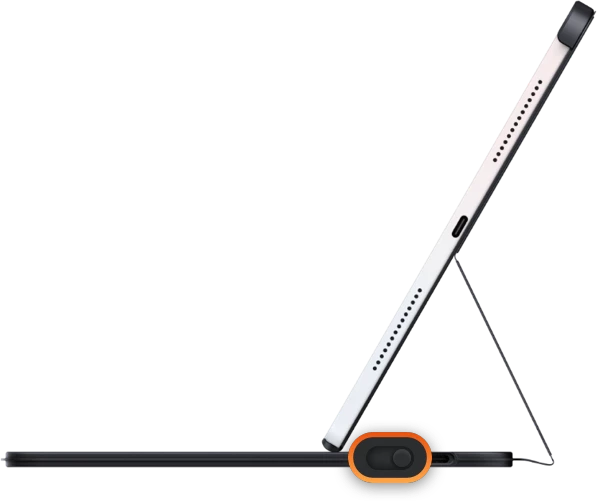
Please check whether the Bluetooth keyboard is turned on. If it is off, turn it on before connecting it to the tablet.
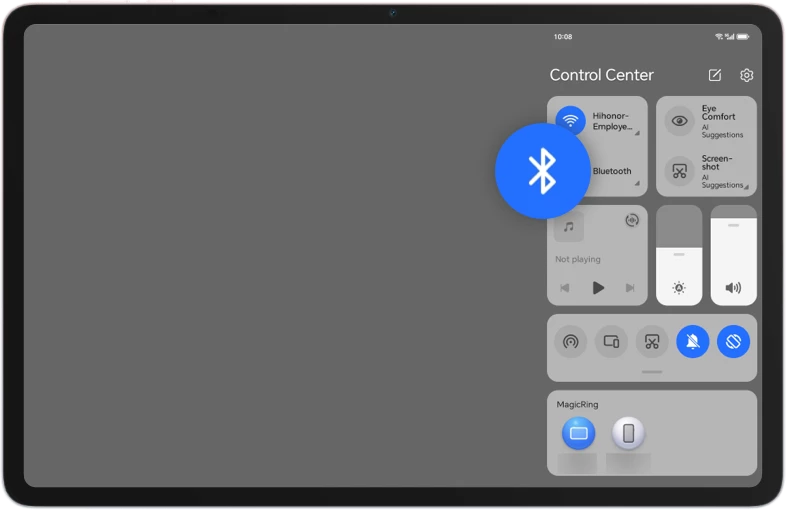
Pull down the tablet's status bar or go to the tablet's Settings app to find Bluetooth and ensure that Bluetooth is enabled.
*The method of turning the keyboard on/off differs among keyboard brands and models; please refer to the keyboard's user manual for detailed instructions.
Check whether the Bluetooth keyboard is in discoverable mode
Discoverable, not connected status
The Bluetooth keyboard cannot be used unless it is connected. The pairing procedure is as follows:
Method 1
Method 2
HONOR Pad 10 Smart
Bluetooth Keyboard
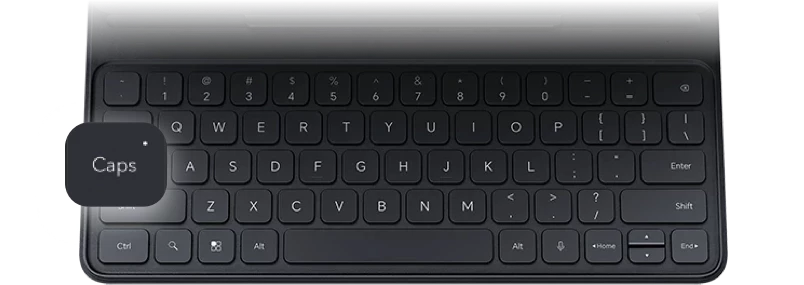
Insert the tablet back into the slot and check whether the Caps Lock indicator light is functioning correctly and whether a pairing pop-up appears. If you have manually dismissed the pop-up before, to avoid disruption, the pairing pop-up will not appear when you detach and reattach the keyboard. In this case, we recommend turning off the screen, waiting for 10 s, then turning the screen back on and reinserting the tablet into the slot.
Other Keyboards
Please refer to the keyboard’s user manual to pair the keyboard.
Ensure the keyboard is
sufficiently charged
If the Bluetooth keyboard's battery is depleted, please charge the keyboard for a while first before attempting to pair it again. Use the following method to charge the keyboard:
Method 1
Method 2
Smart Bluetooth Keyboard for
HONOR Pad 10
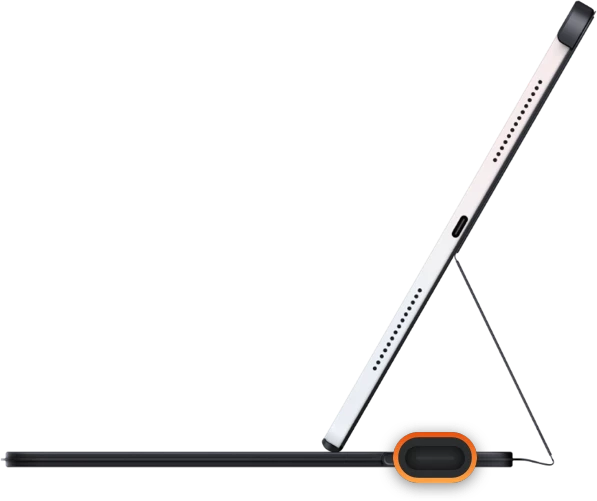
The keyboard can be charged using a charger. Plug the Type-C charging cable into the port on the right side of the keyboard.
Other keyboards
We recommend using the original charging cable.
Avoid interference from
nearby devices
If numerous nearby devices have Wi-Fi or Bluetooth enabled, they can cause considerable interference with the connection between the tablet and its keyboard.
In an open area away from other devices, turn the tablet’s screen off for 10 seconds. Then turn the screen back on and re-pair it with the keyboard.
Turn off
Bluetooth on the device
that has inadvertently paired with the keyboard
If, after pressing the Caps Lock key on the keyboard, the Caps Lock indicator LED stays lit but the tablet does not respond to any other key presses, the keyboard may have inadvertently paired with another device.
It is recommended that you identify the device that has mistakenly paired with the keyboard and turn off its Bluetooth, or alternatively try pairing the keyboard again in an open area free from other devices.
Manually Add
a Bluetooth Device
If you have previously manually disconnected the keyboard from the Tablet Settings
> Bluetooth > Paired Devices list, the tablet may fail to reconnect to the
keyboard.
First, wake the keyboard, then open the tablet’s Bluetooth pairing list, find the
keyboard you want to connect, and pair it manually.
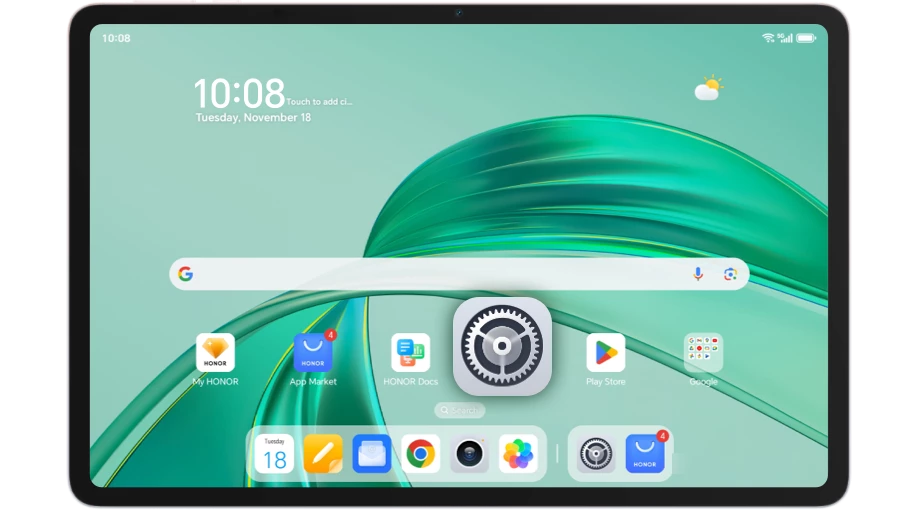
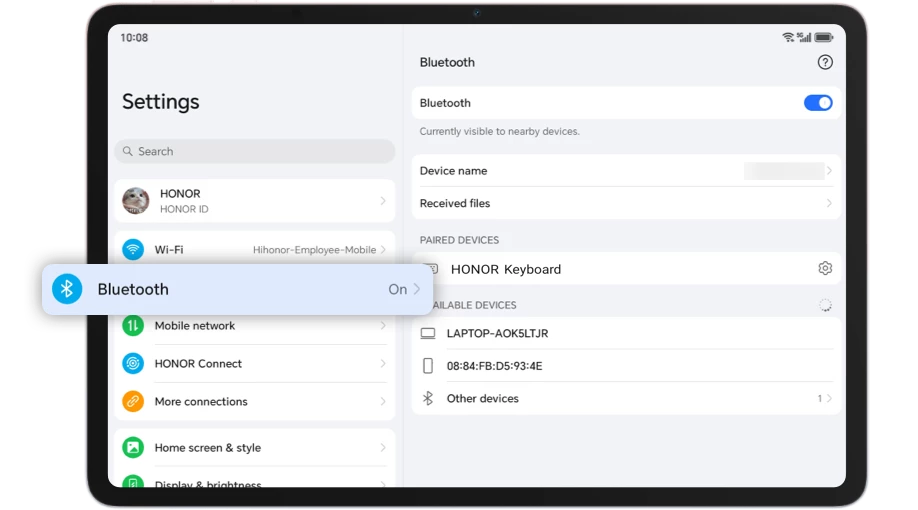
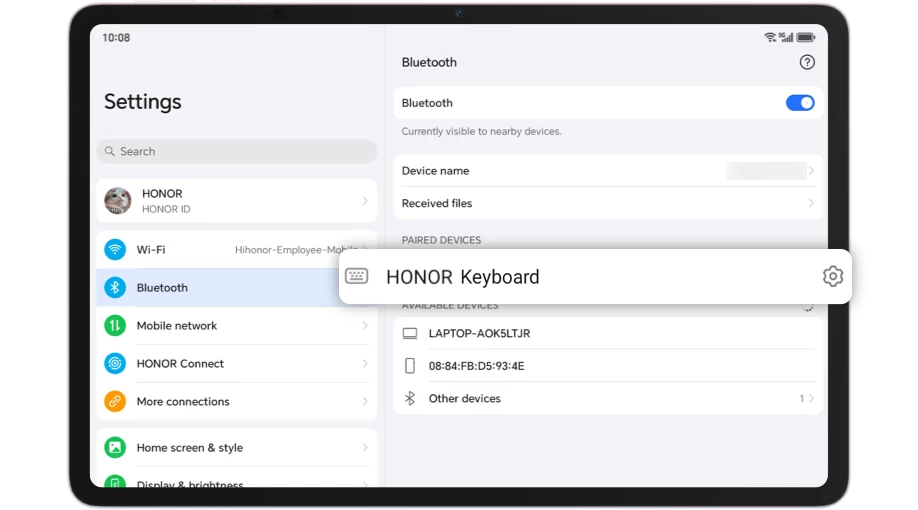
Ways to wake up the keyboard:
Method 1
Method 2
HONOR Smart Bluetooth
Keyboard for Pad 10
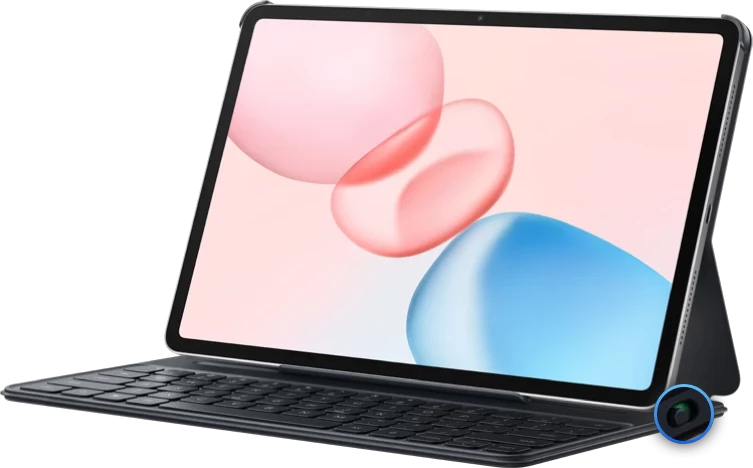
Simply turn on the keyboard, then insert the tablet into the keyboard slot; the keyboard will wake automatically.
Other Keyboards
Please refer to the keyboard’s user manual to complete the pairing.
Take a multifaceted approach to resolve the tablet-keyboard connection failure.
Experience smooth Bluetooth connectivity that helps you work more efficiently.
If your tablet fails to pair with the Bluetooth keyboard, or there is no response when you magnetically attach them.What should I do?
Follow the steps below to easily resolve the connection issue.
Check the tablet's Bluetooth and the keyboard's power switch
Is it turned on?
If the keyboard’s power switch or the tablet’s Bluetooth is not turned on, it will prevent a proper connection.
Keyboard power switch
Tablet Bluetooth On/Off
Please check whether the Bluetooth keyboard is turned on. If it is off, turn it on before connecting it to the tablet.
Pull down the tablet's status bar or go to the tablet's Settings app to find Bluetooth and ensure that Bluetooth is enabled.
*The method of turning the keyboard on/off differs among keyboard brands and models; please refer to the keyboard's user manual for detailed instructions.
Check whether the Bluetooth keyboard is in discoverable mode
Discoverable, not connected status
The Bluetooth keyboard cannot be used unless it is connected. The pairing procedure is as follows:
Method 1
Method 2
HONOR Pad 10 Smart
Bluetooth Keyboard
Insert the tablet back into the slot and check whether the Caps Lock indicator light is functioning correctly and whether a pairing pop-up appears. If you have manually dismissed the pop-up before, to avoid disruption, the pairing pop-up will not appear when you detach and reattach the keyboard. In this case, we recommend turning off the screen, waiting for 10 s, then turning the screen back on and reinserting the tablet into the slot.
Other Keyboards
Please refer to the keyboard’s user manual to pair the keyboard.
Ensure the keyboard is
sufficiently charged
If the Bluetooth keyboard's battery is depleted, please charge the keyboard for a while first before attempting to pair it again. Use the following method to charge the keyboard:
Method 1
Method 2
Smart Bluetooth Keyboard for
HONOR Pad 10
The keyboard can be charged using a charger. Plug the Type-C charging cable into the port on the right side of the keyboard.
Other keyboards
We recommend using the original charging cable.
Avoid interference from
nearby devices
If numerous nearby devices have Wi-Fi or Bluetooth enabled, they can cause considerable interference with the connection between the tablet and its keyboard.
In an open area away from other devices, turn the tablet’s screen off for 10 seconds. Then turn the screen back on and re-pair it with the keyboard.
Turn off
Bluetooth on the device
that has inadvertently paired with the keyboard
If, after pressing the Caps Lock key on the keyboard, the Caps Lock indicator LED stays lit but the tablet does not respond to any other key presses, the keyboard may have inadvertently paired with another device.
It is recommended that you identify the device that has mistakenly paired with the keyboard and turn off its Bluetooth, or alternatively try pairing the keyboard again in an open area free from other devices.
Manually Add
a Bluetooth Device
If you have previously manually disconnected the keyboard from the Tablet Settings
> Bluetooth > Paired Devices list, the tablet may fail to reconnect to the
keyboard.
First, wake the keyboard, then open the tablet’s Bluetooth pairing list, find the
keyboard you want to connect, and pair it manually.

Ways to wake up the keyboard:
Method 1
Method 2
HONOR Smart Bluetooth
Keyboard for Pad 10
Simply turn on the keyboard, then insert the tablet into the keyboard slot; the keyboard will wake automatically.
Other Keyboards
Please refer to the keyboard’s user manual to complete the pairing.
Take a multifaceted approach to resolve the tablet-keyboard connection failure.
Experience smooth Bluetooth connectivity that helps you work more efficiently.