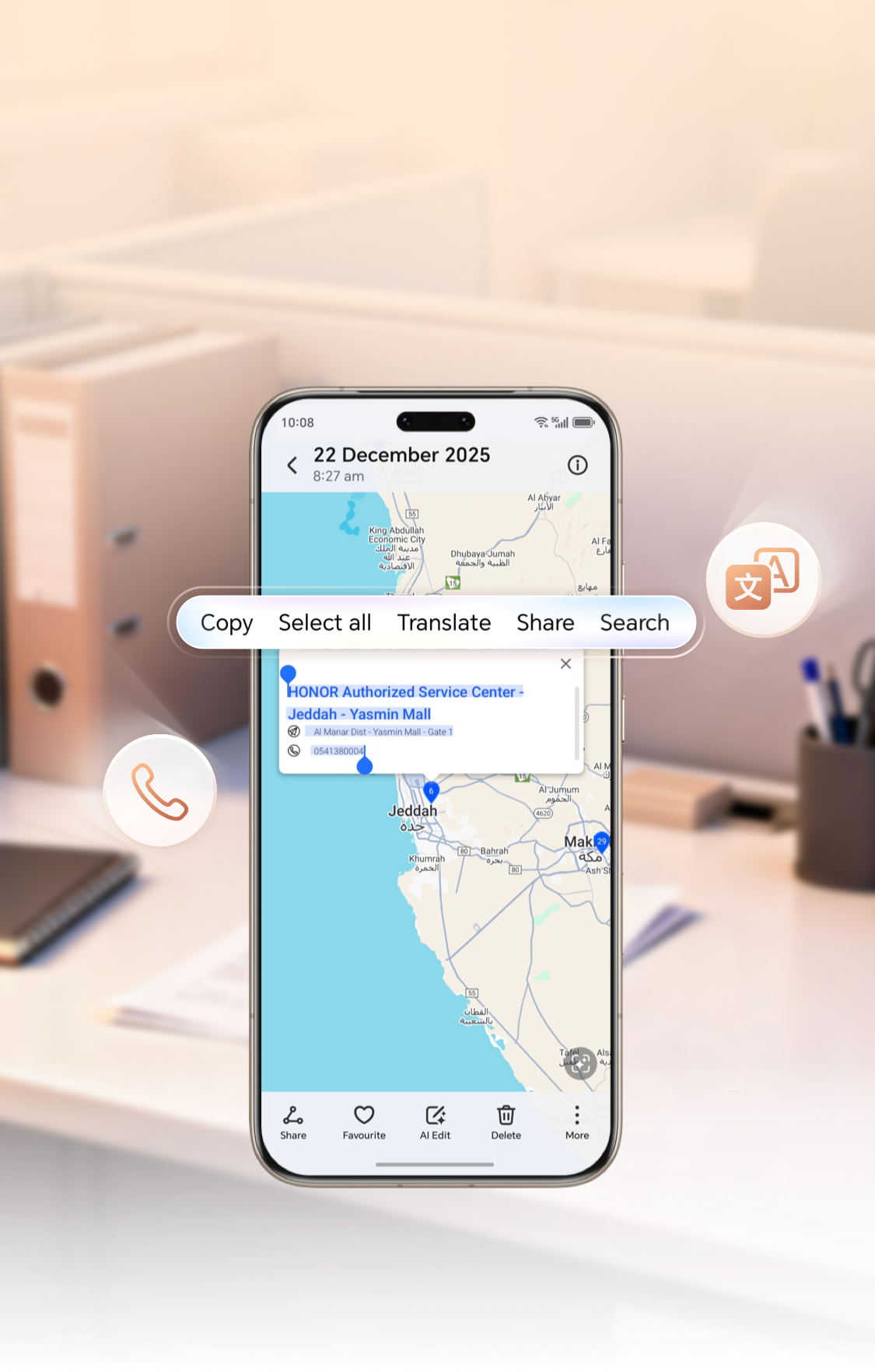
Extract Text From A Photo With HONOR Magic Text

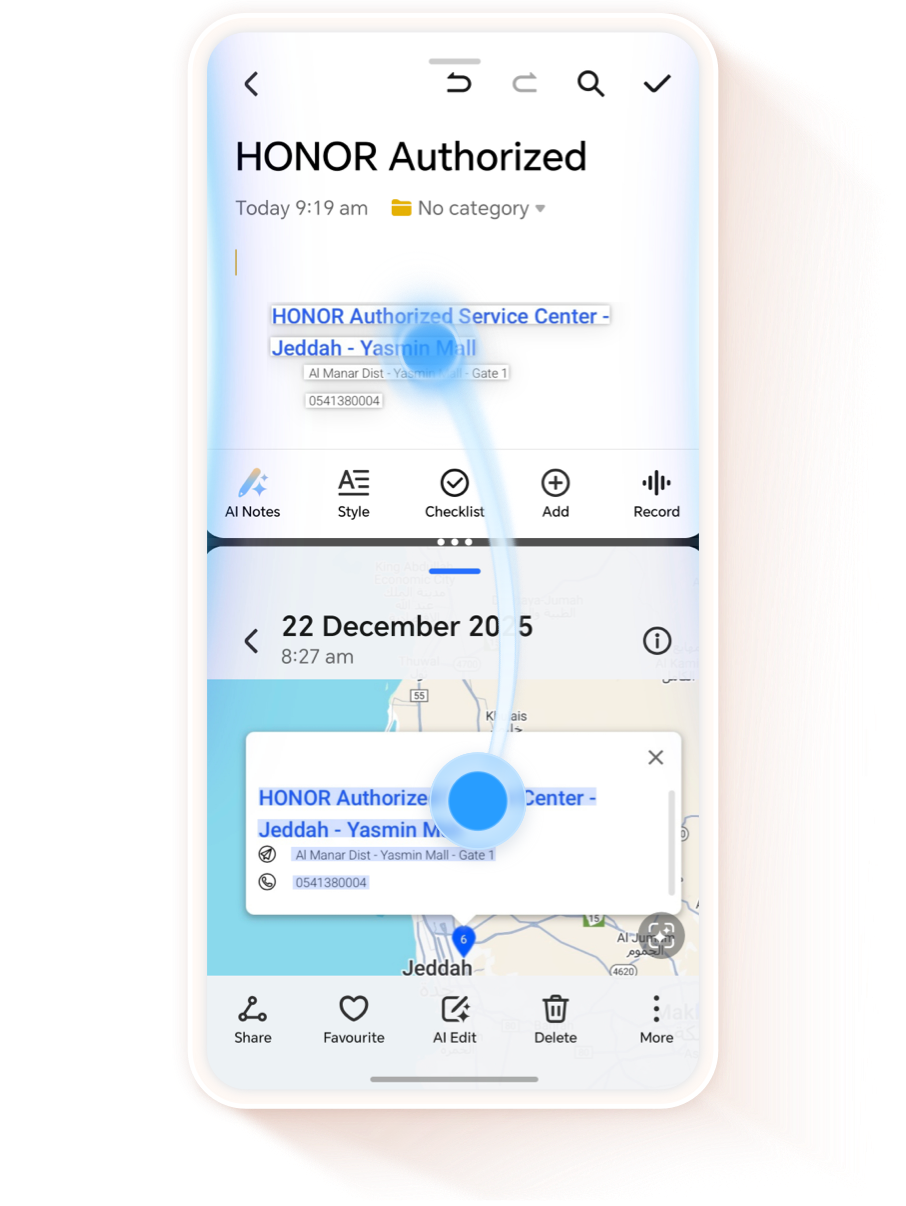
Drag and drop information across apps

After recognizing the text in split-screen mode, you can select the information you need and drag it directly to the memo or dialog box.
This article take HONOR Magic8 Pro as an example, some apps may not support split-screen mode, please refer to the actual experience.

Recognize text and translate it with one click

The recognized text can be converted into editable information, allowing you to perform operations such as copying, translating, and searching.
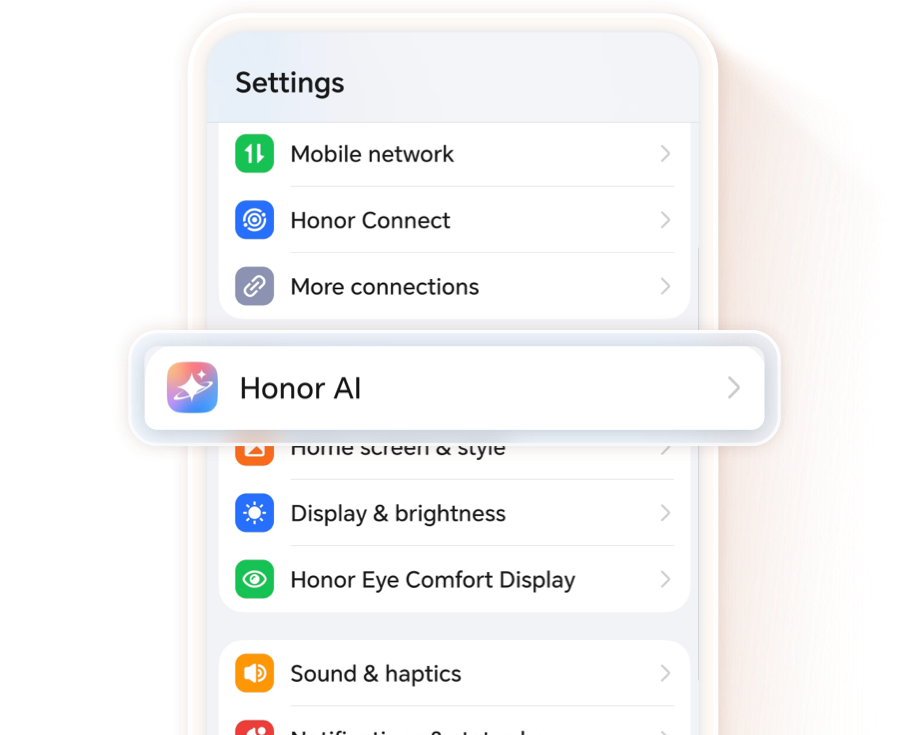
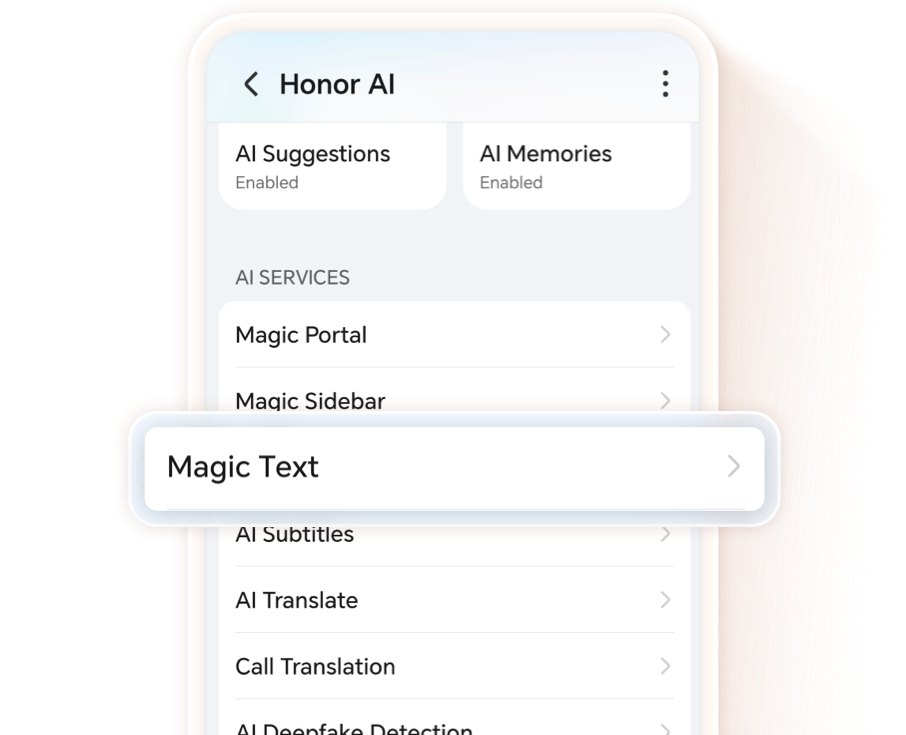
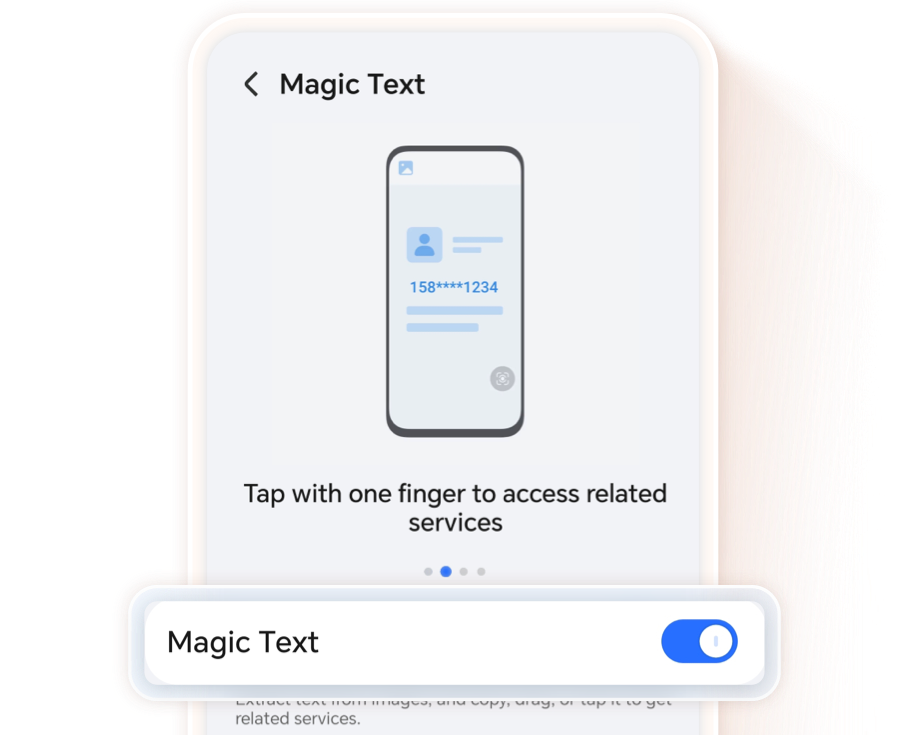
Click setting > HONOR AI > Magic Text, ensure Magic Text has been enabled
Click the arrow to check the next step

Identify the phone number and dial it in one step

Long press the phone nubmer on the business card image, then choices for making a call or sending a message will appear, allowing you to access these options in one step.
Scan the QR code below to contact us immediately.

Extract Text From A Photo With HONOR Magic Text

Drag and drop information across apps

After recognizing the text in split-screen mode, you can select the information you need and drag it directly to the memo or dialog box.
This article take HONOR Magic8 Pro as an example, some apps may not support split-screen mode, please refer to the actual experience.

Recognize text and translate it with one click
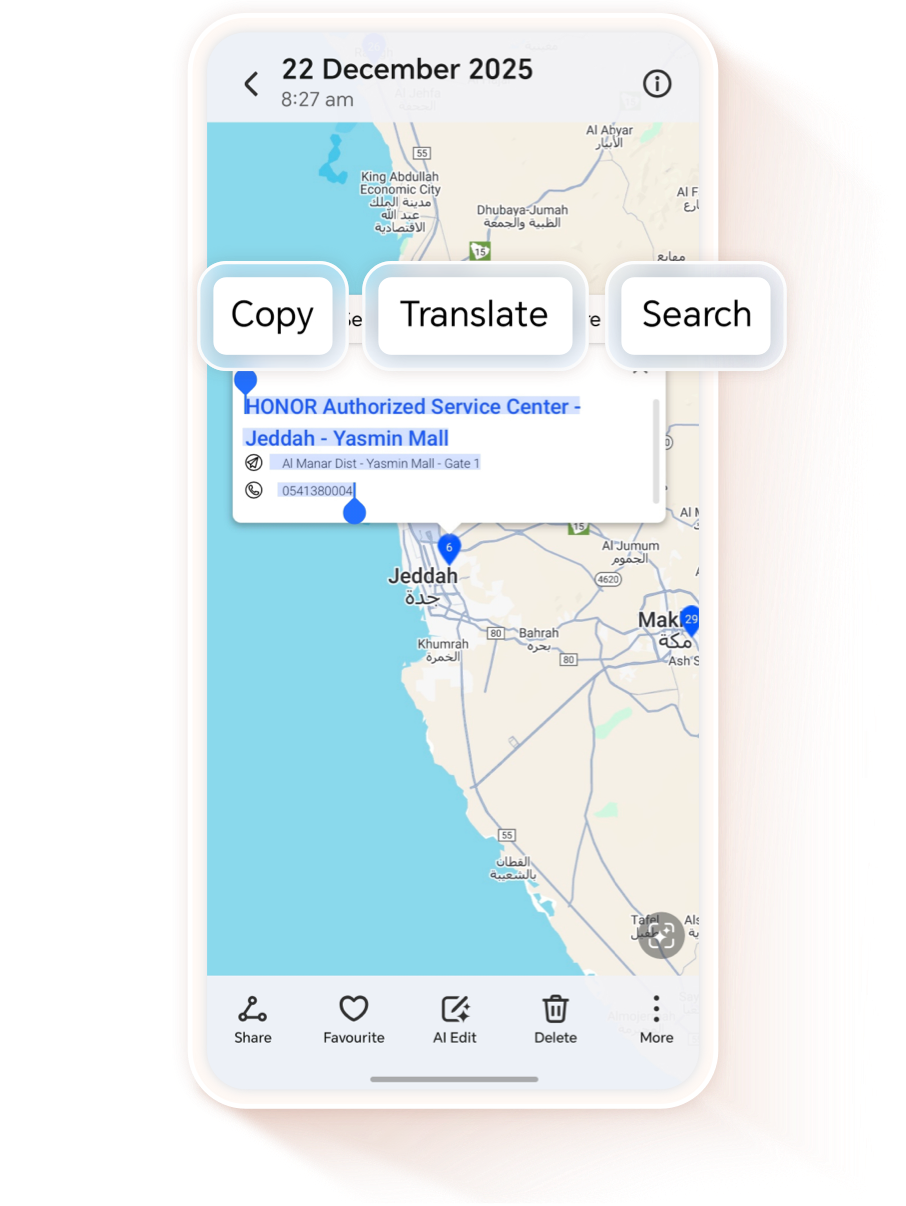
The recognized text can be converted into editable information, allowing you to perform operations such as copying, translating, and searching.
Click setting > HONOR AI > Magic Text, ensure Magic Text has been enabled

Identify the phone number and dial it in one step
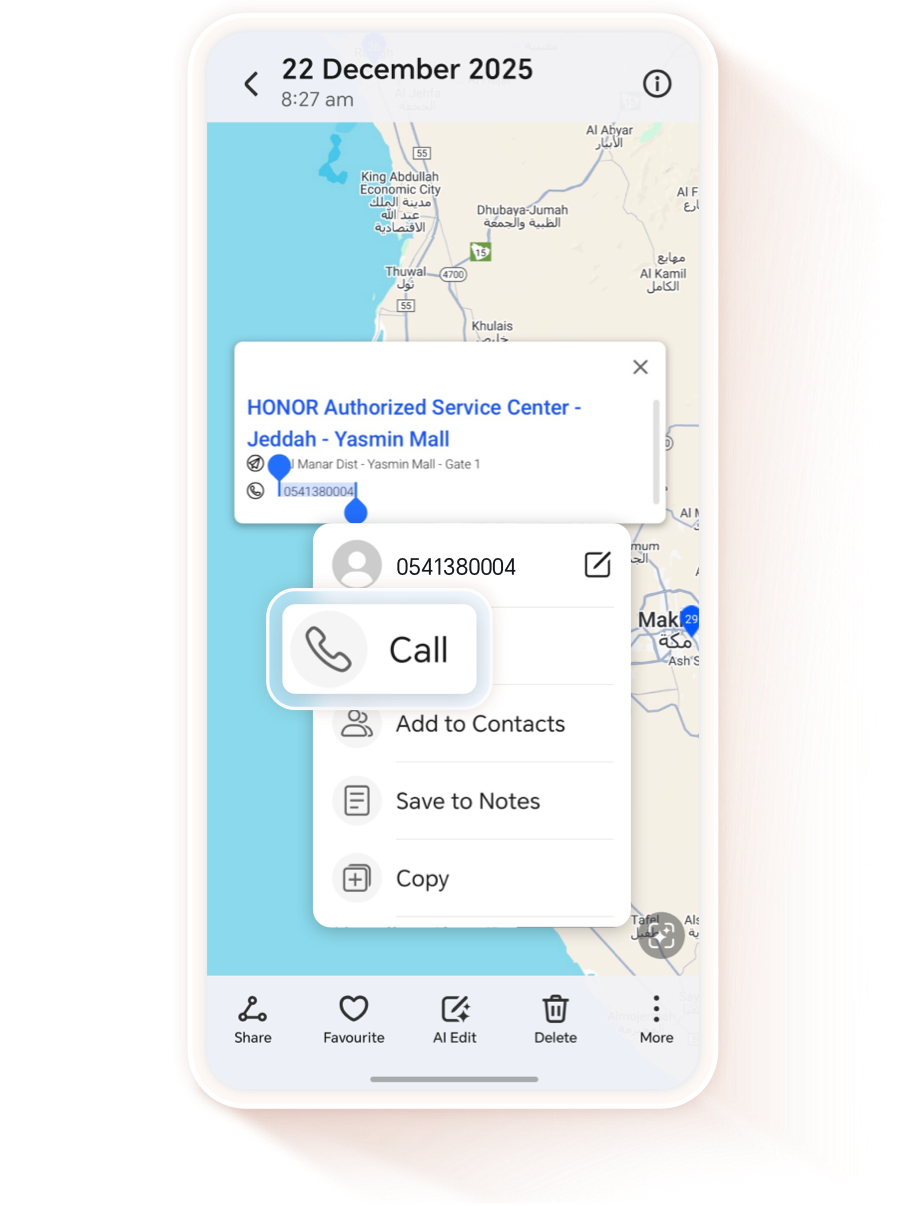
Long press the phone nubmer on the business card image, then choices for making a call or sending a message will appear, allowing you to access these options in one step.
Scan the QR code below to contact us immediately.