
Powerful AI features, all at your fingertips.
Long-press to activate. Double-press to
launch the camera. Capture every moment.
Use the AI Button to Quickly Access Most-Used Features

You can assign frequently used functions to the AI Button for instant access.

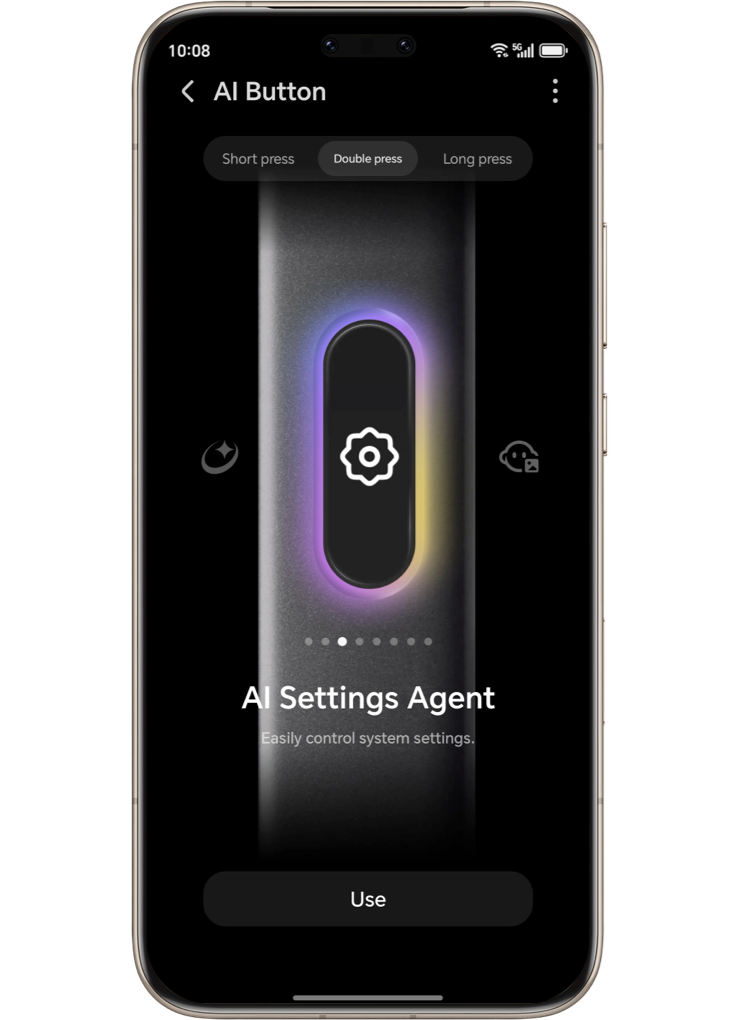
1. Go to Settings > HONOR AI > AI Button.
Based on your personal usage habits, you can customize Short Press, Long Press, and Double Press to access different functions.
Simply tap a function to complete the setup, making daily operations faster and more efficient.




Use the AI Button to Take Photos
If you select Camera as a shortcut, you can also control the camera directly using the AI Button. Go to In-camera actions > enable or disable: Slide zoom / Press and hold to focus / long press for Burst shoot or Record video.

Depending on your settings, you can short-press, double-press, or long-press the AI Button to launch the camera.


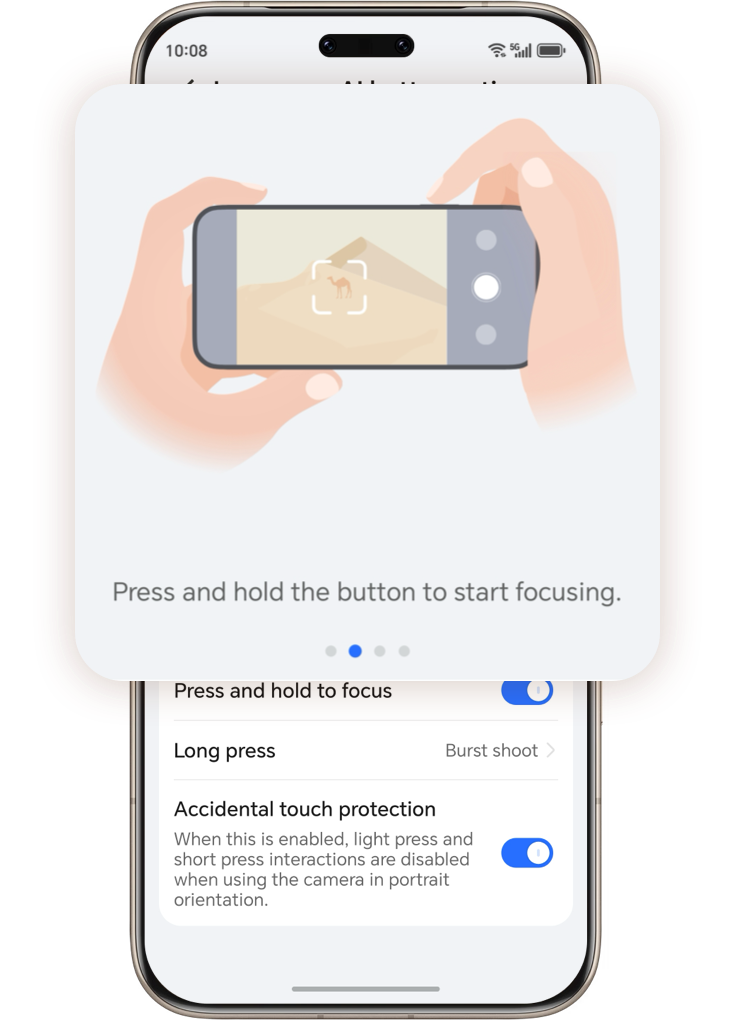


*If Accidental Touch Prevention is enabled, only short press for taking photos and long-press actions are supported in portrait mode.
2. On the AI Button settings page, tap AI Button Settings in the top-right corner. Here, you can adjust press sensitivity to prevent accidental touches, and enable Press to Wake screen if needed.


3. Once setup is complete, simply short press, long press, or double press the side AI Button to instantly access your most-used features.
*This feature is currently supported only on HONOR Magic8 Series devices. Feature availability may vary depending on the model and software version. Please refer to your actual device for details.
Scan the QR code below to contact us immediately.

Powerful AI features, all at your fingertips.
Long-press to activate. Double-press to
launch the camera. Capture every moment.
Use the AI Button to Quickly Access Most-Used Features
You can assign frequently used functions to the AI Button for instant access.
1. Go to Settings > HONOR AI > AI Button.
Based on your personal usage habits, you can customize Short Press, Long Press, and Double Press to access different functions.
Simply tap a function to complete the setup, making daily operations faster and more efficient.

Use the AI Button to Take Photos
If you select Camera as a shortcut, you can also control the camera directly using the AI Button. Go to In-camera actions > enable or disable: Slide zoom / Press and hold to focus / long press for Burst shoot or Record video.
Depending on your settings, you can short-press, double-press, or long-press the AI Button to launch the camera.
*If Accidental Touch Prevention is enabled, only short press for taking photos and long-press actions are supported in portrait mode.
2. On the AI Button settings page, tap AI Button Settings in the top-right corner. Here, you can adjust press sensitivity to prevent accidental touches, and enable Press to Wake screen if needed.
3. Once setup is complete, simply short press, long press, or double press the side AI Button to instantly access your most-used features.
*This feature is currently supported only on HONOR Magic8 Series devices. Feature availability may vary depending on the model and software version. Please refer to your actual device for details.
Scan the QR code below to contact us immediately.